
Where to Find the AI Course Builder in SuperPath
Where to Find the AI Course Builder in SuperPath
In this article:
- Overview
- Where to find the AI Course Builder
- Editing a Course you have already built
- Turning the AI Course Builder on and choosing who can use it
- Why you might not see the button
- Things to keep in mind
- FAQs
- Who can do this
Overview
The AI Course Builder lets you generate a complete, interactive Course in minutes — but only if you can find your way into it. This article covers the one thing the rest of this category assumes you have already done: getting from SuperPath into the builder, and understanding why the button might not be there.
Look for the Build Course button with the magic-wand icon. Wherever you see it, clicking it takes you straight into the AI Course Builder, already signed in — there is nothing to install and no separate login. Once you are inside, Getting Started: Generating a Course in AI course builder picks up from there.
Where to find the AI Course Builder
There are two places to start a brand-new Course.
From the Library
- Go to Content → Library in the left-hand menu.
- Click Build Course in the bar along the top of the page, just to the left of Add Content.
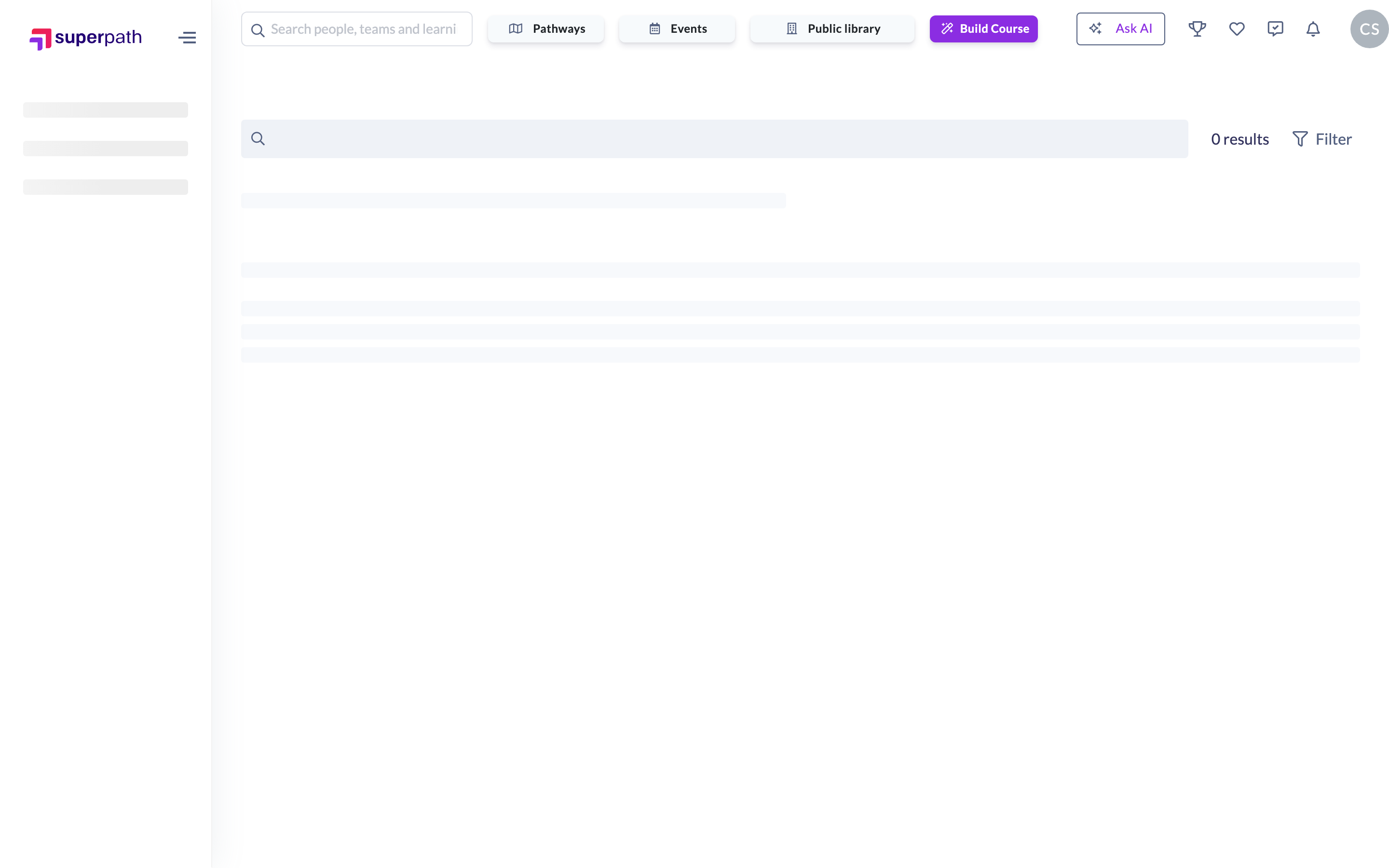
On a narrower window or a mobile device the Library buttons collapse into menus. There, open the Add menu in the top bar and choose Build Course.
From your Dashboard
- Go to Dashboard — this is the page you land on when you sign in — and stay on the My Dashboard view.
- In the Admin Actions panel on the right-hand side, click Build Course.
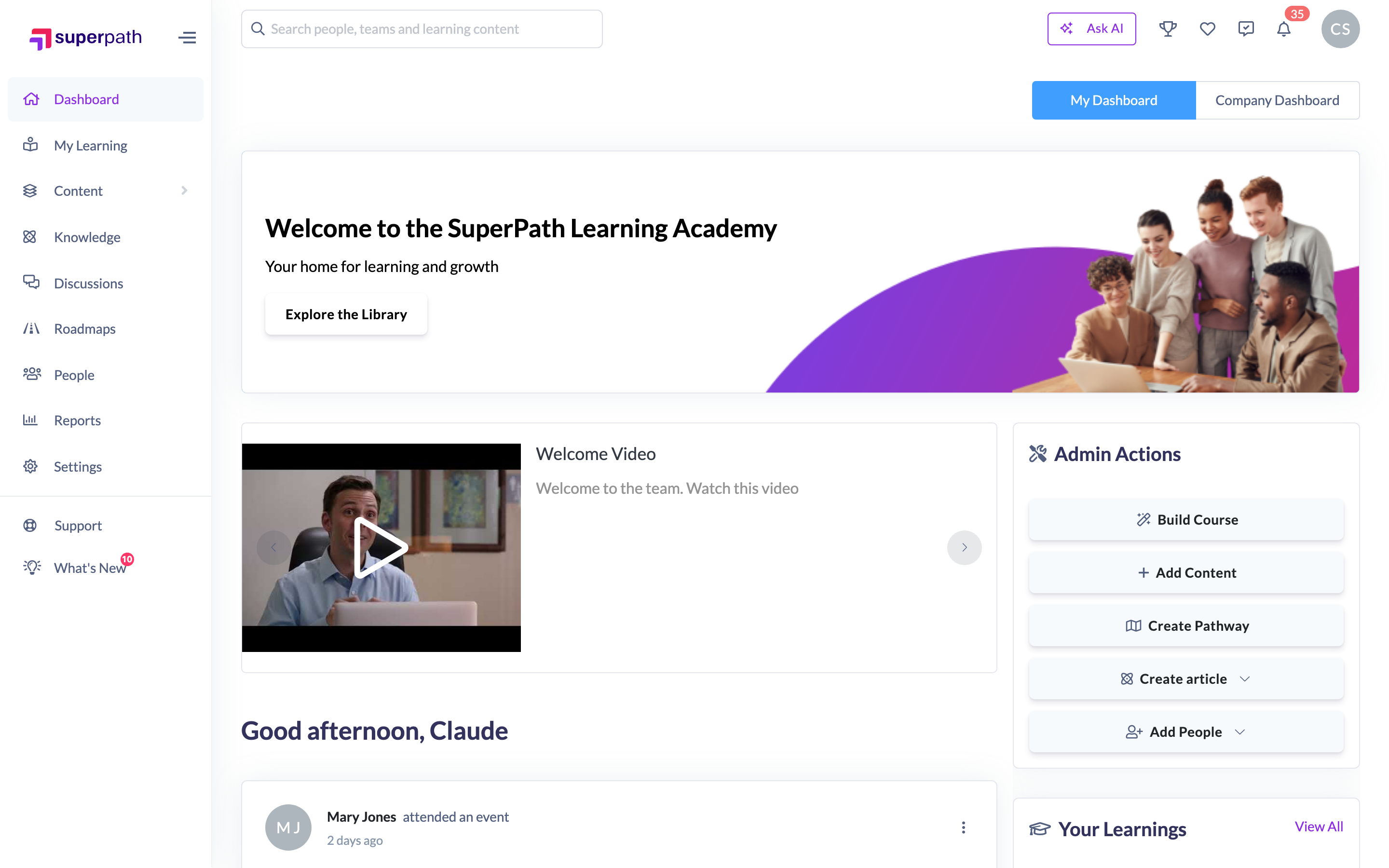
Note: The Admin Actions panel is shown to Owners and Admins only, and only on larger screens. Managers who have been given access to the builder should use the Library route above.
Editing a Course you have already built
Once a Course has been generated it lives in your Library like any other piece of content, and you go back into the builder from the Course itself.
- Go to Library and open the Course you want to change.
- Click Edit Course — the magic-wand button below the Course details, on the right.
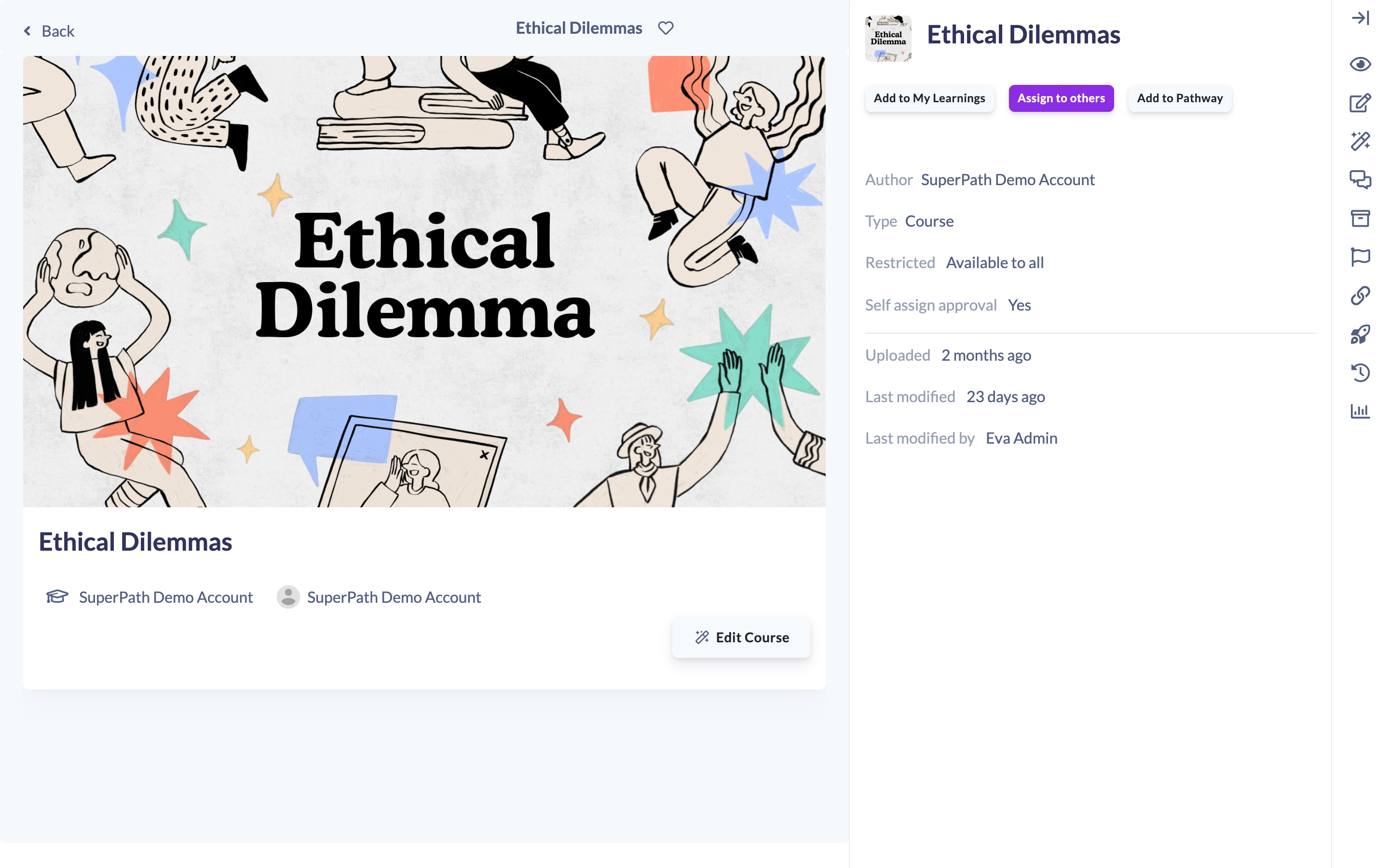
The Edit Course button only appears on Courses that were built with the AI Course Builder — Courses uploaded as SCORM packages, and every other content type, are edited in SuperPath's own editors instead. It is also hidden on mobile devices, because the builder needs a desktop-sized screen to work in.
Tip: Your learners see a Start Course, Continue Course or Review Course button on the Course cover, depending on how far through it they are. That is the learner's view of the same Course — it opens the Course to be taken, not to be edited.
Turning the AI Course Builder on and choosing who can use it
Both of the controls that decide whether the button appears live in the same place.
- Go to Settings → Features and scroll to the AI features section.
- Turn on Enable the AI course builder.
- Under Who can use the AI course builder, choose either Admins only or Admins and managers.
- Save your changes.

Admins only means Owners and Admins. Admins and managers adds Managers, Content Managers and People Managers on top of that. The setting applies everywhere the button appears — the Library, the Dashboard and the Edit Course button on an existing Course.
Why you might not see the button
Work through these in order — the first two account for almost every case.
- The AI Course Builder is switched off for your organisation. While Enable the AI course builder is off, the button is hidden from everyone, including Owners. Nobody has an override.
- Your role isn't included. If Who can use the AI course builder is set to Admins only, Managers, Content Managers and People Managers will not see the button anywhere.
- You're on the wrong page. The Build Course button in the top bar only appears while you are in the Library. It is not on the Reports, People or Settings pages.
- You're on a small screen. On the Dashboard, the Admin Actions panel is desktop-only, and the Edit Course button is hidden on mobile. Use a desktop browser to build or edit.
- The Course wasn't built with AI. Edit Course appears only on Courses created in the AI Course Builder.
Things to keep in mind
- Switching the AI Course Builder off does not take anything away from your learners. Courses you have already built stay in your Library, stay assigned, and can still be started, continued and reviewed exactly as before — only the ability to build and edit goes away.
- Turning the setting back on restores the button immediately; nothing needs to be rebuilt or re-imported.
- Changing Who can use the AI course builder takes effect the next time the affected people load a page — they may need to refresh their browser to see the button appear or disappear.
- On smaller screens the Build Course option sits inside the Add menu, which is itself only shown to people who can add content to the Library. People Managers can add people but not content, so a People Manager who has been given builder access will find Build Course on a desktop-width Library page rather than in that menu.
- Instructors are not covered by either access level, so they never see the button — even though they can create and edit other Library content.
FAQs
Do Managers need anything else before they can use the builder?
No. Set Who can use the AI course builder to Admins and managers in Settings → Features and the Build Course button appears for Managers, Content Managers and People Managers straight away.
I'm the Owner and I still can't see the button. Why?
Check Settings → Features — Enable the AI course builder is almost certainly off. That switch hides the button for every role, and there is no exception for Owners.
What happens to my existing Courses if I switch the builder off?
Nothing. They remain in your Library and your learners can still open and complete them. You just won't be able to create new ones or edit existing ones until it is switched back on.
Can learners get into the builder?
No. Employees and Restricted users never see the Build Course or Edit Course buttons. What they see is the Start Course button on Courses assigned to them, which opens the Course to be taken.
I can't find the AI course builder options in Settings → Features at all.
The AI Course Builder isn't enabled on your SuperPath instance. Contact the SuperPath Support team and they will get it set up for you.
Who can do this
Owners and Admins can reach the AI Course Builder whenever Enable the AI course builder is on. Managers, Content Managers and People Managers can reach it as well, but only while Who can use the AI course builder is set to Admins and managers. Instructors, Employees and Restricted users cannot open the builder at all, although they can still take any Course that has been assigned to them.
Changing either setting is done in Settings → Features, which only Owners and Admins can open.
Updated on: 31/07/2026
Thank you!