
How to Disconnect an Integration
How to Disconnect an Integration
In this article:
- Overview
- How to disconnect an integration
- Things to keep in mind
- FAQs
- Who can do this
Overview
Disconnecting an integration removes the connection between SuperPath and the third-party app, and stops all syncing between the two. You might do this when you no longer use the connected app, when you want to reconnect with different credentials, or when you're troubleshooting a connection. You can disconnect any integration that is currently connected, and reconnect it again later if you need to.
How to disconnect an integration
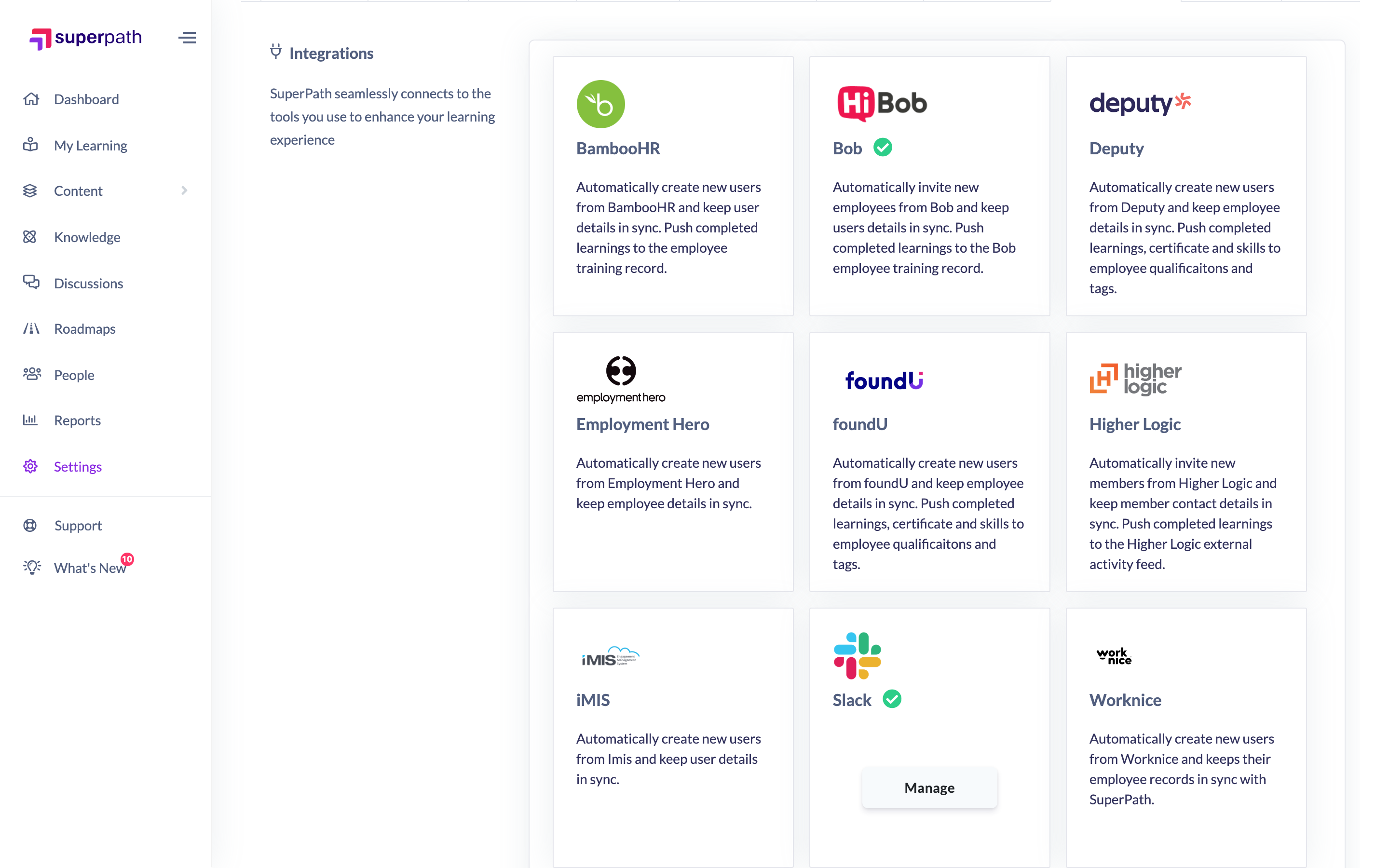
- Go to Settings → Integrations.
- In the Integrations grid, find the integration you want to disconnect. A connected integration is marked with a green tick next to its name.
- Hover over the integration's card and click Manage to open its manage window.
- In the bottom-left of the window, click Delete integration (trash icon).
- In the confirmation that appears — "Are you sure to delete this {name} integration?" with the note "This will stop all connectivity between SuperPath and {name}." — click Confirm delete. To back out without disconnecting, click Cancel.
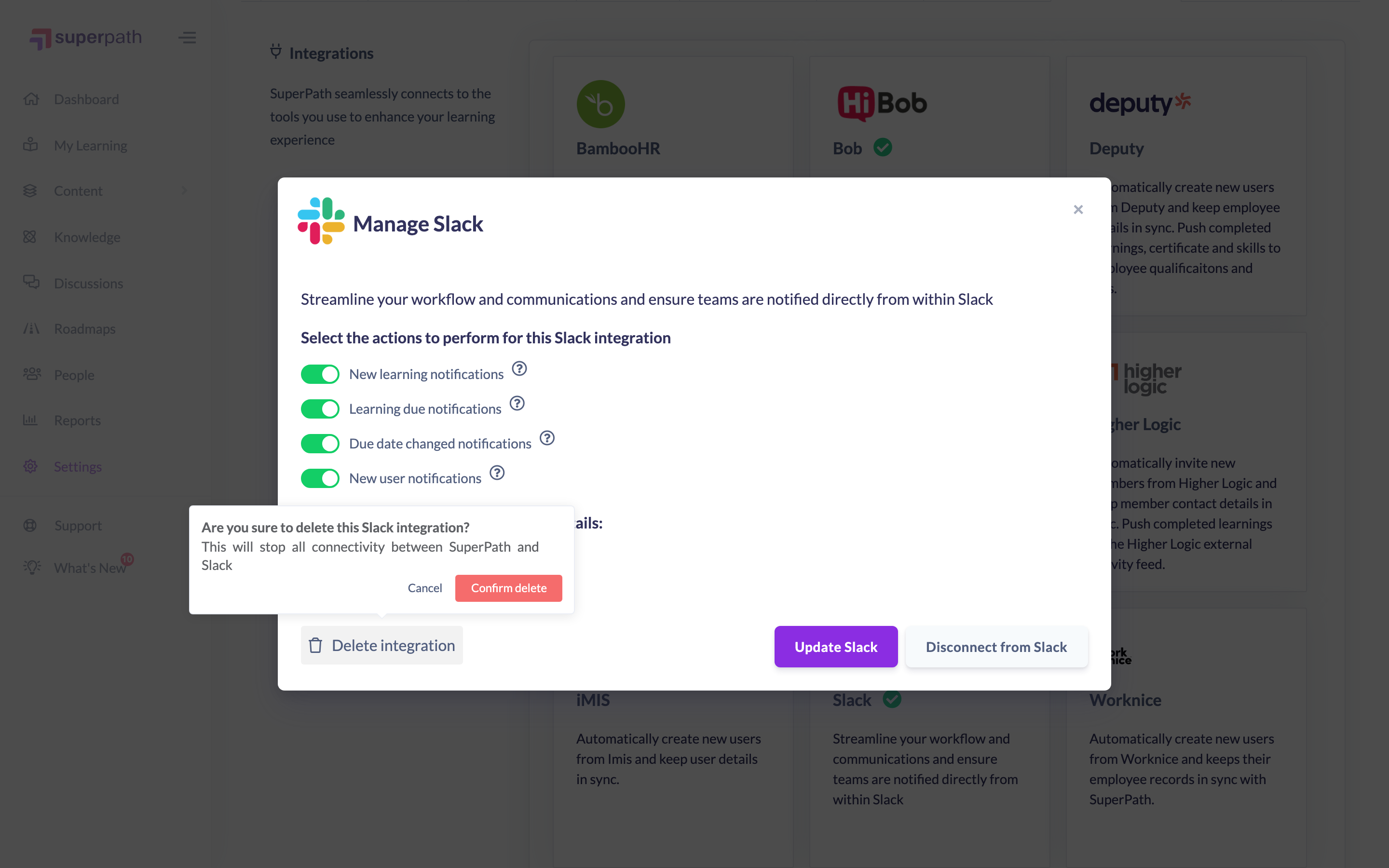
Once confirmed, SuperPath removes the integration's connection and configuration, and all syncing between SuperPath and that app stops.
Things to keep in mind
- The disconnect control only appears for integrations that are currently connected. If an integration hasn't been connected, there's nothing to disconnect.
- Disconnecting stops all connectivity between SuperPath and the app — any syncing configured for that integration will no longer run.
- Reconnecting an integration later means setting it up again, including re-entering any connection details or credentials it requires.
FAQs
Can I reconnect an integration after disconnecting it?
Yes. Once disconnected, the integration returns to the grid as available — hover over its card, click View details, and connect it again. You'll need to provide its connection details again.
Where can I check what an integration was doing before I disconnect it?
Open the integration's manage window to review its configured actions before disconnecting. You can also review recent activity from Settings → Integrations → View Integration Logs.
Who can do this
Only Owners and Admins can disconnect an integration. All Settings pages, including Integrations, are restricted to Owners and Admins — Managers, People Managers, Content Managers, Instructors, Employees and Restricted users cannot access them.
Updated on: 19/07/2026
Thank you!