
How to Generate an API Key
How to Generate an API Key
In this article:
- Overview
- Before you start
- How to generate an API key
- Things to keep in mind
- FAQs
- Who can do this
Overview
An API key lets you connect your own apps and services to SuperPath through the SuperPath API. The key authenticates API requests and grants access to your company's data in SuperPath, so it should be treated like a password and stored securely.
Note: API keys are only available on paid accounts. On a free plan the API keys section shows a message that access to the SuperPath API is only available for paid accounts, with a link to your Billing settings to upgrade. Once you're on a paid plan, the section shows the tools to generate and manage keys.
Before you start
This article covers how to create a key. For how to use the key to authenticate your API requests, see Learn how to authenticate with the SuperPath API.
How to generate an API key
- Go to Settings → Integrations.
- Scroll to the API keys section.
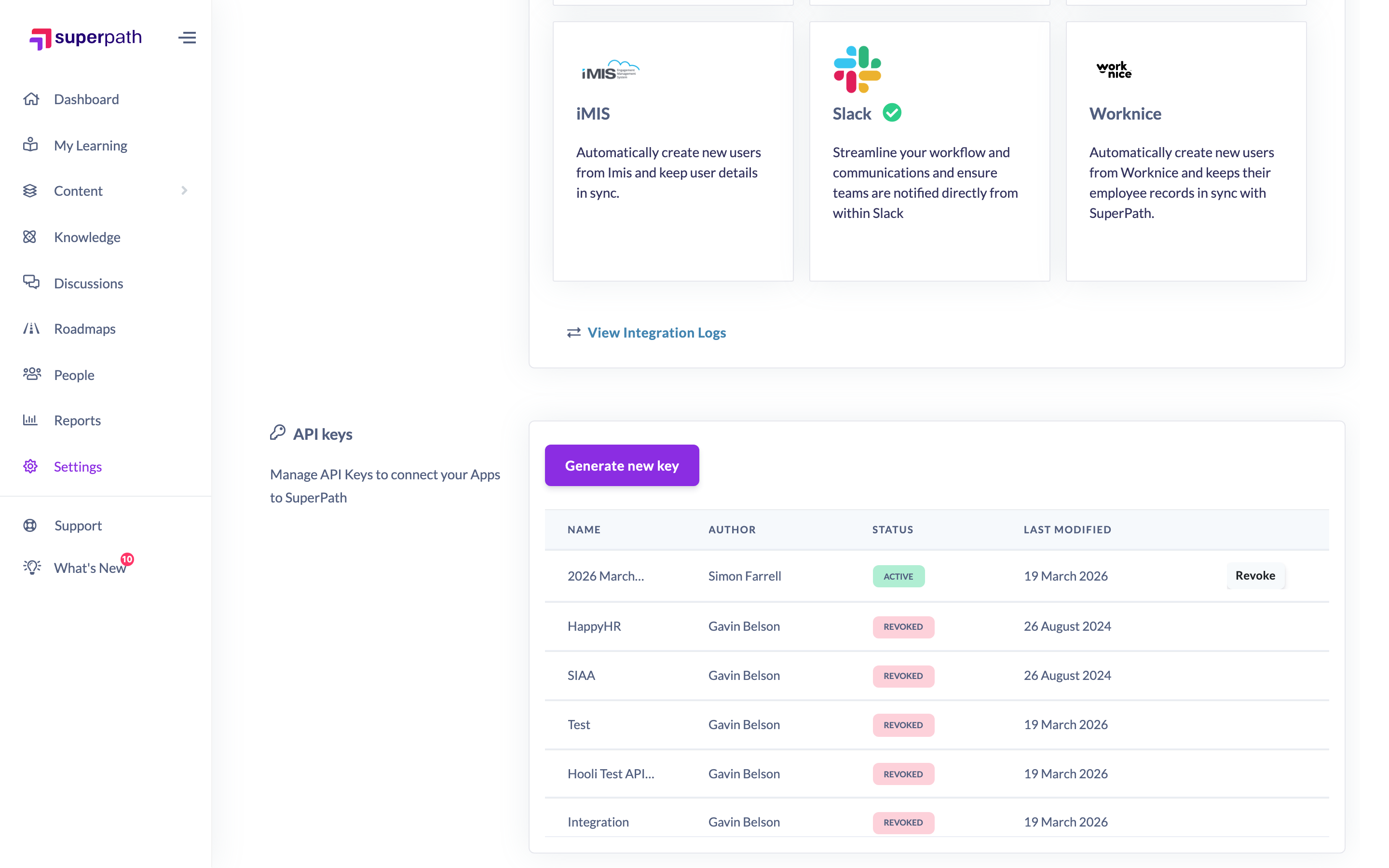
- Click Generate new key.
- In the window that opens, optionally enter a Key name to describe what the key is for (this helps you identify it later in the keys table). This is optional.
- Click Generate.
- Your new key is shown once, with the message "Please copy this key as it will NOT be visible again". Click the key (or the copy icon beside it) to copy it, then store it somewhere secure.
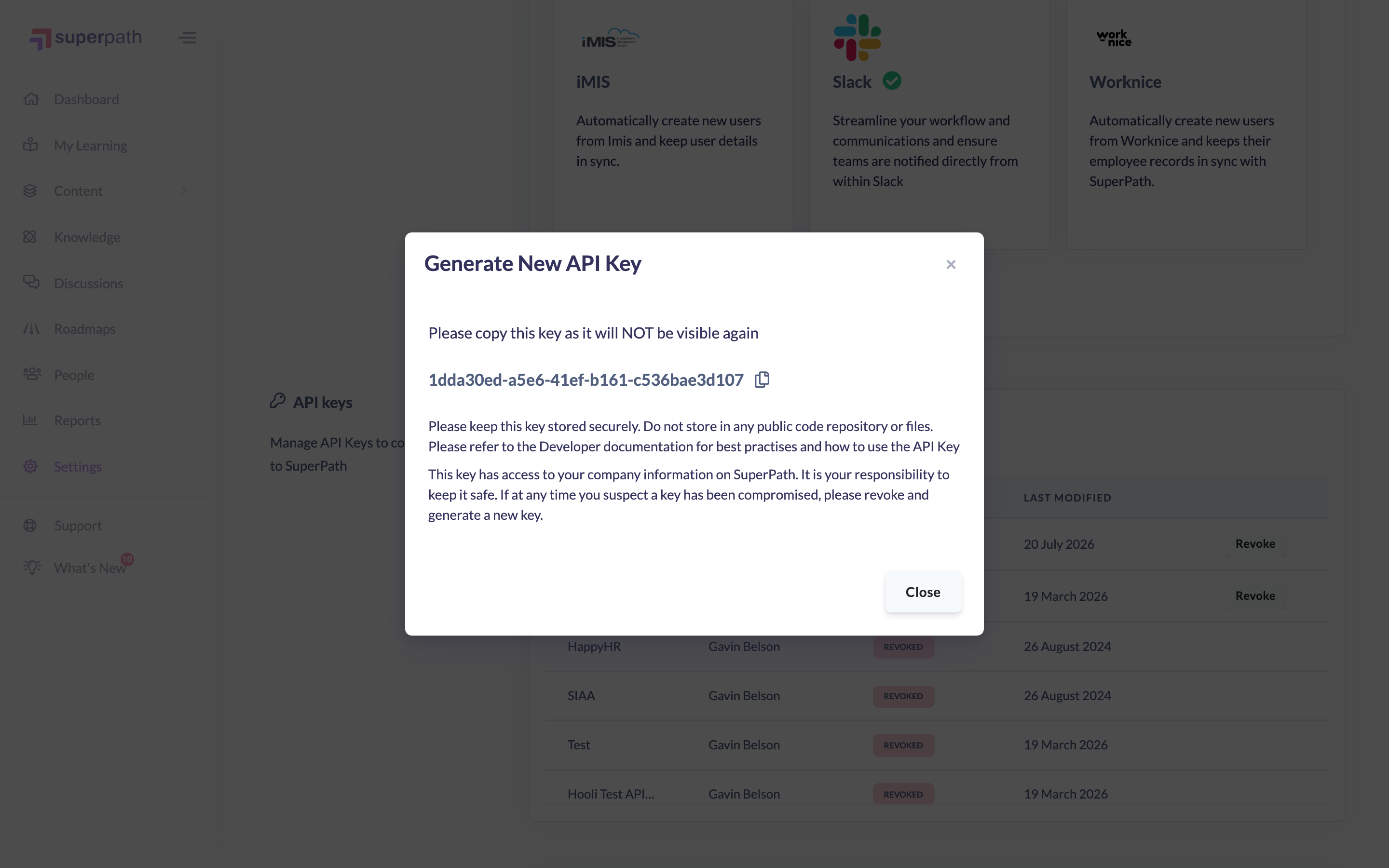
- Click Close when you're done.
Things to keep in mind
- The key is displayed once. Copy it before closing the window — if you lose it, you can't view it again and will need to generate a new one.
- This key has access to your company information on SuperPath, so keep it stored securely. Don't store it in any public code repository or shared files.
- It's your responsibility to keep the key safe. If you suspect a key has been compromised, revoke it and generate a new one.
- The new key appears in the API keys table with an active status, showing its name, author and last-modified date.
FAQs
Do I have to give the key a name?
No — the name is optional. It's only used to help you recognise the key later in the keys table, so a descriptive name (for example, the app it's used by) is worth adding.
How do I use the key once I've generated it?
See the developer documentation, Learn how to authenticate with the SuperPath API, for how to authenticate your requests and best practices for handling keys.
What if I lose the key?
Keys can't be viewed again after the generate window is closed. If you've lost a key, generate a new one — and revoke the old key if it may have been exposed.
Why can't I see the API keys section?
API keys are only available on paid accounts. On a free plan you'll see a message pointing you to your Billing settings to upgrade.
Who can do this
Only Owners and Admins can generate API keys, and only on a paid plan. All Settings pages, including Integrations, are restricted to Owners and Admins — Managers, People Managers, Content Managers, Instructors, Employees and Restricted users cannot access them.
Updated on: 19/07/2026
Thank you!