
How to Register a Webhook
How to Register a Webhook
In this article:
- Overview
- Before you start
- How to register a webhook
- Things to keep in mind
- FAQs
- Who can do this
Overview
Webhooks let SuperPath push real-time notifications to your own apps and platforms whenever something happens in your account — for example, when a new user is created, a learner completes some content, or a user earns points. When you register a webhook, SuperPath sends a JSON payload by HTTPS POST to an endpoint URL you control every time one of your subscribed events occurs, so you can keep other systems in sync without polling.
Webhooks are managed in the Manage webhooks section of Settings → Integrations.
Note: Webhooks are only available on paid accounts. If your account is on a free plan, the Manage webhooks section shows a message that webhooks are only available for paid accounts, with a link to your Billing settings to upgrade.
Before you start
You will need a publicly accessible HTTPS endpoint ready to receive the webhook payloads — the form only accepts endpoint URLs that start with https://. For details on building and testing a receiving endpoint (the payload shape, returning a 2xx response, and retries), see the developer guide Webhooks - Get updates in real-time.
How to register a webhook
- Go to Settings → Integrations and scroll to the Manage webhooks section.
- Click Add webhook. (Next to it, the Webhook documentation link opens the developer guide in a new tab.)
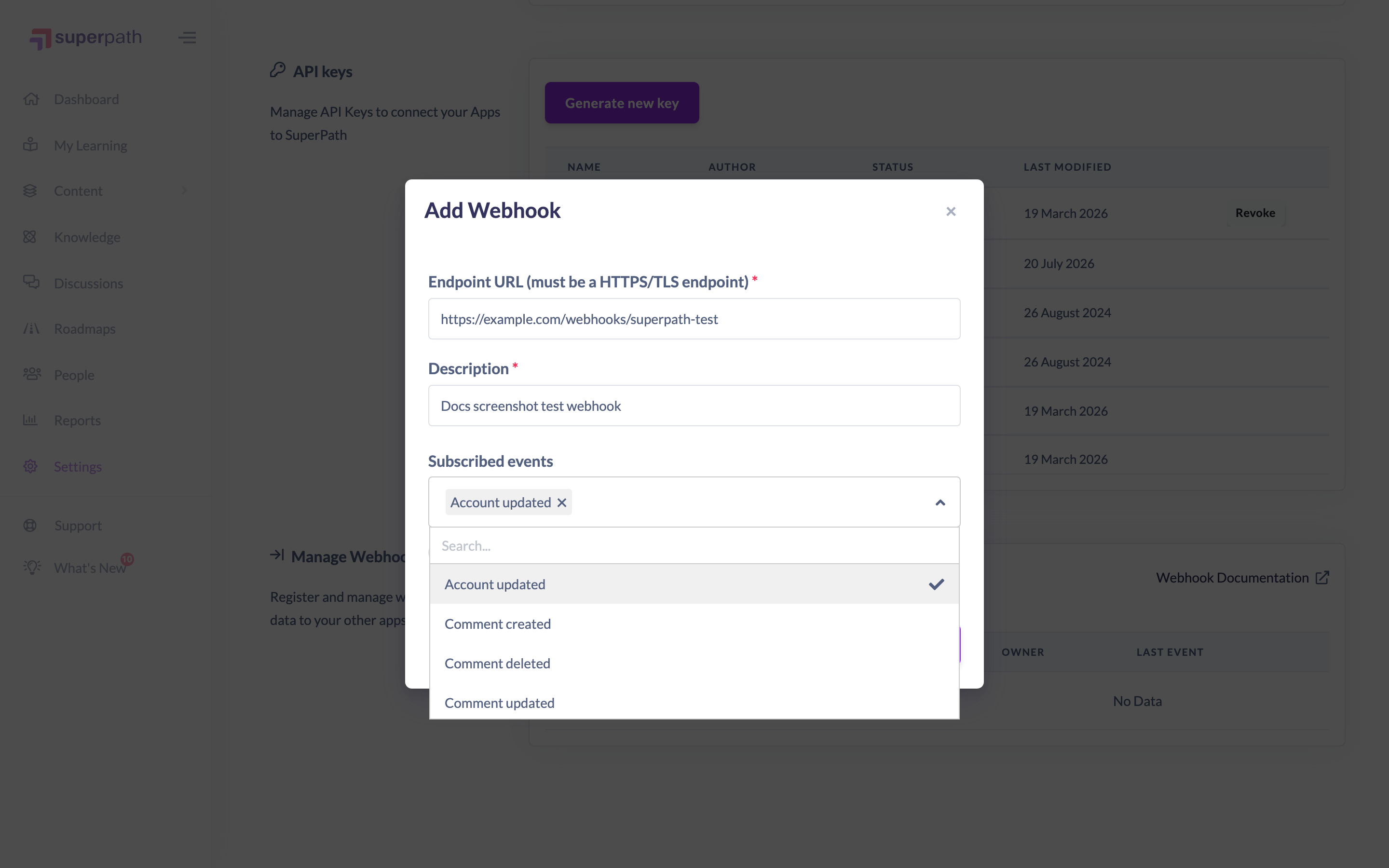
- In the Add Webhook window, enter your Endpoint URL. This is required and must be an HTTPS/TLS endpoint — a URL that starts with
https://. - Enter a Description so you can recognise the webhook later, for example "Sync new users to our CRM". A description is required.
- Under Subscribed events, open the Select events to subscribe to picker and choose one or more events. You must select at least one event. Available events cover create, update and delete across Users, User Teams, Teams, Learnings, Events, Forms, Responses, Content, Points and Comments, plus an Account updated event.
- (Optional) To have SuperPath sign each delivery so your endpoint can verify it, turn on Webhook signature auth. See the article How to Secure a Webhook with Signature Authentication for how this works.
- Click Add to save the webhook.
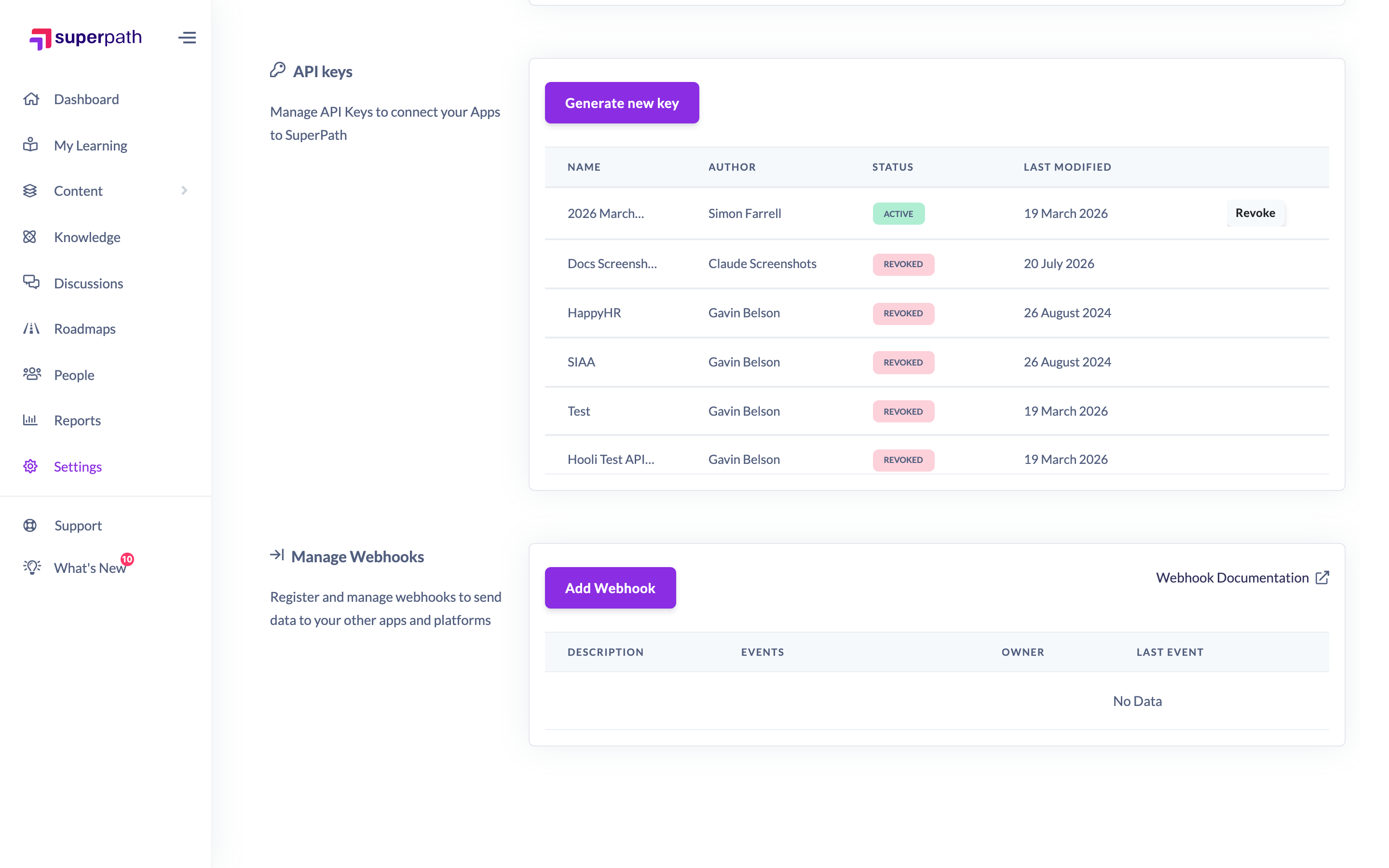
Once saved, the webhook appears in the webhooks table with its Description, Events, Owner, Last event, Modified and Status. From then on, whenever one of your subscribed events occurs, SuperPath POSTs a JSON payload to your endpoint URL.
Things to keep in mind
- The endpoint URL must be an HTTPS/TLS endpoint — non-
https://URLs are rejected by the form. - At least one subscribed event is required; a webhook with no events cannot be saved.
- For how to receive and parse the payload, return a 2xx response, and how retries behave, see the developer guide Webhooks - Get updates in real-time.
- Webhooks are only available on paid plans.
FAQs
What happens after I register a webhook?
Whenever one of the events you subscribed to occurs in your account, SuperPath sends an HTTPS POST request with a JSON payload to your endpoint URL. Your endpoint should read the event type and payload and return a 2xx response quickly.
Which events can I subscribe to?
Create, update and delete events for Users, User Teams, Teams, Learnings, Events, Forms, Responses, Content, Points and Comments, plus an Account updated event.
Can I secure the webhook so I know it really came from SuperPath?
Yes. Turn on Webhook signature auth when adding or editing the webhook, then verify the signature on your endpoint. See the article How to Secure a Webhook with Signature Authentication.
Can I change the URL, description or events later?
Yes — see the article How to Edit or Delete a Webhook.
Who can do this
Only Owners and Admins can register webhooks. Managers, Content Managers, People Managers, Instructors, Employees and Restricted users cannot — the webhooks feature lives under Settings, which is available to Owners and Admins only.
Updated on: 19/07/2026
Thank you!