
How to Edit or Delete a Webhook
How to Edit or Delete a Webhook
In this article:
- Overview
- How to edit a webhook
- How to delete a webhook
- Things to keep in mind
- FAQs
- Who can do this
Overview
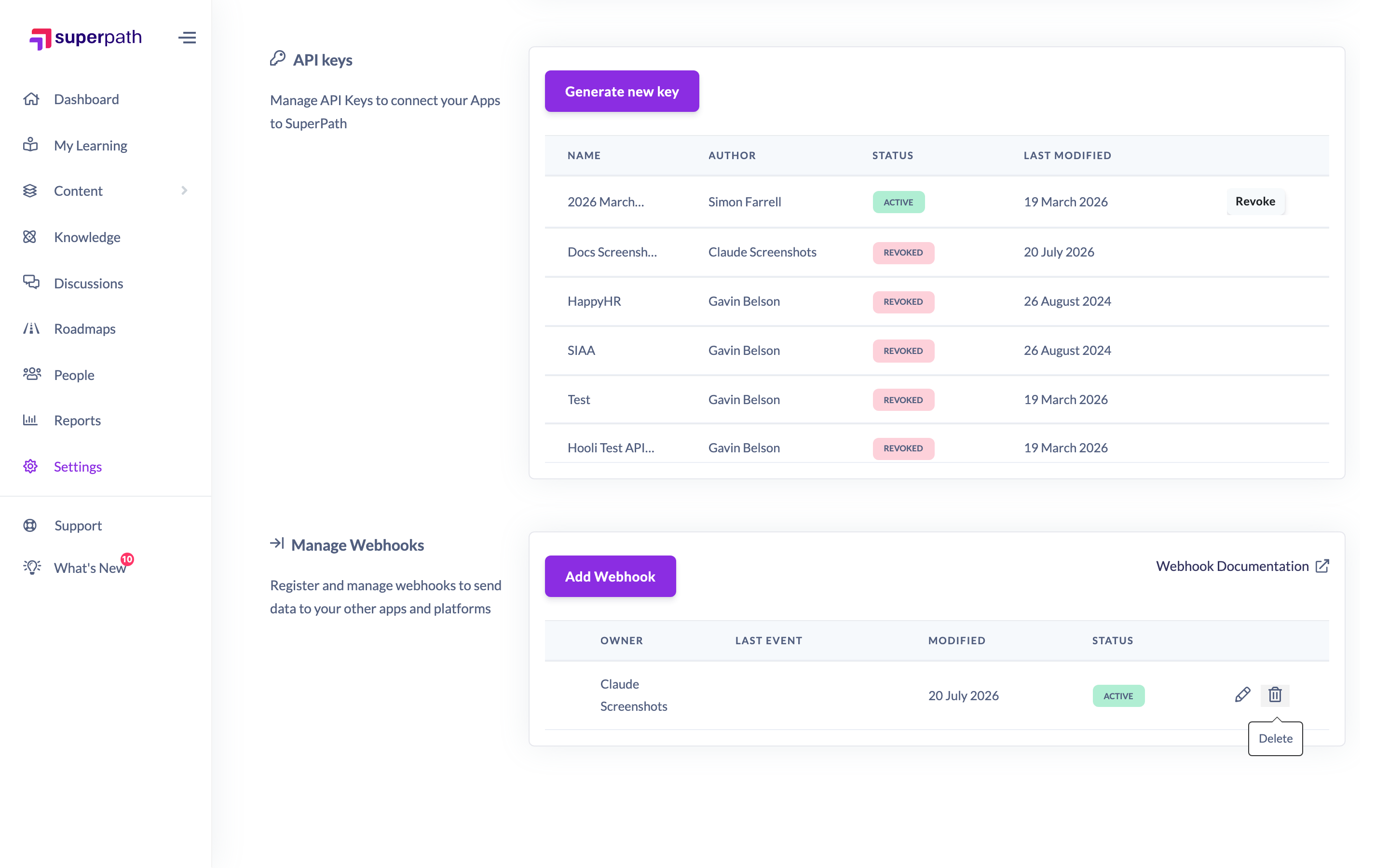
Once you have registered a webhook, you can update its endpoint URL, description, subscribed events or signature settings at any time — or delete it entirely if you no longer want SuperPath to send data to that endpoint. Both actions are done from the webhooks table in the Manage webhooks section of Settings → Integrations.
Each row in the table shows the webhook's Description, Events, Owner, Last event, Modified and Status, with an edit (pencil) and delete (trash) action on the right.
Note: Webhooks are only available on paid accounts. If your account is on a free plan, the Manage webhooks section shows a message that webhooks are only available for paid accounts, with a link to your Billing settings to upgrade.
How to edit a webhook
- Go to Settings → Integrations and scroll to the Manage webhooks section.
- Find the webhook in the table and click the pencil (edit) icon in its row.
- The Update Webhook window opens, pre-filled with the webhook's current details.
- Change the Endpoint URL, Description, Subscribed events or Webhook signature auth settings as needed. The endpoint URL must still be an HTTPS/TLS endpoint, and at least one event must be selected.
- Click Update to save your changes.
How to delete a webhook
- Go to Settings → Integrations and scroll to the Manage webhooks section.
- Find the webhook in the table and click the trash (delete) icon in its row.
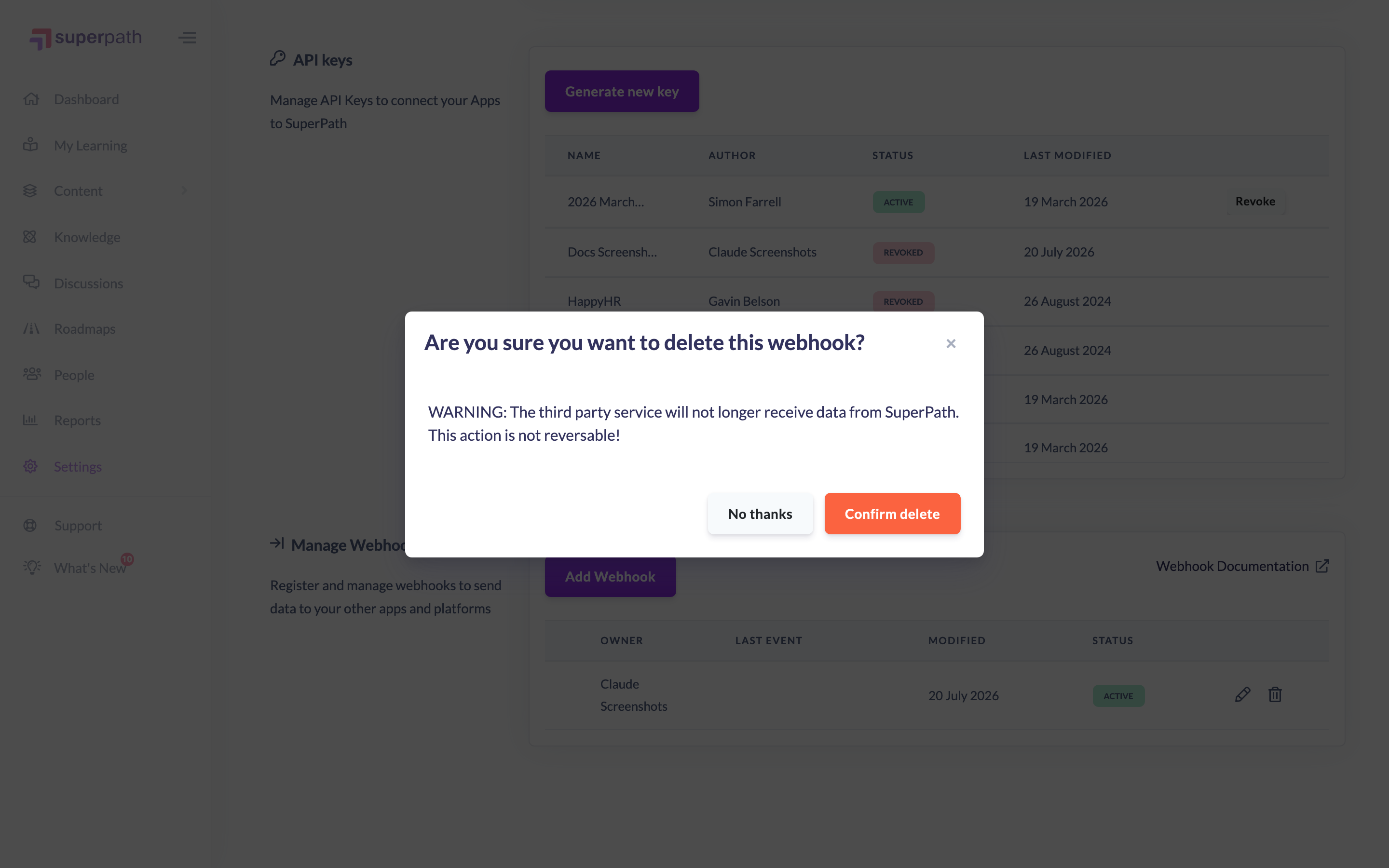
- A confirmation window appears asking "Are you sure you want to delete this webhook?" and warning that the third-party service will no longer receive data from SuperPath and that the action is not reversible.
- Click Confirm delete to remove the webhook, or No thanks to keep it.
Things to keep in mind
- Deleting a webhook is not reversible — the third-party service will stop receiving data from SuperPath immediately. If you only want to change where events go, edit the webhook instead of deleting it.
- When editing, the endpoint URL must start with
https://and at least one subscribed event is required, just as when you first registered the webhook. - If you regenerate the secret key while editing a webhook that uses signature authentication, remember to update the new key on your receiving endpoint. See the article How to Secure a Webhook with Signature Authentication.
FAQs
Can I change which events a webhook listens to?
Yes. Open the webhook with the edit (pencil) icon, adjust the Subscribed events selection, and click Update.
Is deleting a webhook reversible?
No. The delete confirmation warns that the action is not reversible and that the third-party service will no longer receive data from SuperPath.
What happens to my endpoint when I delete a webhook?
SuperPath simply stops sending events to that endpoint URL. Nothing is changed on your endpoint itself.
Who can do this
Only Owners and Admins can edit or delete webhooks. Managers, Content Managers, People Managers, Instructors, Employees and Restricted users cannot — the webhooks feature lives under Settings, which is available to Owners and Admins only.
Updated on: 19/07/2026
Thank you!