
Customising the Library
Customising the Library
In this article:
- Overview
- Set your Library banner
- Other ways to customise the Library
- Who can do this
Overview
Your Library is where learners browse and discover content, so it's worth tailoring it to your organisation. From Settings → Library you can give the Library your own banner, choose which categories learners see, and control what appears in it. Prefer to watch? Here's a quick walkthrough:
Set your Library banner
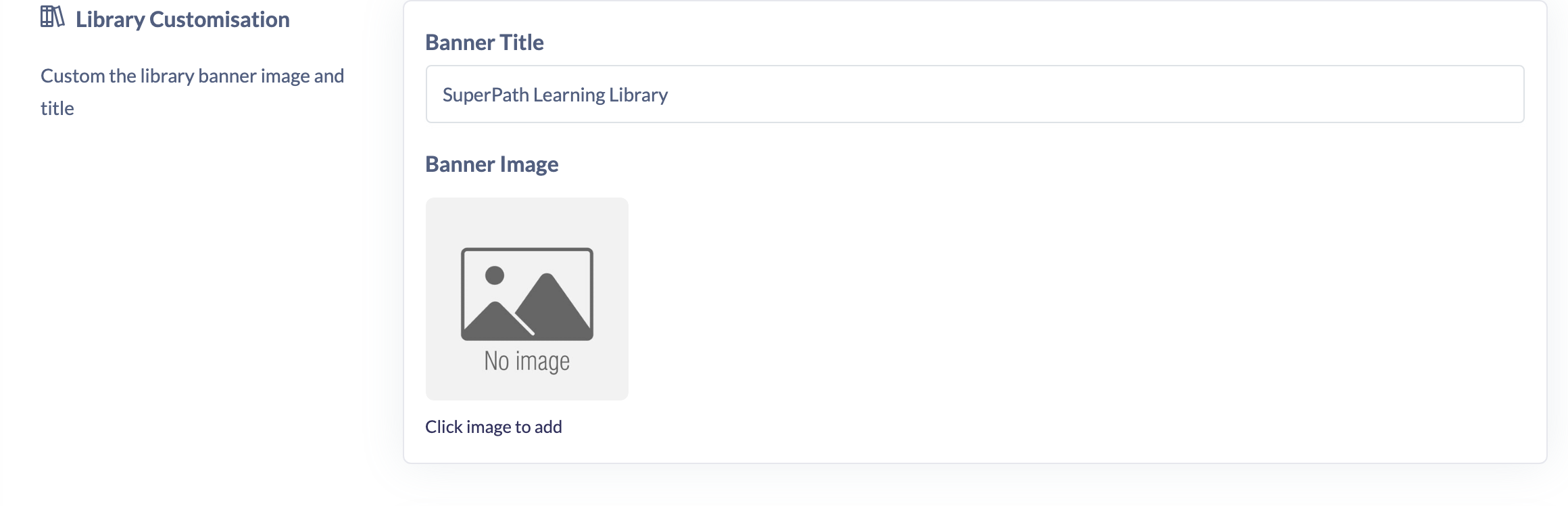
The Library Customisation section lets you brand the top of your Library:
- Go to Settings → Library.
- In the Library Customisation section, enter a Banner Title.
- Set a Banner Image using the image picker — click the image to add or edit it.
Other ways to customise the Library
The same Settings → Library page brings together the rest of your Library controls:
- Manage Categories — add your own categories, and hide or show categories so learners only see the ones that are relevant. See Managing Custom Categories.
- Library Content settings — toggles that control what appears in the Library, such as public events and the public Library.
Who can do this
Owners and Admins can customise the Library — these settings live under Settings → Library, which only Owners and Admins can access. Managers, Content Managers, People Managers, Instructors, Employees and Restricted users cannot.
Updated on: 24/07/2026
Thank you!