
How to upload content from your computer
How to Upload Content from Your Computer
In this article:
- Overview
- How to upload a file from your computer
- Things to keep in mind
- FAQs
- Who can do this
Overview
You can upload your own learning content directly into your SuperPath Library — PDFs, documents, videos and other files that are custom to your organisation. Once uploaded, the content sits in your Library ready to be assigned to people, added to Pathways or grouped into Roadmaps, just like any other learning.
How to upload a file from your computer
- Click Add content at the top of the screen.
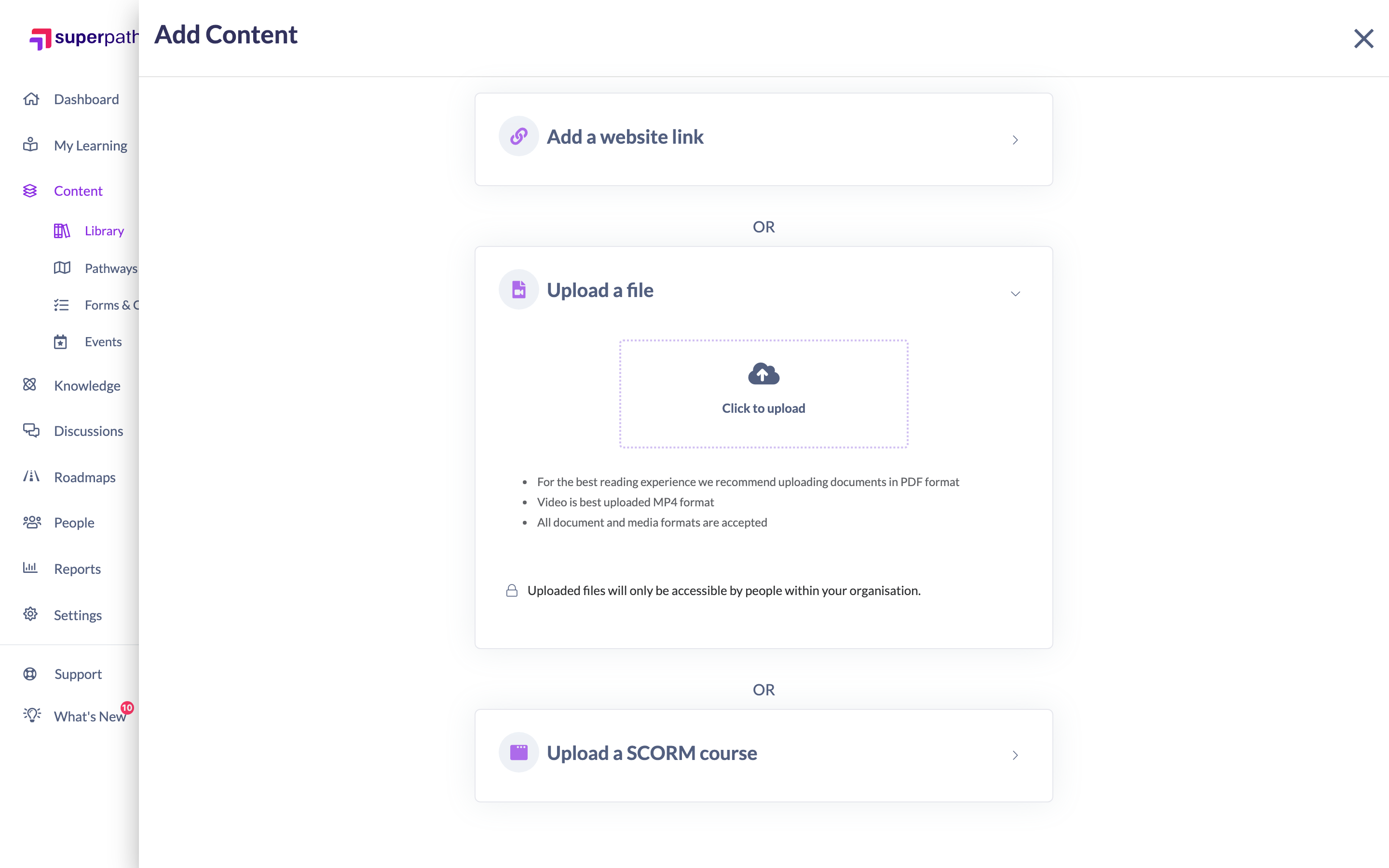
- In the panel that opens, choose Upload a file.
- Select Click to upload and browse to your file, or drag and drop the file straight into the box.
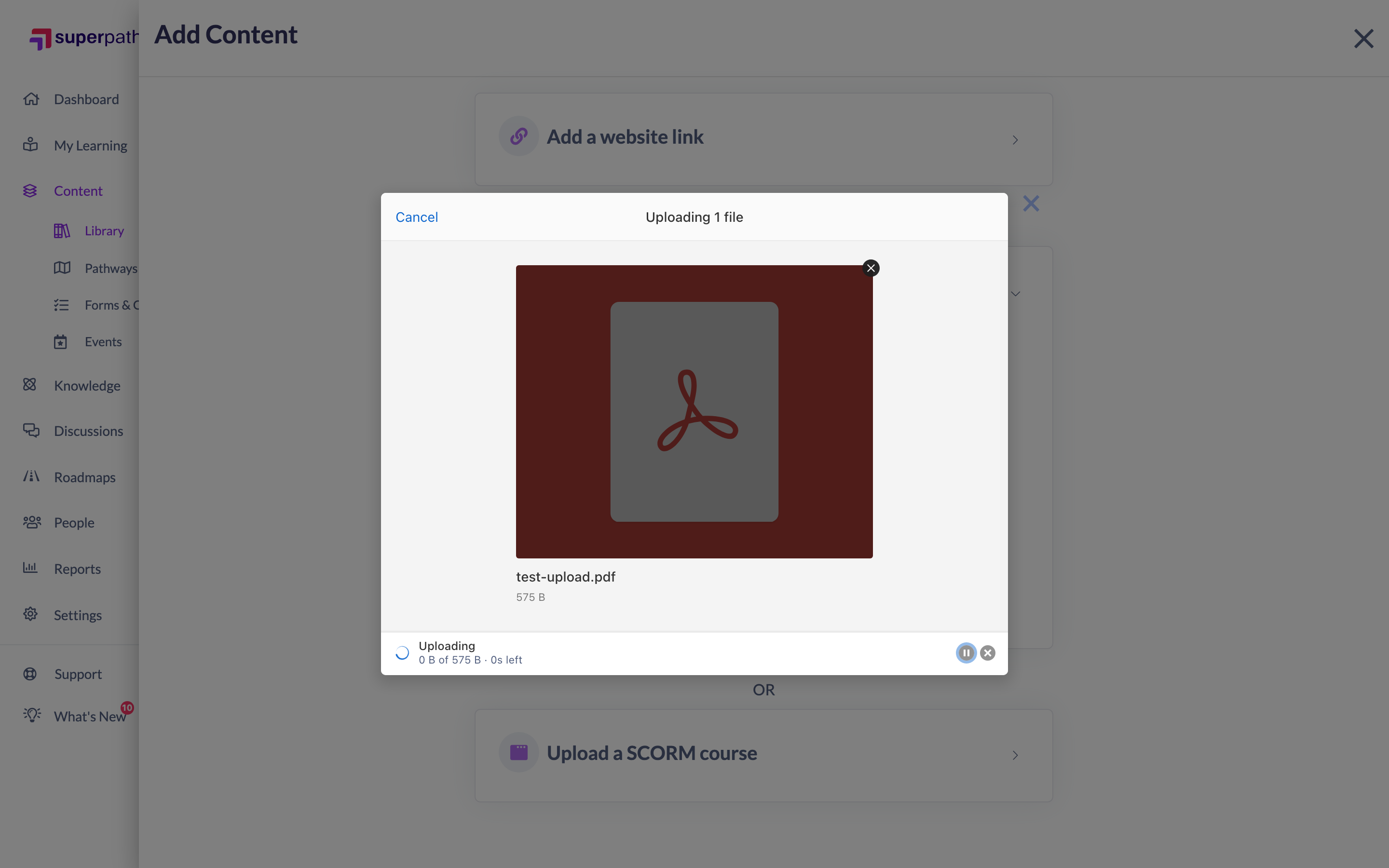
- Wait for the file to finish uploading.
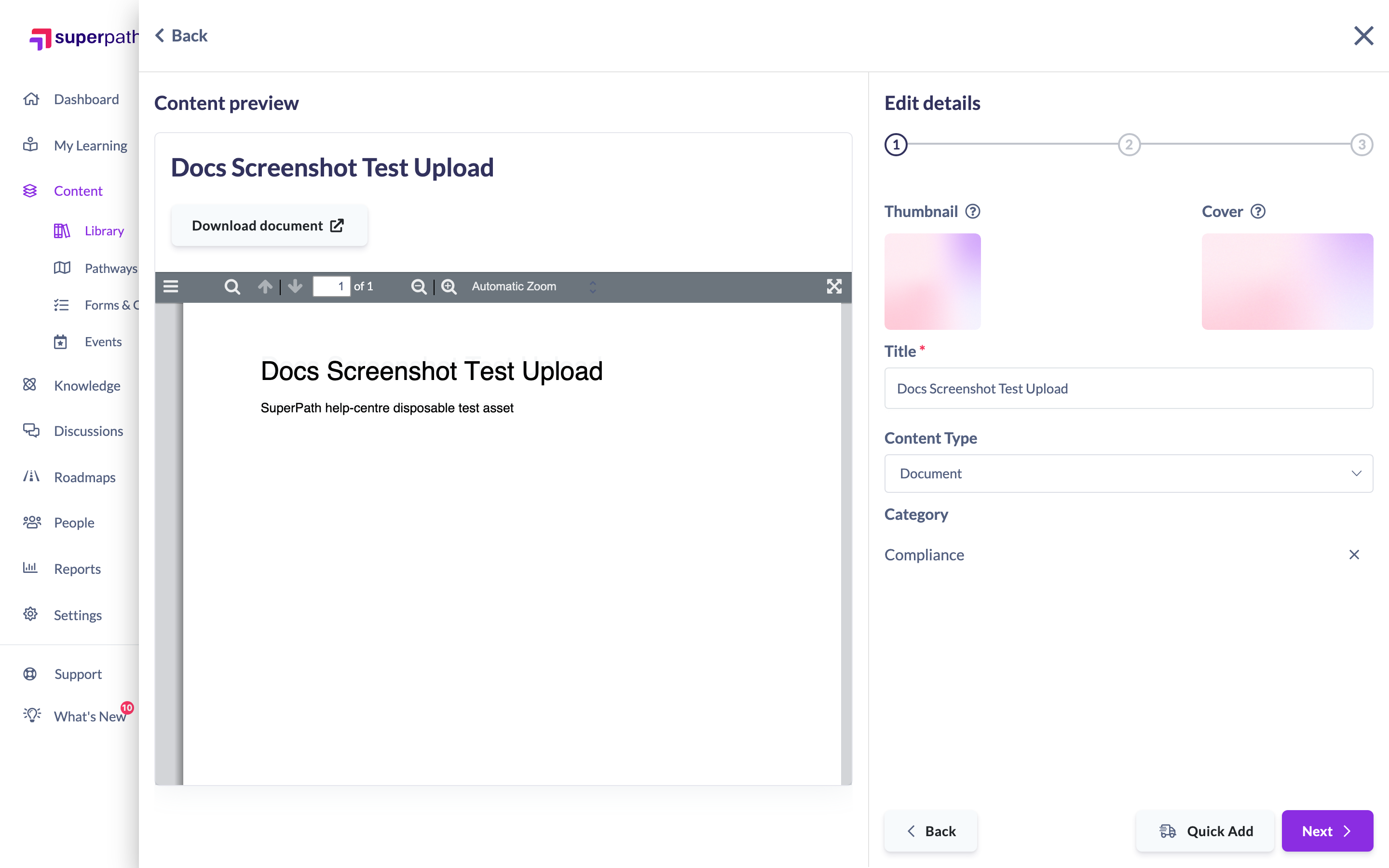
- On the first step of Edit details, enter a Title for your content and choose a Content type (such as Article, Document or Video). You can also add a Thumbnail and Cover image, and select a Category to help people find it in the Library.
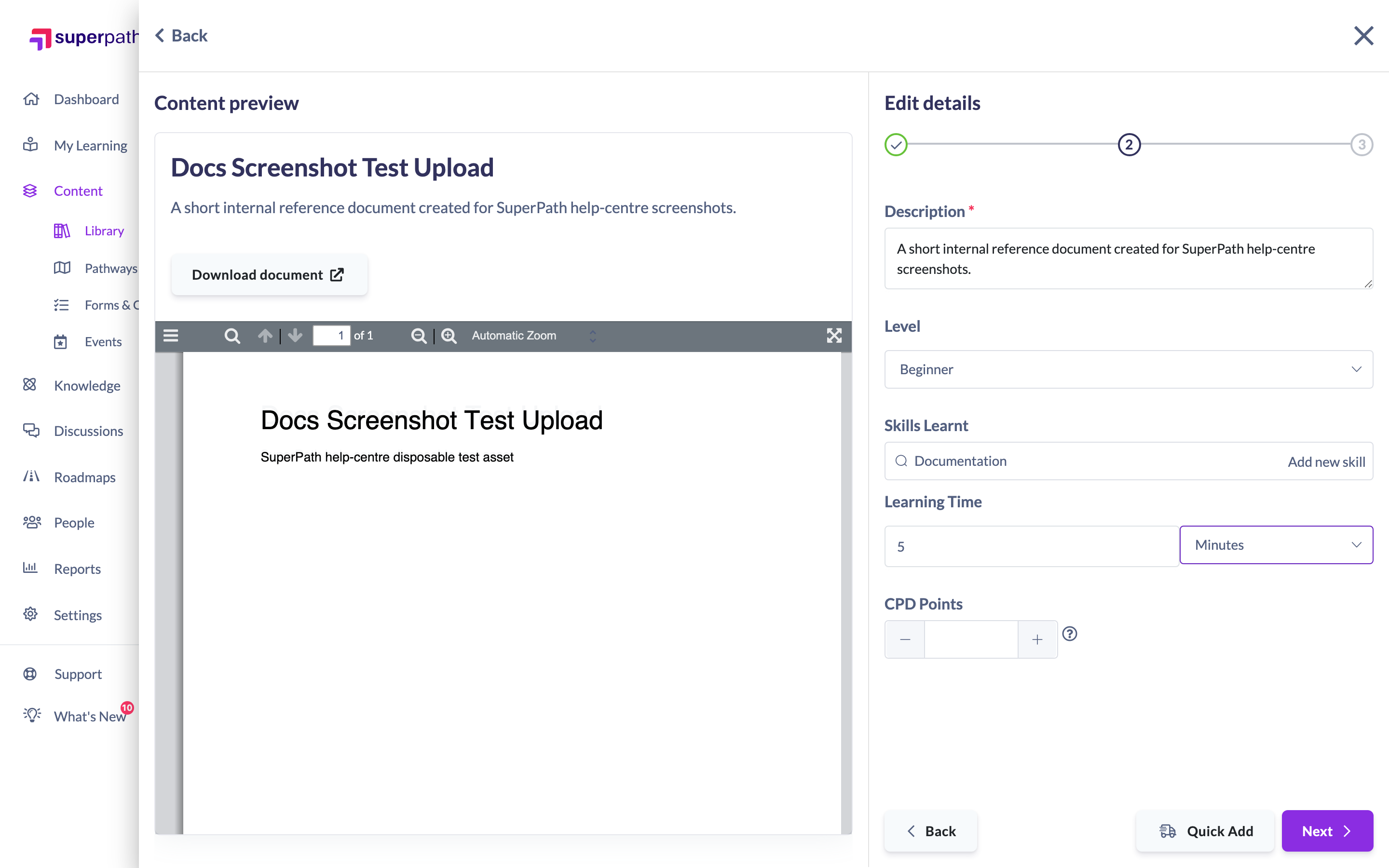
- Click Next, then add a Description so learners understand what the content covers and why it matters. Optionally set a Level (experience level), the Skills learnt, and the Learning time — a length value and a unit such as minutes, hours, lessons or pages. Setting a level and learning time helps you classify content, assign it to the right Teams, and lets Managers and Admins track learning hours.
- Click Next to reach the final step, then enter the Author (if the author is unknown, use your organisation's name). Optionally set a Date published, mark whether the content Requires purchase and add a price, restrict it to specific Teams, and add Tags to make it easier to find.
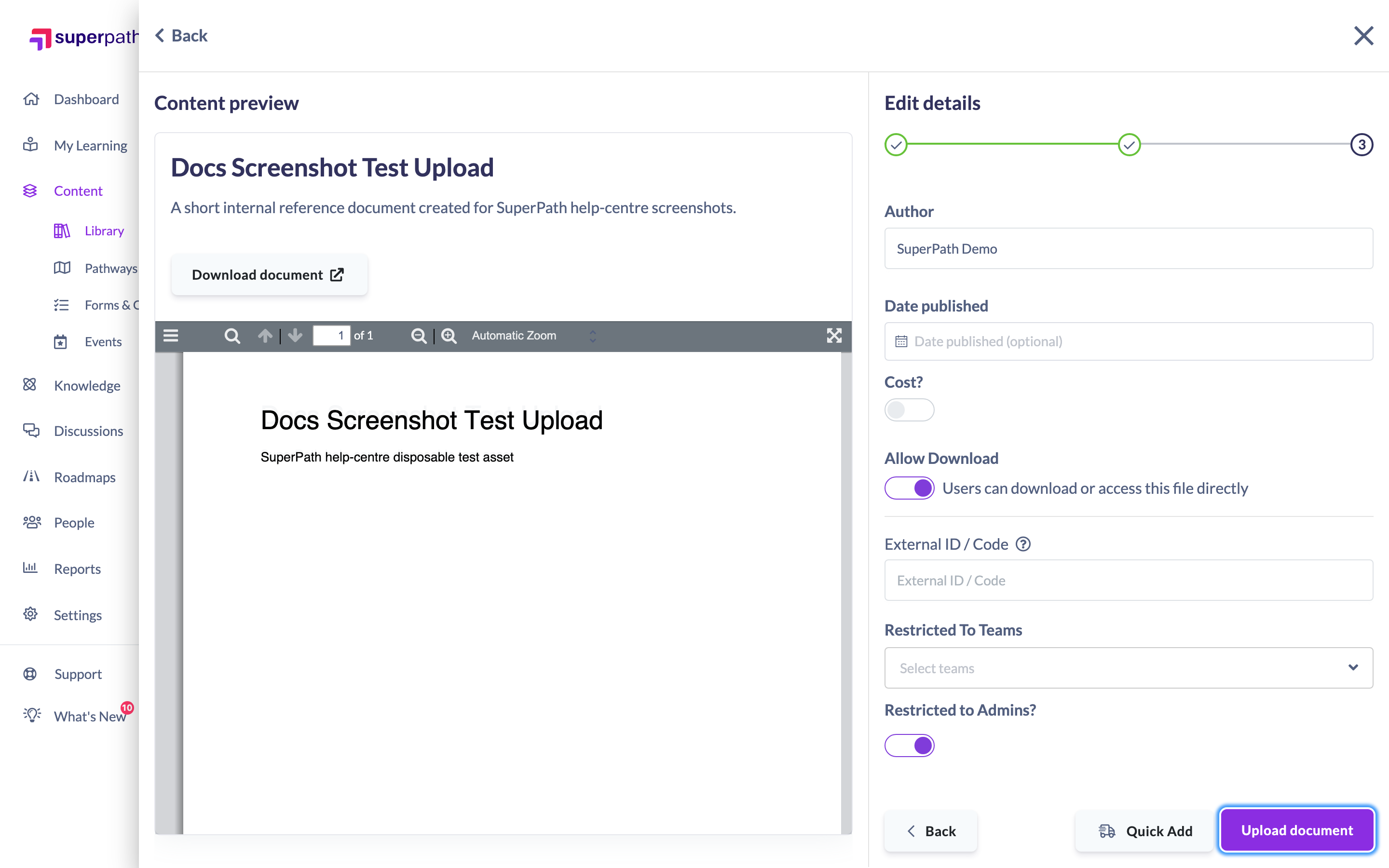
- Click Upload (the button shows Upload [content type], e.g. Upload article) to finish. Your content is now in the Library.
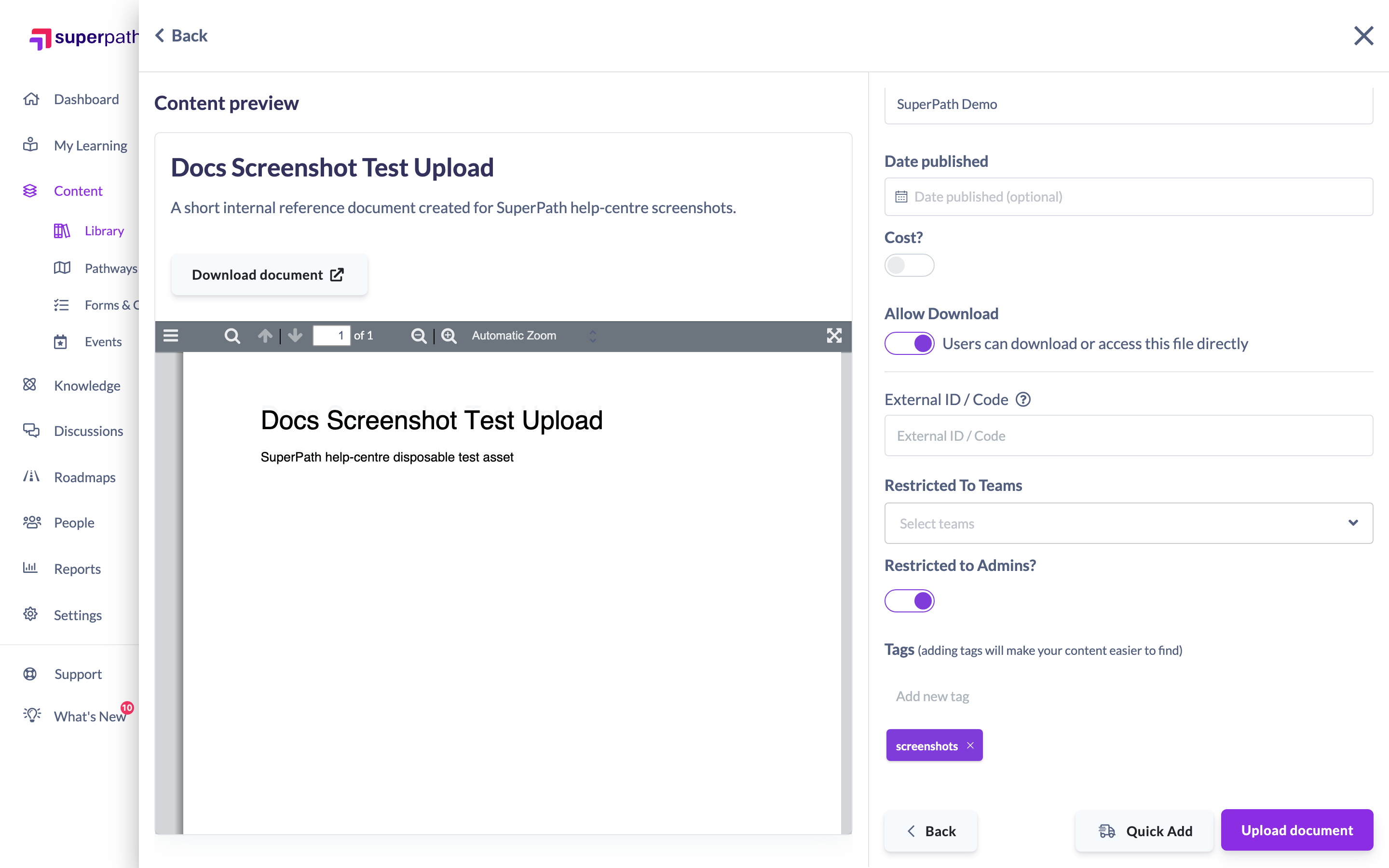
Tip: In a hurry? Once you've entered a title and content type you can click Quick add to save the content immediately and fill in the remaining details later.
Things to keep in mind
- Title and Content type are required before you can save; everything else can be added or edited later.
- Level, Learning time, Skills learnt and Tags are all optional, but they make content easier to classify, assign and search for.
- If SCORM is enabled for your organisation, an Upload SCORM option also appears in the Add content panel alongside file upload.
FAQs
What file types can I upload?
SuperPath supports common learning file formats including PDFs, documents (such as Word and PowerPoint), videos and audio. The content type you choose helps SuperPath display the file correctly to learners.
Can I edit the details after uploading?
Yes. All of the fields captured during upload can be edited later from the content's page in the Library.
Who can do this
Owners, Admins, Managers, Content Managers and Instructors can add content to the Library. People Managers, Employees and Restricted users cannot — they have read-only access to Content.
Updated on: 23/07/2026
Thank you!