
How to edit content
How to Edit Content
In this article:
- Overview
- How to edit content
- Things to keep in mind
- Who can do this
Overview
You can update any piece of content in your Library after it's been added — for example to fix a typo, refresh the description, change the assigned teams, or replace the underlying file. Editing updates the existing content in your Library; it doesn't create a new copy.
How to edit content
- Open the content you want to edit from your Library by clicking through to its content page.
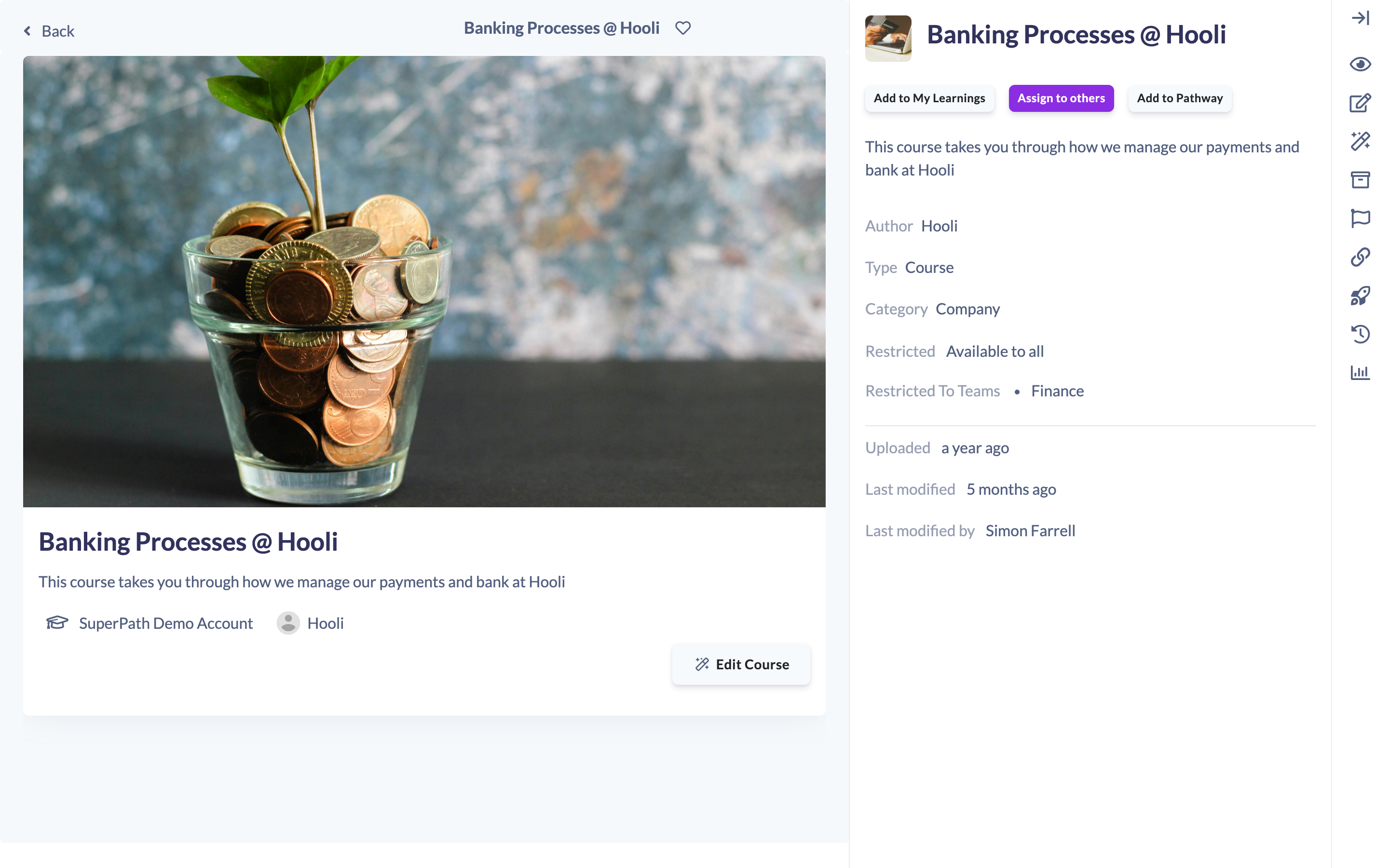
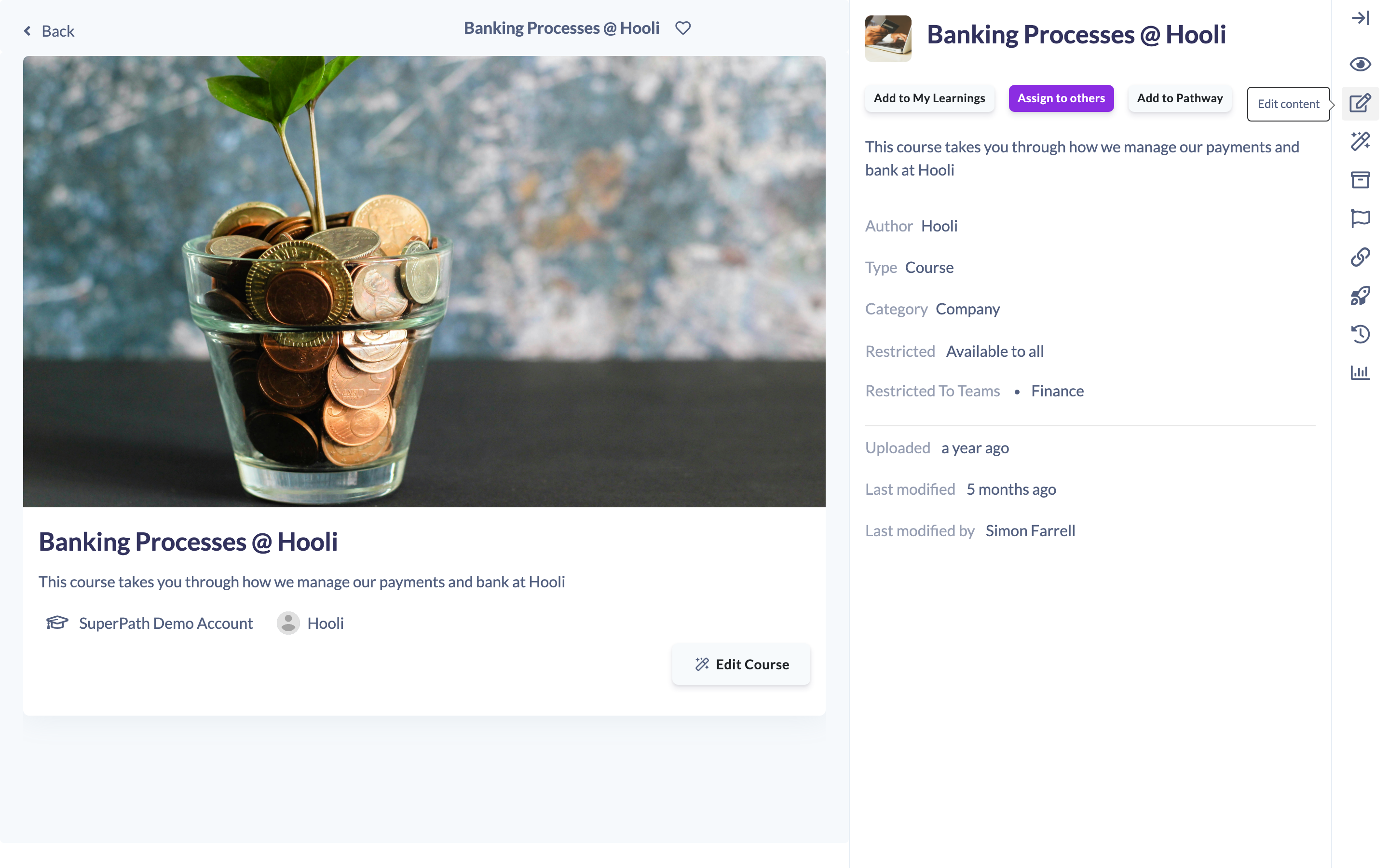
- Click Edit Content in the right-hand menu.
- Make your changes. You can update any field on the content — such as its title, description, author, assigned teams, price, published date, and cover image. To swap the underlying file, click Change and select a new file to upload.
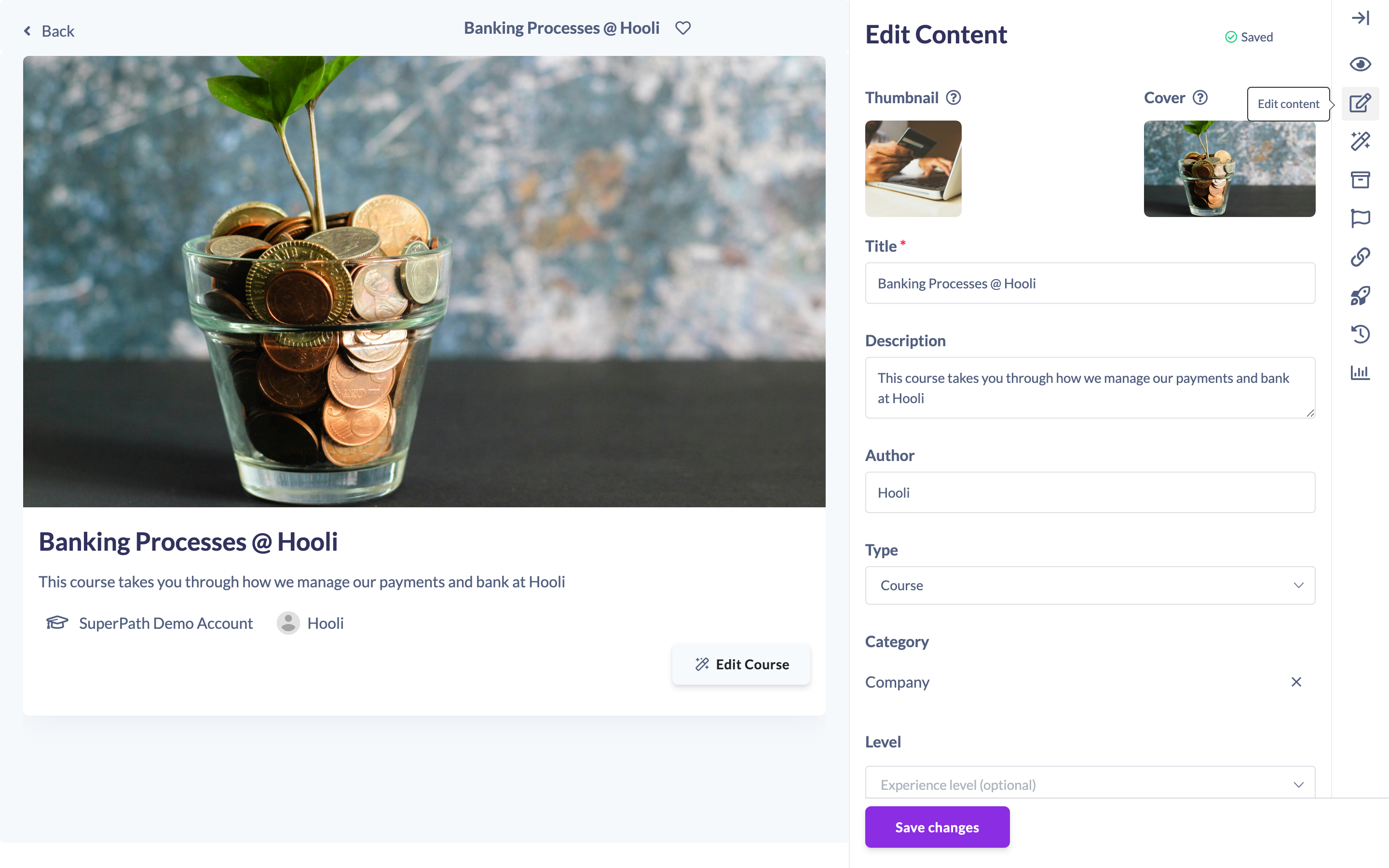
- Click Save changes to apply your edits.

Things to keep in mind
- Your changes apply to the content in your Library as soon as you click Save changes.
- Using Change to replace the file swaps the file on the existing content — it doesn't create a separate new item.
Who can do this
Owners, Admins, Managers, Content Managers and Instructors can edit Library content. People Managers, Employees and Restricted users cannot.
Updated on: 11/07/2026
Thank you!