
How to add content from the internet
How to Add Content from the Internet
In this article:
- Overview
- How to add content from a link
- Things to keep in mind
- FAQs
- Who can do this
Overview
You can add learning content that lives on the web — a course, article, video or document hosted on another site — by simply pasting its link. Behind the scenes SuperPath has a powerful content engine that reads the page and collects information from most popular learning websites, so many of the details are filled in for you. Once added, the content sits in your Library ready to assign, add to Pathways or group into Roadmaps.
How to add content from a link
- Click Add content at the top of the screen.
- In the Add a website section, paste the link to your online learning content into the box and click Upload.

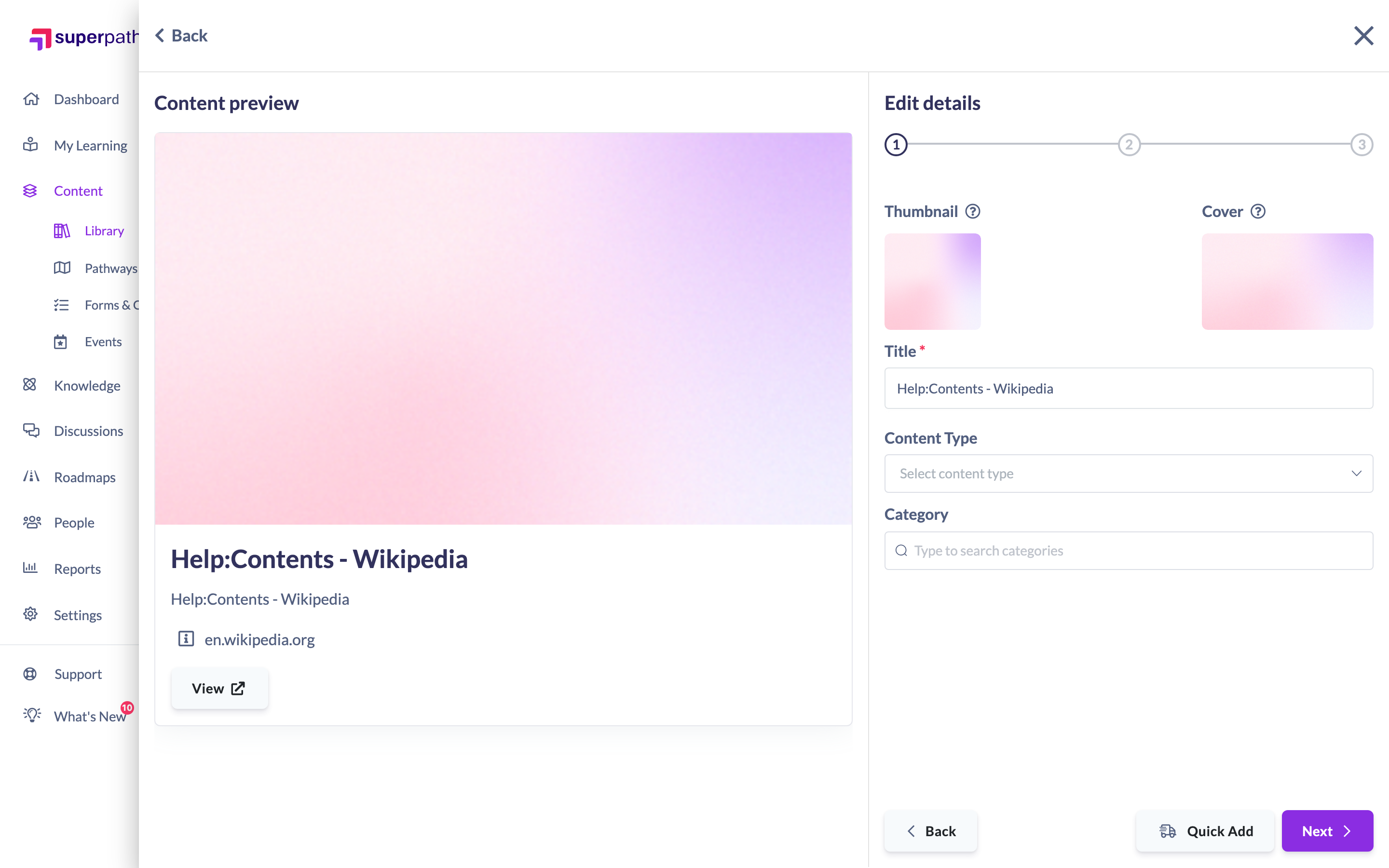
- On the first step of Edit details, review or enter the Title. In most cases the title, Content type and other fields are already pre-populated from the link; if not, enter them yourself. You can also set a Thumbnail, Cover image and Category.
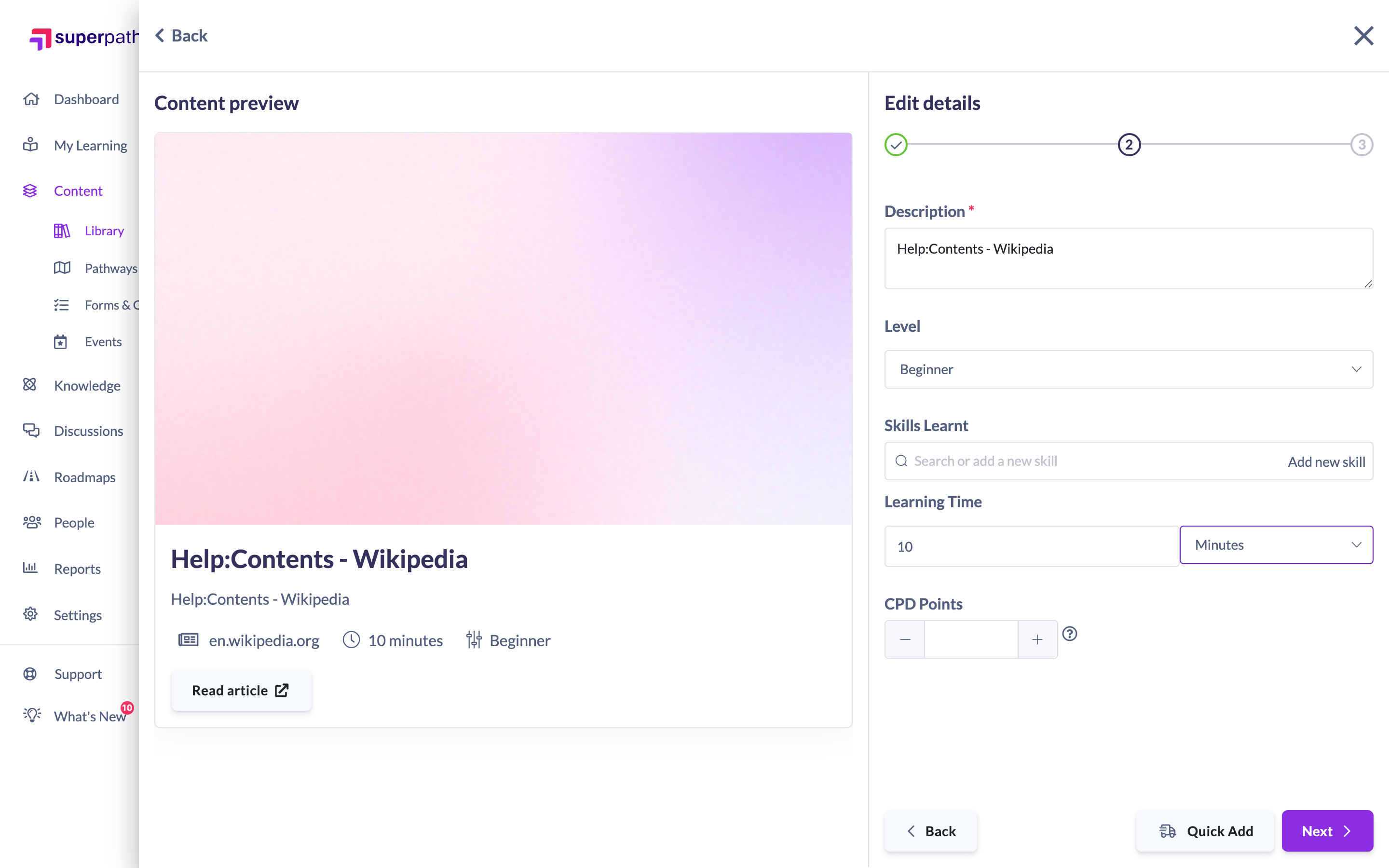
- Click Next, then add or review the Description, Level (experience level) and Learning time — a length value and a unit such as minutes, hours, lessons or pages. This helps learners understand how long the content will take and lets Managers and Admins track learning hours.
- Click Next, then enter the Author and, optionally, a Date published. If the content Requires purchase, switch the toggle on and enter a price (you can leave the price empty); if it is free, leave the toggle off. Some of these fields may already be pre-populated.
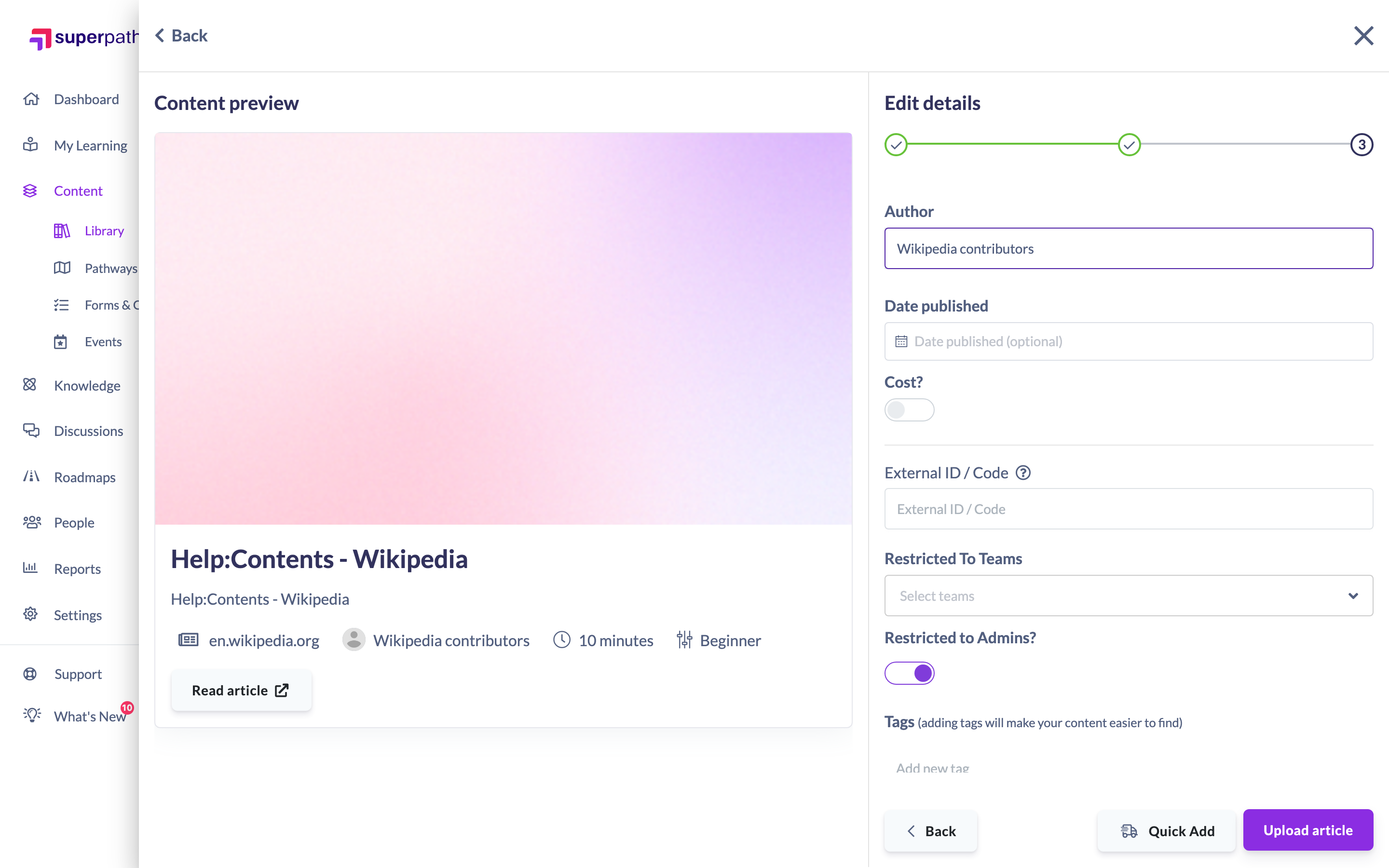
- Still on the final step, add any Tags. Tags give your content extra categorisation and grouping, and make it easier for people to find in the Library.

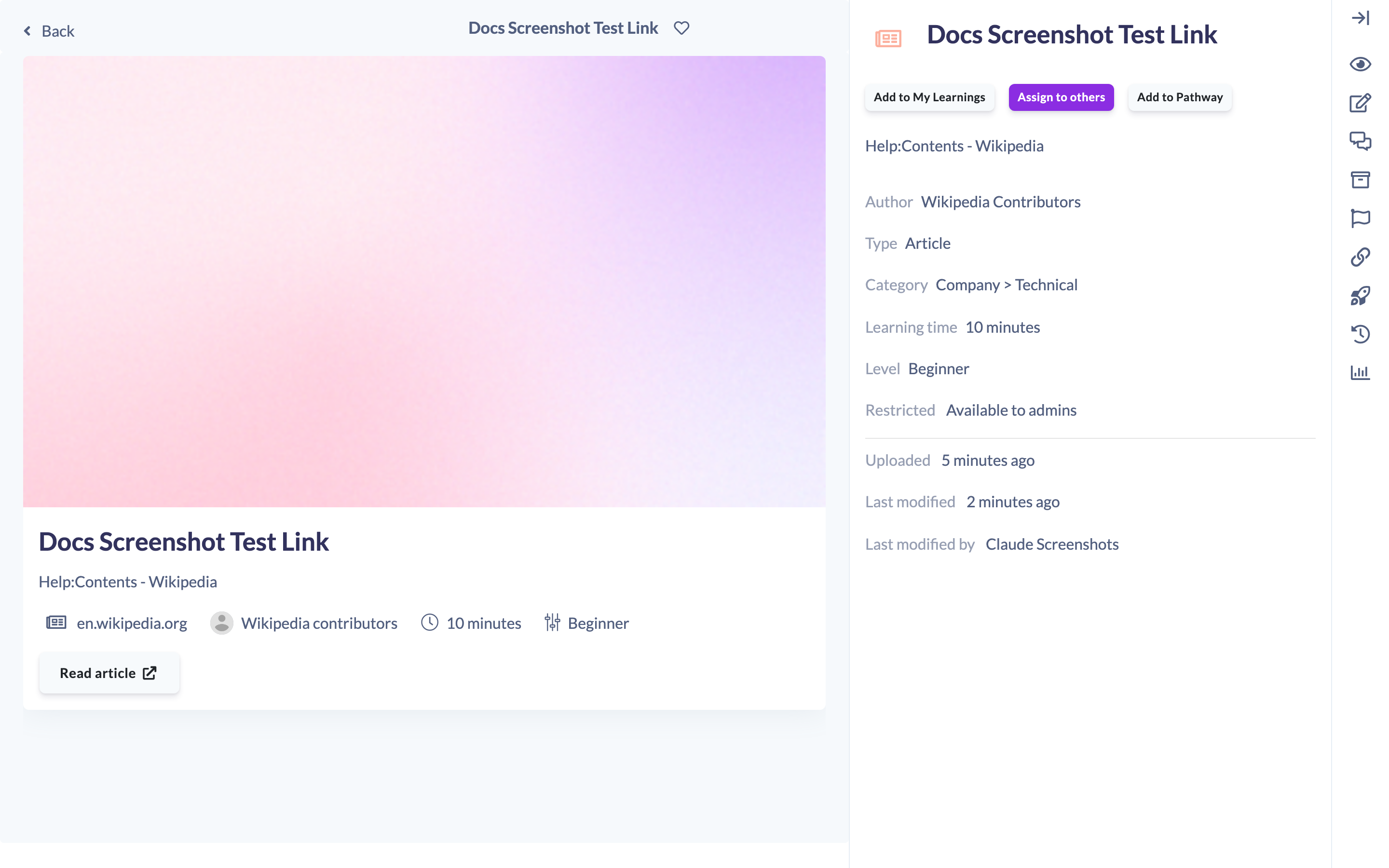
- Click Upload (the button shows Upload [content type]) to complete. You can now view the content in the Library.
Things to keep in mind
- SuperPath reads the public page at the link you paste, so metadata is only pre-filled for pages it can access — content behind a login may need its details entered manually.
- If you add a link that already exists in your Library, SuperPath lets you jump straight to the existing item rather than creating a duplicate.
- Title and Content type are required before you can save; everything else can be added or edited later.
FAQs
What happens if SuperPath can't read the page?
You'll simply enter the details yourself. The title, description and other fields are only pre-filled when the content engine can reach and read the page.
Can learners open the content without leaving SuperPath?
Linked content opens at its original web location. Where the content requires purchase, you can flag that and set a price during the upload steps.
Who can do this
Owners, Admins, Managers, Content Managers and Instructors can add content to the Library. People Managers, Employees and Restricted users cannot — they have read-only access to Content.
Updated on: 23/07/2026
Thank you!