
How to use Workflows to Automate your Learning Activities
How to use Workflows to Automate your Learning Activities
In this article:
- Overview
- How a Workflow works
- Build a Workflow to automate learning
- Managing your Workflows
- Example learning automations
- Things to keep in mind
- FAQs
- Who can do this
Overview
Workflows automate the repetitive parts of running your learning programmes. Rather than manually assigning the next course, enrolling people in a session, or sending out a survey each time, you set up a rule once and SuperPath does it for you — reliably, in the background, every time it applies. This keeps your onboarding, upskilling and compliance programmes moving without needing your constant attention.
How a Workflow works
Every Workflow pairs a trigger (the event that starts it) with an action (what SuperPath does in response). You choose the trigger under When and the action under Then.
The triggers most useful for automating learning are the completion events:
- Pathway is completed
- Content is completed (a single Library item)
- Event is attended
- Form is submitted
- Roadmap is completed
You can also trigger off people and Team changes — Person joins, Profile is updated and Person is added to team — which is handy for onboarding automations.
The actions you can take include assigning more learning or moving people around:
- Assign a pathway
- Assign a content
- Assign an event
- Assign a form
- Assign a roadmap
- Add to team
- Change user role
- Send a notification
For the full list of options and how to narrow a trigger with criteria, see How to Choose a Workflow Trigger and How to Choose a Workflow Action.
Build a Workflow to automate learning
This example auto-enrols people into a follow-up course once they finish an onboarding course.
- Go to Settings → Workflows.
- Click Create workflow to open the Workflow builder.
- Under When, choose the trigger — for this example, Content is completed — then search the Library and select the content the learner must complete (for example Sales Onboarding). You can narrow it further with criteria such as level, type or tag.
- Under Then, choose the action — for this example, Assign a content — then search for and select the content to assign next.
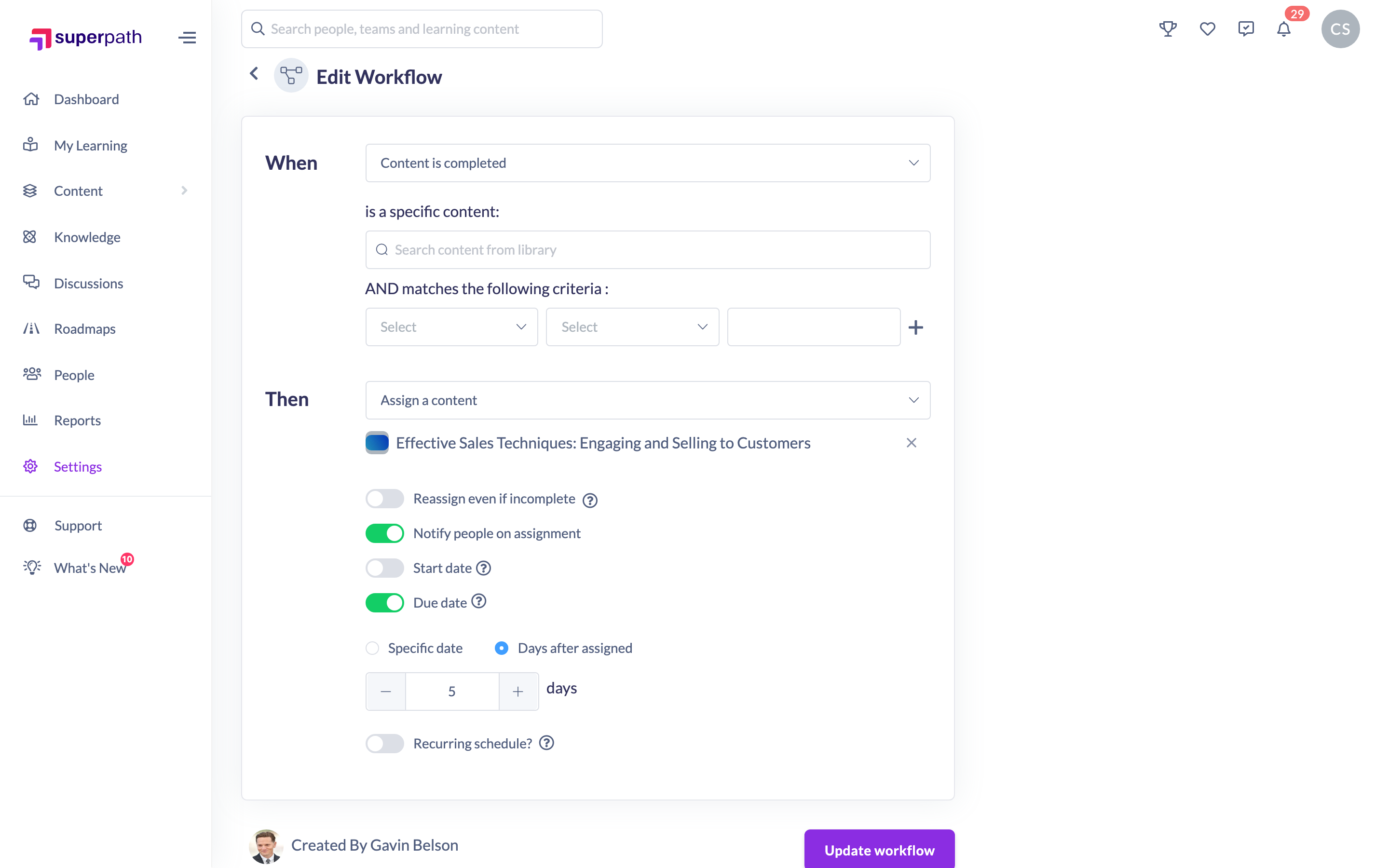
- Set any optional assignment rules: Notify people on assignment (on by default, so the learner is told about the new enrolment), a Start date, a Due date (a fixed date or a number of days after assignment), Reassign even if incomplete, and a yearly Recurring schedule.
- Click Create workflow to save.
Your Workflow is created as Active straight away and begins responding to matching completions immediately. For the full end-to-end walkthrough, see How to Create a Workflow.
Managing your Workflows
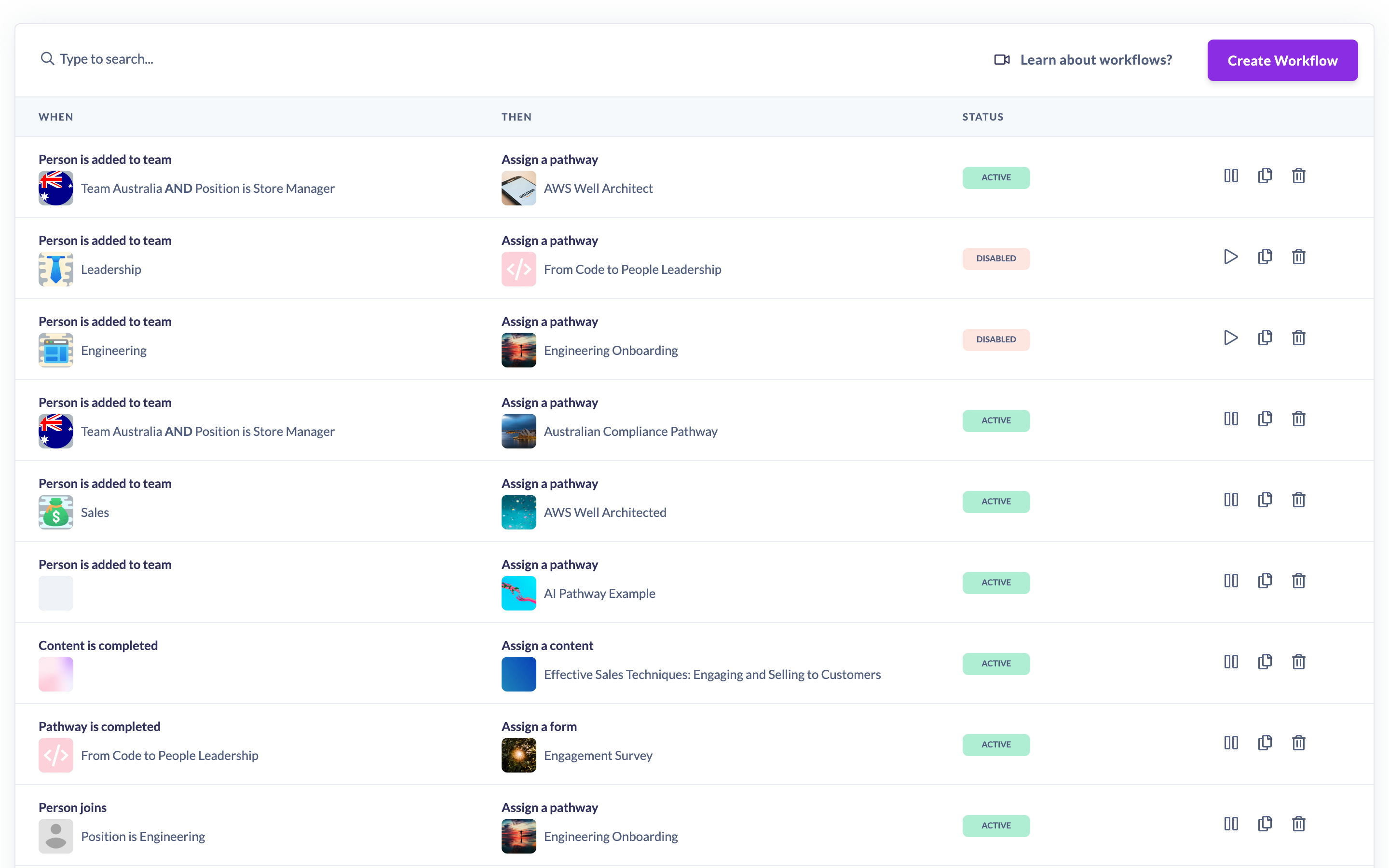
Your Workflows appear on the Settings → Workflows list, with a Status column showing whether each is Active or Disabled.
- To pause a running Workflow, click the pause icon in its row; to restart a paused one, click the play icon.
- To change how a Workflow behaves, edit it — your changes take effect immediately.
- To remove a Workflow permanently, delete it.
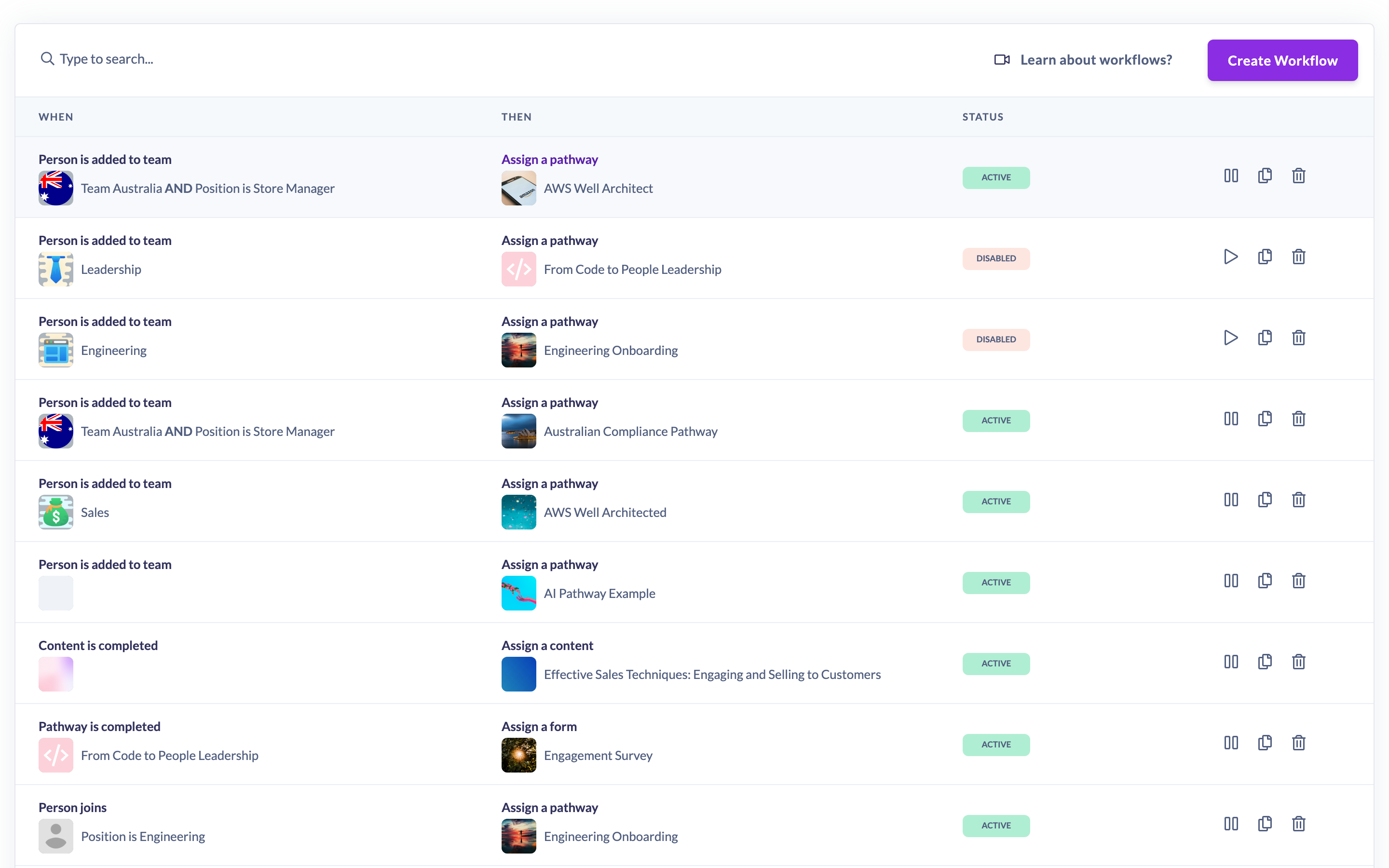
See How to Pause or Activate a Workflow, How to Edit a Workflow, How to Duplicate a Workflow and How to Delete a Workflow for the individual steps.
Example learning automations
- When someone completes an onboarding course, assign the next course in the sequence.
- When someone completes a Pathway, assign a Form as a post-learning survey.
- When someone attends an Event, assign a follow-up Form to capture feedback.
- When a new person joins, assign the code-of-conduct course to review.
- When someone is added to a Team, assign that Team's onboarding Pathway.
Things to keep in mind
- Workflows are only available on a paid (business) plan. If you don't see the feature, contact SuperPath Support to enable it.
- Each Workflow has exactly one trigger and one action. To automate more than one thing off the same event, create additional Workflows.
- Workflows respond to events as they happen once active — they don't retroactively process people who already met the trigger in the past.
- New Workflows start out Active. If you want to review one before it runs, pause it after creating it.
FAQs
Does my Workflow start running as soon as I create it?
Yes. A new Workflow is set to Active and starts responding to matching events immediately. Pause it if you want to hold it back.
Will a Workflow apply to people who already completed the learning before I set it up?
No. Workflows only act on events that happen after the Workflow is active.
Can one Workflow do several things at once?
No — one trigger, one action per Workflow. Build several Workflows to chain multiple outcomes off the same event.
Who can do this
Only Owners and Admins can create, edit, pause and delete Workflows. Managers, Content Managers, People Managers, Instructors, Employees and Restricted users cannot. Workflows are a paid-plan feature, so the option only appears for accounts where it has been enabled.
Updated on: 24/07/2026
Thank you!