
Adding Content to a Pathway
Adding Content to a Pathway
In this article:
- Overview
- Add content to your Pathway
- Reorder your steps
- Things to keep in mind
- FAQs
- Who can do this
Overview
Content is what makes up a Pathway — the courses, documents, videos, articles and other materials your learners work through. This article covers how to add content as steps and how to reorder those steps so the Pathway flows the way you want. You can pull in existing content from your library or add something new as you go.
Add content to your Pathway
- Open the Pathway you'd like to add content to, or start a new one.
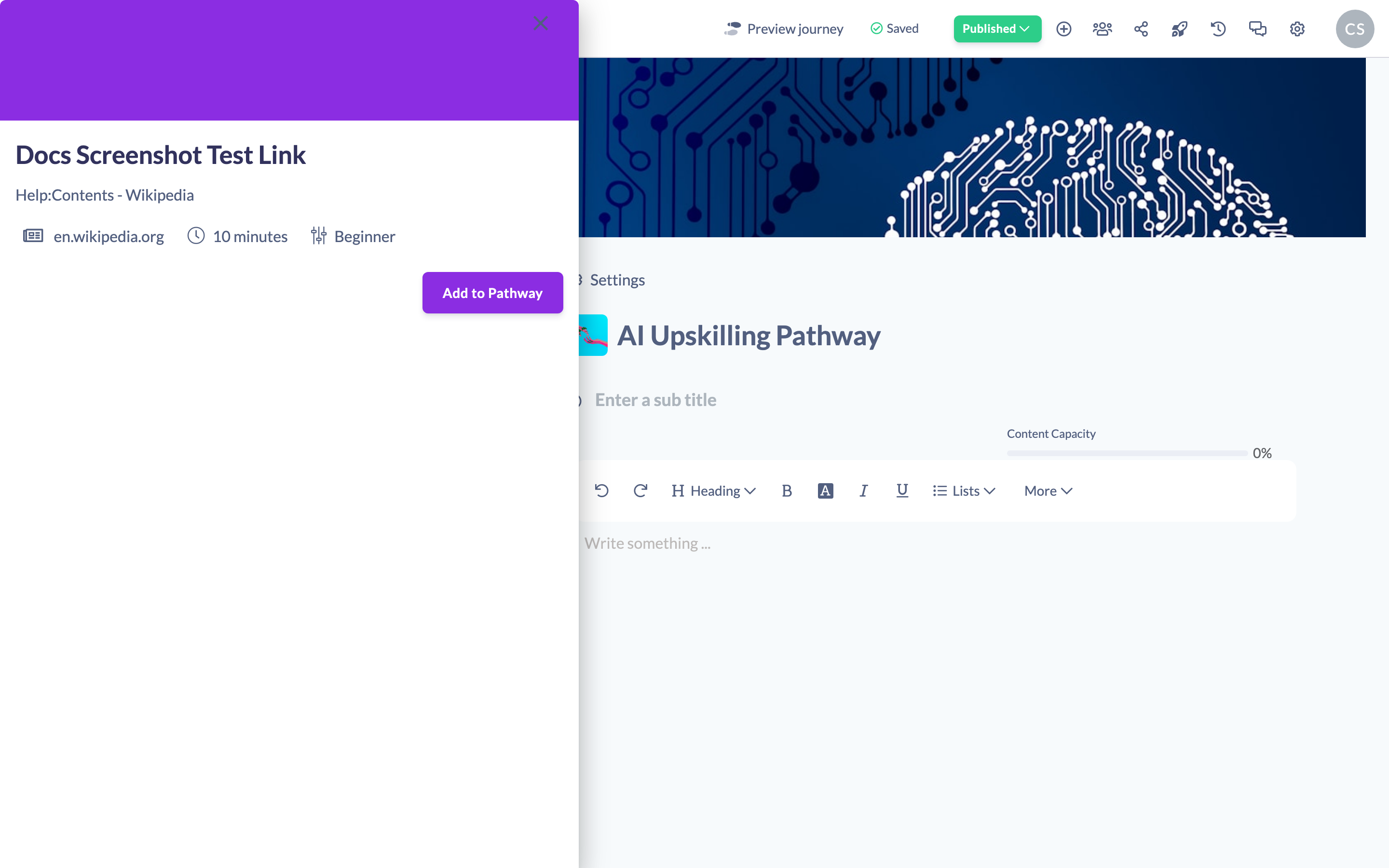
- Click Add Step.
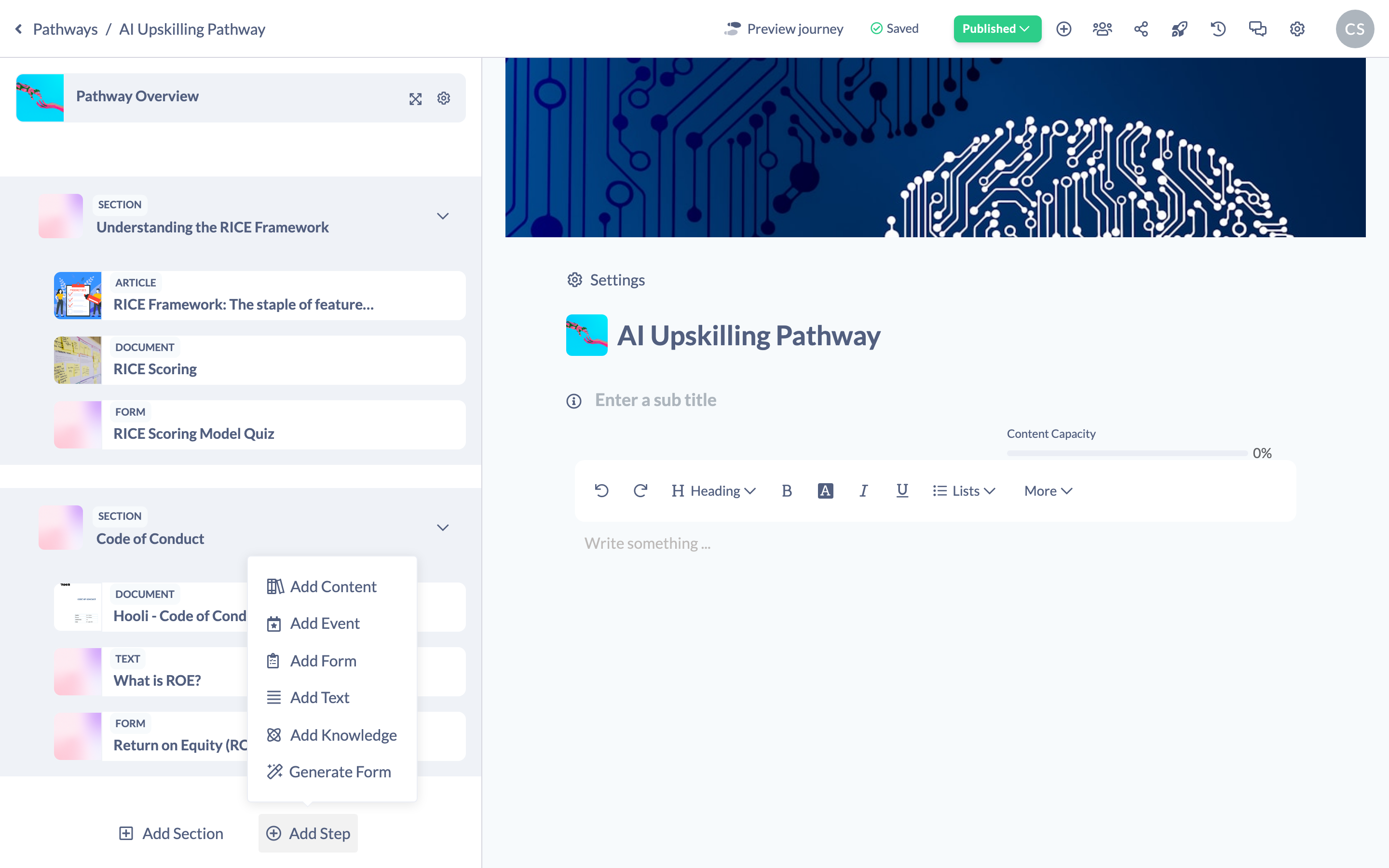
- In the content picker, locate the content you'd like to add. Click it to open its description, then click Add to pathway to include it.
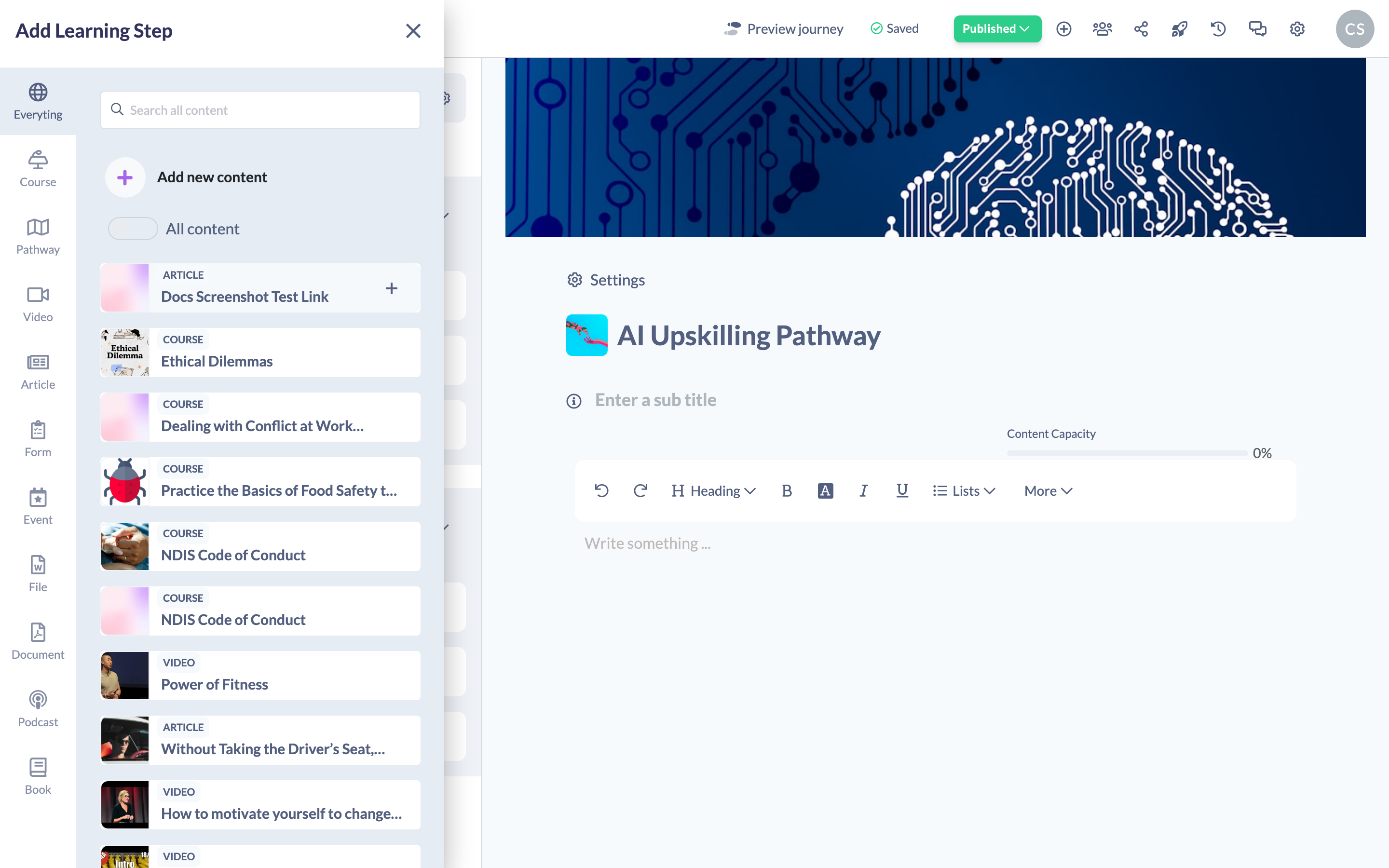
- To add more, click Add Step again and choose the type of step you want — for example Add Content for a document.
- Once you've found the item you want, either click it to open its description first, or click the + icon to add it straight to the Pathway.
Reorder your steps
Once your steps are in place you can change their order at any time.
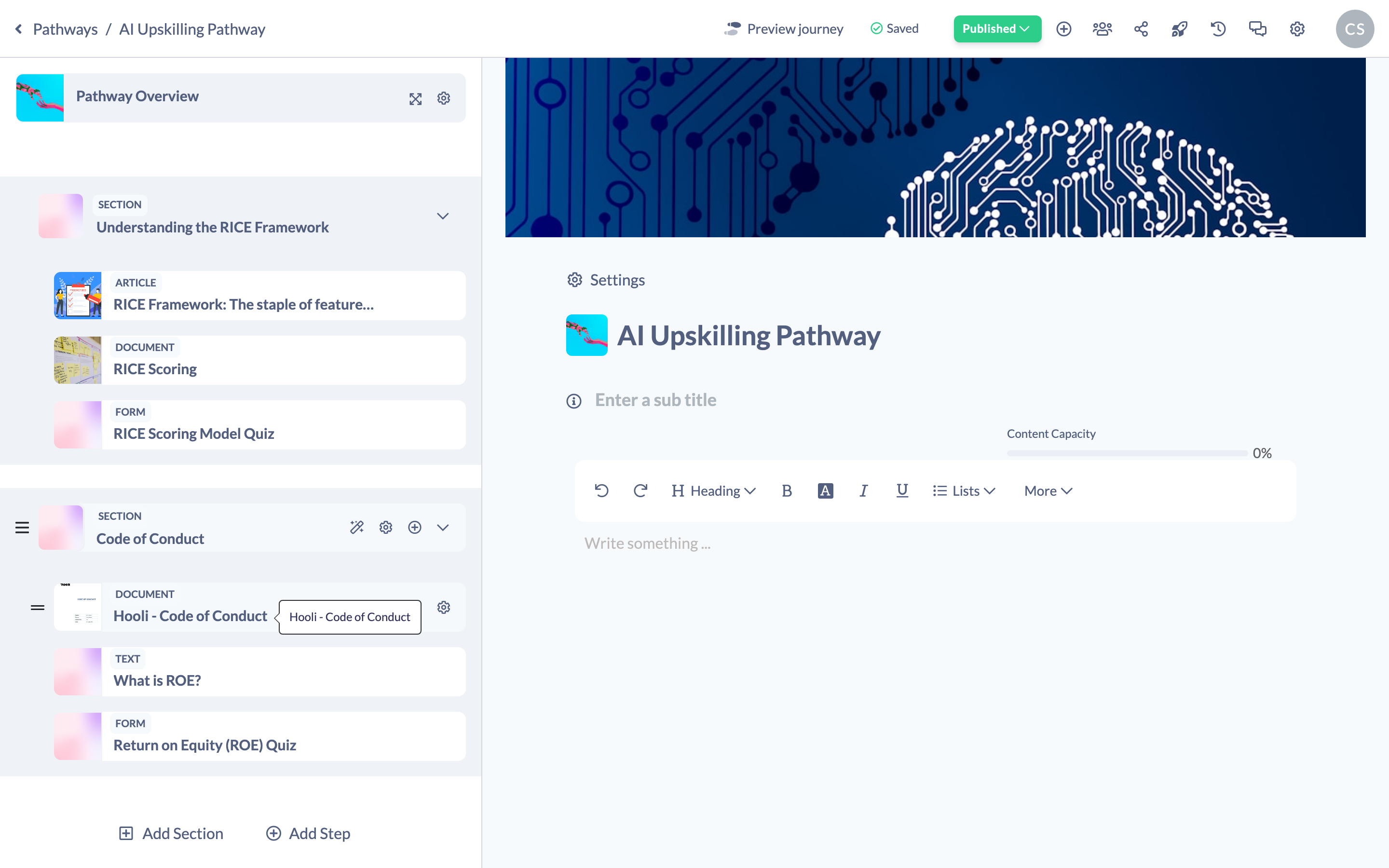
- Hover over the step you want to move in the steps panel.
- Click and hold the drag handle to the left of the step.
- Drag the step up or down to its new position, then release.
Tip: Use Add Section to group related steps together — handy for longer Pathways with distinct stages.
Things to keep in mind
- You can add existing content from your library or upload new content while building the Pathway.
- Reordering only affects the sequence of steps; it doesn't change any of a step's individual settings.
FAQs
What types of content can I add?
Courses, videos, articles, forms, events, files, documents, podcasts, books, and even other Pathways. See What can be added to a Pathway? for the full list.
Can I add my own content rather than content from the library?
Yes. When you add a step you can upload a file, add a website link or add SCORM content of your own. See How to Add Your Own Content to a Pathway.
Does reordering steps change their due dates or prerequisites?
No. Moving a step only changes its position in the list; its settings stay as you configured them.
Who can do this
Owners, Admins, Managers, Content Managers and Instructors can add and reorder content in a Pathway. People Managers, Employees, Members, Volunteers and Restricted users have read-only access to Pathways and cannot.
Updated on: 24/07/2026
Thank you!