
Additional Settings for a Step or Content in a Pathway
Additional Settings for a Step or Content in a Pathway
In this article:
- Overview
- Open a step's settings
- The available settings
- Things to keep in mind
- FAQs
- Who can do this
Overview
Every step in a Pathway has its own settings panel where you can fine-tune how that step behaves — whether it's required, whether it depends on another step, when it's due, whether it auto-completes, and any extra instructions for learners. These settings let you tailor a Pathway to your learning objectives and streamline the learner's experience.
Open a step's settings
- Open your Pathway in the builder and hover over the step in the steps panel.
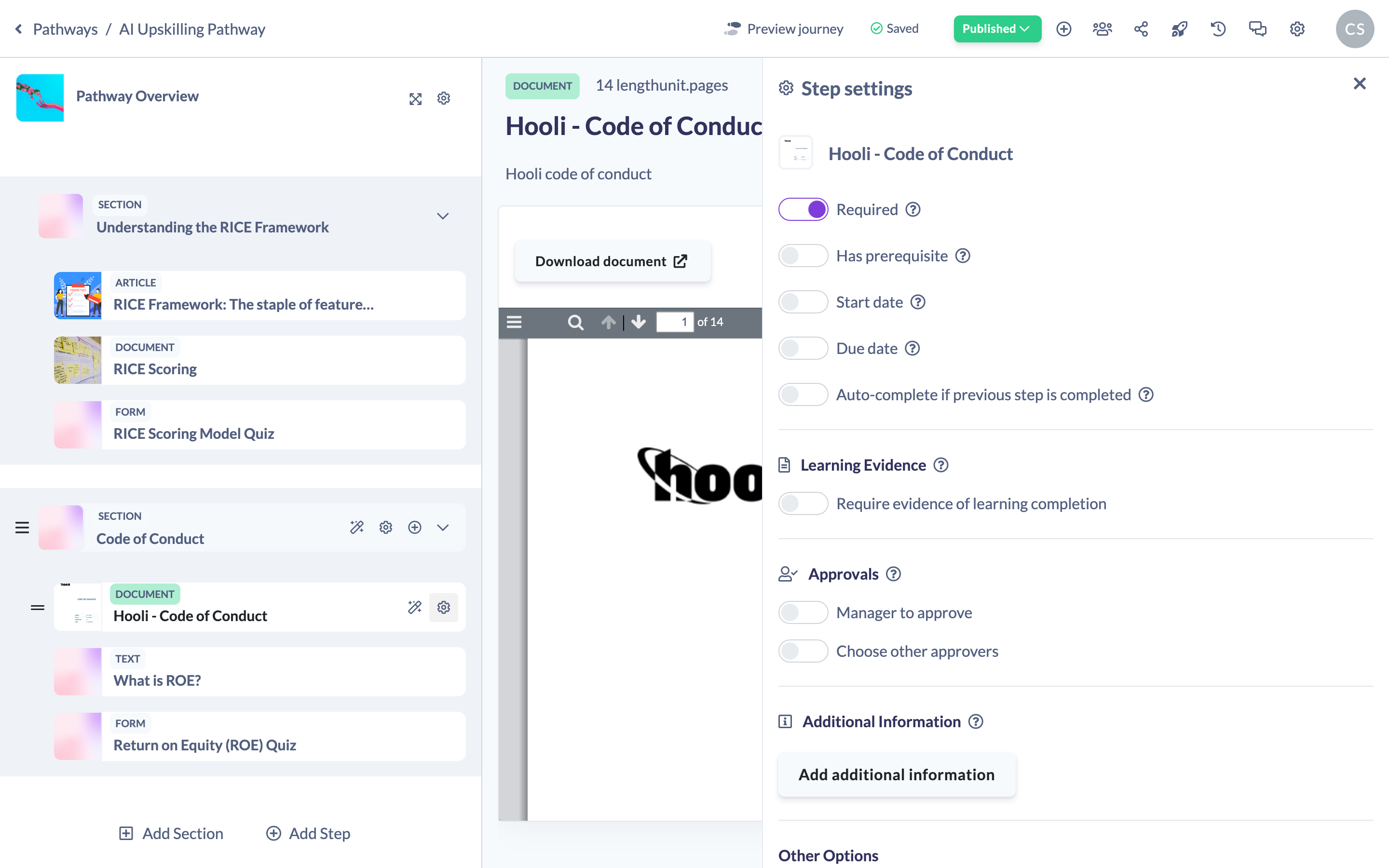
- Click the cog (settings) icon to open the step's settings panel.
The available settings
- Required — when on, the learner must complete this step to complete the Pathway. Steps are required by default. See How to Make a Pathway Step Required.
- Has prerequisite — when on, you choose another step that must be completed before this one. See How to Set a Prerequisite for a Step.
- Due date — set a specific calendar date, or a number of days after the learner is assigned the Pathway, by which the step must be completed. A Start date works the same way for when the step becomes available. See How to Set a Due Date for a Pathway Step.
- Auto-complete if previous step is completed — when on, the step is marked complete for a learner who has already completed the same content elsewhere, so they don't have to redo it. This is handy when the same content is available as a standalone item in the library as well as in a Pathway. See How to Auto-Complete a Step if Previously Completed.
- Additional Information — add instructions or further detail that don't belong in the content's description, to enhance the learning for this step. See How to Add Additional Information or Instructions to a Step.
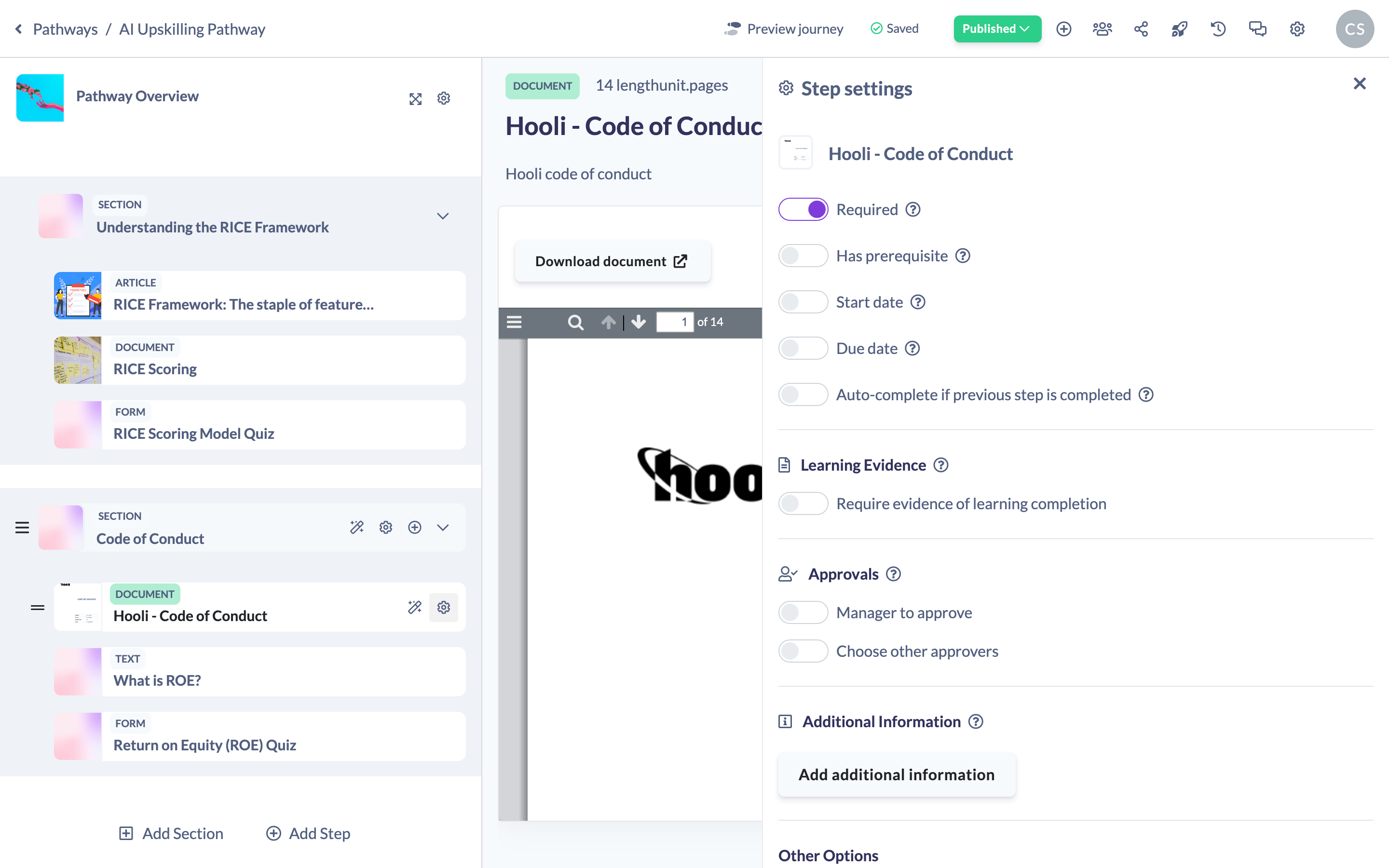
Good to know: The exact settings shown depend on the step type. Some options — such as Auto-complete and Additional Information — appear on content-type steps but not on sections, Text steps or assessor-completed Form steps.
Things to keep in mind
- Changing a step's settings returns a published Pathway to a draft (unpublished) state, so publish again once you're done.
- Required, Due date and Start date can also be applied to a whole section from the section's own settings.
FAQs
Where do I find these settings?
Hover over the step in the steps panel and click the cog icon to open its settings panel.
Do all steps have the same settings?
No. The options available depend on the step type — for example, Auto-complete and Additional Information appear on content steps but not on sections or Text steps.
Does changing a setting affect a live Pathway?
Editing a step's settings moves a published Pathway back to draft, so you'll need to publish it again for the change to take effect.
Who can do this
Owners, Admins, Managers, Content Managers and Instructors can change a step's settings. People Managers, Employees, Members, Volunteers and Restricted users have read-only access to Pathways and cannot.
Updated on: 24/07/2026
Thank you!