
Custom Certifications in SuperPath
Custom Certifications in SuperPath
In this article:
- Overview
- What you can use custom certifications with
- How to create a custom Certificate
- What you can print on the certificate
- Previewing before you save
- What learners see
- Things to keep in mind
- FAQs
- Who can do this
Overview
Custom certifications let you automatically generate Certificates personalised for each learner — their name, the certificate title, the date awarded and, for scored courses, their score — giving completed learning a more professional finish. They're ideal when you want to provide formal recognition, improve learner engagement, keep consistent branding across Certificates, and reduce manual admin work. Once set up, Certificates are awarded automatically when the learning is completed.
What you can use custom certifications with
Custom Certificates can be awarded for:
- Pathways
- Courses (including SCORM and AI courses)
- Events
How to create a custom Certificate
- Prepare your Certificate design in a tool such as Canva and export it as a PDF, leaving clear space down the middle where the printed details will go. If you'd rather start from something, click Download starter template on the Advanced tab to get a blank certificate you can upload as-is or brand in Word first.

- Open the Course, Pathway or Event you want to award a Certificate for, then click Edit.
- Click Create Certificate and enter the Certificate name, provider, description, and expiry details (if applicable).

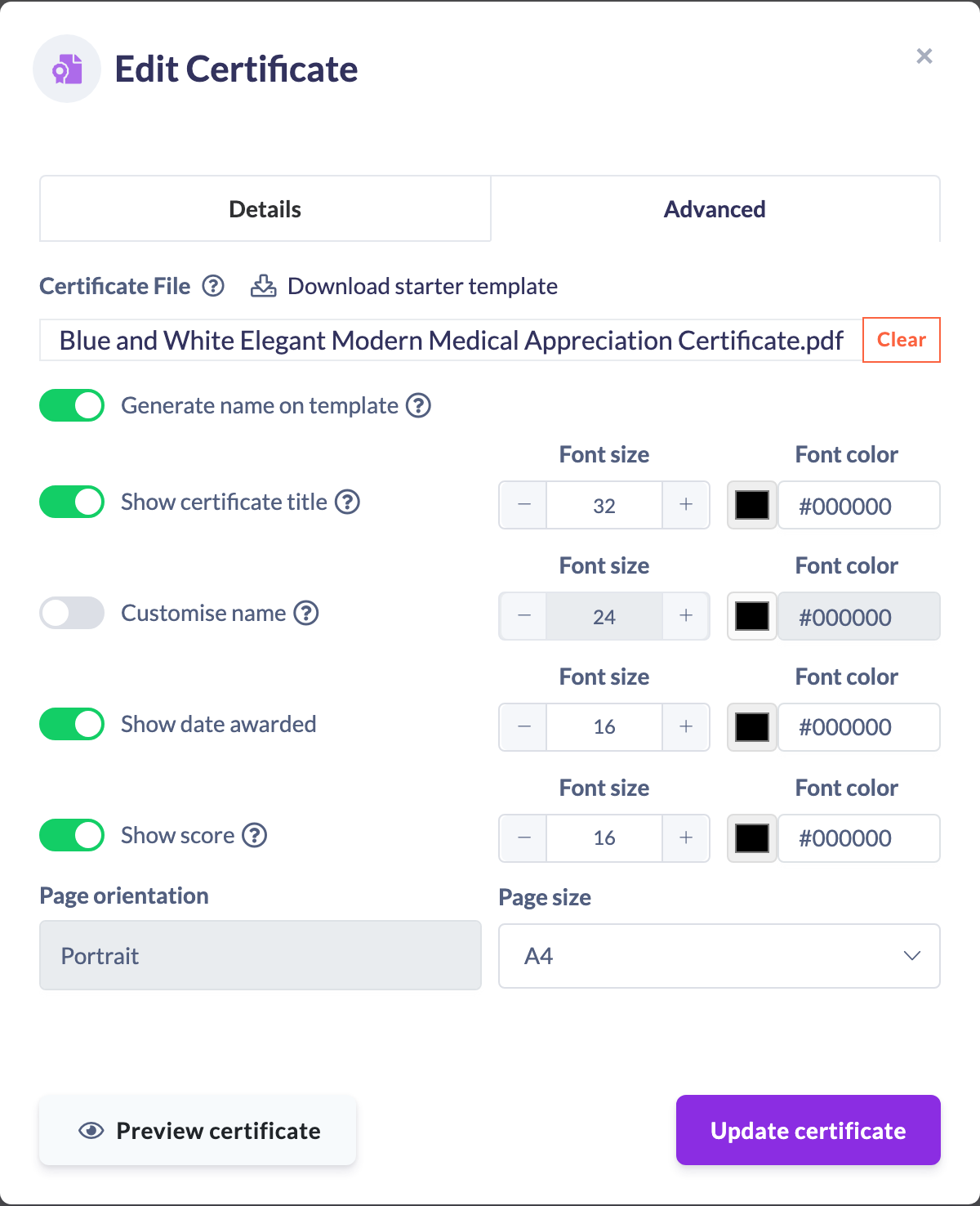
- On the Advanced tab, upload your PDF under Certificate File and switch on Generate name on template. This is what tells SuperPath to personalise the file for each learner.
- Choose which details to print and how they look — see the next section — then use Preview certificate to check the layout before saving.

What you can print on the certificate
With Generate name on template switched on, four details can appear. They're printed as one centred block, in this order:
- Show certificate title — the Certificate's name, above the learner's name and in a larger font. Leave it off if your design already includes the certificate name, otherwise it appears twice.
- Customise name — the learner's name is always printed; this switch only exposes its font size and colour.
- Show date awarded — the date the learner earned it.
- Show score — the learner's score as a percentage. Only SCORM and Mindsmith courses record a score, so it's blank for everything else.
Each has its own Font size and Font colour.
Page size is yours to choose — A4 or Letter — and your design is scaled to fit it. Page orientation is read from the PDF you upload and shown for information only; if it's wrong, rotate the artwork and upload it again.
Previewing before you save
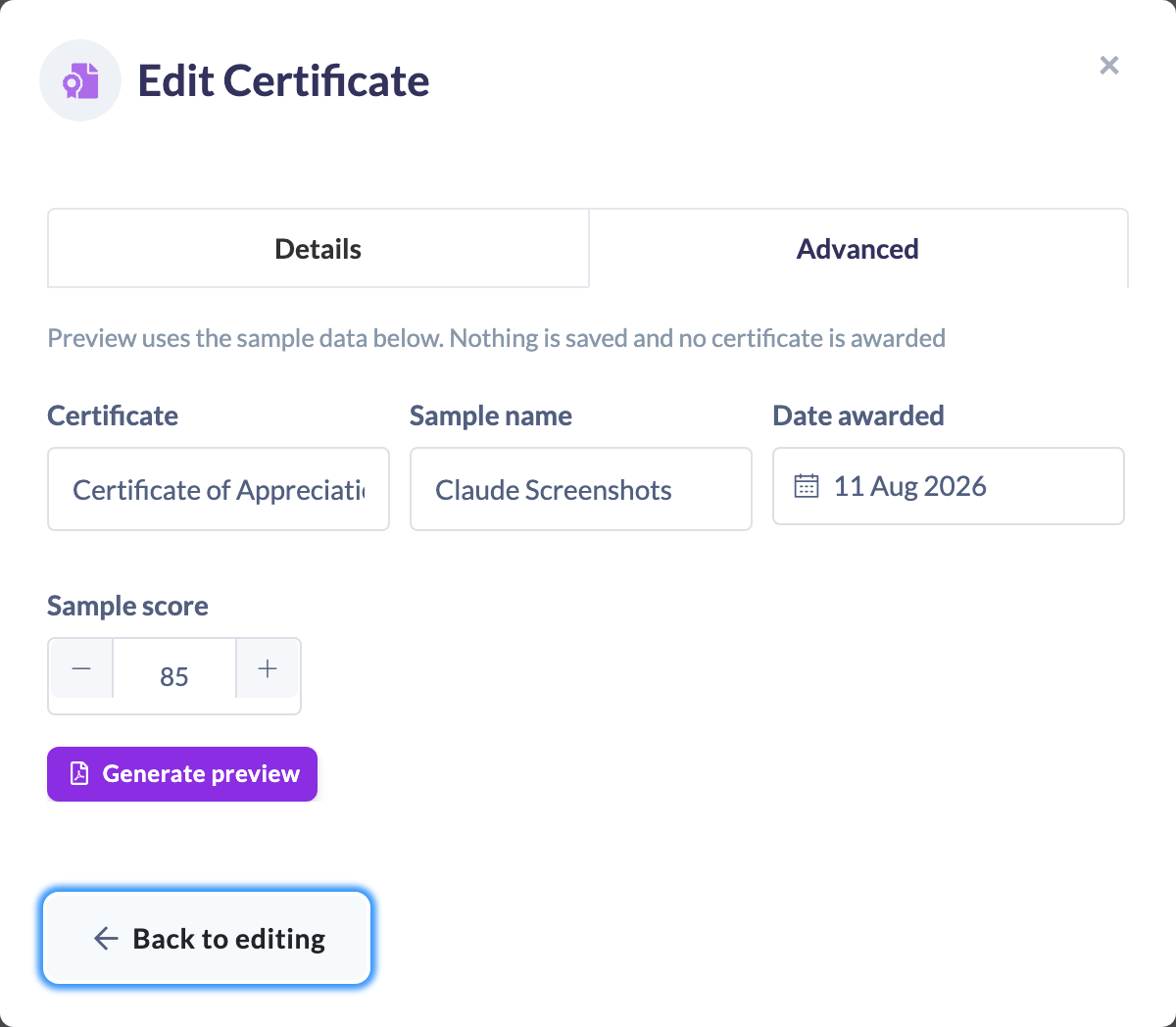
You don't have to award a real Certificate to see where the text lands. Click Preview certificate at the bottom of the modal, enter some sample details — only the fields you've switched on are asked for — and generate a throwaway PDF. Nothing is saved and nobody is awarded anything.
Adjust the font sizes until everything sits inside your design, then click Back to editing and save. It's worth previewing with a long name, since that's what most often overflows.
What learners see
When a learner completes the assigned learning, the Certificate is automatically added to their profile. Clicking the Certificate opens a PDF with their name included.

Things to keep in mind
- Your Certificate design must be a PDF, with clear space left down the middle for the printed details.
- The details are printed as a centred block. If you need them positioned elsewhere, contact the SuperPath team and we can configure this for you.
- Generate name on template is what makes the Certificate personalised — without it, the same static file is awarded to every learner.
- The certificate title, date and score are each opt-in; only the learner's name is printed automatically.
- Show score produces nothing outside SCORM and Mindsmith courses, because nothing else records a score. A Certificate awarded for a Pathway never carries one.
- Changing the template later doesn't update Certificates already issued — regenerate them from the person's Certificates tab if you need them refreshed.
FAQs
What's the difference between a custom certification and a standard Certificate?
A custom certification uses your own PDF design and, with Generate name on template enabled, prints each learner's details onto it automatically. A standard Certificate awards the same file to everyone.
Can I move the learner's name away from the centre?
Yes, but not from the interface — the SuperPath team can configure a custom placement for you.
What can I attach a custom certification to?
Pathways, Courses (including SCORM and AI courses) and Events.
I don't have a design. Can I still try this?
Yes. Download starter template on the Advanced tab gives you a blank certificate you can upload immediately to see how it works, or open in Word to add your logo before exporting as a PDF.
Why doesn't the score appear on my certificate?
Only SCORM and Mindsmith courses record a score. For any other learning there's nothing to print, so the line is left off entirely rather than showing a zero.
I fixed a typo in my template. What about the certificates already awarded?
They keep the file they were issued with. Regenerate each one from the person's Certificates tab to re-render it against the corrected template — see How to Regenerate a Certificate.
Can I check the layout without awarding a certificate to someone?
Yes — that's what Preview certificate is for. It renders a sample PDF using the same process as a real award, without saving or awarding anything.
Who can do this
Owners, Admins, Managers and Content Managers can create and configure Certificates. Instructors, People Managers, Employees and Restricted users cannot — they can only view existing Certificates. On the API, creating a Certificate requires the create permission on Certificate; Owners, Admins, Managers and Content Managers hold manage on Certificate, which includes create.
Updated on: 11/08/2026
Thank you!