
How to Action an Approval Request
How to Action an Approval Request
In this article:
- Overview
- Open your approval requests
- Review the submitted evidence
- Approve or decline
- Things to keep in mind
- FAQs
- Who can do this
Overview
When a learning step or assignment is set to require approval, the learner can't complete it on their own — they submit it for review, and a nominated approver checks their evidence and either approves or declines it. As the SuperPath help text puts it: "If approval is required then the learner will be required to submit for approval before completing the learning assignment. The specified approvers can then approve or decline the learning based on the evidence on learning actions. A declined learning assignment can be resubmitted by the learner." This article covers finding those approval requests and actioning them.
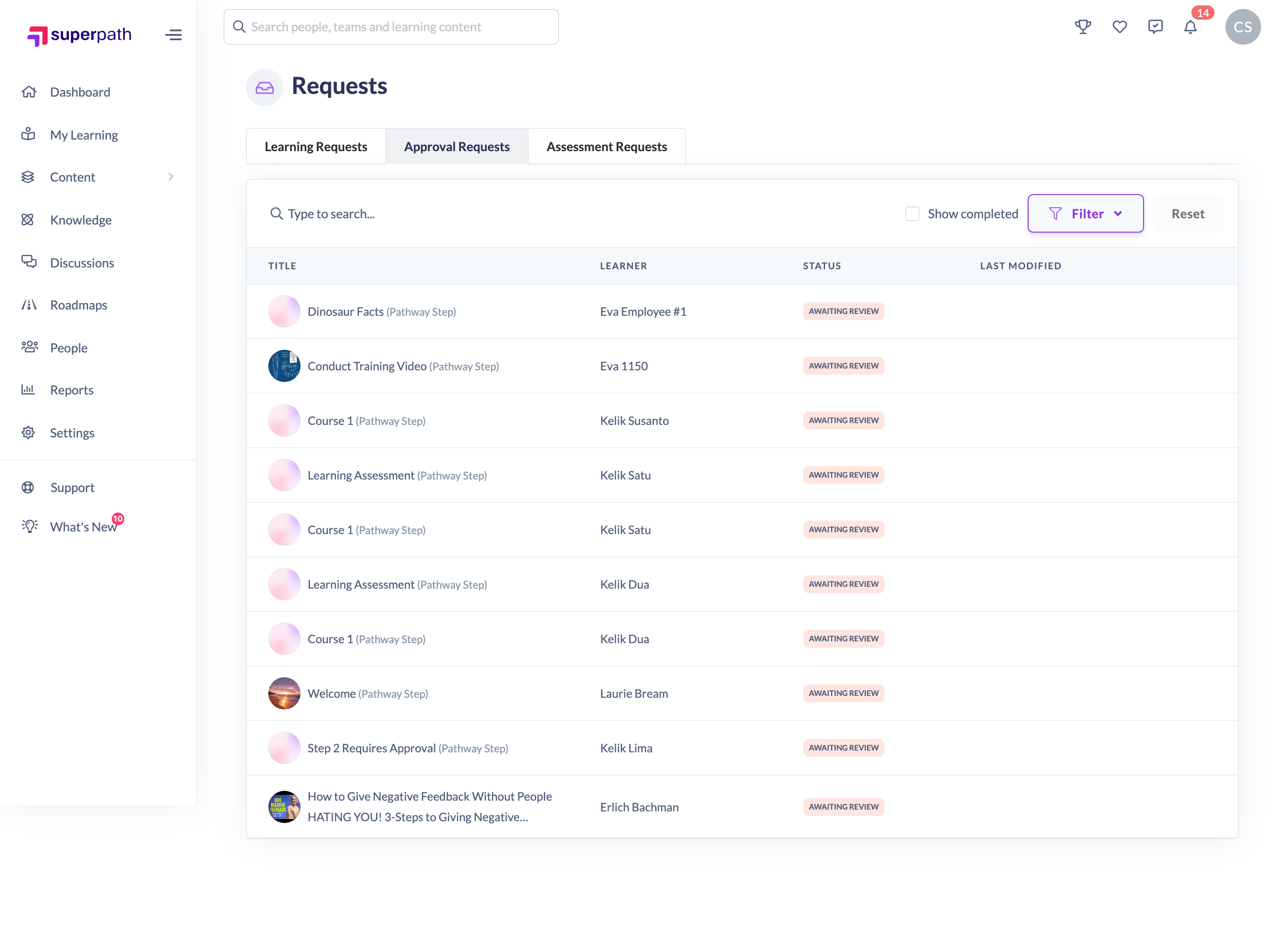
Open your approval requests
- Go to Requests from the main navigation.
- Open the Approval Requests tab.
- Each row shows the learning Title (tagged Pathway Step or Learning Assignment), the Learner who submitted it, the Status, and when it was last modified.
- Use the search box to find a request by title or learner, and the status filter to narrow to Awaiting Review, Completed or Declined. By default the list hides items you've already finished; turn on Show completed to include them.
Good to know: Items waiting for you sit at Awaiting Review. This list is scoped to learnings you're responsible for approving, so you'll only see requests you can act on.
Review the submitted evidence
- Click the request row to open the learning the learner submitted.
- On the learning, review the learner's submitted evidence — where evidence was required you can open View evidence to see the uploaded file or link and the description the learner provided.
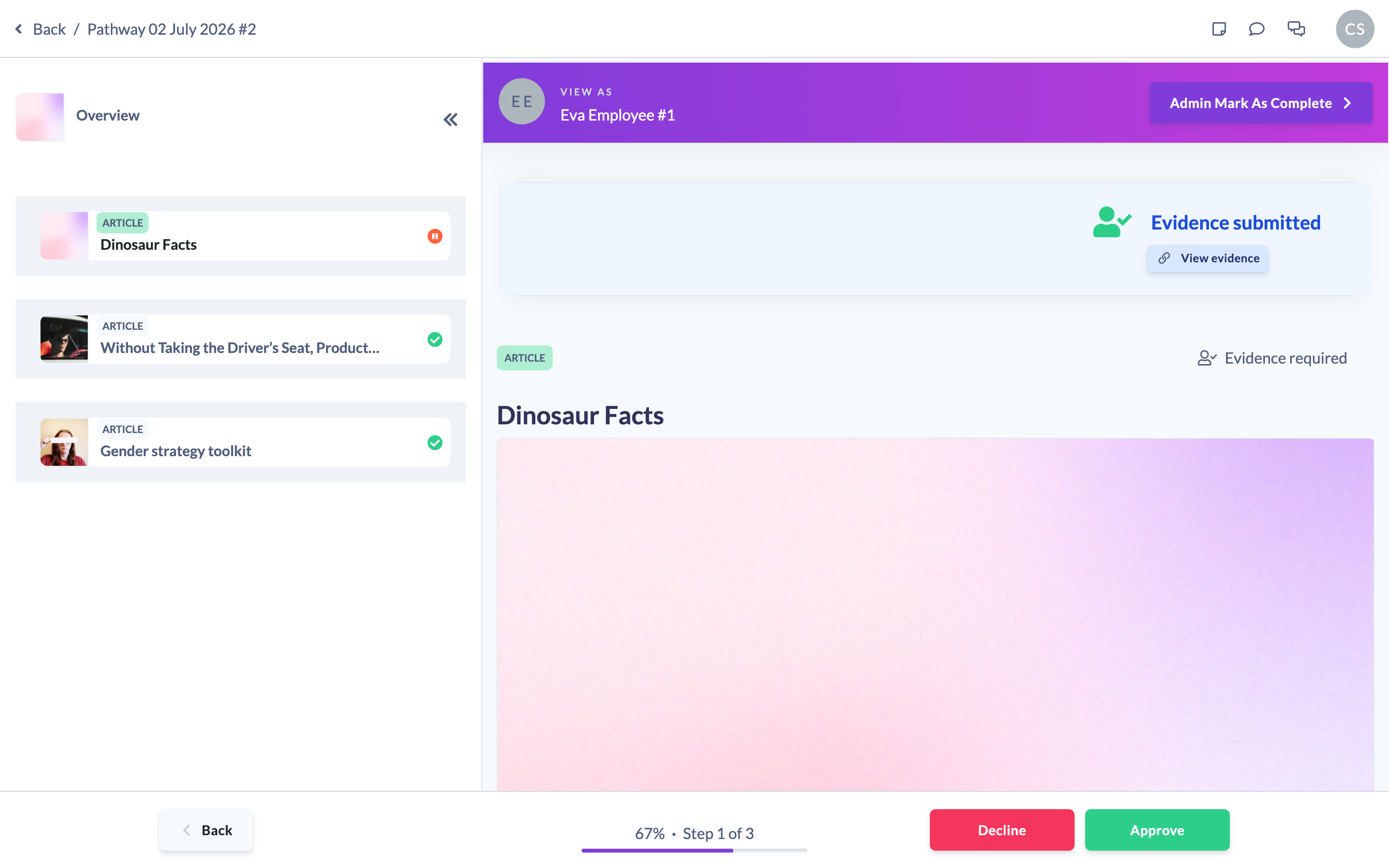
Approve or decline
- With the learning open and awaiting review, click Approve to sign it off, or Decline to send it back.
- If you decline, enter the reason when prompted — the learner sees this reason and can resubmit.
Approving marks the learning complete for the learner; declining returns it to them so they can resubmit for review.
Things to keep in mind
- Approval requests are separate from assessment requests. An approval request is you signing off evidence the learner submitted on a step or assignment that requires approval. An assessment request is you completing an evaluation step on the learner's behalf — see the assessment article for that flow.
- You action the approve/decline decision on the learning itself — clicking a row in the Approval Requests tab takes you there. The tab is the inbox; the buttons live on the learning.
- A declined learning can be resubmitted by the learner, so declining isn't final — it sends the work back with your reason.
- Admins and Owners only see every learning's approval requests when Allow Admins to approve and assess all learnings is switched on; otherwise they see only the learnings where they're the approver.
FAQs
What's the difference between an approval request and an assessment request?
An approval request is about evidence approval — the learner has done the work and submitted evidence on a step or assignment that requires approval, and you approve or decline it. An assessment request is about an evaluation step that an assessor completes on the learner's behalf. They're on separate tabs of the Requests page.
Where do I actually click Approve or Decline?
On the learning. The Approval Requests tab lists what's waiting; clicking a row opens the Pathway step or assignment, where the Approve and Decline buttons appear while it's awaiting review.
Why can't I see the Approval Requests tab or any rows?
Actioning approval requests is limited to Owners, Admins, Managers, People Managers and Instructors. Other roles won't have access. Even within those roles, you'll only see the learnings you're the approver for (unless you're an Admin or Owner and the account allows Admins to approve all learnings).
What happens when I decline?
The learner is told it was declined, sees the reason you entered, and can resubmit the learning for review.
Who can do this
Actioning approval requests is available to Owners, Admins, Managers, People Managers and Instructors — and each of them only for the learnings where they are the designated approver. Admins and Owners see approval requests across all learnings only when Allow Admins to approve and assess all learnings is enabled for the account; otherwise they too see only the learnings assigned to them. Content Managers, Employees and Restricted users cannot action approval requests.
Updated on: 18/07/2026
Thank you!