
How to Add a Certificate to a Pathway
How to Add a Certificate to a Pathway
In this article:
- Overview
- Add a Certificate
- Set an expiry
- Things to keep in mind
- FAQs
- Who can do this
Overview
A Certificate rewards learners for finishing a Pathway. When you attach a Certificate to a Pathway, SuperPath awards it automatically the moment a learner completes the Pathway — "When adding a certificate the learning will be awarded the certificate upon completion." You can also set an expiry so learners are reminded to renew.
Add a Certificate
- Go to Pathways and open the Pathway you want to add a Certificate to.
- In the pathway header, click the Settings (cog) icon to open the Pathway settings panel.
- Scroll to the Certificate section.
- Use the Certificate button to create or attach a Certificate, and fill in its details (name, description, image or provider).
- Your choice saves automatically.
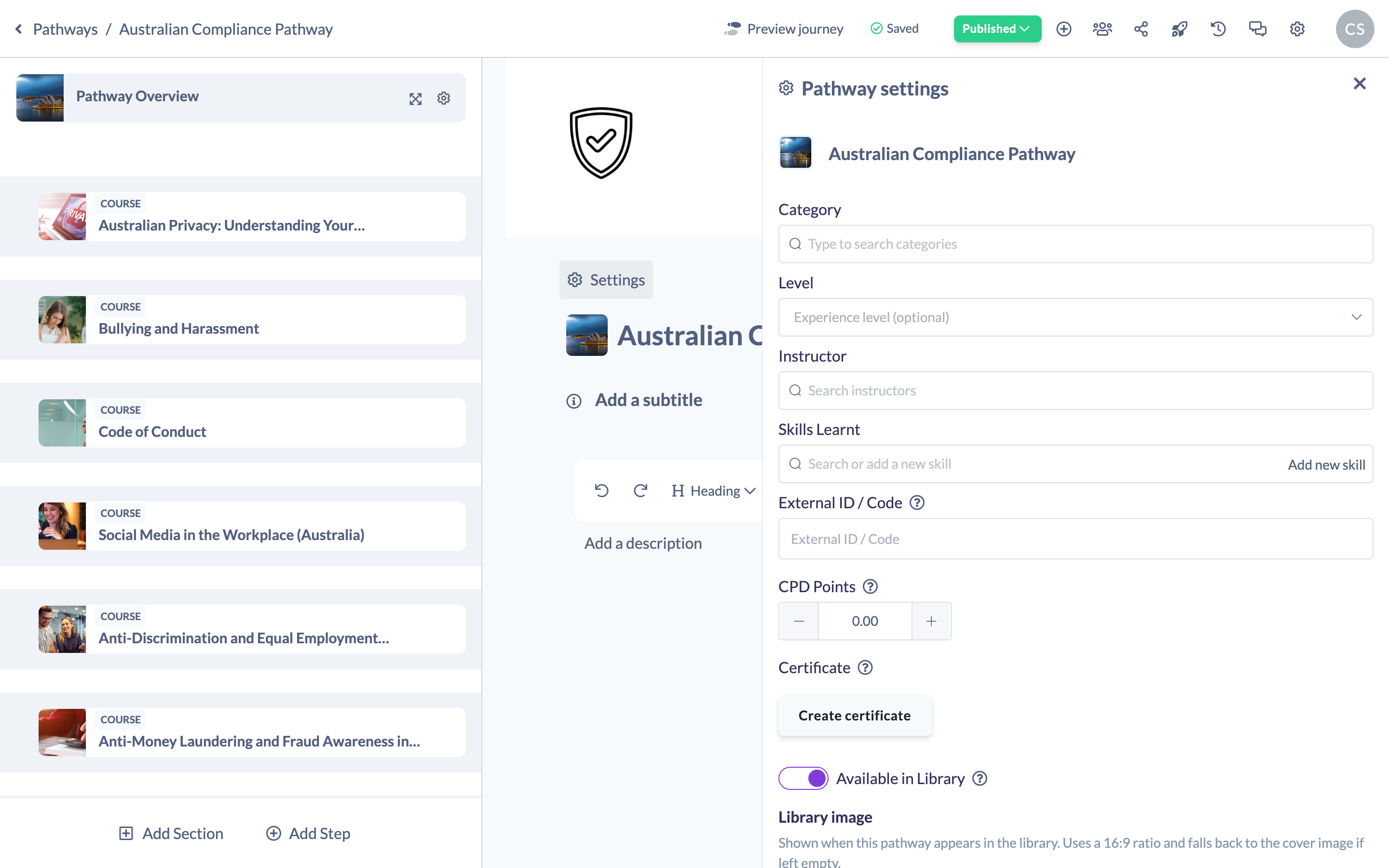
Note: The Certificate section only appears if Certificates are enabled for your account. If you don't see it, contact your account Owner or SuperPath support.
Set an expiry
When creating the Certificate you can mark it as expirable and set how many months it's valid for. As the code notes, "Setting expiry (in months) will also ensure reminders are sent to the learning that the certification is expiring." Leave it non-expirable if the Certificate never lapses.
Things to keep in mind
- The Certificate is awarded on completion of the Pathway — learners who haven't finished won't receive it.
- Certificates are available only when the feature is enabled on your account.
- One Certificate is attached per Pathway; editing or removing it here updates it for everyone who earns it going forward.
FAQs
When is the Certificate awarded?
Automatically, as soon as a learner completes the Pathway.
Can the Certificate expire?
Yes. When you create it, set it as expirable and choose the number of months it's valid for; SuperPath then sends expiry reminders.
I can't see the Certificate section — why?
Certificates must be enabled for your account. If the section is missing, the feature isn't switched on for your organisation.
Who can do this
Owners, Admins, Managers and Content Managers can create and manage a Pathway's Certificate. Instructors can open Pathway settings but cannot create or edit Certificates (the action is blocked for them). People Managers, Employees and Restricted users cannot edit Pathways at all.
Updated on: 18/07/2026
Thank you!