
How to Add a Checkbox Question to a Form
How to Add a Checkbox Question to a Form
In this article:
- Overview
- Add a Checkbox question
- Things to keep in mind
- FAQs
- Who can do this
Overview
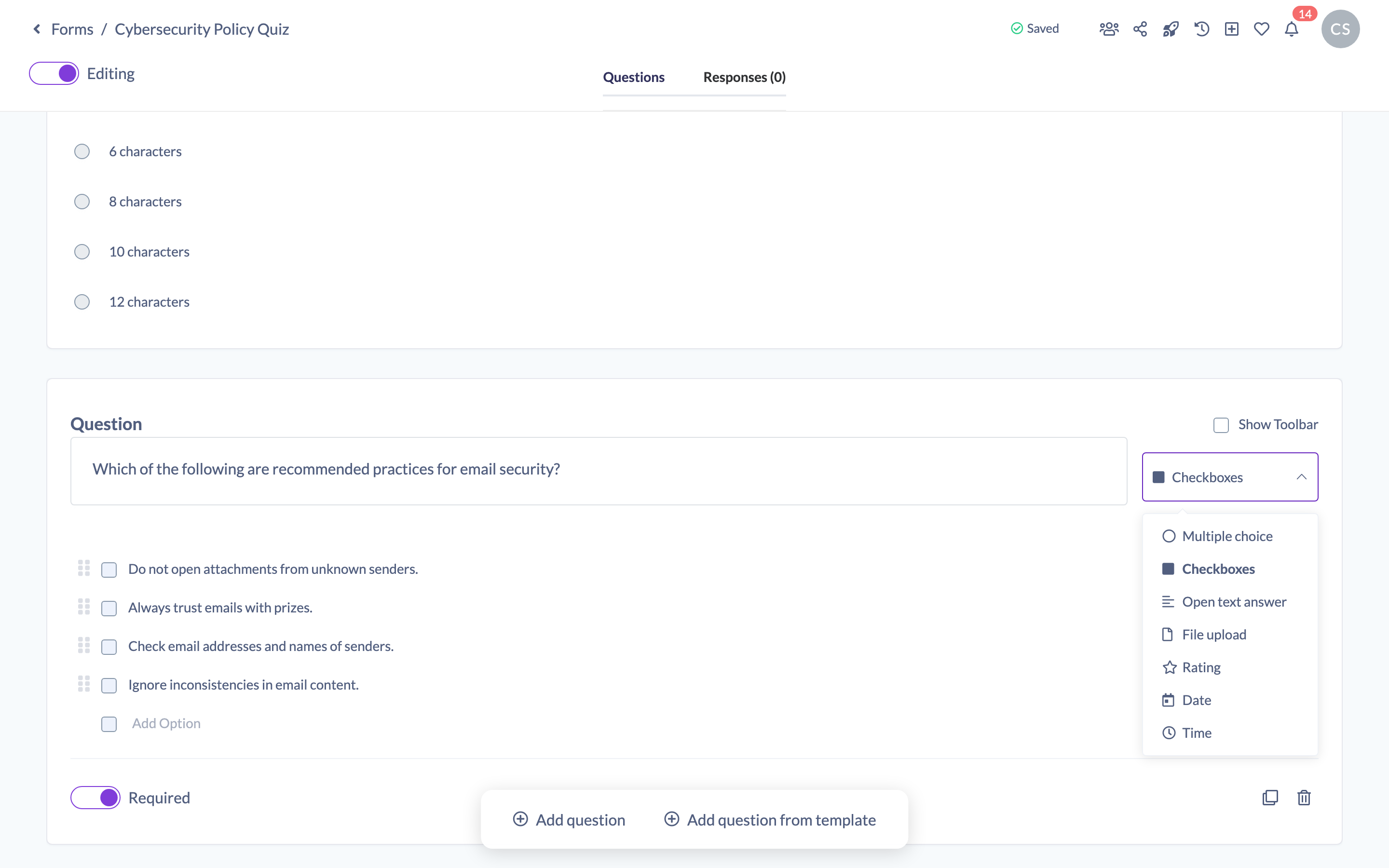
A Checkbox question lets learners select more than one answer from a list — ideal for "select all that apply" style questions. It's one of the question types you can pick when building a Form or quiz, alongside Multiple choice, Open text answer, File upload, Rating, Date and Time.
Add a Checkbox question
- Open the Form you want to edit — you'll land in the question builder in edit mode.
- Click Add question at the bottom of the builder to add a new question. New questions start as a Multiple choice question.
- With the new question selected, open the question type dropdown to the right of the question title and choose Checkboxes.
- Type your question in the question field.
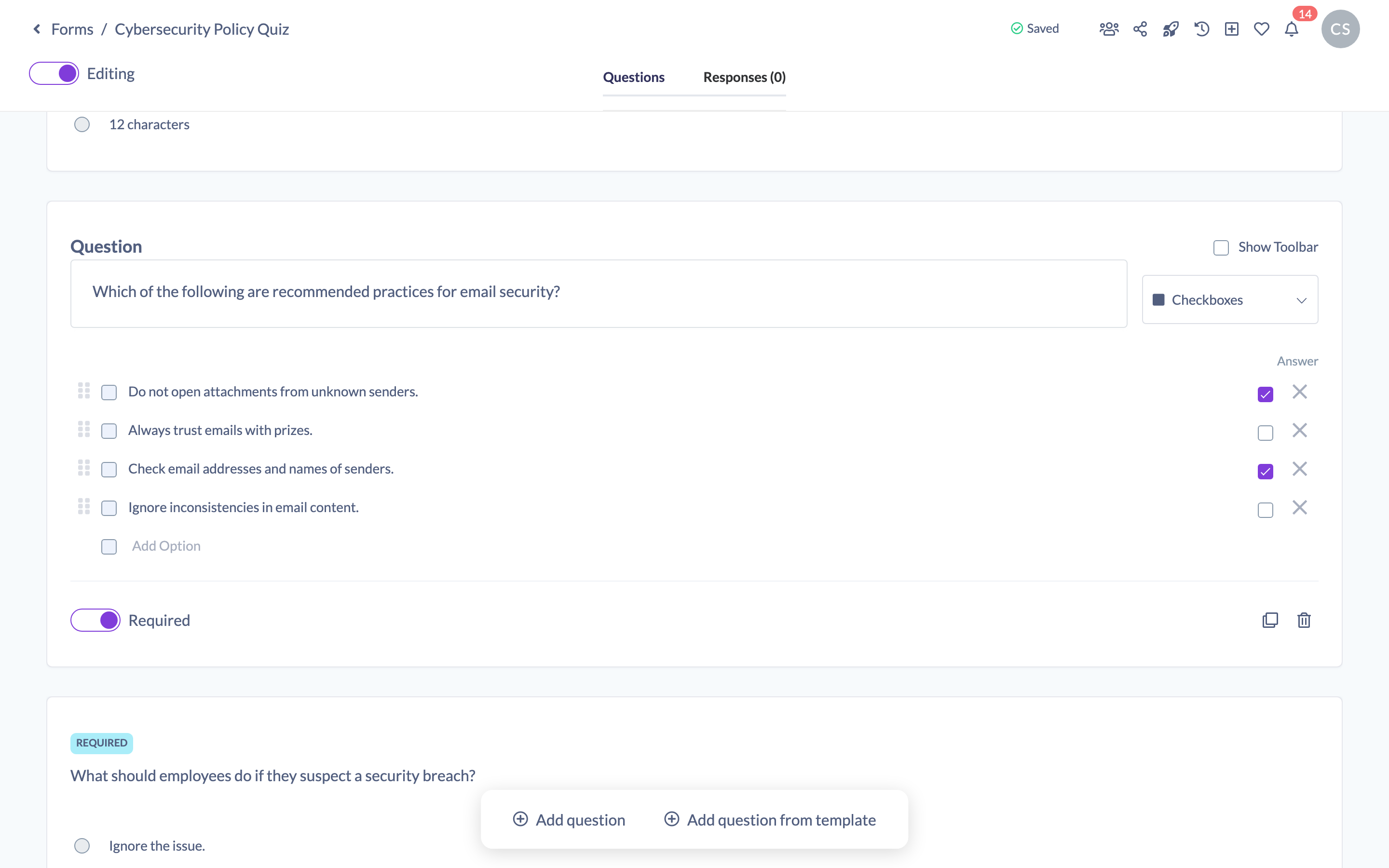
- Enter your answer options. Click Add Option to add more, drag an option by its handle to reorder it, and use the ✕ to remove one.
- (Optional) For a graded Form, tick the checkbox beside each option that is a correct answer.
- Use the Required toggle if learners must answer this question. Your changes save automatically as you work.
Good to know: A Checkbox question lets learners pick multiple answers. If you only want them to choose one, use a Multiple choice question instead.
Things to keep in mind
- Checkbox questions accept more than one selected answer, unlike Multiple choice questions which accept only one.
- Grading is only relevant when the Form has a pass score. For a graded Checkbox question, a learner's answer is counted correct only if they select exactly the options you marked as correct — no more and no fewer.
- Marking correct answers is optional. If you don't mark any option as correct, the question still records the learner's selections but isn't scored.
FAQs
What's the difference between a Checkbox question and a Multiple choice question?
A Checkbox question lets learners select more than one answer; a Multiple choice question lets them select only one.
Can a Checkbox question be graded?
Yes. Tick the correct options, and set a pass score on the Form. The learner must select exactly all the correct options (and no incorrect ones) for the answer to count as correct.
How do I add more answer options?
Click Add Option beneath the existing options. You can reorder options by dragging their handle and remove one with the ✕.
Who can do this
Owners, Admins, Managers, Content Managers and Instructors can add and edit Form questions. People Managers, Employees and Restricted users have read-only access and cannot change a Form's questions.
Updated on: 18/07/2026
Thank you!