
How to Add a Cover Image and Thumbnail to Content
How to Add a Cover Image and Thumbnail to Content
In this article:
- Overview
- How to add a thumbnail and cover image
- How to reposition the cover image
- Things to keep in mind
- FAQs
- Who can do this
Overview
Every piece of content in SuperPath can carry two images: a Thumbnail, the small square image shown in Library cards and lists, and a Cover, the wide banner shown across the top of the content page. Good imagery makes your Library easier to scan and gives each course, video or resource a polished, branded feel. You can set both when you first add content and change them at any time from the content's edit panel.
How to add a thumbnail and cover image
- Open the content item from your Library and open the Edit content panel (the pencil icon on the right-hand toolbar), or add these while adding new content.
- At the top of the panel you will see the Thumbnail and Cover pickers side by side.
- For each image, click the picker to choose an image. You can upload your own file, pick from your asset library, choose an image from Unsplash (Cover only), or create one in Canva.
- Click Save changes to save.
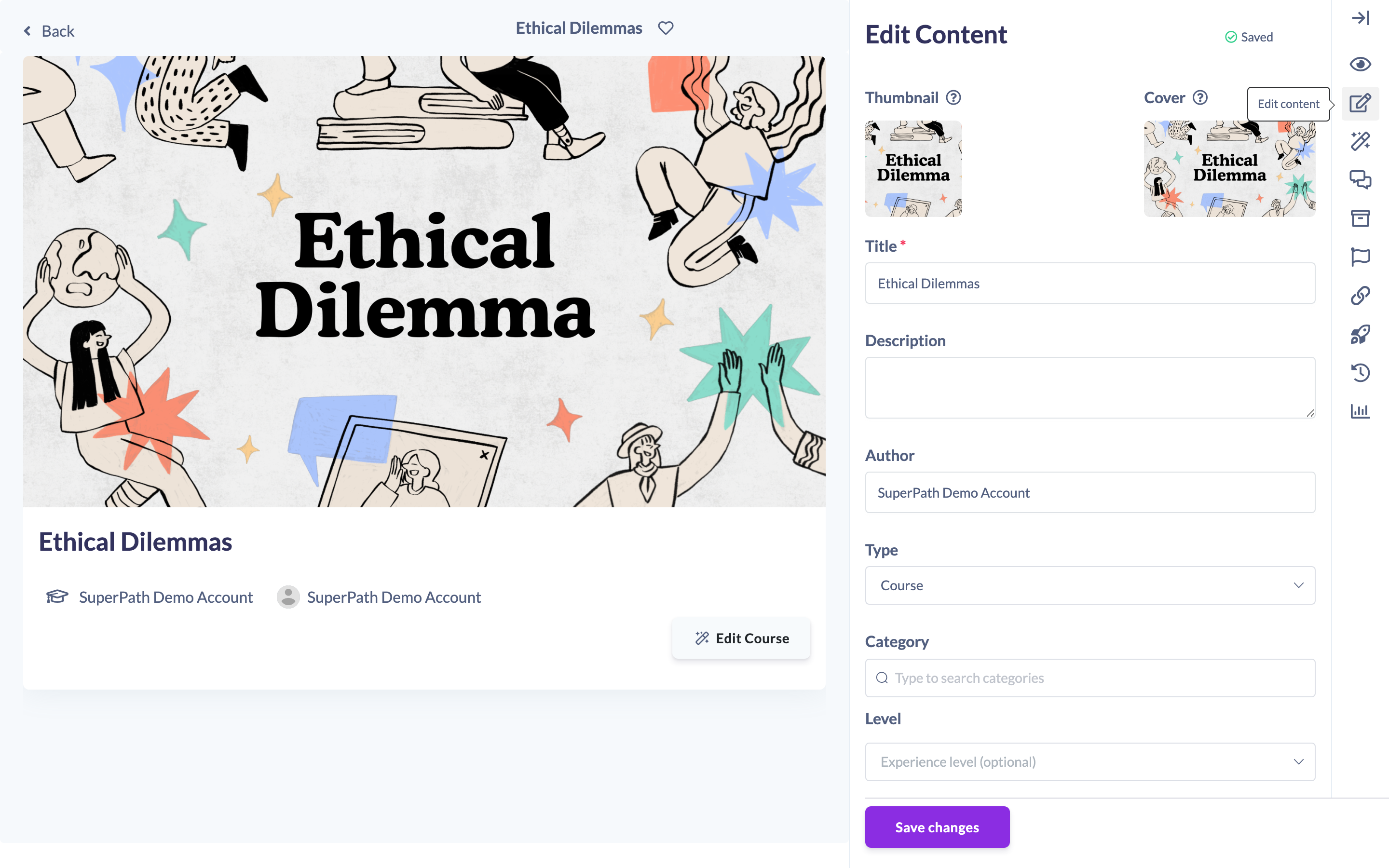
Note: For the Thumbnail we recommend a square image around 160x160px. For the Cover we recommend a 16:9 image, for example 1920x1080px.
How to reposition the cover image
Because covers are wide, the important part of a tall image can sit off-screen. To choose which part shows:
- In the Cover picker, open the picker menu and choose Manage position.
- Drag the image to frame it the way you want, then save the position.

Things to keep in mind
- Uploaded images must be in .jpeg, .jpg or .png format.
- The Thumbnail and Cover pickers are only shown for content that belongs to your own account. They do not appear on content you have added from another provider's library (purchased content).
- If you do not set a thumbnail or cover, SuperPath shows a default image based on the content type.
FAQs
What is the difference between the thumbnail and the cover?
The thumbnail is the small square image used on Library cards and in lists. The cover is the wide banner shown at the top of the content page.
Can I use an image from Unsplash?
Yes, for the Cover. The cover picker includes an Unsplash option so you can search for a free stock image without leaving SuperPath.
Why can't I change the images on some content?
The image pickers are hidden on purchased content added from another provider's library. You can only change images on content that belongs to your own account.
Who can do this
Owners, Admins, Managers, Content Managers and Instructors can edit Library content and set its thumbnail and cover. People Managers, Employees and Restricted users cannot — they have read-only access to content.
Updated on: 18/07/2026
Thank you!