
How to Add a Date Question to a Form
How to Add a Date Question to a Form
In this article:
- Overview
- Add a Date question
- Things to keep in mind
- FAQs
- Who can do this
Overview
A Date question lets learners pick a date as their answer — useful for capturing things like a completion date, a start date or a renewal date. It's one of the question types you can pick when building a Form or quiz.
Add a Date question
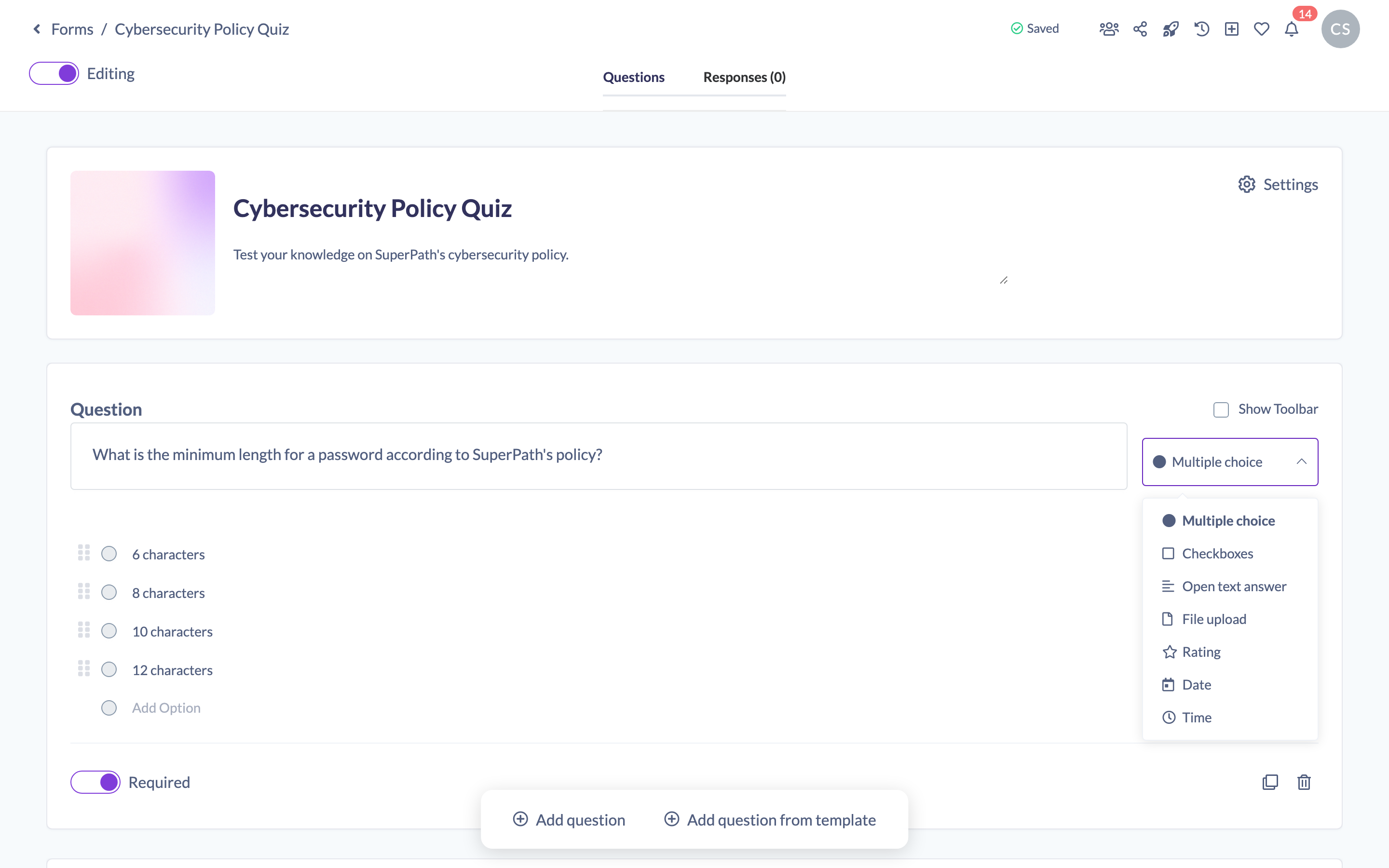
- Open the Form you want to edit — you'll land in the question builder in edit mode.
- Click Add question at the bottom of the builder to add a new question.
- With the new question selected, open the question type dropdown to the right of the question title and choose Date.
- Type your question in the question field, and use the Required toggle if learners must answer. Your changes save automatically.
Good to know: When learners answer, they pick a date from a calendar picker shown in Day Month Year format (for example 17 Jul 2026).
Things to keep in mind
- Learners answer by choosing a date from a calendar picker, so you don't need to set any options.
- Date questions record the date the learner selects and don't count towards a Form's pass score.
FAQs
What format is the date shown in?
Day Month Year — for example 17 Jul 2026.
Is a Date question graded?
No. A Date question simply records the date the learner chooses; it doesn't contribute to a Form's pass score.
Who can do this
Owners, Admins, Managers, Content Managers and Instructors can add and edit Form questions. People Managers, Employees and Restricted users have read-only access and cannot change a Form's questions.
Updated on: 18/07/2026
Thank you!