
How to Add a Section to a Pathway
How to Add a Section to a Pathway
In this article:
- Overview
- Add a section
- Add steps to a section
- Rename or configure a section
- Things to keep in mind
- FAQs
- Who can do this
Overview
Sections let you group related steps inside a Pathway so learners see a clear structure — for example "Week 1", "Onboarding basics" or "Assessment". A section is a heading that holds one or more steps beneath it, and you can collapse, reorder and configure each section just like a step.
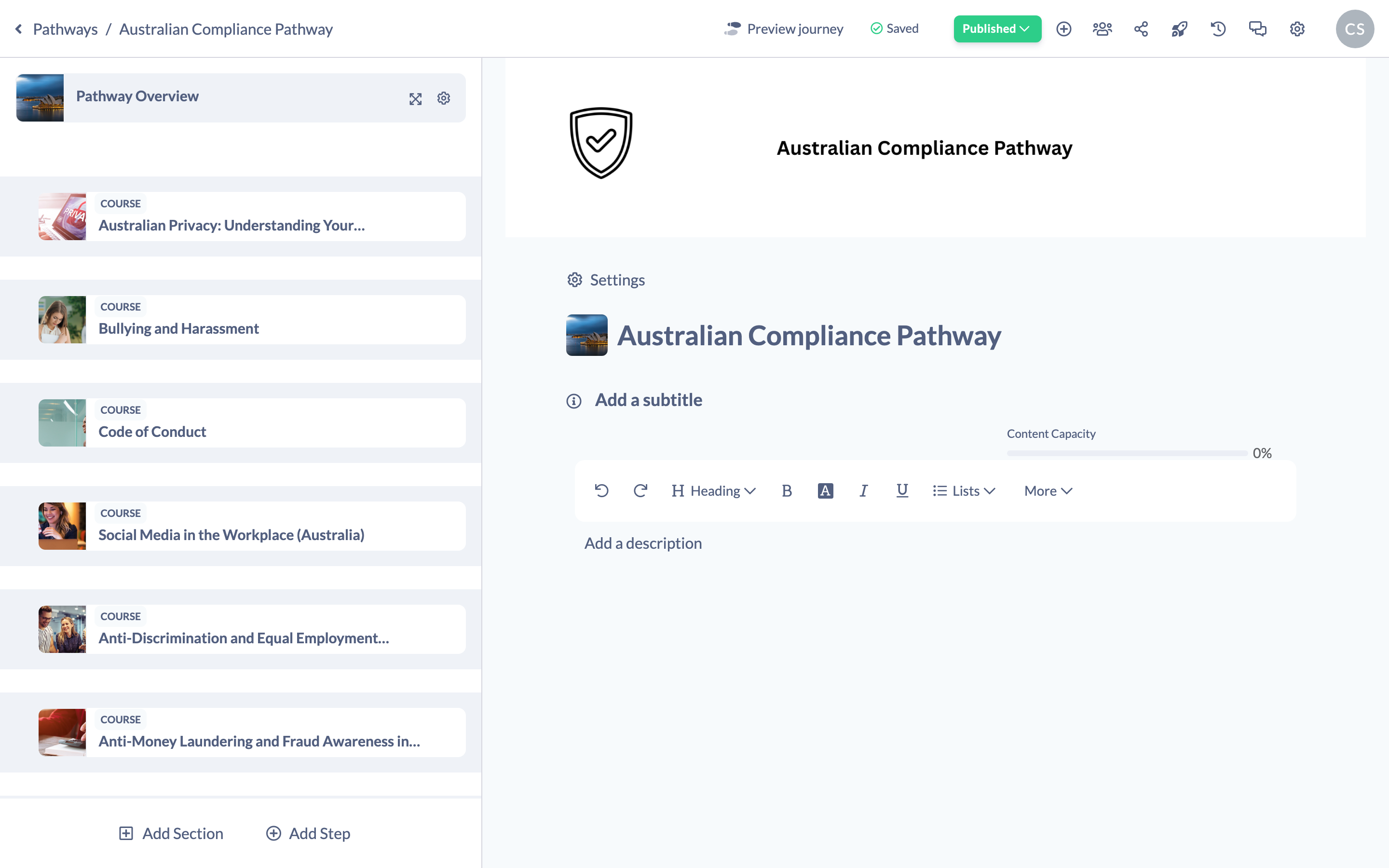
Add a section
- Open your Pathway in the builder. The steps panel runs down the left-hand side.
- At the bottom of the steps panel, click Add Section.
- A new section is added to the bottom of the Pathway, titled New Section.

Add steps to a section
Once a section exists, you can fill it with steps in two ways:
- Hover over the section header and click the + (add) button, then choose Add Content, Add Event, Add Form or Add Text to add a new step directly into that section.
- Drag an existing step from elsewhere in the Pathway and drop it under the section.
Note: A section can't contain the same Content, Event, Form, Pathway or Knowledge step twice — if you try to add a duplicate to a section, SuperPath keeps the original in place and lets you know.
Rename or configure a section
- Click the section header to open it, where you can edit its title, cover and description.
- Hover over the section header and click the cog icon to open the section's settings — from here you can mark the section as required, set a prerequisite, add a start or due date, and show or hide its cover.
- Use the chevron on the section header to collapse or expand its steps while you build.
Things to keep in mind
- A section is itself a type of step, so it appears in the Pathway's step order and can be reordered like any other step.
- Deleting a section also deletes every step inside it — see How to Delete a Step or Section From a Pathway.
- Adding a section is one of the changes that returns a published Pathway to a draft (unpublished) state, so you'll need to publish again once you're done.
FAQs
Can a step belong to more than one section?
No. A step sits under a single section (or none). Move it by dragging it into a different section.
Do I have to use sections?
No. Sections are optional — a Pathway can be a flat list of steps with no sections at all.
Can I have steps outside of any section?
Yes. Steps that aren't dragged into a section simply appear on their own in the Pathway.
Who can do this
Owners, Admins, Managers, Content Managers and Instructors can add and configure sections in a Pathway. People Managers, Employees, Members, Volunteers and Restricted users have read-only access to Pathways and cannot.
Updated on: 18/07/2026
Thank you!