
How to Add Additional Information or Instructions to a Step
How to Add Additional Information or Instructions to a Step
In this article:
- Overview
- Add additional information
- Edit or view later
- Things to keep in mind
- FAQs
- Who can do this
Overview
Additional information lets you give learners extra context or instructions about a step's content — what to focus on, how to approach it, or what to do once they've finished. It's written in a rich-text editor and shown alongside the step.
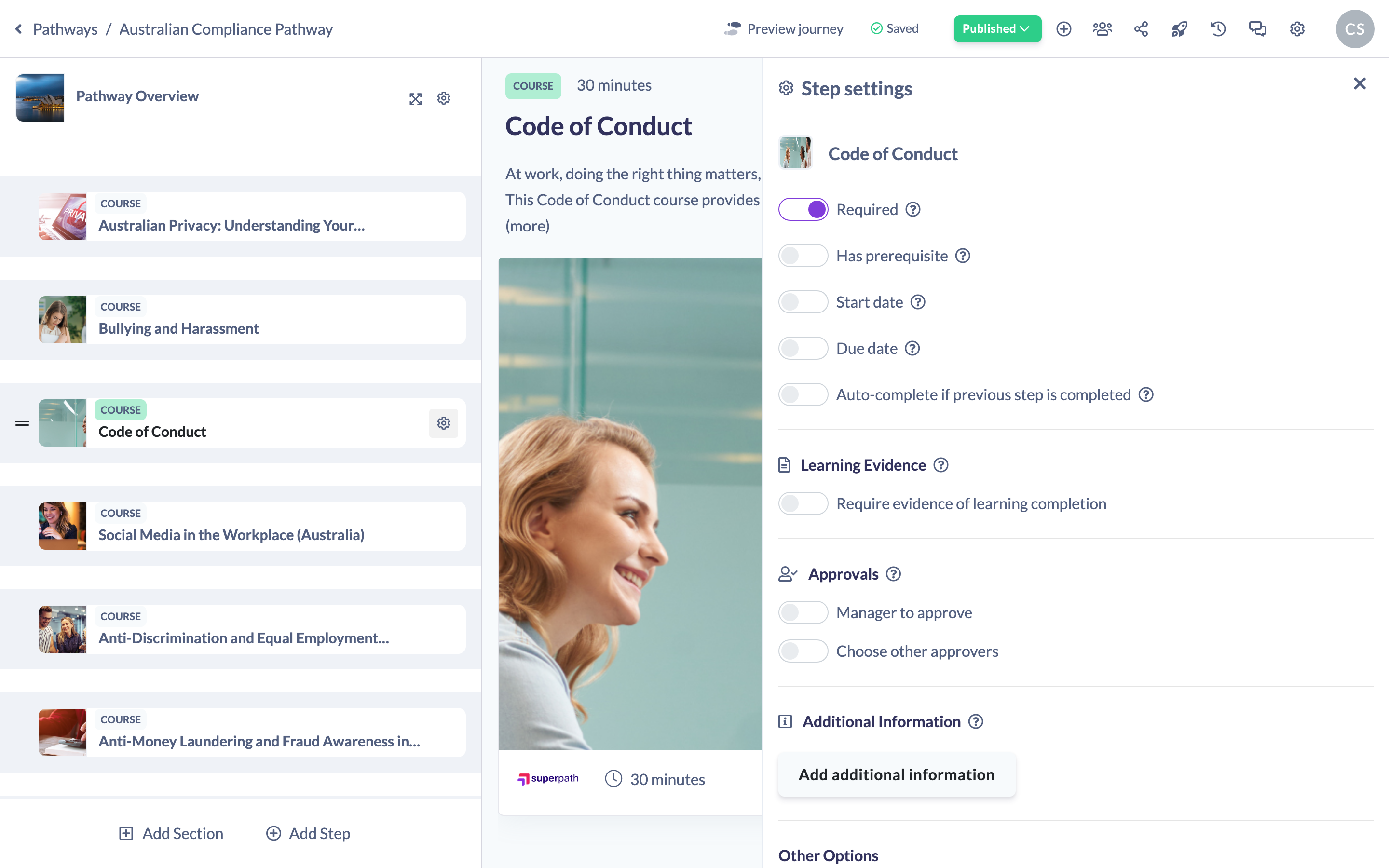
Add additional information
- Open your Pathway in the builder and hover over the step in the left steps panel.
- Click the cog icon to open the step's settings panel.
- Scroll to Additional Information and click Add additional information.
- Write your notes or instructions in the editor that opens.
- Click Save.
"Use additional information to provide further details or instructions to your learnings on the content within this learning step."

Edit or view later
Once you've added information, the button changes to View additional information — click it to reopen the editor and make changes. Steps that carry additional information show a small info icon in the steps list.
Things to keep in mind
- Additional information is available on content-type steps. It isn't offered for sections, Text steps, Form steps or embedded-Pathway steps. (A Text step is itself free-form content, so write your instructions directly in it.)
- Your notes save when you click Save in the editor; closing with Cancel discards unsaved changes.
- Changing a step's settings returns a published Pathway to a draft (unpublished) state, so publish again once you're done.
FAQs
Where do learners see this?
It's shown with the step's content, giving learners your extra context or instructions as they work through it.
Why don't I see the option on some steps?
Additional information isn't available on sections, Text steps, Form steps or embedded-Pathway steps. For a Text step, write the details straight into the step instead.
Can I format the text?
Yes. It's a rich-text editor, so you can format your instructions.
Who can do this
Owners, Admins, Managers, Content Managers and Instructors can add additional information to a step. People Managers, Employees, Members, Volunteers and Restricted users have read-only access to Pathways and cannot.
Updated on: 18/07/2026
Thank you!