
How to Add CPD Points to Content
How to Add CPD Points to Content
In this article:
- Overview
- How to add CPD points to content
- Choosing a CPD category
- Things to keep in mind
- FAQs
- Who can do this
Overview
Continuing Professional Development (CPD) points are units that quantify the time and quality of learning and development activities. In most cases one hour of L&D roughly equates to one CPD point. If your organisation tracks CPD, you can record the number of points a piece of content is worth so it counts towards your people's professional development, and optionally classify those points with a CPD category.
How to add CPD points to content
- Open the content item from your Library and open the Edit content panel (the pencil icon on the right-hand toolbar).
- Find the CPD Points section.
- In Points, enter the number of points the content is worth. You can use decimals (for example, 1.5).
- Optionally choose a Category beside the points.
- Click Save changes to save.
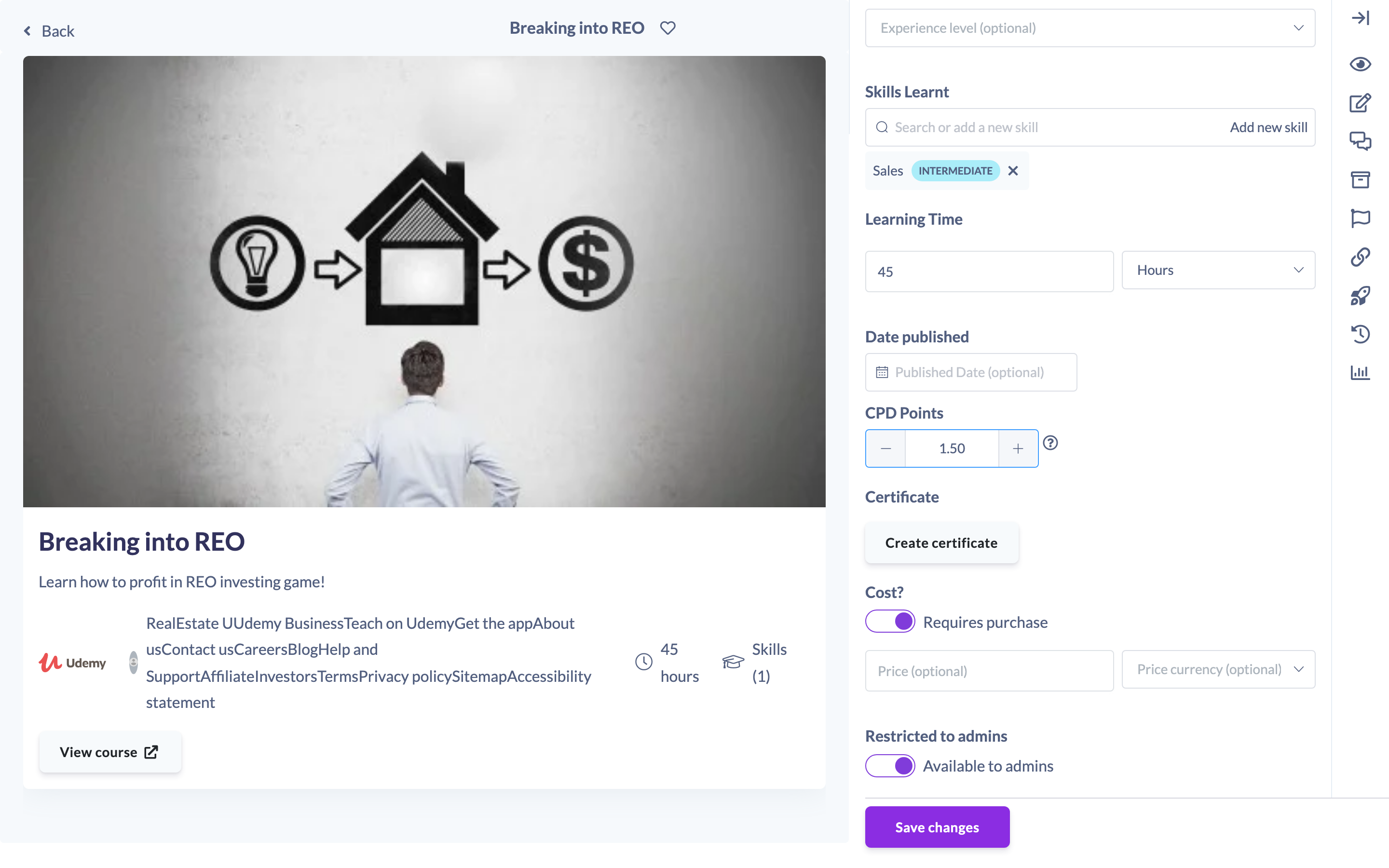
Note: The CPD Points section only appears if CPD points are enabled for your account.
Choosing a CPD category
The Category picker sits next to Points and lists the CPD categories your organisation has set up — for example Technical, Ethics or Self-Directed. It's optional: leave it blank and the points are recorded without a category.
If the category you need doesn't exist yet, you can create it here rather than going to Settings. Click Add category above the picker to enter a Display label and an optional Description, or type the new name straight into the Category picker and select it.
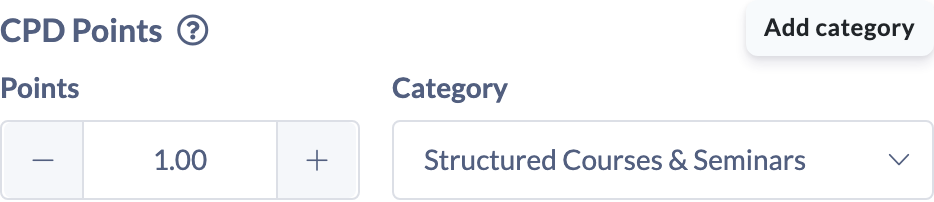
When someone completes this content, the category is recorded against the points they earn — so it shows on their CPD tab, on their CPD transcript, and in the CPD Points Report. To manage the full list, see How to Manage CPD Categories.
Things to keep in mind
- CPD points can be set in increments of 0.1, up to a maximum of 2000.
- As a rule of thumb, one hour of learning is roughly one CPD point — set the value to reflect the effort involved.
- Content carries one category. Its points can't be split across two.
- Changing the category later only affects points earned from then on — points already earned keep the category they were recorded with.
- If this content is completed as a step inside a Pathway, the points are recorded without a category. The category carries through when the content is assigned in its own right.
- If you do not see the CPD Points section, CPD points are not enabled for your account. An Owner or Admin can turn this on in your settings.
FAQs
Why can't I see the CPD Points field?
CPD points are a setting that has to be enabled for your account. If the field is missing, ask an Owner or Admin to enable it.
Can I enter part points?
Yes. Points can be entered in steps of 0.1, so half-hour activities and similar can be recorded accurately.
Do I have to set a category?
No. The Category field is optional, and points without one report as Uncategorised.
Why can't I see the Add category button?
Creating a new CPD category is limited to Owners and Admins. Other roles can still pick from the categories that already exist.
Who can do this
Owners, Admins, Managers, Content Managers and Instructors can edit Library content, set its CPD points and choose a category. People Managers, Employees and Restricted users cannot — they have read-only access to content. Creating a brand-new CPD category from the Add category button is limited to Owners and Admins.
Updated on: 30/07/2026
Thank you!