
How to Approve or Decline a Learning Request
How to Approve or Decline a Learning Request
In this article:
- Overview
- Open your learning requests
- Approve a request
- Decline a request
- Things to keep in mind
- FAQs
- Who can do this
Overview
Some learnings are set up so that a learner can't simply self-assign them — instead they have to request the learning, and a nominated approver signs it off first. When a learning has Requires approval on self assign turned on, anyone who tries to self-assign it raises a learning request that comes to you (the approver) to action. This article covers the reviewer side: finding those requests and either approving them (which assigns the learning to the learner, optionally with a due date) or declining them with a reason.
Open your learning requests
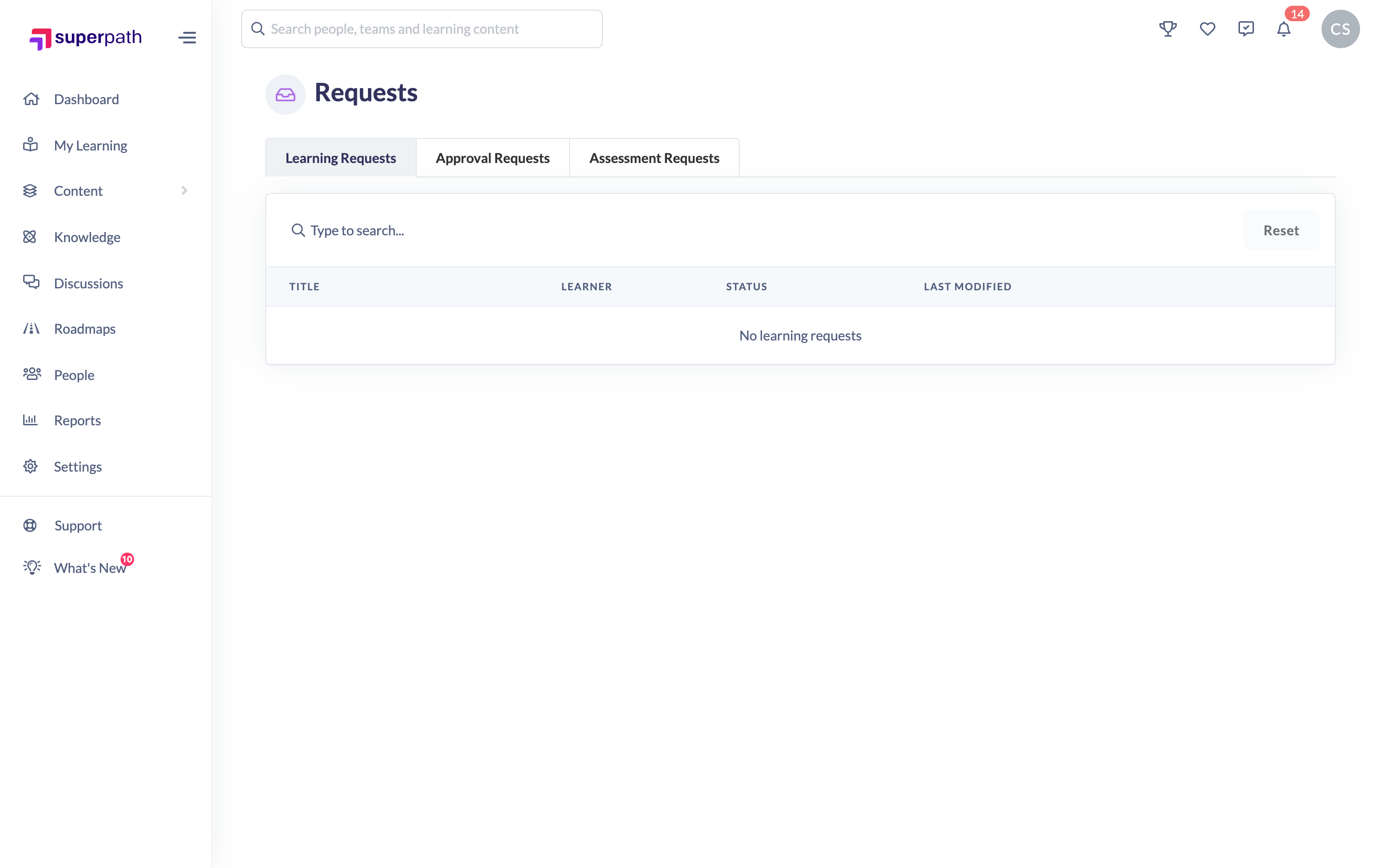
- Go to Requests from the main navigation.
- Open the Learning Requests tab.
- You'll see a table of requests where you are a nominated approver, with a column for the learning Title, the Learner who asked for it, the Status, and when it was last modified.
- Use the search box to find a request by learning title or learner name, and the Status filter to narrow the list to Awaiting Review, Approved or Declined.
Good to know: The list only shows requests you're allowed to action — that is, learnings whose approver rule includes you. If you're not set as an approver for anything, this tab will be empty.
Approve a request
- Find the request you want to action (its status will be Awaiting Review).
- Click Approve on that row.
- In the Approve Learning? dialog you can optionally Select a due date for the learner. Leave it blank if there's no deadline.
- Click Approve to confirm.
When you approve, SuperPath assigns the learning to the learner there and then — a Pathway becomes one of their assigned Pathways, and Content or an Event becomes one of their assignments — and the learner is notified that their request was approved.
Decline a request
- On the request row, click Decline.
- In the Decline learning? dialog, enter a reason in Enter reason for decline. A reason is required — the Decline button stays disabled until you type one.
- Click Decline to confirm.
The learner is notified that their request was declined, along with the reason you gave. Declined requests stay in the list with a Declined status, and you can hover the comment icon to read the decline reason back.
Things to keep in mind
- A request can only be actioned once. Once it's Approved or Declined, the Approve and Decline buttons no longer appear for that row.
- Approving is what actually assigns the learning — the learner does not get the learning until you approve it.
- A due date is optional on approval; if you don't set one, the learning is assigned with no deadline.
- Declining always requires a reason, so the learner understands why.
- The Learning Requests tab only appears when Enable Learning Requests is switched on for your account.
FAQs
Who receives a learning request?
The approvers nominated on the learning itself. When a learning has Requires approval on self assign enabled, its approver rule (specific approvers, or other approver rules you've set) decides who the request is sent to — and those are the only people who can action it.
What happens to the learner when I approve?
The learning is immediately assigned to them: a Pathway lands in their assigned Pathways, and Content or an Event lands in their assignments. They're notified of the approval and any due date you set.
Can a learner re-request something I declined?
The declined request remains on record with your reason. Whether they can raise a fresh request depends on the learning still requiring approval for self-assignment; a new request can only be raised while there isn't already a pending one for that learner and learning.
Why is the Learning Requests tab missing?
The tab is controlled by the Enable Learning Requests account setting. If it's off, the tab won't show. If it's on but you see no rows, you simply aren't a nominated approver for any current requests.
Who can do this
Approving and declining learning requests isn't tied to a specific platform role — it's controlled by who is named as an approver on the learning (via its Requires approval on self assign approver rules). Any user set as an approver for a learning can approve or decline requests for it, and the Learning Requests tab only shows each person the requests they're an approver for. The tab itself is available only when Enable Learning Requests is turned on for your account.
Updated on: 18/07/2026
Thank you!