
How to Archive Content
How to Archive Content
In this article:
- Overview
- How to archive a content item
- Things to keep in mind
- FAQs
- Who can do this
Overview
Archiving is the tidy way to retire a piece of content you no longer want people to find. When you archive content, it is removed from your Library so it can no longer be searched for, added to new Pathways, or included in new learning assignments — but anyone who already has it retains their access. It is a gentler alternative to deleting: nothing is lost, and existing learning history stays intact.
Use it when a course or resource is out of date or being replaced, but you still want current learners and your reporting to keep working as normal.
How to archive a content item
- Go to your Library and open the content item you want to archive.
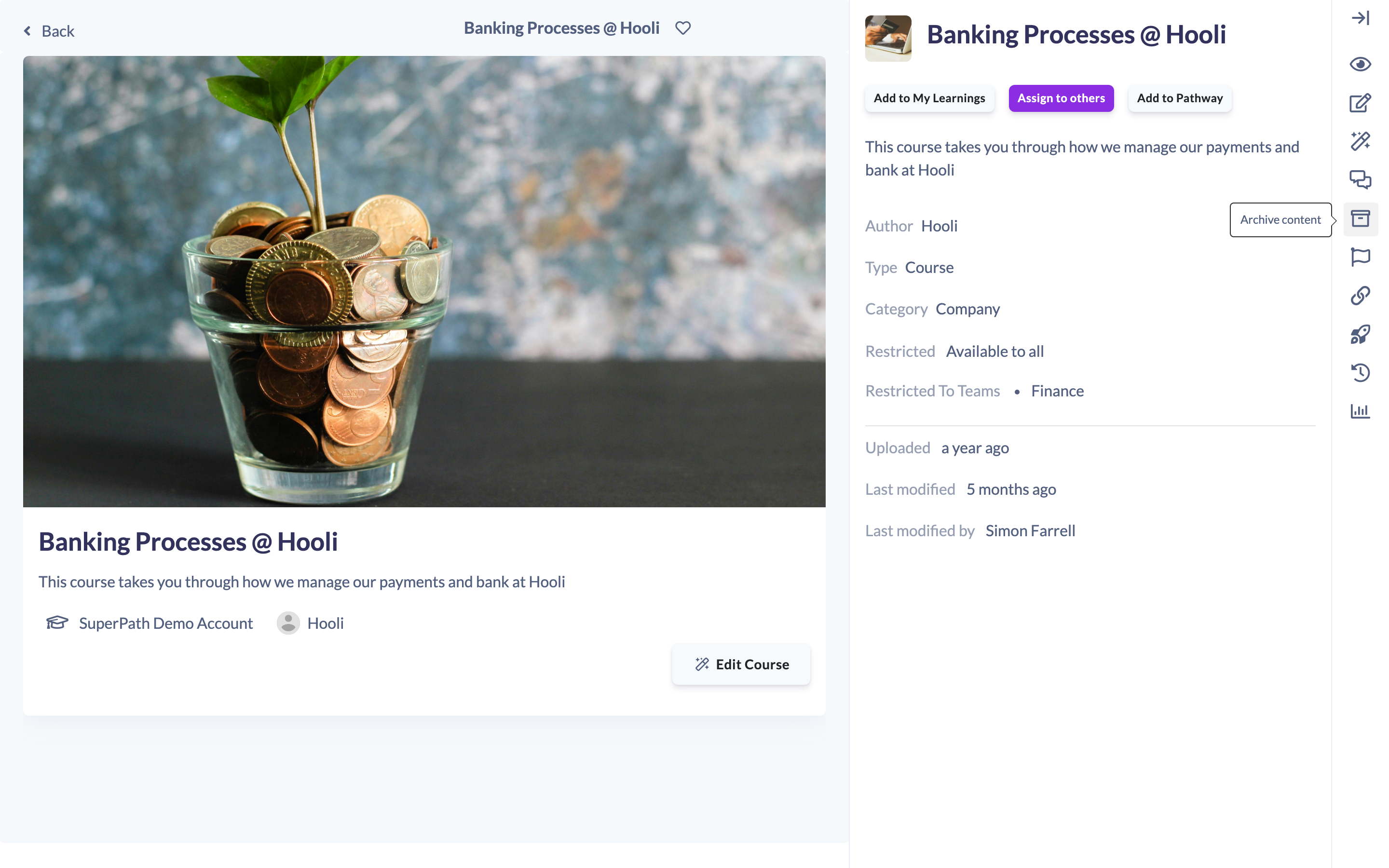
- On the right-hand toolbar of the content page, click the Archive content icon (the archive box).
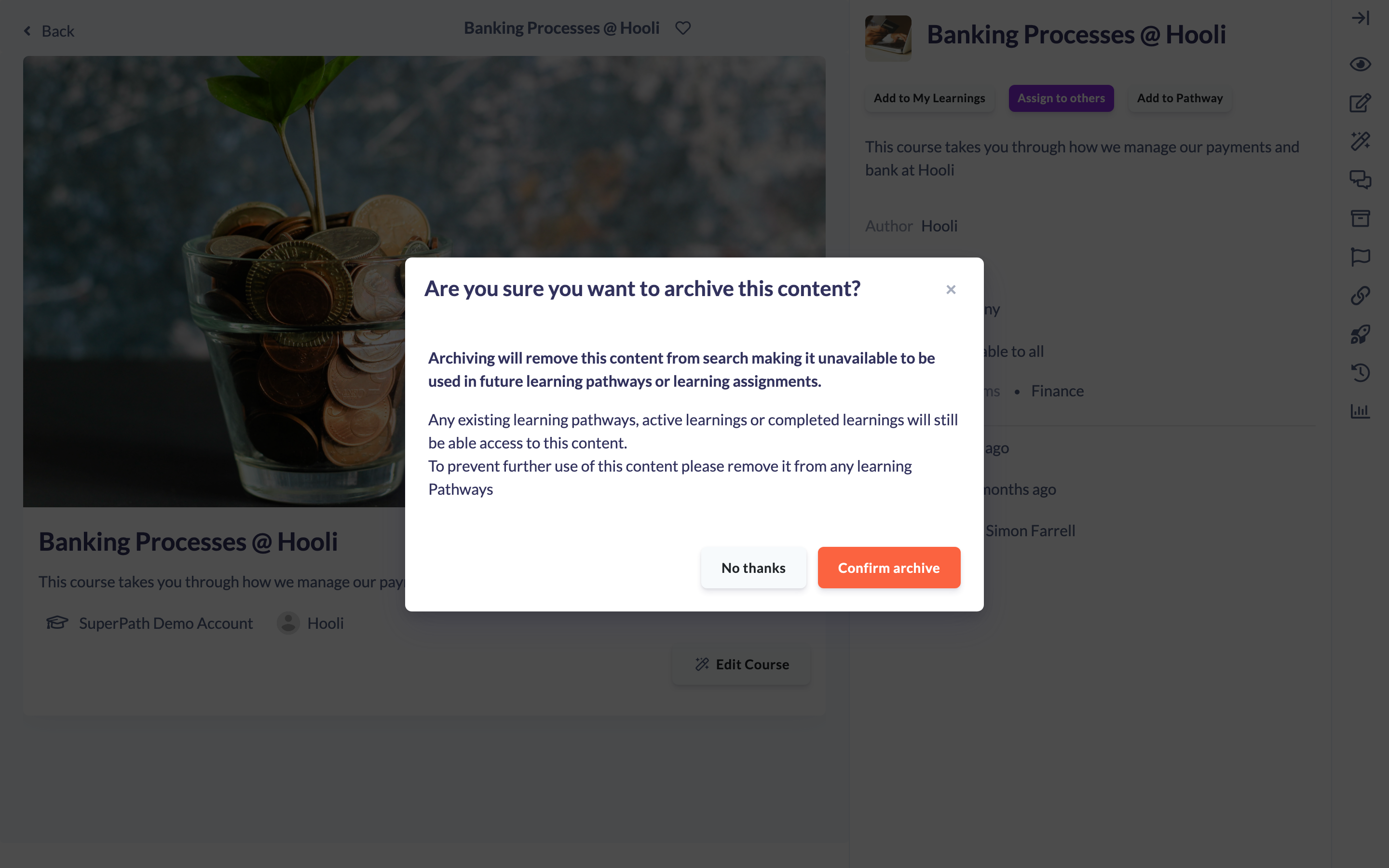
- A confirmation window appears titled Are you sure you want to archive this content?, explaining that archiving removes the content from search so it cannot be used in future Pathways or assignments, while existing Pathways, active learnings and completed learnings keep their access.
- Click Confirm archive to proceed, or No thanks to cancel.
Once confirmed, you will see a Content successfully archived message and be returned to your Library.
Tip: To stop the content being used in any learning going forward, remove it from any Pathways it still belongs to — archiving alone does not pull it out of Pathways that already include it.
Things to keep in mind
- Archiving removes the content from Library search, so it can no longer be added to new Pathways or new learning assignments.
- Existing Pathways, active learnings and completed learnings keep their access to the content — archiving does not break anyone's in-progress or completed learning, and it does not remove the content from reporting.
- Archiving is not the same as deleting. The item is not removed from your account; it is set to an archived state.
- The Archive content action is only available on content that belongs to your own account. It does not appear on content you have added from another provider's library (purchased or shared content).
FAQs
What is the difference between archiving and deleting content?
Archiving removes content from Library search so it can't be used in new Pathways or assignments, while leaving all existing and completed learnings untouched. Deleting removes the content item from your Library entirely. Archiving is the safer choice when learners or reporting still depend on the content.
Will archiving remove the content from Pathways it is already in?
No. Archiving only removes it from search. If you want to stop it being used, remove it from any Pathways that still include it.
Can I archive content that came from another provider's library?
No. The Archive action is only shown for content that belongs to your own account, not for purchased or shared content from another provider.
Who can do this
Owners, Admins, Managers, Content Managers and Instructors can archive Library content that belongs to their own account. People Managers, Employees and Restricted users cannot — they have read-only access to content.
Updated on: 16/07/2026
Thank you!