
How to assign learnings from the Library
How to assign Learnings from the Library
In this article:
- Overview
- How to assign content
- Scheduling a recurring assignment
- Learning evidence and requirements
- Things to keep in mind
- FAQs
- Who can do this
Overview
You can assign any content in your Library to people and Teams, so the right Learning lands with the right learners. From a content page you choose who to assign it to, when it is due, whether to notify them, and optionally what evidence they need to provide.
How to assign content
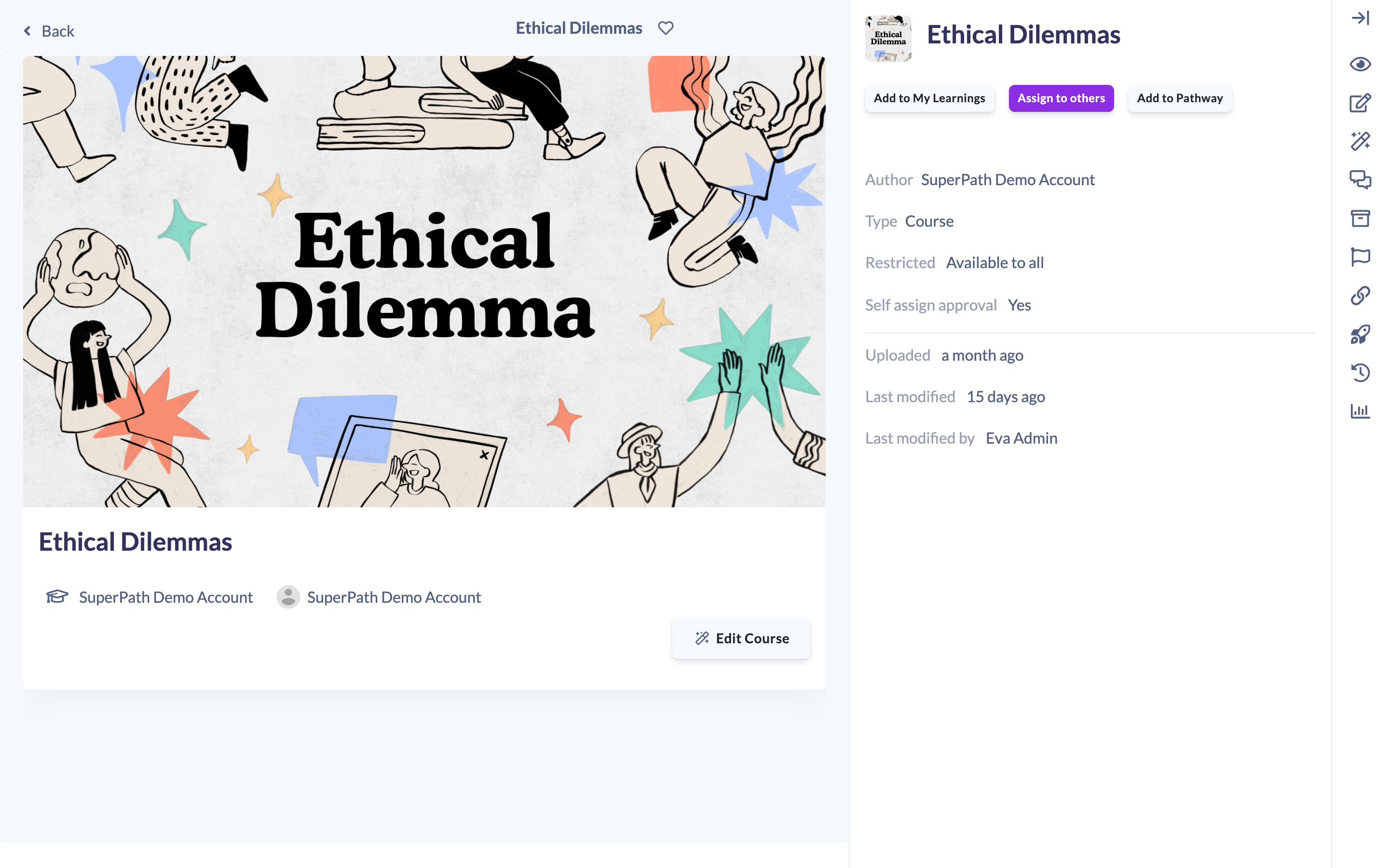
- In the Library, open the content page you want to assign.
- Click Assign to others.
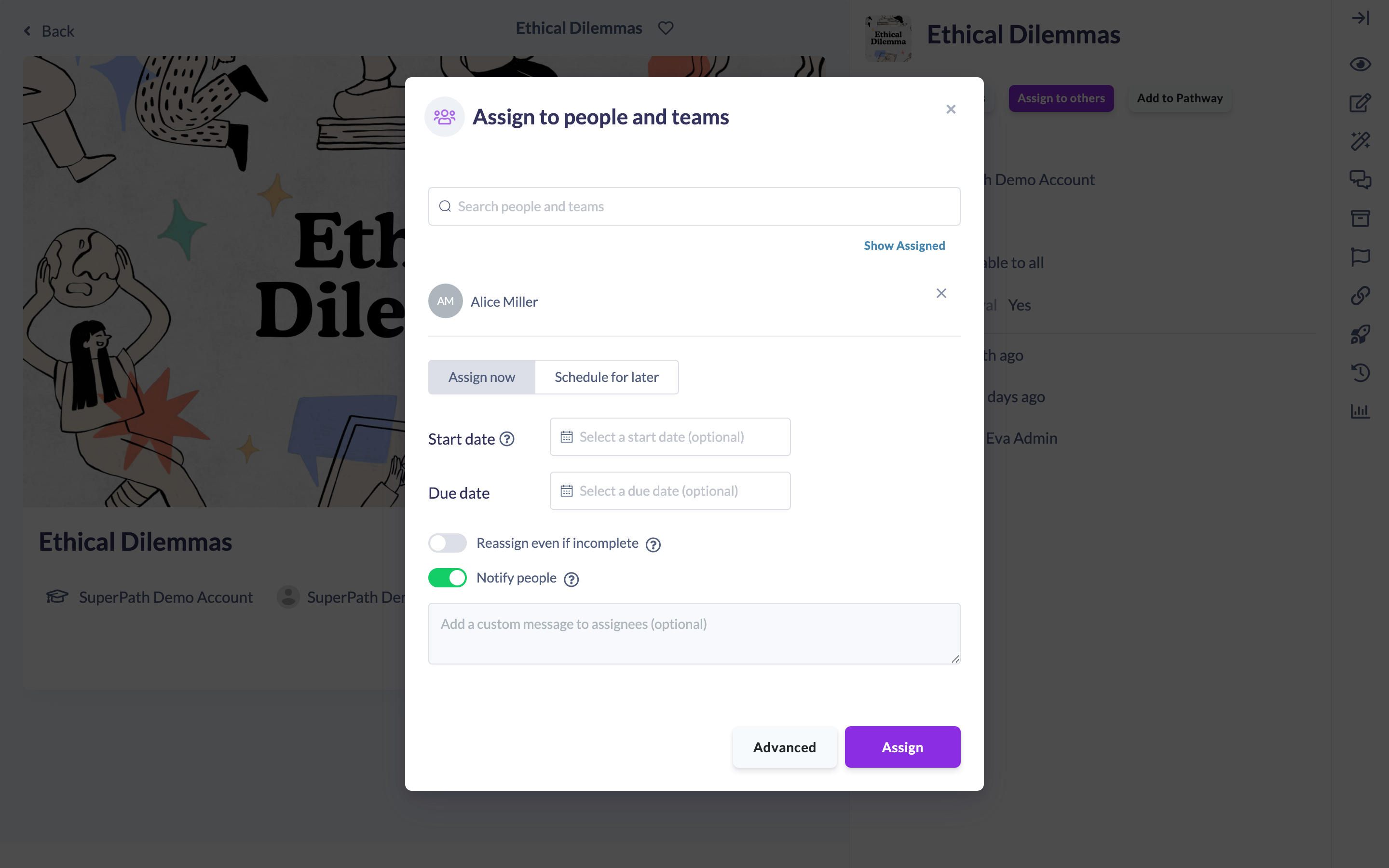
- In the popup, type the name of the people or the Teams you want to assign this content to and select them.
- Choose when to assign it: Assign now or Schedule for later. You can optionally set a start date and a Due date.
- Use the Notify people toggle to control whether assignees are notified. Leave it on to send a notification, or turn it off if you plan to announce the assignment another way. When notifications are on, you can add a custom message; leave the message blank to send the default.
- Click Assign to complete the process.

Scheduling a recurring assignment
When you choose Schedule for later, you can make the assignment repeat on a cycle, for example a refresher that renews every three years.
- Pick the Scheduled date and timezone for the first assignment.
- Turn on Recurring schedule?.
- Under Repeat, choose Yearly, Monthly (a set weekday, such as the second Friday) or Monthly on day. For Yearly, pick the month and day it repeats on.
- For a yearly schedule, set Every to the number of years between occurrences, from 1 to 10. Every 1 year is the standard yearly schedule.
- Set Repeat for to the total number of occurrences, up to 20. The first assignment counts as one.
- Check Next dates, which lists the scheduled date and the occurrences after it, for example 1 Jul 2027, 1 Jul 2030, 1 Jul 2033 and 1 more.
- Click Assign.
Learning evidence and requirements
If you need proof that the Learning was completed, or you want the learner to perform an additional task, set up learning evidence.
- In the assign popup, click Advanced.
- Turn on Require evidence.
- Enter a description of the evidence or activity you require.
- Click Assign to complete the process.

Things to keep in mind
- Assignees are notified by default. Turn off Notify people if you want to hold the announcement for later.
- Learning evidence is optional and lives under Advanced in the assign popup.
- A recurring schedule appears on the Scheduled Learnings report, where you can review or edit it later. See Scheduled Learnings.
FAQs
Can I assign content to a whole Team at once?
Yes. Search for and select the Team in the assign popup, the same way you select individual people.
How do I assign a refresher every three years?
Choose Schedule for later, turn on Recurring schedule?, choose Yearly and set Every to 3. Set Repeat for to the number of rounds you want, and check Next dates before you click Assign.
What happens if I don't add a message?
A default notification is sent to assignees. Add a custom message only if you want to tailor it.
Can I assign without notifying people?
Yes. Turn off the Notify people toggle before assigning.
Who can do this
Owners, Admins, Managers, People Managers and Instructors can assign content from the Library. Content Managers, Employees and Restricted users do not see the Assign to others option.
Updated on: 14/10/2026
Thank you!