
How to Auto-Complete a Step if Previously Completed
How to Auto-Complete a Step if Previously Completed
In this article:
- Overview
- Turn on auto-complete
- Things to keep in mind
- FAQs
- Who can do this
Overview
This setting saves learners from repeating content they've already done. When it's on, SuperPath automatically marks the step complete for a learner who has already completed that same content elsewhere — for example the same course sitting in another Pathway — so they don't have to work through it again.
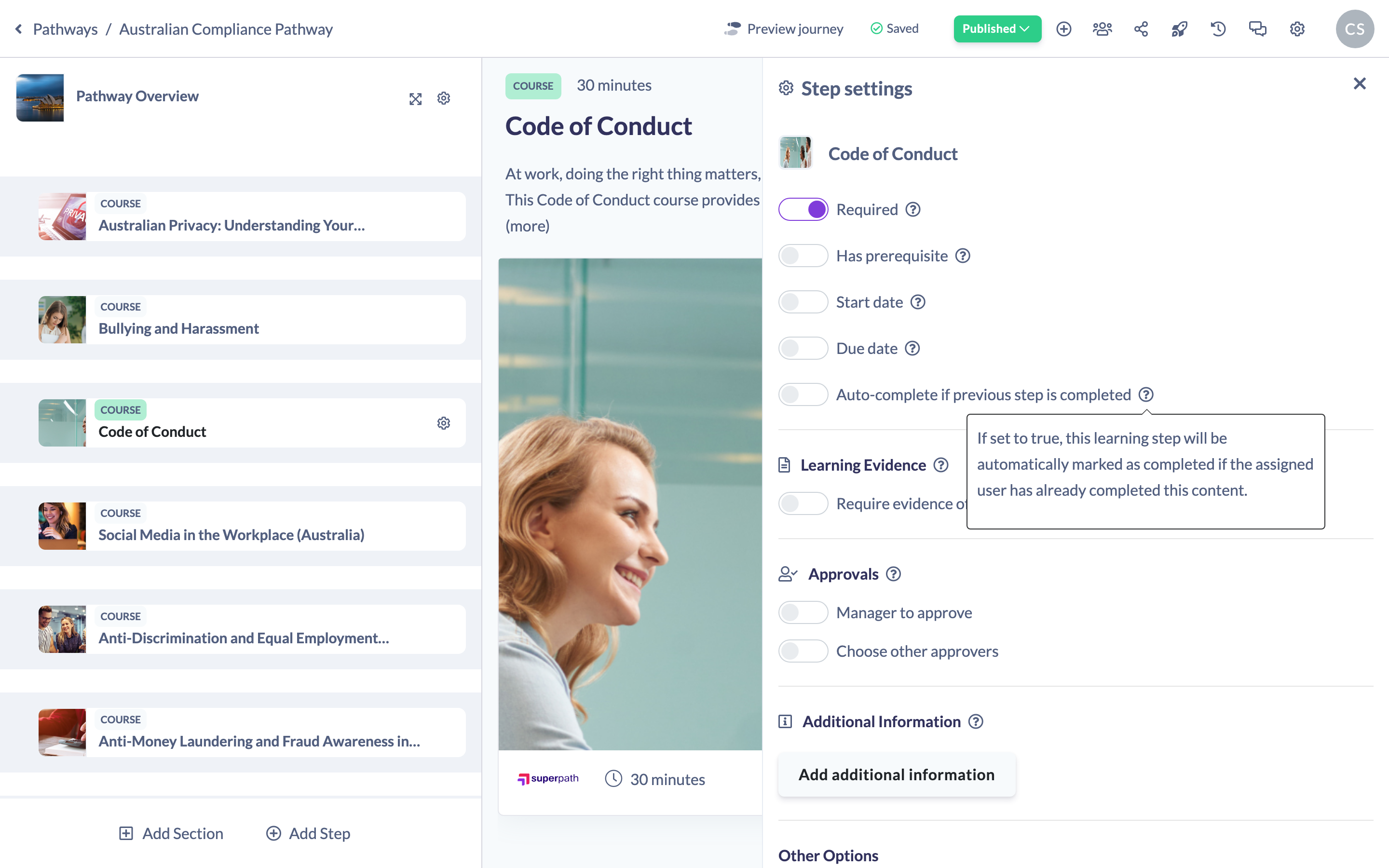
Turn on auto-complete
- Open your Pathway in the builder and hover over the step in the left steps panel.
- Click the cog icon to open the step's settings panel.
- Find the Auto-complete if previous step is completed toggle and switch it on.
Your change saves automatically. The setting's help text describes the behaviour: "If set to true, this learning step will be automatically marked as completed if the assigned user has already completed this content."
Things to keep in mind
- This toggle appears for content-type steps. It isn't shown for sections or Text steps, or when a Form step is set to be completed by an assessor.
- Auto-completion is based on the same underlying content having been completed by that learner — it's about the content, not simply the step immediately above it in the list.
- Changing a step's settings returns a published Pathway to a draft (unpublished) state, so publish again once you're done.
FAQs
When does the step complete automatically?
When the assigned learner has already completed the same content, the step is marked complete for them without them opening it again.
Does this affect learners who haven't done the content before?
No. They complete the step in the normal way.
Is this the same as a prerequisite?
No. A prerequisite gates a step behind another step; auto-complete marks a step as done because the learner has already completed its content.
Who can do this
Owners, Admins, Managers, Content Managers and Instructors can change this setting. People Managers, Employees, Members, Volunteers and Restricted users have read-only access to Pathways and cannot.
Updated on: 18/07/2026
Thank you!