
How to Bulk Delete Library Content
How to Bulk Delete Library Content
In this article:
- Overview
- How to bulk delete content
- Things to keep in mind
- FAQs
- Who can do this
Overview
Bulk deleting lets you remove several Library items at once from Settings → Library → Manage Private Library. Use it to clear out a batch of items you added by mistake or genuinely no longer need. If people may still be using the content, or you want to keep the record, archiving is the safer option — see How to Archive Content.
How to bulk delete content
- Go to Settings → Library and click Manage Private Library.
- Tick the checkbox on each content item you want to remove. To select everything, use the select-all option at the top of the table.
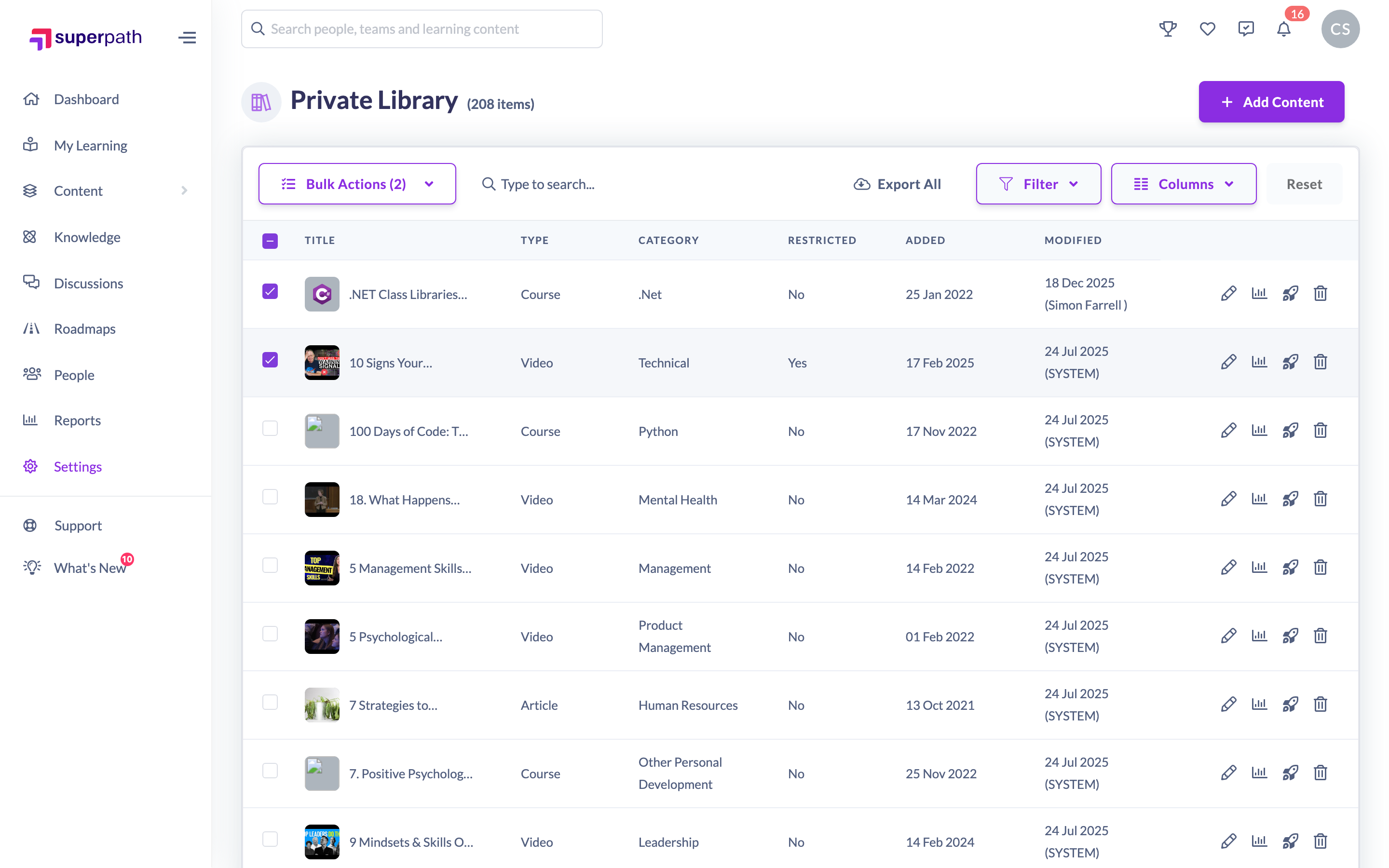
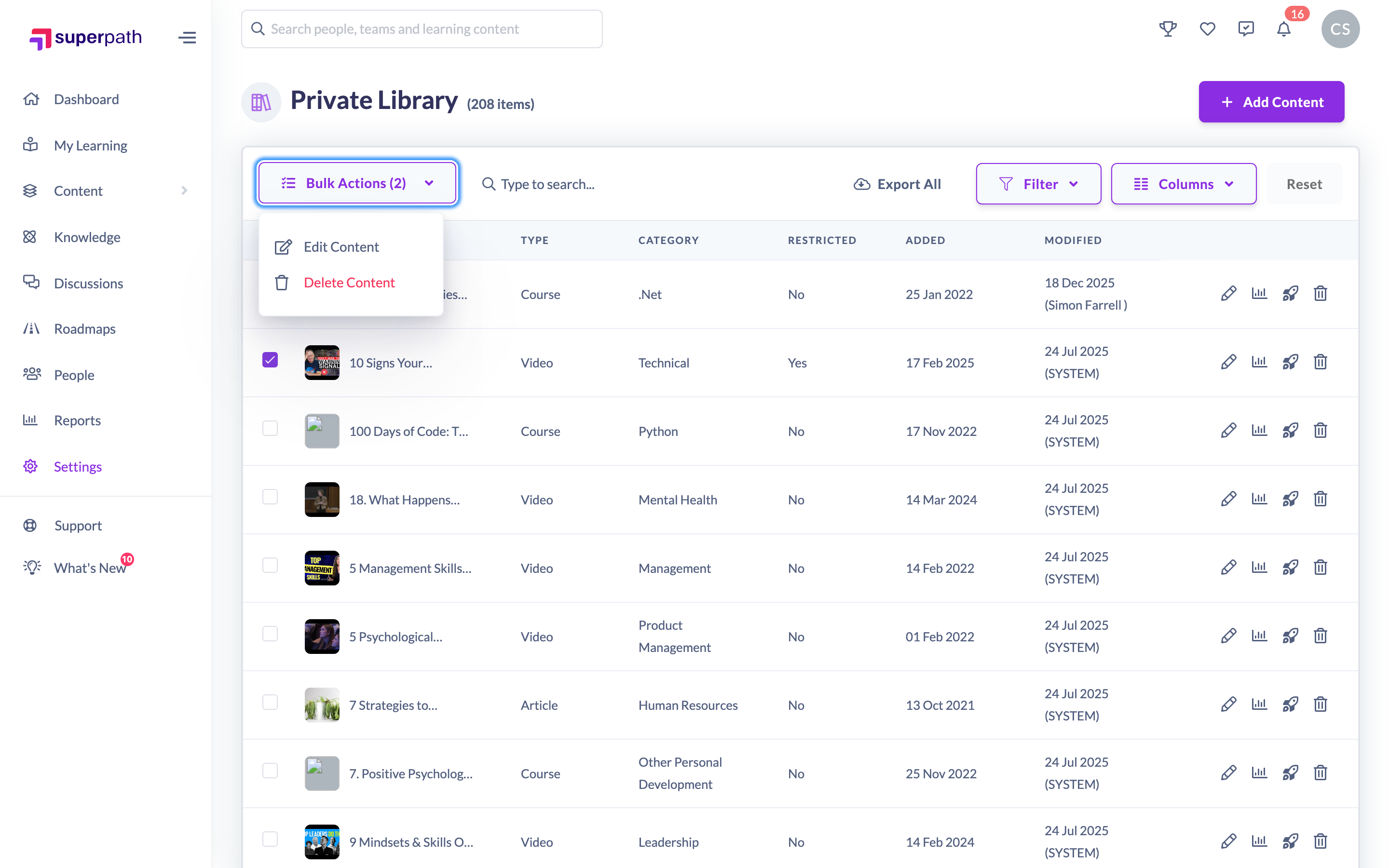
- In the actions bar that appears above the list, open the bulk actions menu and choose Delete Content.
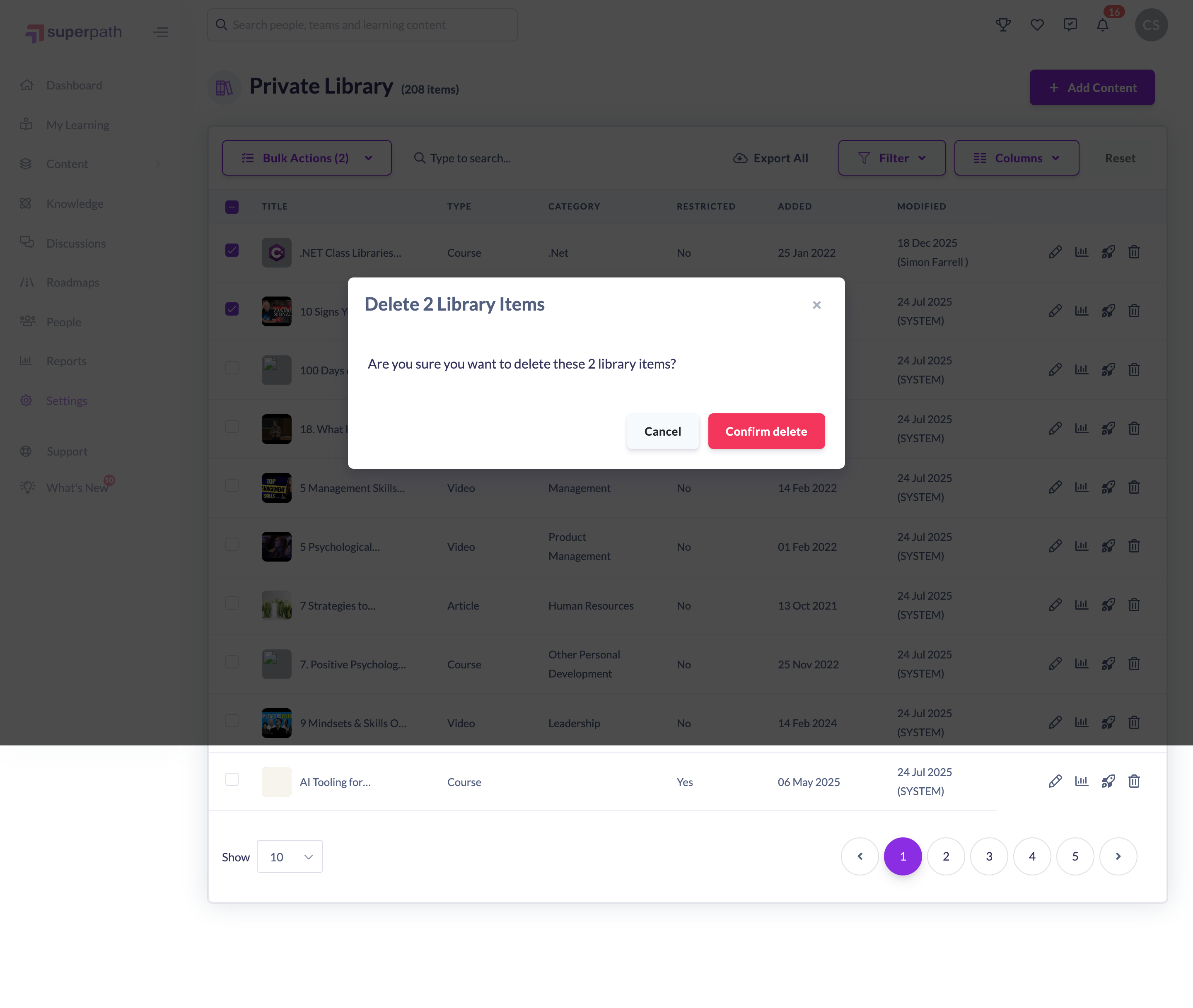
- A confirmation window appears — for example, Are you sure you want to delete these 3 library items?
- Click Confirm delete to remove them, or Cancel to keep them.
Once confirmed, you will see a Content successfully deleted message and the items are removed from your list.
Things to keep in mind
- Deleting removes the items from your Library so they no longer appear in your content lists. It is different from archiving, which removes content from search while leaving existing learnings untouched. If anyone is still using the content, archive it instead.
- Deleting is not blocked when the content is in use. Unlike Pathways, Forms and Events, a content item can be deleted even while it sits inside a Pathway or active learning. Remove the content from any Pathways first so you do not affect learners partway through.
- Each item is processed individually. If one item cannot be removed, the others are still deleted.
- The multi-select checkboxes that unlock bulk deleting are only shown to Owners, Admins and Managers — see Who can do this below.
FAQs
Will I be warned if the content is still being used?
No. Content deletion is not blocked when an item is part of a Pathway or an active assignment, so there is no in-use warning. Check where the content is used and remove it from any Pathways first.
Should I delete or archive?
Archive if anyone is still using the content or you want to keep the history — archiving leaves existing and completed learnings intact. Delete only when the items were added in error or are genuinely no longer needed.
What happens if one item in my selection can't be deleted?
Each item is handled on its own, so the remaining items are still removed. Only the one that failed is left in place.
Who can do this
Owners, Admins, Managers and Content Managers can bulk delete Library content. Instructors can delete individual items but the multi-select checkboxes are not shown to them, so they cannot use the bulk actions. People Managers may see the selection controls but cannot delete because they have read-only access to content. Employees and Restricted users cannot.
Updated on: 18/07/2026
Thank you!