
How to Bulk Edit Library Content
How to Bulk Edit Library Content
In this article:
- Overview
- How to bulk edit content
- Things to keep in mind
- FAQs
- Who can do this
Overview
Bulk editing lets you update several Library items at once instead of opening each one individually. It is the quick way to recategorise a batch of content or change whether a group of items is restricted to Admins. You do this from Settings → Library → Manage Private Library.
How to bulk edit content
- Go to Settings → Library and click Manage Private Library.
- Tick the checkbox on each content item you want to change. To select every item, use the select-all option at the top of the table.
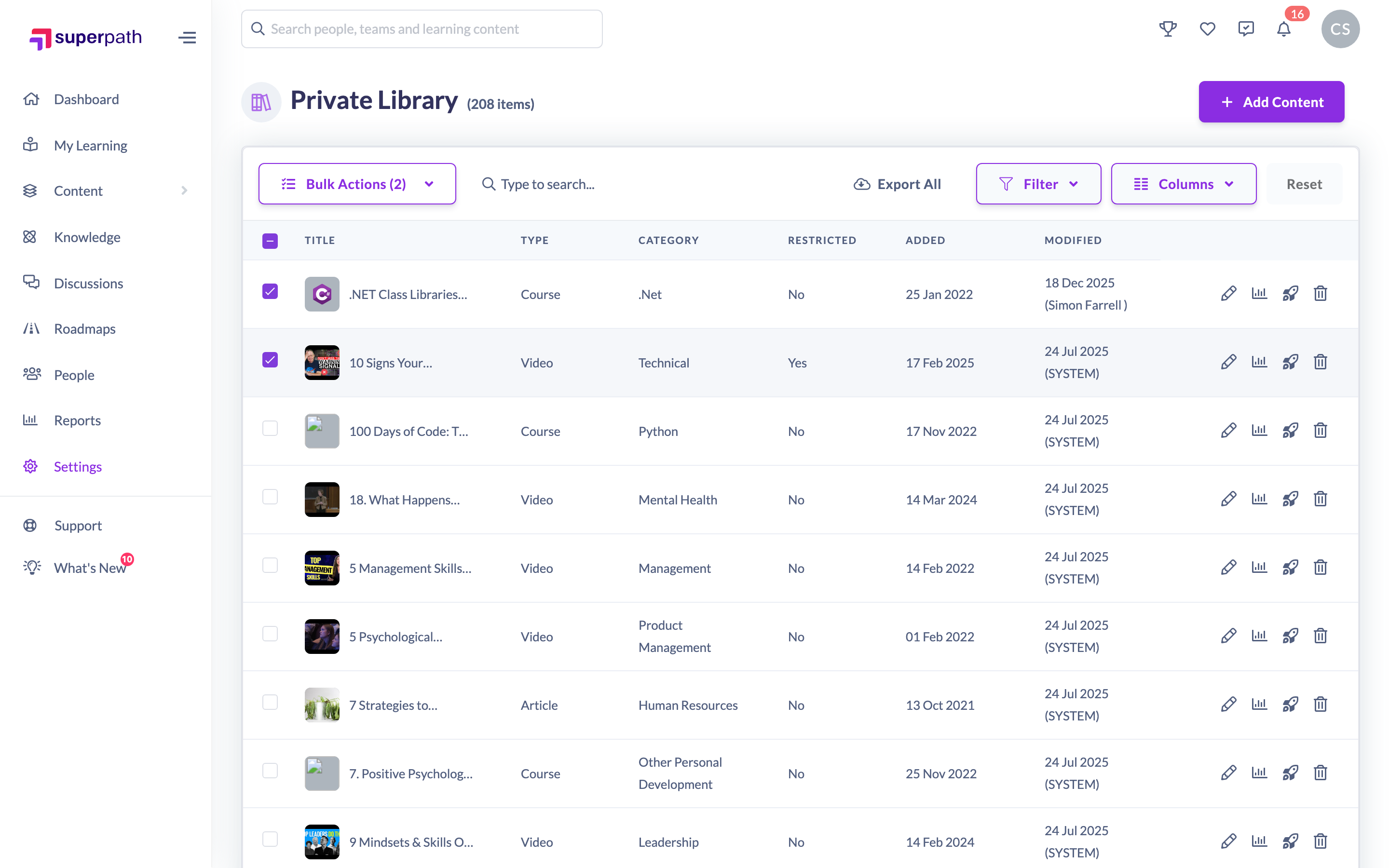
- In the actions bar that appears above the list, open the bulk actions menu and choose Edit Content.
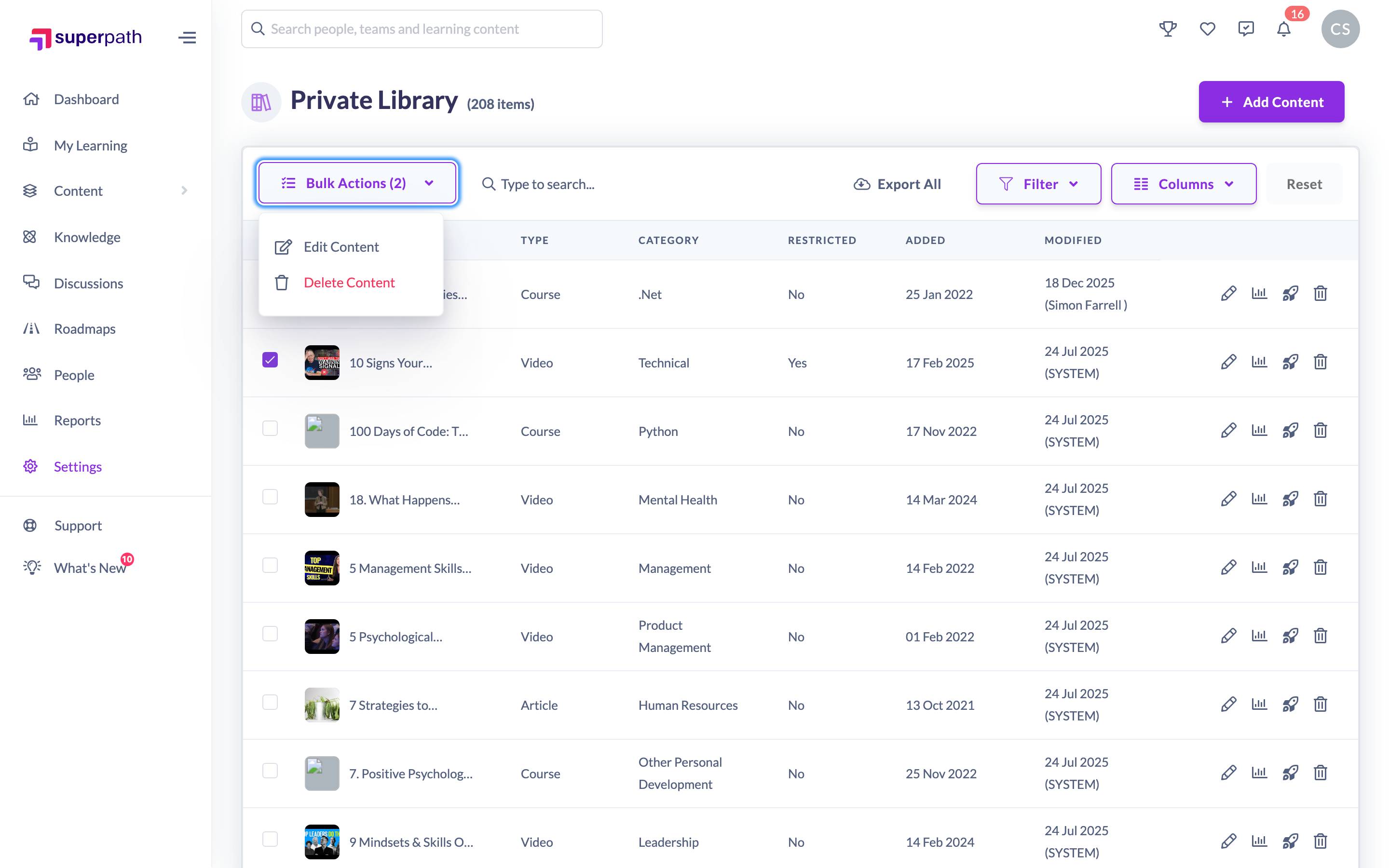
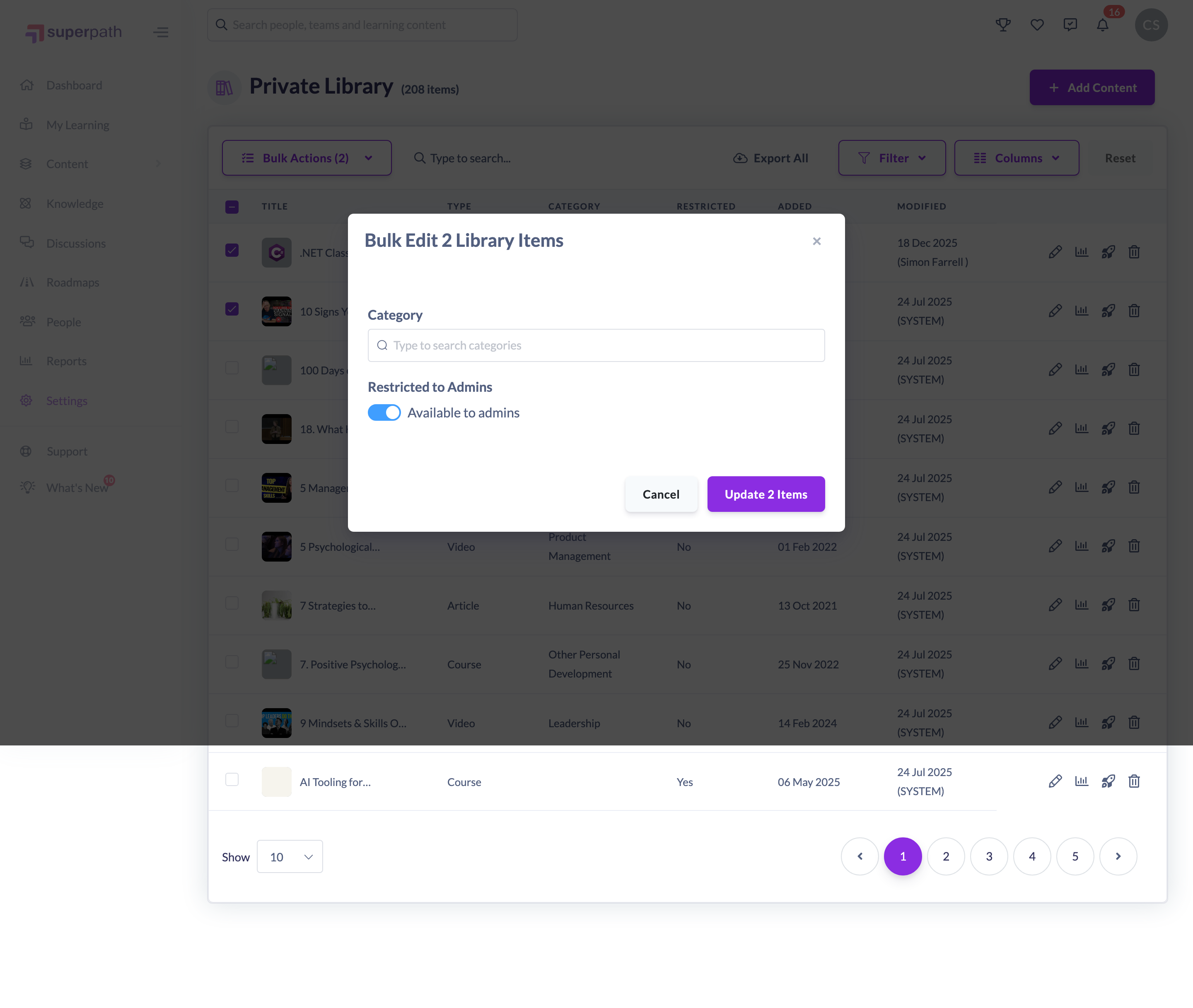
- In the Bulk Edit window, set the values you want to apply to all the selected items:
- Category — choose the category, sub-category or topic to file the items under.
- Restricted to Admins — toggle this on to make the items Available to admins only, or off for Available to everyone.
- Click the Update button (for example, Update 3 Private Library Items) to apply your changes.
Once saved, you will see a Content successfully updated message and the table refreshes with the new values.
Things to keep in mind
- Bulk edit applies the same values to every selected item — it is not for making different changes to different items.
- The Restricted to Admins toggle is applied to all selected items based on its position when you save, so check it is set the way you want before clicking Update.
- Each item is processed individually. If one item cannot be updated, the rest are still updated.
- The multi-select checkboxes that unlock bulk editing are only shown to Owners, Admins and Managers — see Who can do this below.
FAQs
Can I give each item a different category in one go?
No. Bulk edit applies one set of values to all the items you have selected. To set different values, edit the items individually or run separate bulk edits.
Why can't I see the checkboxes to select items?
The selection checkboxes only appear for Owner, Admin and Manager roles. Without them, the bulk actions menu is not available.
Where do I change other details like the title or description?
Those are edited on the individual content item — bulk edit only covers the category and the Restricted to Admins setting.
Who can do this
Owners, Admins, Managers and Content Managers can bulk edit Library content. Instructors can edit individual items but the multi-select checkboxes are not shown to them, so they cannot use the bulk actions. People Managers may see the selection controls but cannot save bulk changes because they have read-only access to content. Employees and Restricted users cannot.
Updated on: 18/07/2026
Thank you!