
How to Bulk Mark Assignments as Complete
How to Bulk Mark Assignments as Complete
In this article:
- Overview
- Bulk mark assignments as complete
- Things to keep in mind
- FAQs
- Who can do this
Overview
When several learners have finished a learning outside SuperPath, you can mark them all complete in one go rather than one at a time. Bulk completion is done from a learning's report, where you select the learners and apply the completion together.
Bulk mark assignments as complete
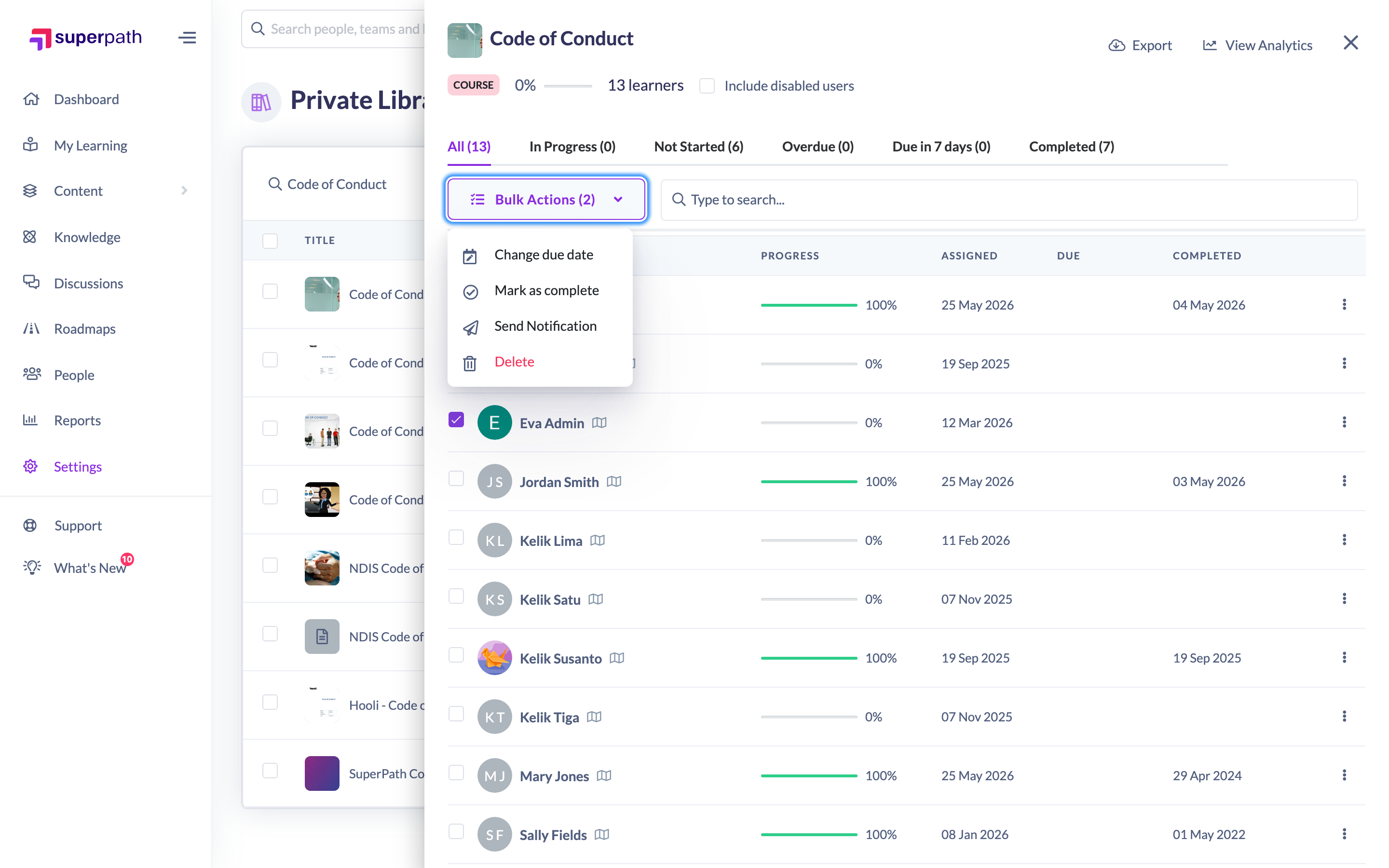
- Open the Quick View Report for the learning — this works from the Content list, Pathways, Forms and Events.
- Tick the checkbox beside each learner you want to mark complete (or use the select-all control).
- Click the Bulk Actions button that appears, then choose Mark as complete.
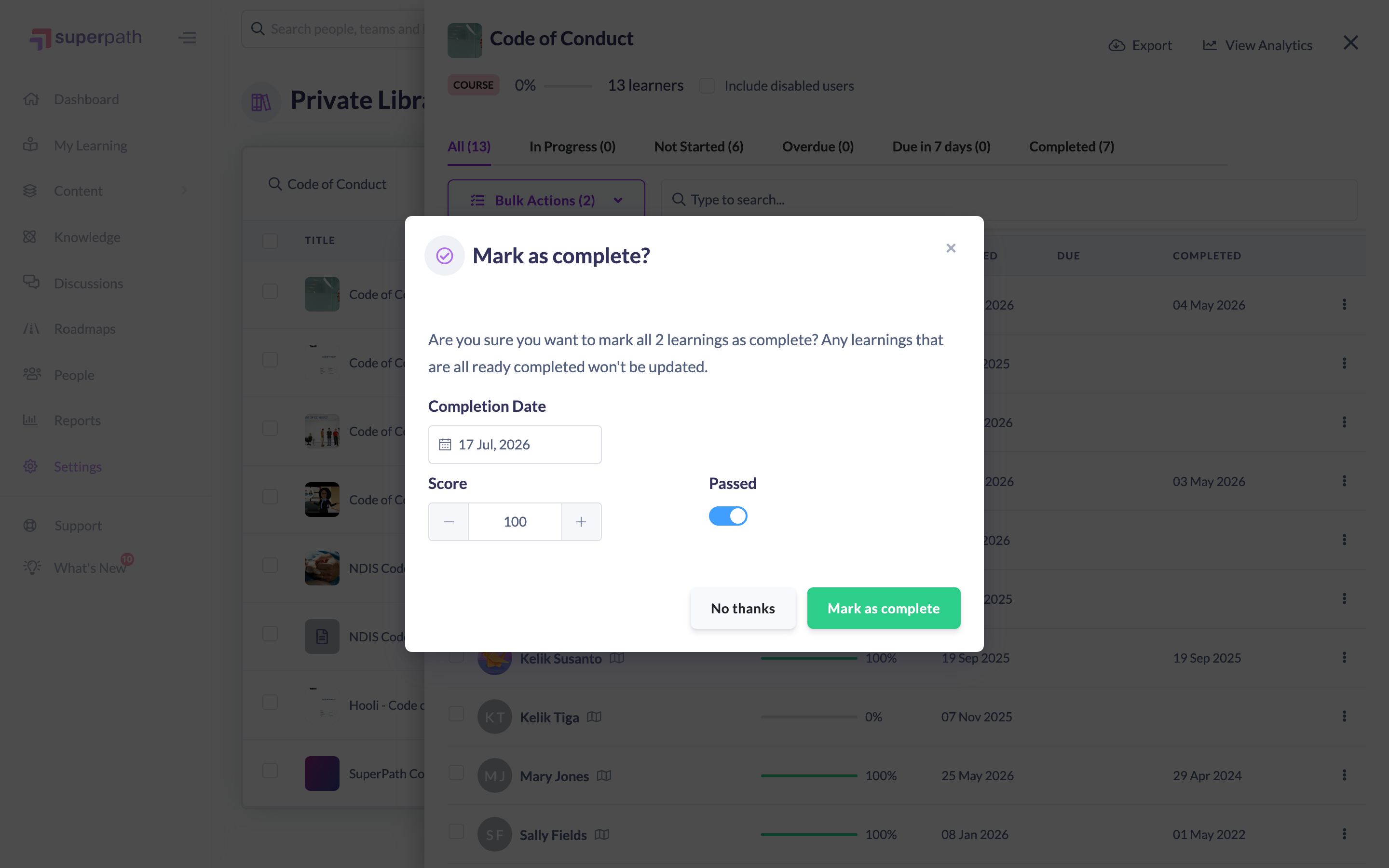
- In the confirmation, set a Completion date — today's date or any earlier date. For course items you can also set a Score and toggle Passed.
- Click Mark as complete to apply it to everyone you selected.
Good to know: To mark a single learner complete, use the Mark as Complete action on their row instead — see Admin Mark As Complete.
Things to keep in mind
- Learners who are already complete can't be re-marked, and Roadmap levels aren't included in bulk completion.
- The Score and Passed fields only apply to course-type items; they aren't shown for Forms or events.
- Marking a full Pathway complete also marks its steps complete on the same date.
FAQs
Where do I select multiple learners?
Open the learning's Quick View Report, then tick the checkbox on each learner's row (or use select-all). A Bulk Actions button appears once at least one is selected.
Can I set a past completion date?
Yes. You can choose today's date or any earlier date when confirming the completion.
Can I mark a whole team complete at once?
You select individual learners in the report. Tick each learner you want, then use Bulk Actions → Mark as complete.
Who can do this
Only Admins and Owners can mark assignments complete on behalf of learners, individually or in bulk. Other roles don't see the option.
Updated on: 18/07/2026
Thank you!