
How to Complete a Learning Step
How to Complete a Learning Step
In this article:
- Overview
- Working through a step
- Marking a step complete
- When a step completes automatically
- Steps that need extra actions
- Things to keep in mind
- FAQs
- Who can do this
Overview
A Pathway is made up of steps — a video or course to watch, a Form to fill in, an Event to attend, or a section that groups related steps together. This article explains how to work through a step in the player and get it marked complete so you can move on to the next one.
Working through a step
- Open the Pathway from My Learnings and start it, or click a step to jump straight to it.
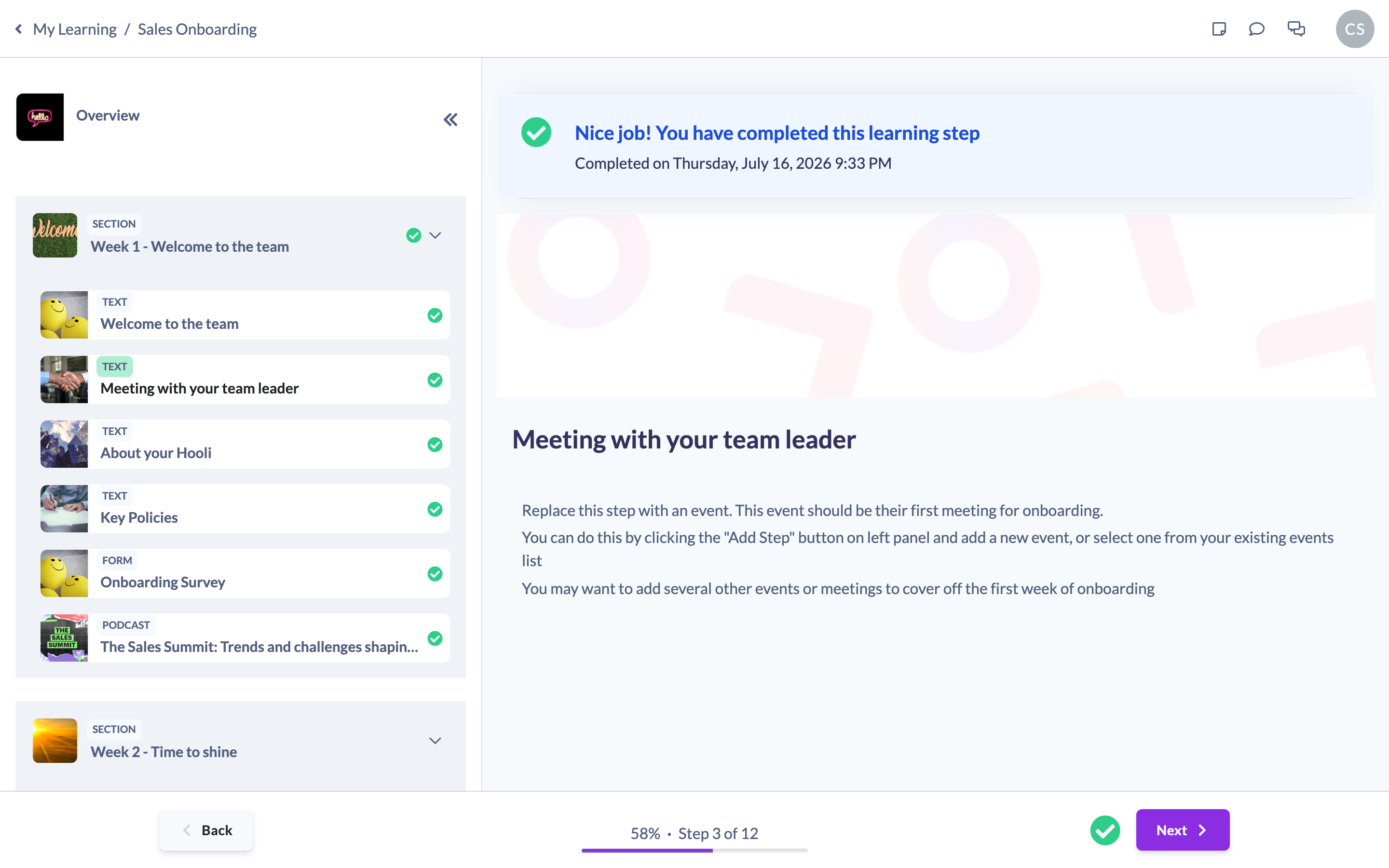
- The step opens in the player, with the content in the middle of the screen and a bar along the bottom.
- The bottom bar shows your overall progress as a percentage and Step X of Y, with a Back button on the left and the action button on the right.
- Watch, read or complete the content as needed.
Marking a step complete
When you've worked through the content, use the button in the bottom right to finish the step:
- For most steps this button reads Mark as complete.
- For an Event step it reads Mark as attended.
- For a section it reads Next (a section is complete once you've been through it).
Clicking the action button records the step as complete, shows a Nice job, you have completed this learning step confirmation, and moves you on. When you finish the last step, SuperPath takes you to the Pathway's completion page.

Tip: Clicking the arrow to go to the next step will also mark the current step complete for you, so you rarely need to click Mark as complete separately.
When a step completes automatically
Some steps don't need you to press a button:
- SCORM and MindSmith courses complete on their own once you finish the course in the player — there's no manual Mark as complete button for them.
- Uploaded videos are marked complete automatically once you've watched them.
Steps that need extra actions
Depending on how the step was set up, the action button changes to guide you through what's required:
- A required video or course must be finished first. If a step's content is required, the action button stays disabled until you've watched the video or completed the course.
- Forms show Submit form to continue — submit the Form itself and the step will progress.
- Evidence-required steps show a Submit evidence button instead of Mark as complete. Submit your evidence and then complete the step — see How to Submit Evidence for a Learning Step.
- Approval-required steps show Submit for review. Once you submit, the step shows Submitted for review and its status becomes Awaiting Review; you'll be notified once someone in your organisation has reviewed it. If it's declined you can view the reason and resubmit.
- Prerequisite steps must be done in order — if an earlier step has to be completed first, the player sends you there before you can complete this one.
Things to keep in mind
- You can move Back and forward through steps at any time; your progress is saved as you go.
- A step that requires evidence or approval isn't finished the moment you view the content — it's complete only once the evidence is accepted or the approval is granted.
- If the action button is greyed out, check whether there's still required content to watch or a Form to submit.
- Completing every step in a Pathway takes you to its completion page, where any certificate or points you've earned are shown.
FAQs
Why is the "Mark as complete" button greyed out?
The step most likely has required content you haven't finished yet — for example a video you need to watch to the end or a course you need to complete. Finish that content and the button becomes available.
I finished a course but the step didn't complete — what happened?
SCORM and MindSmith courses complete automatically once the player receives the finished status. Give it a moment to update; if it still doesn't complete, refresh the page and reopen the step.
What does "Submitted for review" mean?
The step needed approval, so your submission has gone to a reviewer. Its status is Awaiting Review and you'll be notified once it's been reviewed. You don't need to do anything else in the meantime.
Do I have to do the steps in order?
Usually you can move freely, but if a step has a prerequisite you'll need to complete that earlier step first.
Who can do this
Any learner can complete the steps in a Pathway that has been assigned to them or that they've added themselves — this includes Employees, Restricted users and every other role. Steps that require review are approved separately by the reviewer your organisation has designated (for example a Manager, Admin or Owner), not by the learner.
Updated on: 16/07/2026
Thank you!