
How to Complete an Assessment Request
How to Complete an Assessment Request
In this article:
- Overview
- Open your assessment requests
- Complete the assessment
- Things to keep in mind
- FAQs
- Who can do this
Overview
An assessment step (sometimes called an evaluation step) is a Pathway step that the learner can't complete themselves — it has to be completed by a nominated assessor. The learner sees a message that the step needs to be completed by an assessor, and you, as that assessor, complete it on their behalf: reviewing their work and marking the step, recording who assessed it and when. This article covers finding assessment requests assigned to you and completing them.
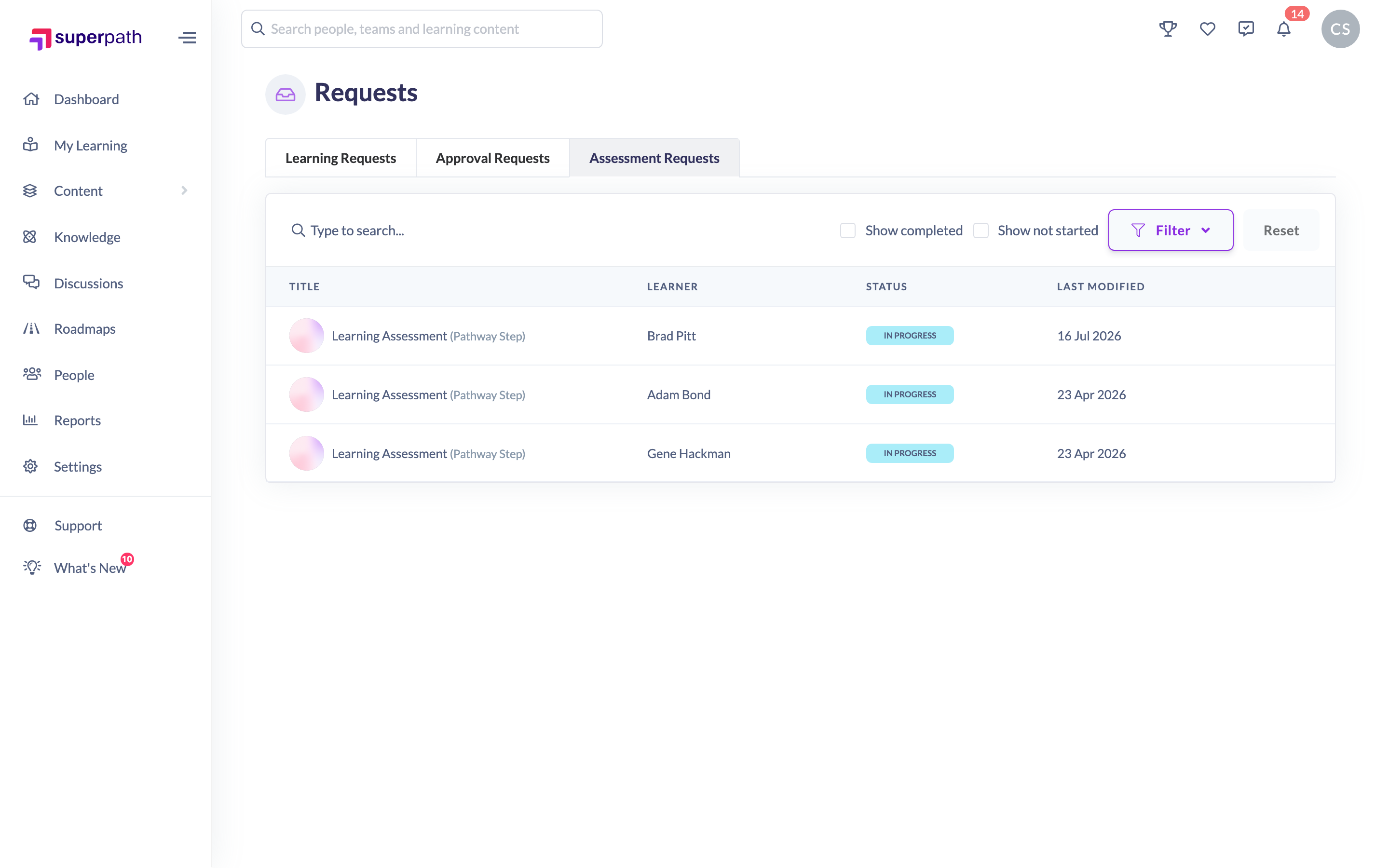
Open your assessment requests
- Go to Requests from the main navigation.
- Open the Assessment Requests tab.
- Each row shows the learning Title (tagged Pathway Step or Learning Assignment), the Learner being assessed, the Status, and when it was last modified.
- Use the search box to find an item by title or learner, and the status filter to narrow to Completed, In Progress or Not Started. By default the list focuses on work in progress; use Show completed and Show not started to widen it.
Good to know: This list is scoped to steps where you're a nominated assessor, so you'll only see assessments you're responsible for.
Complete the assessment
- Click the request row to open the step you need to assess.
- Review the learner's work on the step.
- Complete the step to record the assessment. Once done, the step shows as Assessed by you, with the date — and the learner is updated that their assessment step is complete.
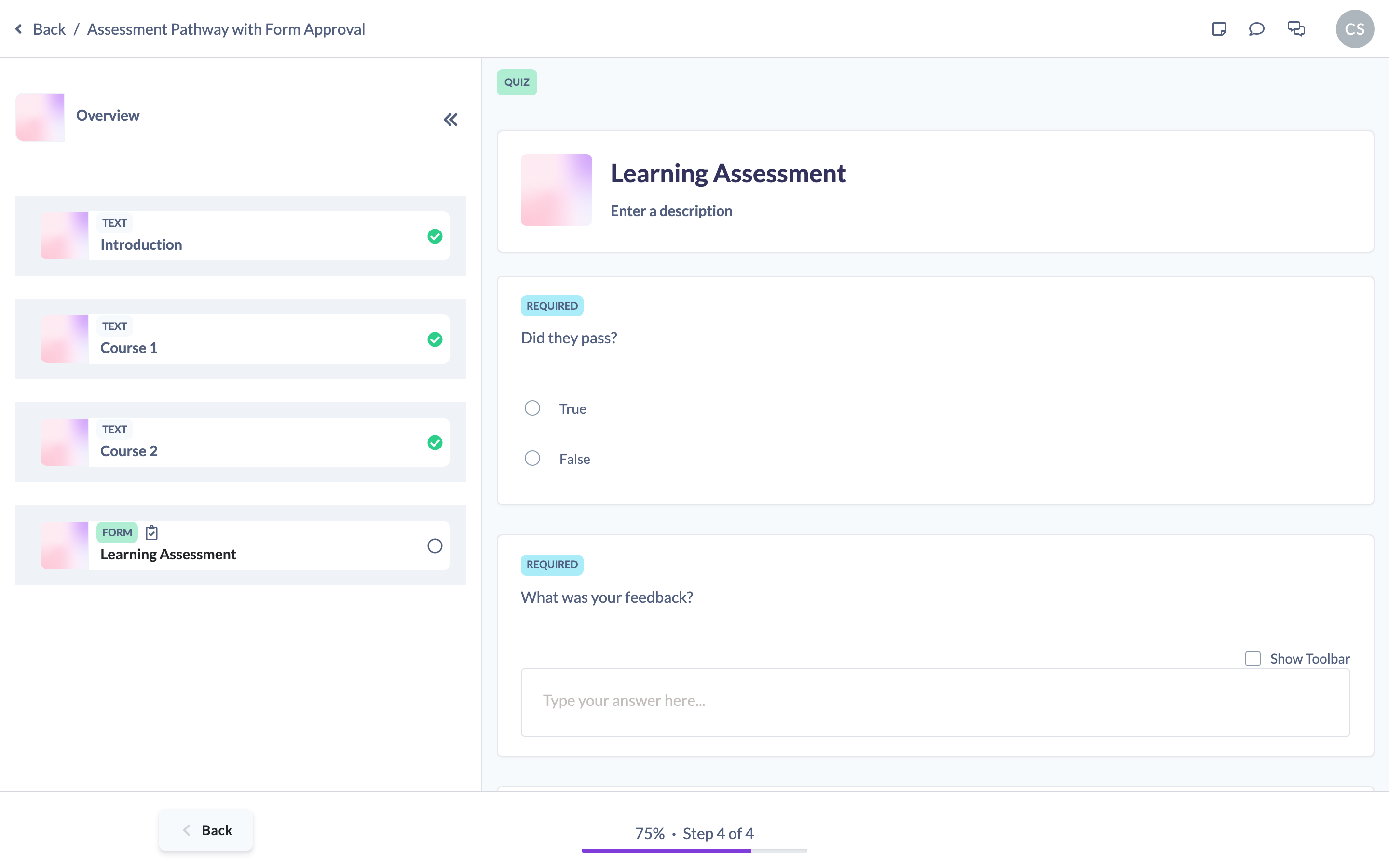
Note: How an assessment step is scored depends on how it was set up. Where a step records a score or a pass/fail outcome, you'll set that as you complete it; check the step's setup if you're unsure what it captures.
Things to keep in mind
- Assessment requests are separate from approval requests. An assessment request is you completing an evaluation step on the learner's behalf. An approval request is you approving or declining evidence the learner submitted on a step that requires approval — see the approval article for that flow.
- The learner cannot complete an assessment step themselves. Until an assessor completes it, the learner sees a message that the step is to be completed by an assessor.
- If the step allows it, the learner can choose which assessor to send the request to; otherwise the nominated assessor is notified automatically.
- Admins and Owners only see every assessment across the account when Allow Admins to approve and assess all learnings is switched on; otherwise they see only the steps where they're the assessor.
FAQs
What's the difference between an assessment request and an approval request?
An assessment request is an evaluation step completed by an assessor on the learner's behalf. An approval request is evidence approval — the learner submits evidence on a step that requires approval, and an approver signs it off. They live on separate tabs of the Requests page.
How does a step become an assessment request for me?
The step is set up to be completed by an assessor, with you named among its assessors. Where learners are allowed to choose, the learner selects and notifies an assessor; otherwise the assessor is notified automatically. Either way it then appears in your Assessment Requests.
Why can't I see the Assessment Requests tab or any rows?
Assessors must be an Owner, Manager, People Manager or Instructor role (Admins can assess too). Other roles won't have access. Within those roles you'll only see the steps where you're a nominated assessor — unless you're an Admin or Owner and the account allows Admins to assess all learnings.
Does completing the assessment finish the step for the learner?
Yes. Once you complete it, the step is recorded as assessed by you (with the date), and it counts as done for the learner's progress through the Pathway.
Who can do this
Completing assessment requests is available to Owners, Admins, Managers, People Managers and Instructors — matching SuperPath's rule that "Assessors must be owner, manager, people manager or instructor roles." Each of them only sees the steps where they're a nominated assessor. Admins and Owners see assessments across all learnings only when Allow Admins to approve and assess all learnings is enabled for the account; otherwise they too see only the steps assigned to them. Content Managers, Employees and Restricted users cannot complete assessment requests.
Updated on: 18/07/2026
Thank you!