
How to Copy a Link to Content
How to Copy a Link to Content
In this article:
- Overview
- How to copy a link to a content item
- Things to keep in mind
- FAQs
- Who can do this
Overview
Copying a link is the quickest way to point someone straight to a specific piece of content in your Library. Instead of asking a colleague to search for a course or resource, you can copy its direct link and share it in a message, email or document — and it opens the item in the right account.
Use it whenever you want to send someone directly to a content item rather than describing where to find it.
How to copy a link to a content item
- Go to your Library and open the content item you want to share.
- On the right-hand toolbar of the content page, click the link icon. Its tooltip reads Copy link to this content.
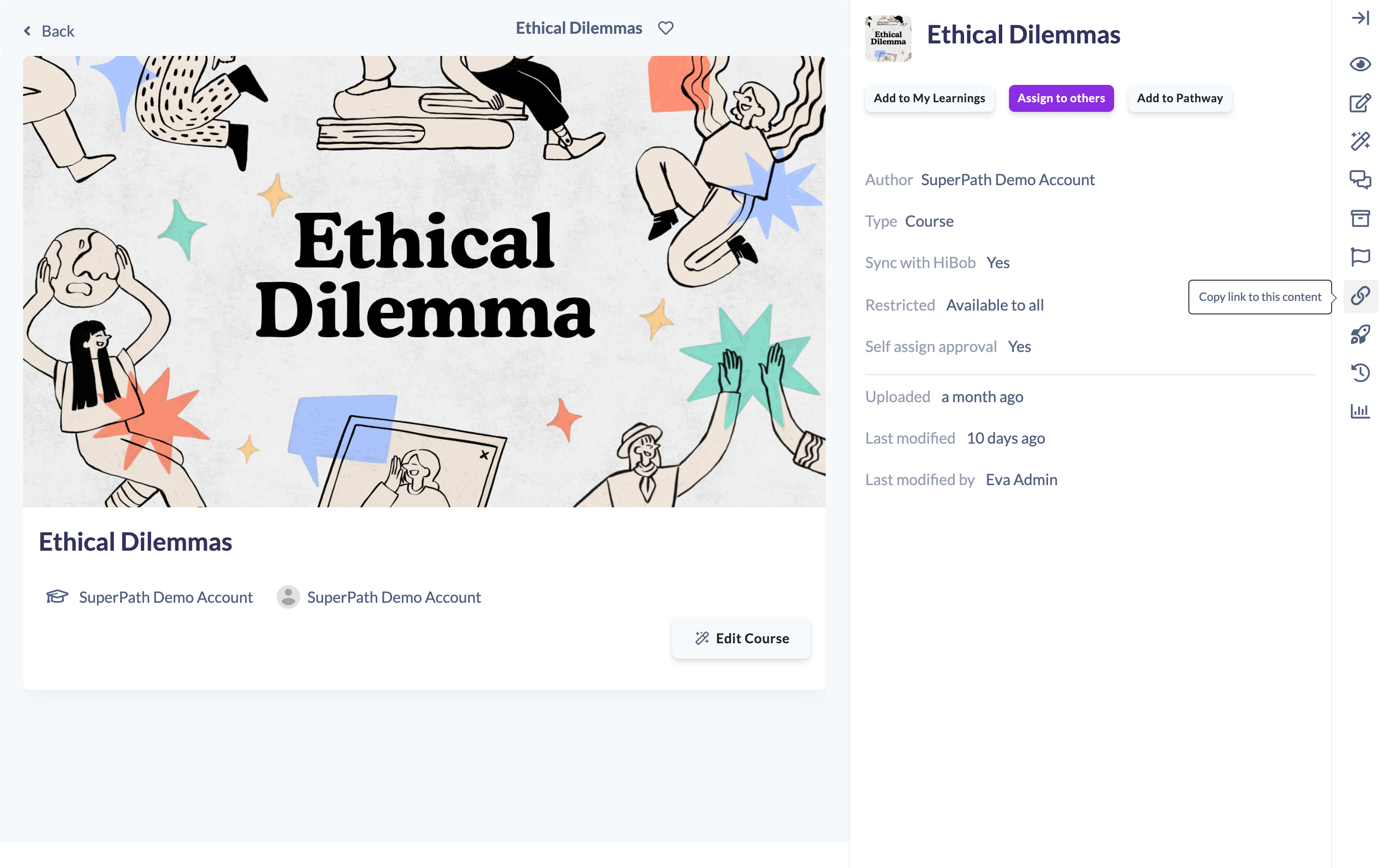
- The link is copied to your clipboard and you will see a Website link copied to clipboard confirmation. Paste it wherever you want to share it.
Note: The link points to this content item in your current account. Whoever you send it to still needs to be signed in and have permission to view the content — the link does not grant access on its own.
Things to keep in mind
- The copied link opens the content item in the account you are currently in, so the recipient lands in the right place.
- Sharing a link does not change who can see the content. The recipient still needs their own access to view it; if they do not, they will not be able to open it.
- The link is copied silently to your clipboard — there is no separate window to close.
FAQs
Does copying a link give other people access to the content?
No. The link only points to the content item. The person opening it still needs to be signed in and have permission to view it.
Where does the link take the recipient?
Straight to the content item's page in the correct account, so they do not have to search for it.
Nothing happened when I clicked the link icon — what went wrong?
The link is copied quietly to your clipboard. Look for the Website link copied to clipboard message; if you do not see it, your browser may have blocked clipboard access, so try again.
Who can do this
Anyone who can view a content item can copy a link to it — Owners, Admins, Managers, Content Managers, People Managers, Instructors, Employees and Restricted users. Bear in mind that the recipient still needs their own permission to open the content.
Updated on: 18/07/2026
Thank you!