
How to Create a Badge
How to Create a Badge
In this article:
- Overview
- Before you start
- How to create a badge
- Choosing an "Awarded when" rule
- Things to keep in mind
- FAQs
- Who can do this
Overview
Badges are visual awards you can create in SuperPath to recognise learner achievements. Each badge you create is a native SuperPath badge, and you set a single rule that determines when it is earned. Learners then receive the badge automatically whenever they meet that rule — there is no manual awarding step.
This article covers creating a badge from scratch inside the app. If you want to design a badge image first, see Creating Badges in Acredible. To understand exactly when learners earn badges, see When are Badges Awarded?
Before you start
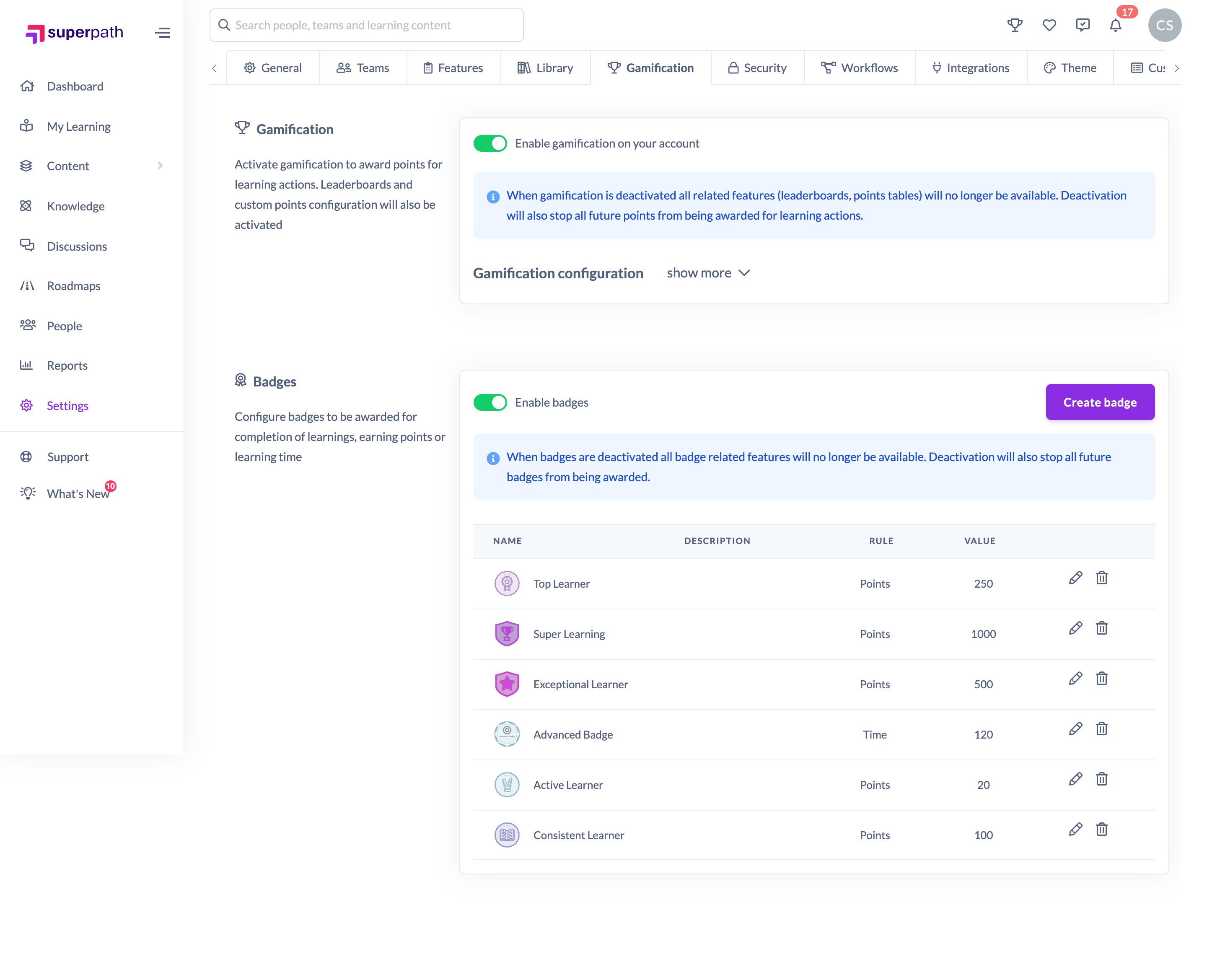
Badges live within Gamification, so both features must be switched on before you can create one. Gamification must be enabled, and then the Enable badges toggle must be turned on — see How to Enable Badges. Once badges are enabled, a Badges section appears with a Create badge button and a table of your existing badges.
How to create a badge
- Go to Settings → Gamification.
- In the Badges section, click Create badge.
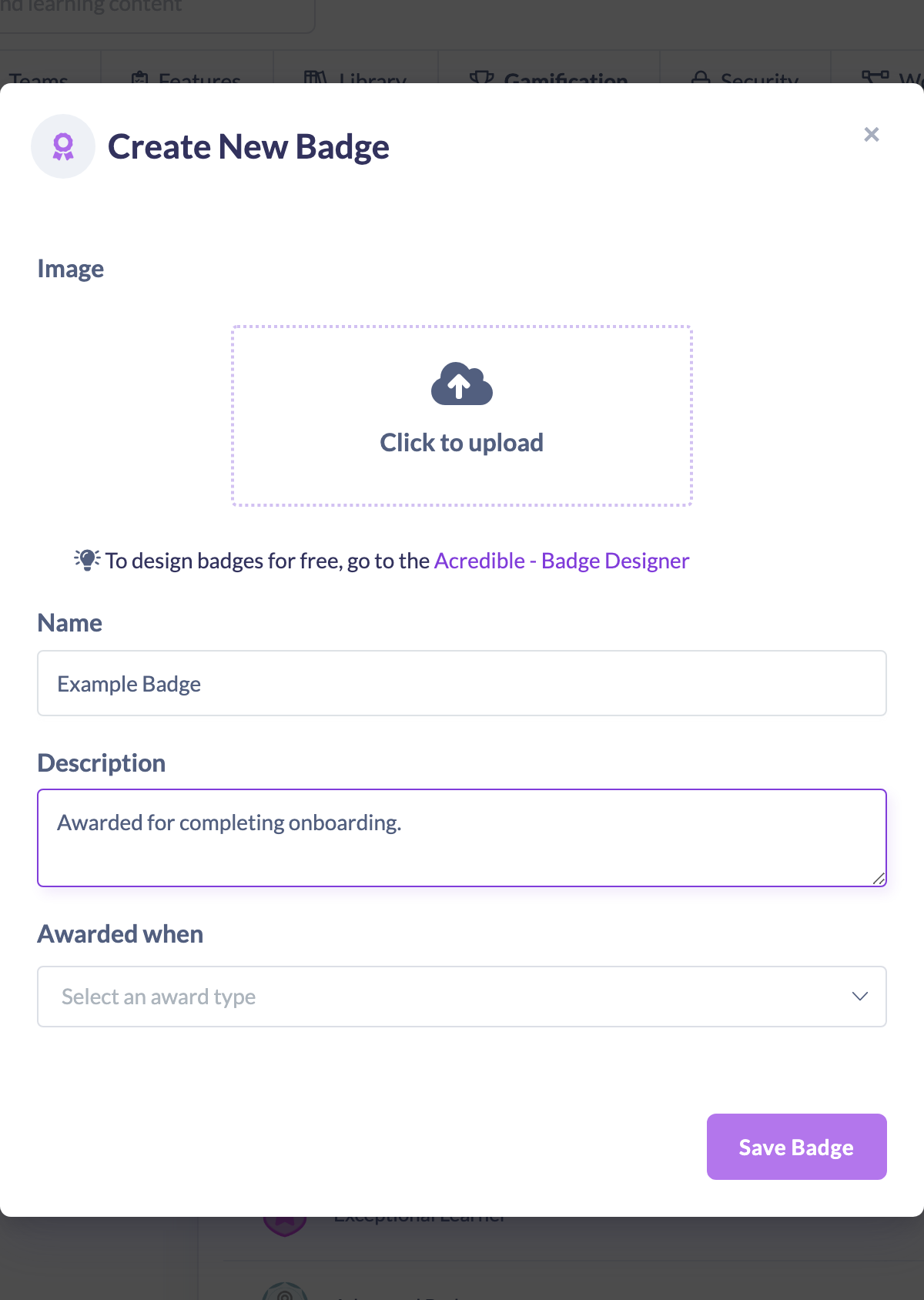
- Under Image, upload the image for your badge. An image is required, and the accepted formats are JPEG, JPG, PNG, GIF and WEBP. If you don't already have a badge image, use the Acredible - Badge Designer link in the tip to design one for free — see Creating Badges in Acredible.
- Enter a Name for the badge. A name is required.
- Optionally add a Description to explain what the badge recognises.
- Under Awarded when, open the dropdown (it reads Select an award type) and choose the rule that determines when the badge is earned. See "Choosing an 'Awarded when' rule" below for the options.
- Complete the follow-up field that appears for your chosen rule (for example, select a specific piece of content, or enter a number of points).
- Click Save Badge.
Choosing an "Awarded when" rule
The Awarded when dropdown offers five rule types. Selecting one reveals the extra field you need to complete:
- Content is completed — search for and select a specific piece of learning content from your Library. The badge is earned when a learner completes that content.
- An event is attended — select a specific Event. The badge is earned when a learner attends that event.
- A pathway is completed — select a specific Pathway. The badge is earned when a learner completes that pathway.
- Specific points are reached — enter a total number of points. The badge is earned when a learner reaches that points total.
- Learning time is reached — enter a total number of learning minutes. The badge is earned when a learner reaches that amount of learning time.
Things to keep in mind
- Each badge has exactly one rule — you choose one of the five "Awarded when" types per badge.
- Badges are always earned automatically once a learner meets the rule. There is no option to award a badge to someone manually.
- Image, Name and an Awarded when rule are all required before you can save. For the points and learning-time rules, the value must be greater than zero; for the content, event and pathway rules, you must select a specific item.
- The badge appears in the Badges table straight away, showing its Name, Description, Rule and Value.
FAQs
Do I need an image to create a badge?
Yes. An image is required. You can upload your own (JPEG, JPG, PNG, GIF or WEBP), or design one for free using the Acredible - Badge Designer link in the create window.
Can I award a badge to a learner manually?
No. Badges are only ever earned automatically when a learner meets the badge's "Awarded when" rule.
Can one badge have more than one rule?
No. Each badge is tied to a single "Awarded when" rule. If you want to recognise different achievements, create a separate badge for each.
Where do badges come from — is this an Acredible integration?
The badges you create here are native SuperPath badges. Acredible is only an external image designer you can optionally use to design a badge image; it is not a source of the badges themselves.
Who can do this
Only Owners and Admins can create badges, because badge management lives in Settings, which is restricted to those roles. Managers, Content Managers, People Managers, Instructors, Employees and Restricted users cannot access these settings.
Updated on: 19/07/2026
Thank you!