
What points are awarded?
What Points are Awarded?
In this article:
- Overview
- Actions that earn Points
- Where to see and adjust Points
- Things to keep in mind
- FAQs
- Who can do this
Overview
When Gamification is enabled, SuperPath awards Points to your learners for the learning actions they take. Each action has a default Points value and a daily limit, and you can adjust both to reflect what your organisation wants to reward most.
This article explains which actions earn Points. For how to change the Points values and daily limits, see How to Configure Points and Daily Limits; to switch Gamification on in the first place, see How to Enable Gamification.
Actions that earn Points
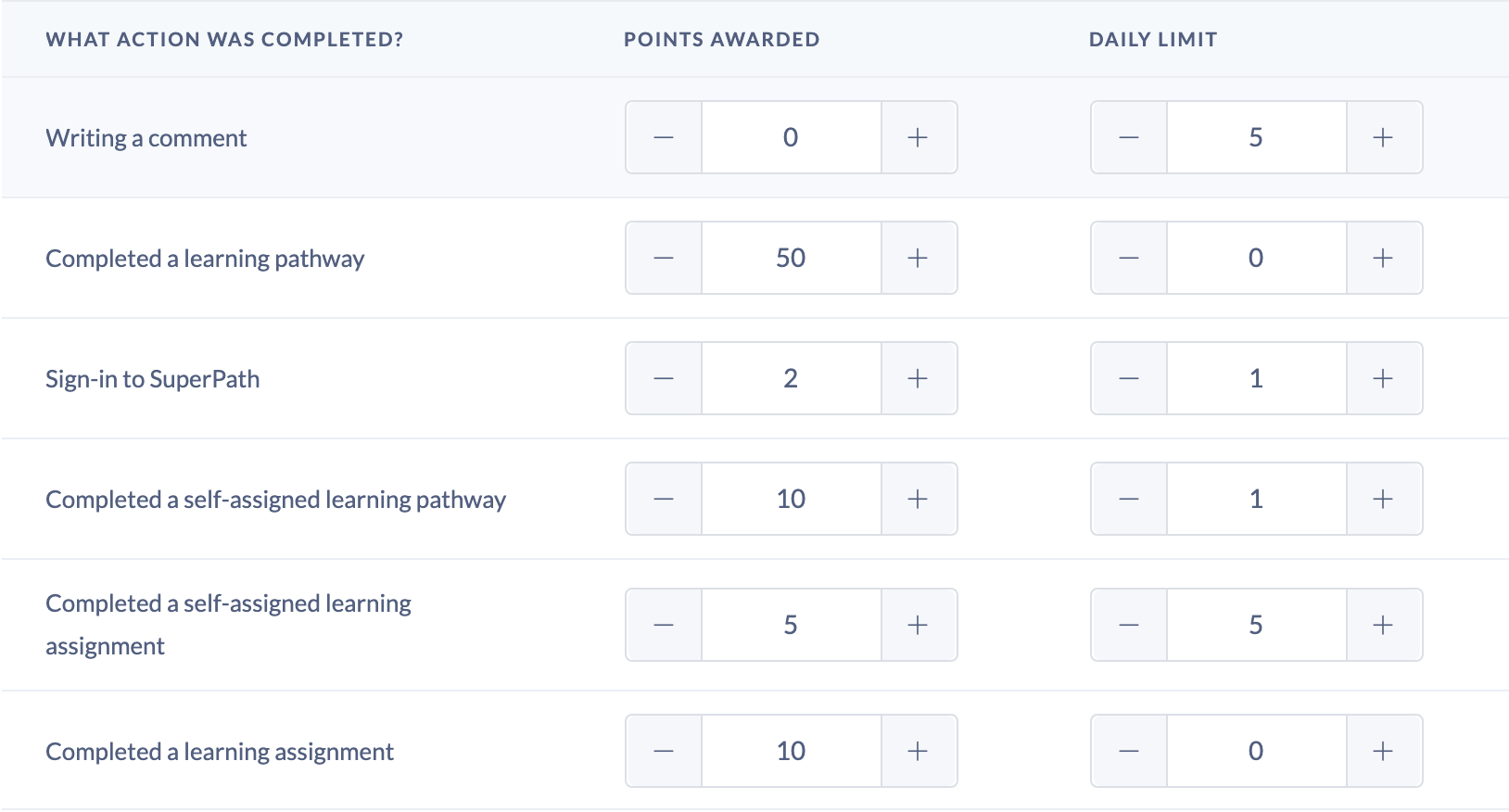
Points can be awarded for the following actions:
- Completed a learning assignment — a learner completes an assignment given to them.
- Completed a self-assigned learning assignment — a learner completes an assignment they picked up themselves.
- Completed a learning pathway — a learner completes a Pathway assigned to them.
- Completed a self-assigned learning pathway — a learner completes a Pathway they picked up themselves.
- Sign-in to SuperPath — a learner signs in to SuperPath.
- Writing a comment — a learner writes a comment.
Each action has its own Points awarded value and a Daily limit that caps how many times a day it can earn Points for a learner.
Where to see and adjust Points
- Go to Settings → Gamification.
- With Enable gamification on your account turned on, find the Gamification configuration section and click show more to expand it.
- The table lists every action in the What action was completed? column, with its Points awarded and Daily limit alongside. This is where you review and change the values — see How to Configure Points and Daily Limits for the full walkthrough.
Things to keep in mind
- The list of actions is fixed — you can change the Points and daily limit on each one, but you can't add or remove actions.
- A Daily limit of 0 means there's no cap on that action; otherwise the learner stops earning Points from that action once they hit the limit for the day.
- Changes to Points values only affect future actions — they aren't applied retrospectively to Points already earned. If you need historic Points recalculated, contact our Support Team.
FAQs
Can I choose how many Points each action is worth?
Yes. Every action has an editable Points awarded value and a Daily limit — see How to Configure Points and Daily Limits.
Can I add my own actions to earn Points?
No. The list of actions is fixed. You can adjust the Points and daily limit for each one, but you can't create new actions.
Why can't I see the Points table?
The table only appears when Gamification is enabled. Turn on Enable gamification on your account first, then click show more under Gamification configuration.
Who can do this
All learners earn Points automatically as they complete the actions above. Viewing and adjusting the Points configuration is limited to Owners and Admins, because the Gamification settings live under Settings, which only those roles can access. Managers, Content Managers, People Managers, Instructors, Employees and Restricted users can't reach those settings.
Updated on: 24/07/2026
Thank you!