
How to Delete a Badge
How to Delete a Badge
In this article:
- Overview
- How to delete a badge
- Things to keep in mind
- FAQs
- Who can do this
Overview
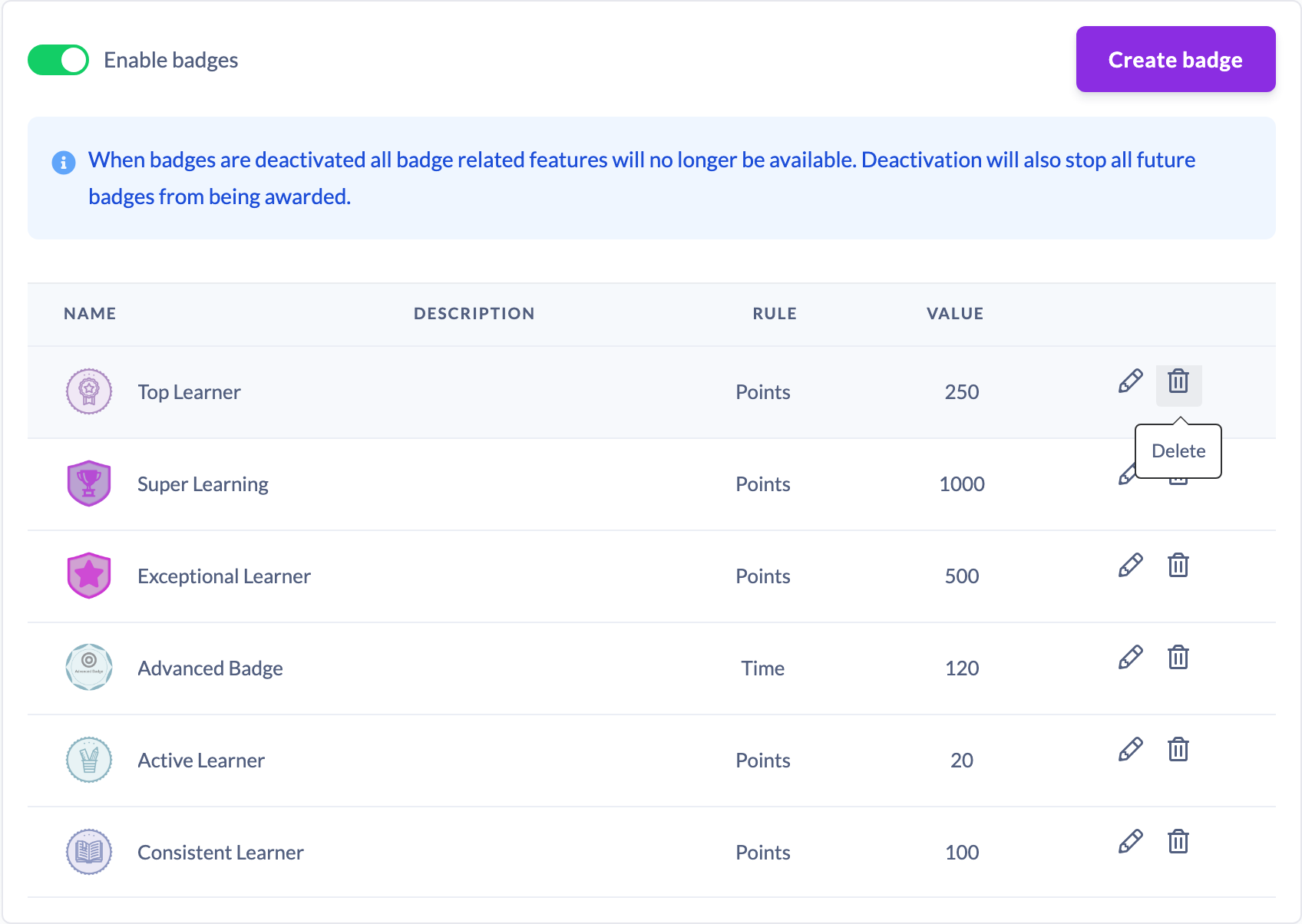
If you no longer need a badge, you can delete it from the Badges table on the Gamification settings tab. Deleting a badge is permanent, and it also removes every instance where that badge was awarded to a learner — so it's worth being sure before you confirm.
How to delete a badge
- Go to Settings → Gamification.
- In the Badges section, find the badge you want to remove in the table.
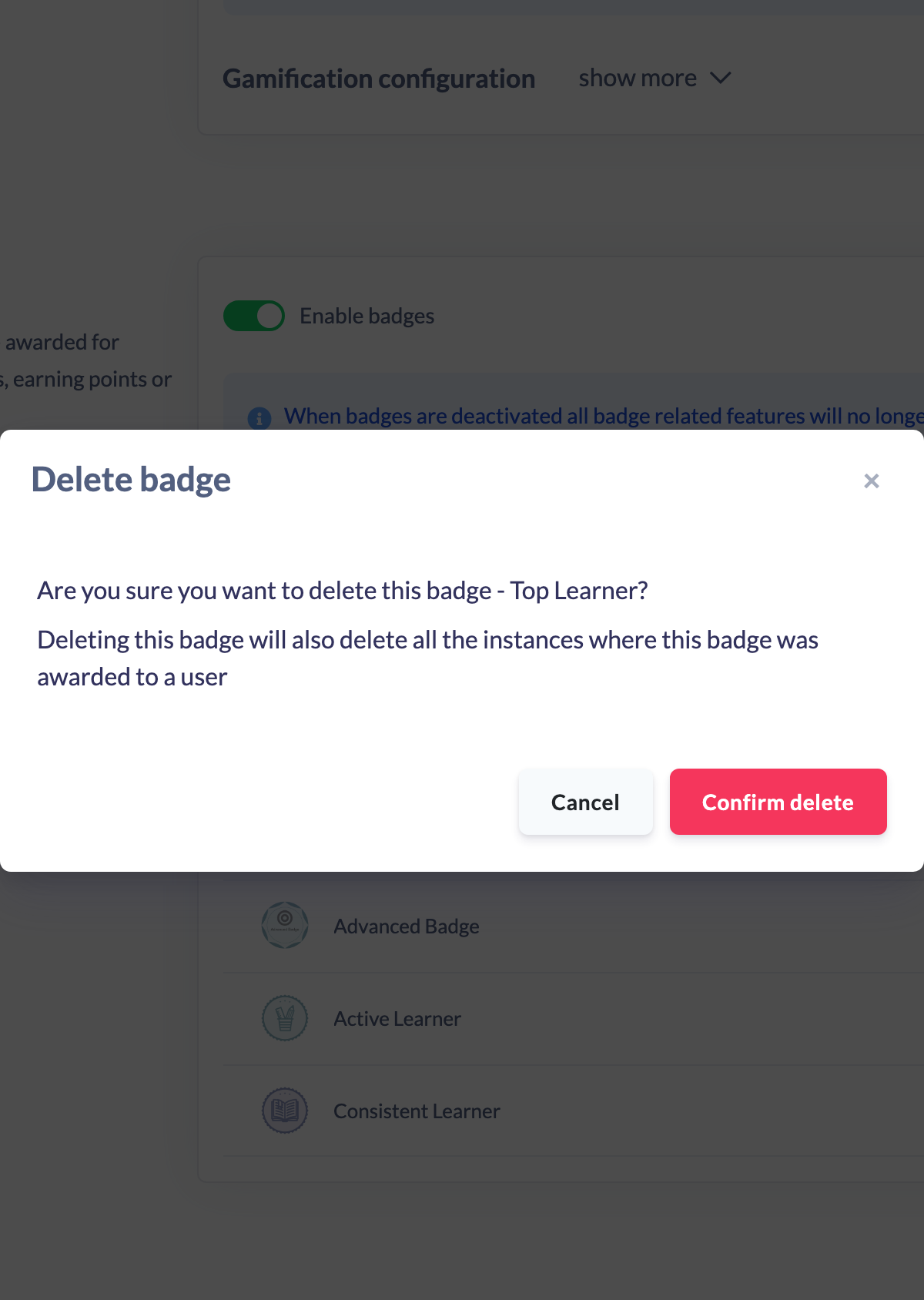
- Click the trash (Delete) icon in that badge's row. A Delete badge confirmation window opens.
- Read the warning — deleting the badge will also delete all the instances where it was awarded to a user.
- Click Confirm delete to remove the badge, or Cancel to keep it.
Things to keep in mind
- Deleting a badge is not reversible. There is no undo, and the badge cannot be recovered afterwards.
- All awarded instances are removed too. Every learner who had earned this badge will no longer have it — the badge and its award history are deleted together.
- If you only want to stop a badge being earned rather than erase its history, consider editing the badge instead (see How to Edit a Badge), or turning off badges entirely.
FAQs
Does deleting a badge remove it from learners who already earned it?
Yes. Deleting a badge also deletes all the instances where it was awarded to a user, so those learners will no longer have it.
Can I recover a deleted badge?
No. Deletion is permanent. You would need to create the badge again from scratch.
Is there a way to remove a badge without losing the award history?
Deleting always removes the awarded instances. If you want to change how a badge works while keeping it, edit it instead — see How to Edit a Badge.
Who can do this
Only Owners and Admins can delete badges, because badge management lives in Settings, which is restricted to those roles. Managers, Content Managers, People Managers, Instructors, Employees and Restricted users cannot access these settings.
Updated on: 19/07/2026
Thank you!