
How to Export the Leaderboard to CSV
How to Export the Leaderboard to CSV
In this article:
- Overview
- How to export the Leaderboard
- What's in the export
- Things to keep in mind
- FAQs
- Who can do this
Overview
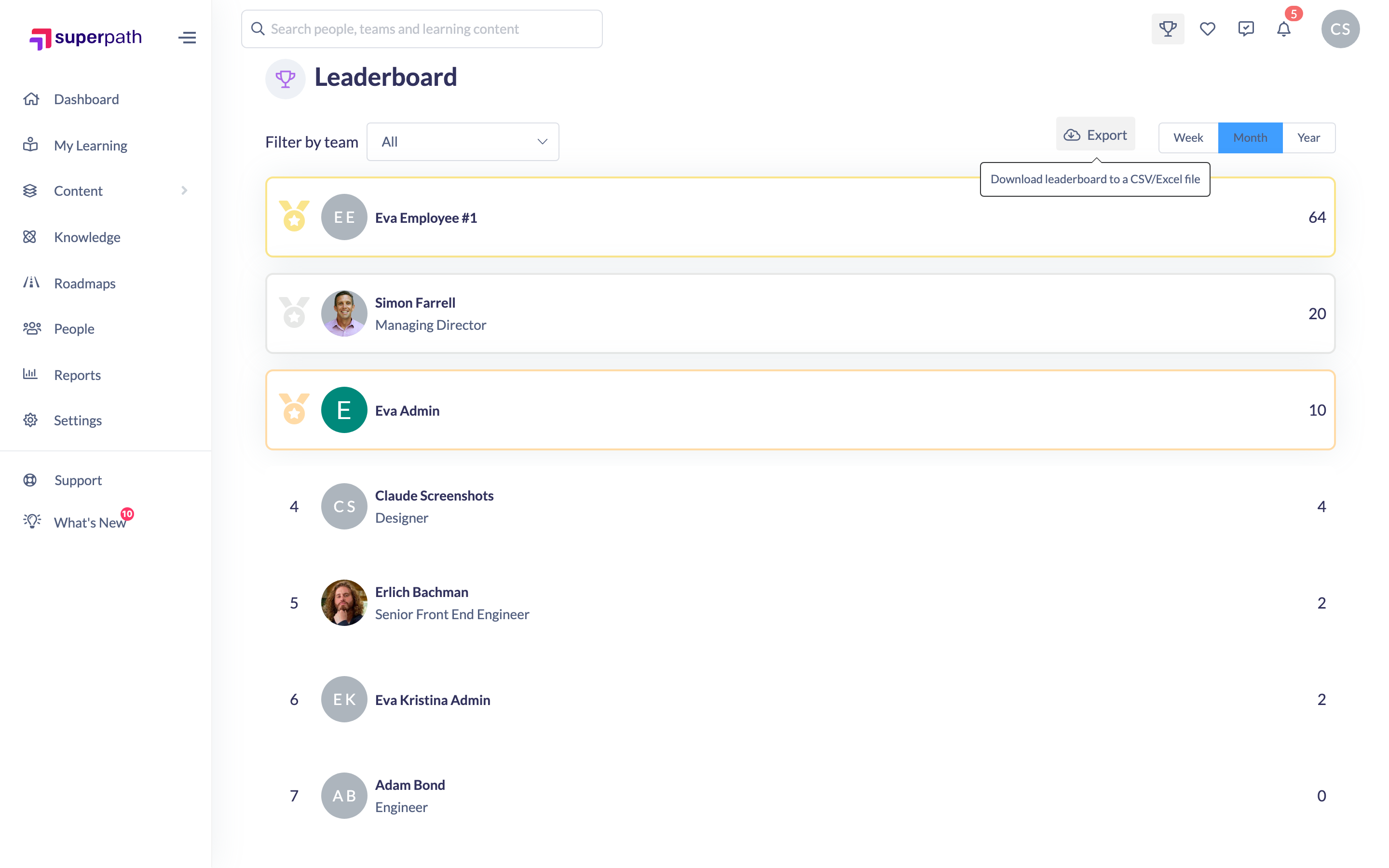
If you want to analyse or share your organisation's points ranking outside SuperPath — say in Excel or Google Sheets — you can download the Leaderboard as a CSV file directly from the Leaderboard page. The export captures exactly what you're looking at: the selected timeframe and, if you've filtered by Team, just that Team.
How to export the Leaderboard
- Click the trophy icon in the top navigation bar to open the Leaderboard page.
- Choose the view you want to export: pick a timeframe (Week, Month or Year) and, optionally, a Team from the Filter by team dropdown.
- Click Export (the tooltip reads Download leaderboard to a CSV/Excel file).
- Your browser downloads the file — open it in Excel, Google Sheets or any spreadsheet tool.
What's in the export
One row per person on the Leaderboard, with these columns:
Column | What it contains |
|---|---|
Firstname / Lastname | The person's name |
Position | Their job position, if set on their profile |
Total Points | All points earned in the selected timeframe |
Total Assigned Points | Points from completing assigned learning and Pathways |
Total Self Assigned | Points from completing self-assigned learning and Pathways |
Good to know: Total Points also includes points from other actions (such as signing in and commenting), so it can be higher than the assigned and self-assigned columns combined.
Things to keep in mind
- The export reflects the current view — change the timeframe or Team filter first, then export.
- The file is generated in your browser from the list you're viewing; nothing is emailed or stored in SuperPath.
- The file downloads as data.csv — rename it after downloading if you're keeping several exports.
- The Leaderboard (and therefore the export) is only available when Gamification is enabled — see How to Access the Leaderboard.
FAQs
I can't see the Export button — why?
The Export button only appears for Owners, Admins, Managers and People Managers. If you have a different role, you can view the Leaderboard but not export it.
Does the export include everyone, or just the top of the list?
Everyone shown on the full Leaderboard page for the selected timeframe and Team filter is included.
Can I export a single Team's leaderboard?
Yes — choose the Team in the Filter by team dropdown before clicking Export.
Who can do this
Owners, Admins, Managers and People Managers can export the Leaderboard — the Export button is only shown to these roles. Content Managers, Instructors, Employees and Restricted users can't export (Restricted users can't see the Leaderboard at all). Viewing the Leaderboard itself is open to all non-Restricted members once Gamification is enabled.
Updated on: 14/07/2026
Thank you!