
How to Edit a Badge
How to Edit a Badge
In this article:
- Overview
- How to edit a badge
- What you can change
- Things to keep in mind
- FAQs
- Who can do this
Overview
You can update any badge you've created — change its image, name or description, or switch the rule that determines when it is earned. Editing a badge uses the same window as creating one, pre-filled with the badge's current details.
For a full walkthrough of creating badges and the available rules, see How to Create a Badge.
How to edit a badge
- Go to Settings → Gamification.
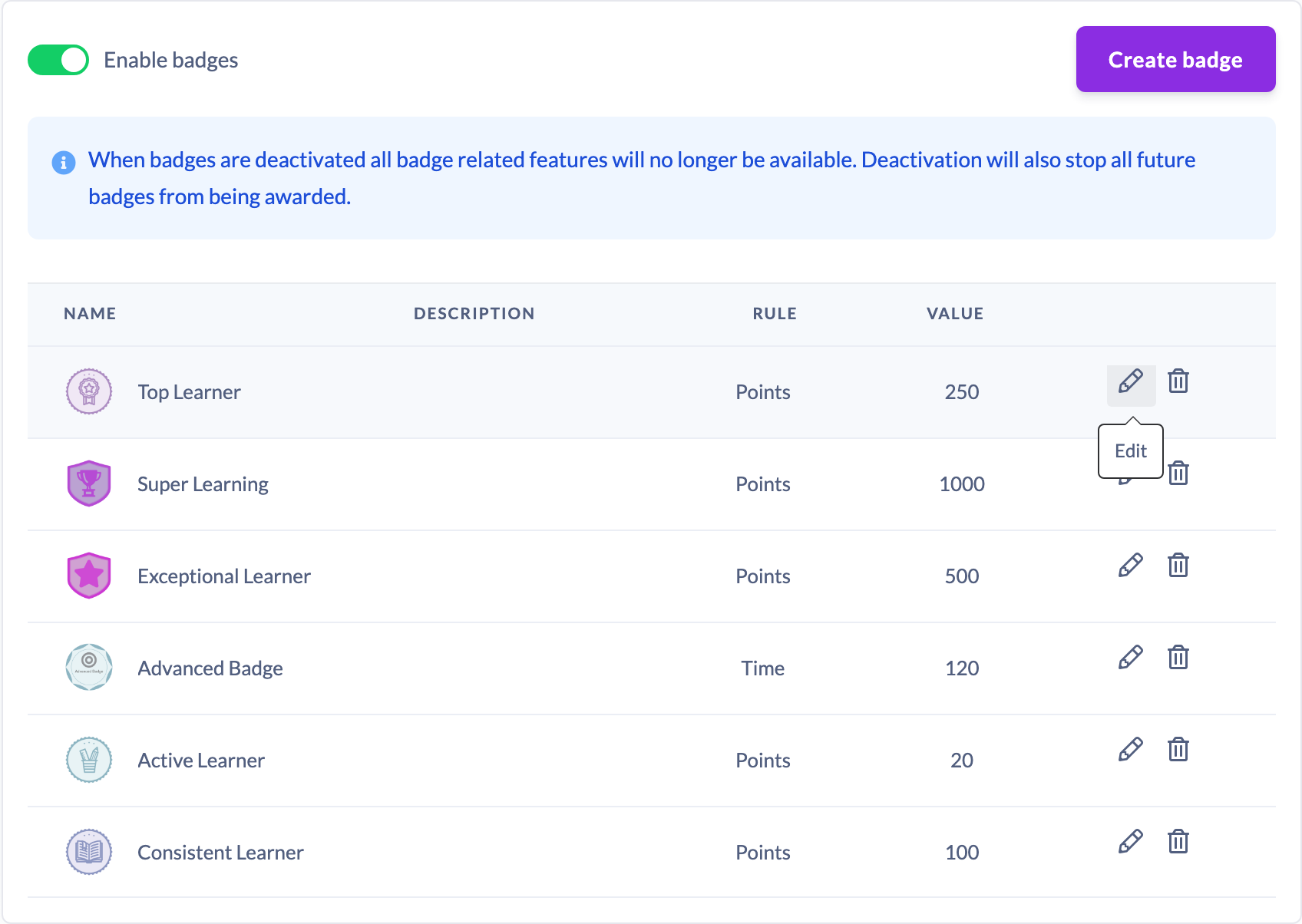
- In the Badges section, find the badge you want to change in the table.
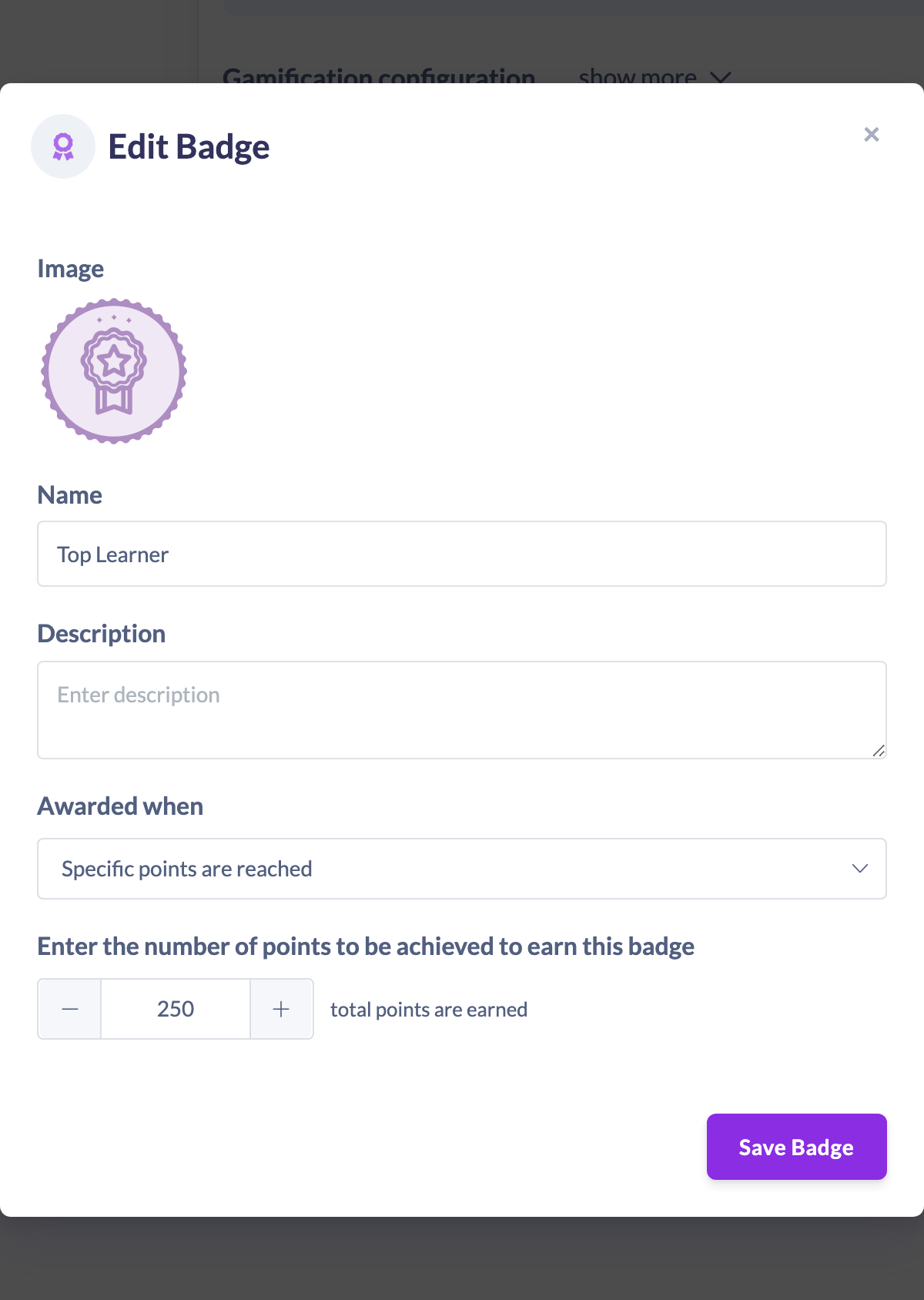
- Click the pencil (Edit) icon in that badge's row. The Edit Badge window opens, pre-filled with the badge's current details.
- Update any of the fields — Image, Name, Description, or the Awarded when rule and its follow-up value.
- Click Save Badge.
What you can change
- Image — upload a new badge image (JPEG, JPG, PNG, GIF or WEBP).
- Name — required; cannot be left blank.
- Description — optional.
- Awarded when — switch to a different rule type. Changing the rule reveals the matching follow-up field (a specific content item, event or pathway, or a points or learning-minutes value), which you'll need to complete before saving.
Things to keep in mind
- Editing reuses the create window, so the same requirements apply: you need an Image, a Name and a valid Awarded when rule before Save Badge is available.
- Changing the rule changes how the badge is earned from that point on. Learners who have already earned the badge keep it.
- Badges remain automatically earned — there is no manual-award option when editing, just as there isn't when creating.
FAQs
Can I change which achievement a badge is awarded for?
Yes. Open the badge with the pencil icon, choose a different option under Awarded when, complete the follow-up field, and save.
Do learners who already earned the badge lose it if I edit it?
No. Existing awards remain. The changes affect how the badge is earned going forward.
Where do I edit a badge?
On the Settings → Gamification tab, in the Badges section. Click the pencil icon in the badge's row.
Who can do this
Only Owners and Admins can edit badges, because badge management lives in Settings, which is restricted to those roles. Managers, Content Managers, People Managers, Instructors, Employees and Restricted users cannot access these settings.
Updated on: 19/07/2026
Thank you!