
How to Create a Category
How to Create a Category
In this article:
- Overview
- How to create a category
- Things to keep in mind
- FAQs
- Who can do this
Overview
Categories organise your Library so learners can browse and find content by topic. Alongside SuperPath's built-in categories, you can create your own to match the way your organisation thinks about its learning. Categories work in three levels — a top-level Category, a sub category within it, and a topic within a sub category — so you can build a structure that is as broad or as detailed as you need.
Use custom categories to group content around your own themes, departments or programmes.
How to create a category
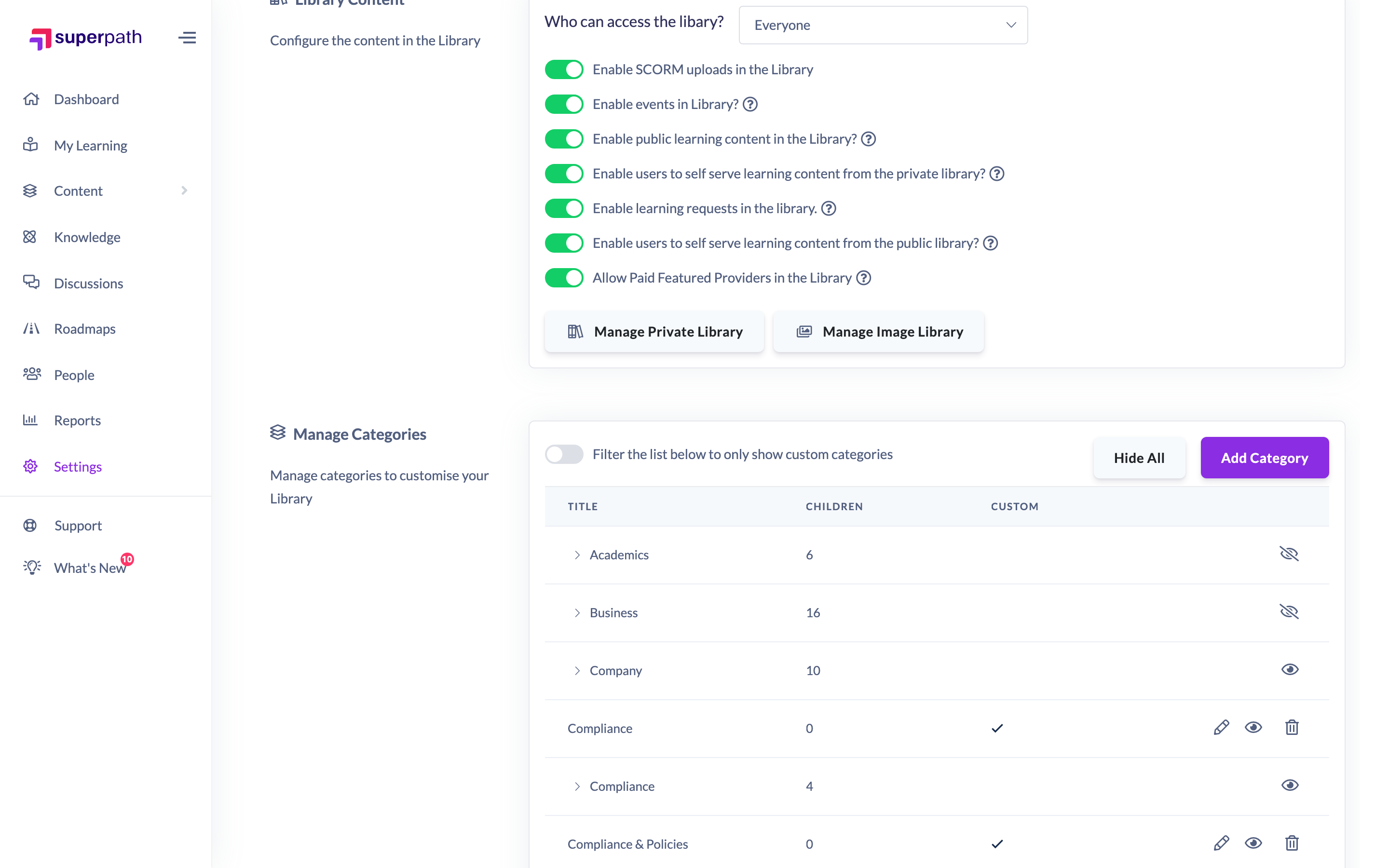
- Go to Settings → Library and scroll to the Manage Categories section.
- Click Add Category.
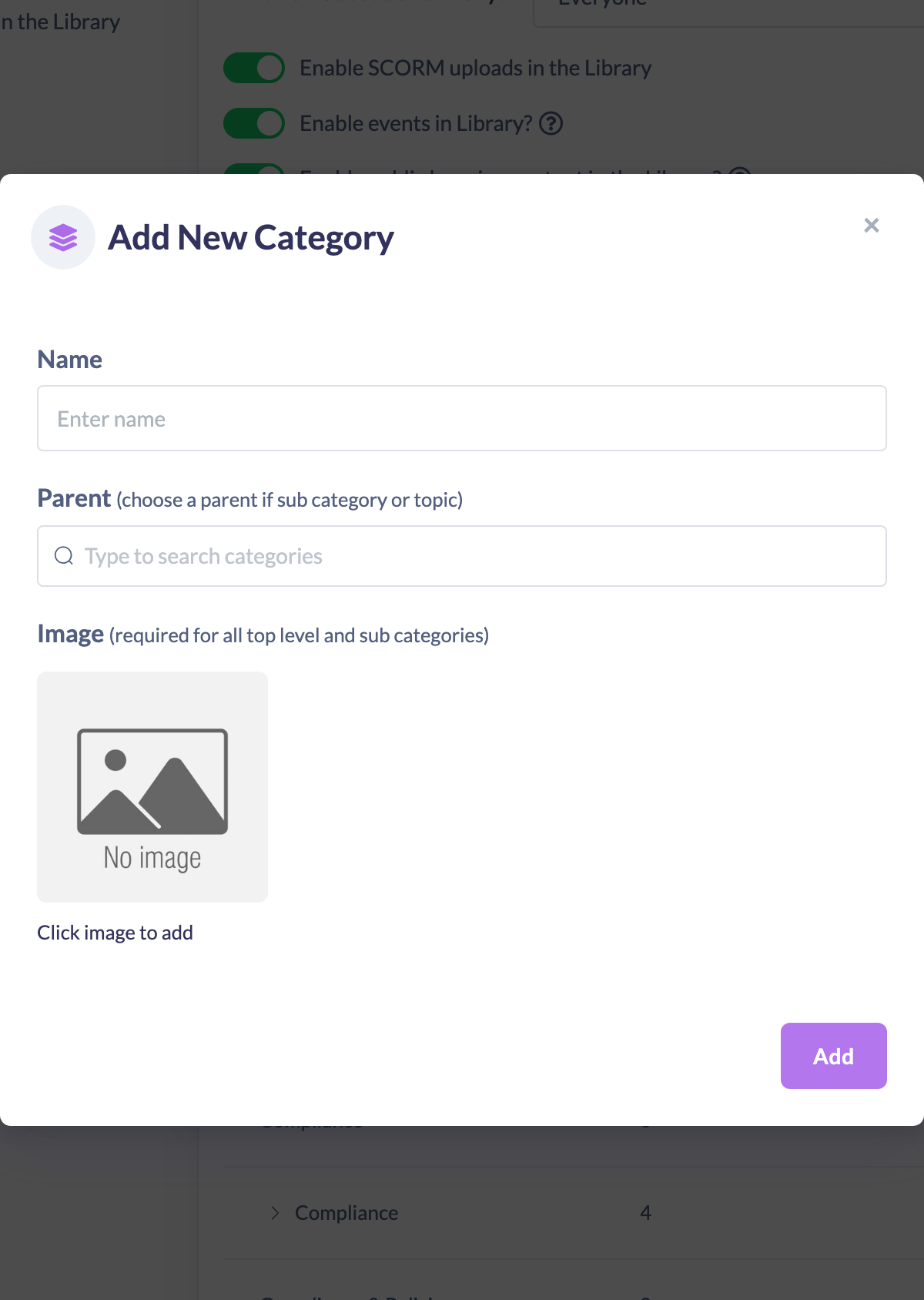
- In the Add New Category window, enter a Name.
- Choose a Parent if you are creating a sub category or a topic. Leave the parent empty to create a top-level Category. Picking a Category as the parent creates a sub category; picking a sub category as the parent creates a topic.
- Add an Image. An image is required for all top-level categories and sub categories (topics do not need one).
- Click Add to save.
Things to keep in mind
- Categories have three levels: a top-level Category, a sub category beneath it, and a topic beneath a sub category. What you are creating depends on the parent you choose.
- An image is required for top-level categories and sub categories. Topics do not require an image.
- A top-level category needs a name and an image; a sub category or topic also needs a parent. The Add button stays disabled until the required details are filled in.
- Categories you create belong to your own account and appear alongside the built-in SuperPath categories in your Library.
FAQs
What is the difference between a category, a sub category and a topic?
They are the three levels of the structure. A Category is the top level, a sub category sits inside a Category, and a topic sits inside a sub category. You choose which one you are creating by setting the parent.
Why can't I save my new category?
The Add button stays disabled until the required fields are complete — a name for all levels, an image for top-level categories and sub categories, and a parent for sub categories and topics.
Do I have to add an image?
Yes for top-level categories and sub categories. Topics do not need an image.
Who can do this
Owners and Admins can create categories. Managers, Content Managers, People Managers, Instructors, Employees and Restricted users cannot — creating categories requires access to Settings and the permission to manage categories, which only Owners and Admins have.
Updated on: 18/07/2026
Thank you!