
How to Create a Pathway
How to Create a Pathway
In this article:
- Overview
- Create a new Pathway
- Name your Pathway and add steps
- Publish your Pathway
- Things to keep in mind
- FAQs
- Who can do this
Overview
A Pathway groups learning into an ordered sequence of steps — content, Events, Forms and text you write yourself — so your learners work through it from start to finish. Creating a Pathway takes just a moment: SuperPath sets up an empty, unpublished Pathway and opens it in the editor, ready for you to name it and add steps.
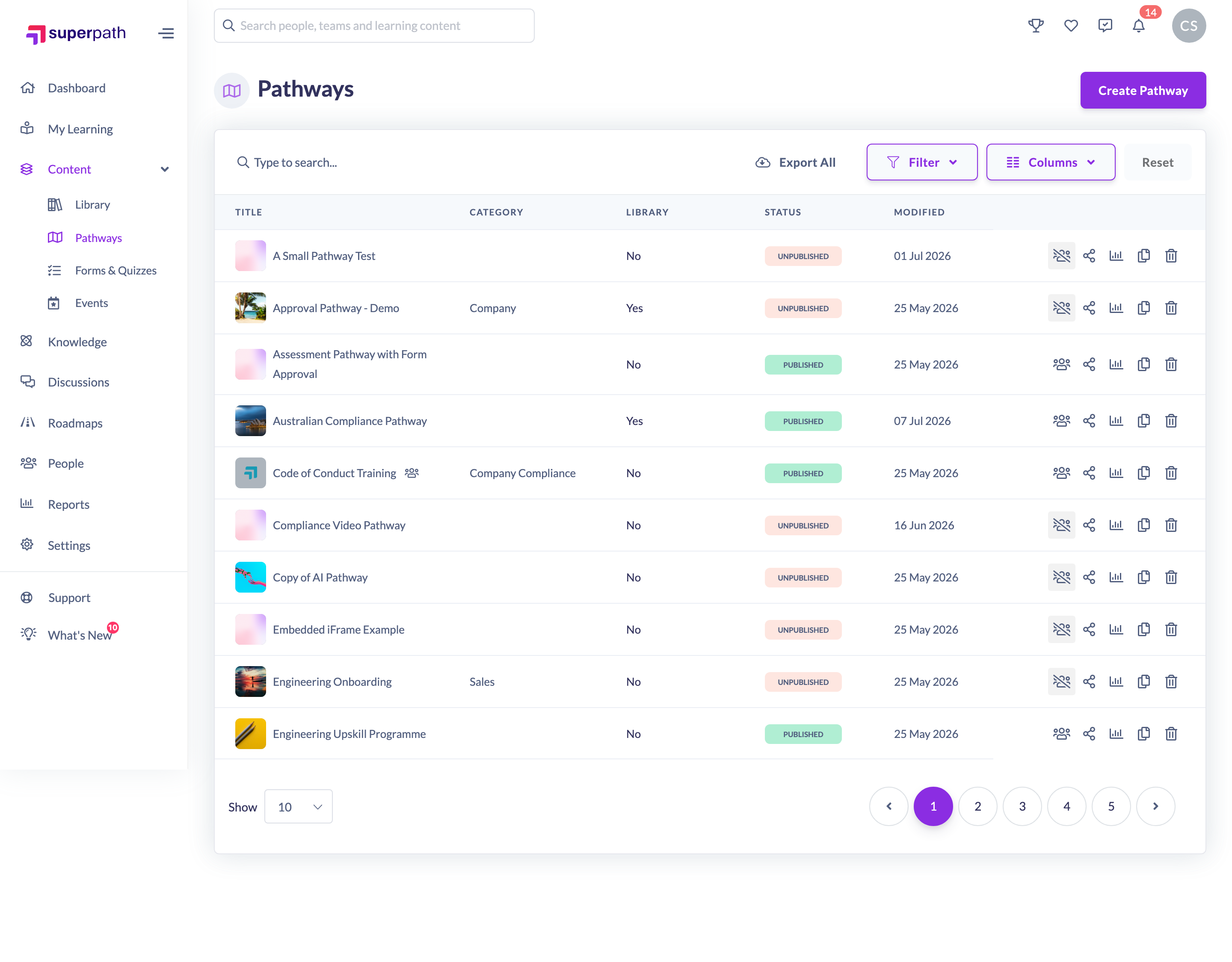
Create a new Pathway
- Go to Pathways.
- Click Create Pathway at the top right. (If you have no Pathways yet, click Add new pathway on the empty-state screen instead.)
- SuperPath creates a new Pathway called Untitled pathway and opens it in the editor.
Note: Creating and editing a Pathway needs a larger screen. On a phone, the Pathways page shows the message "To make a new pathway or update an existing pathway, please use a desktop or tablet device" — switch to a desktop or tablet to build your Pathway.
Name your Pathway and add steps
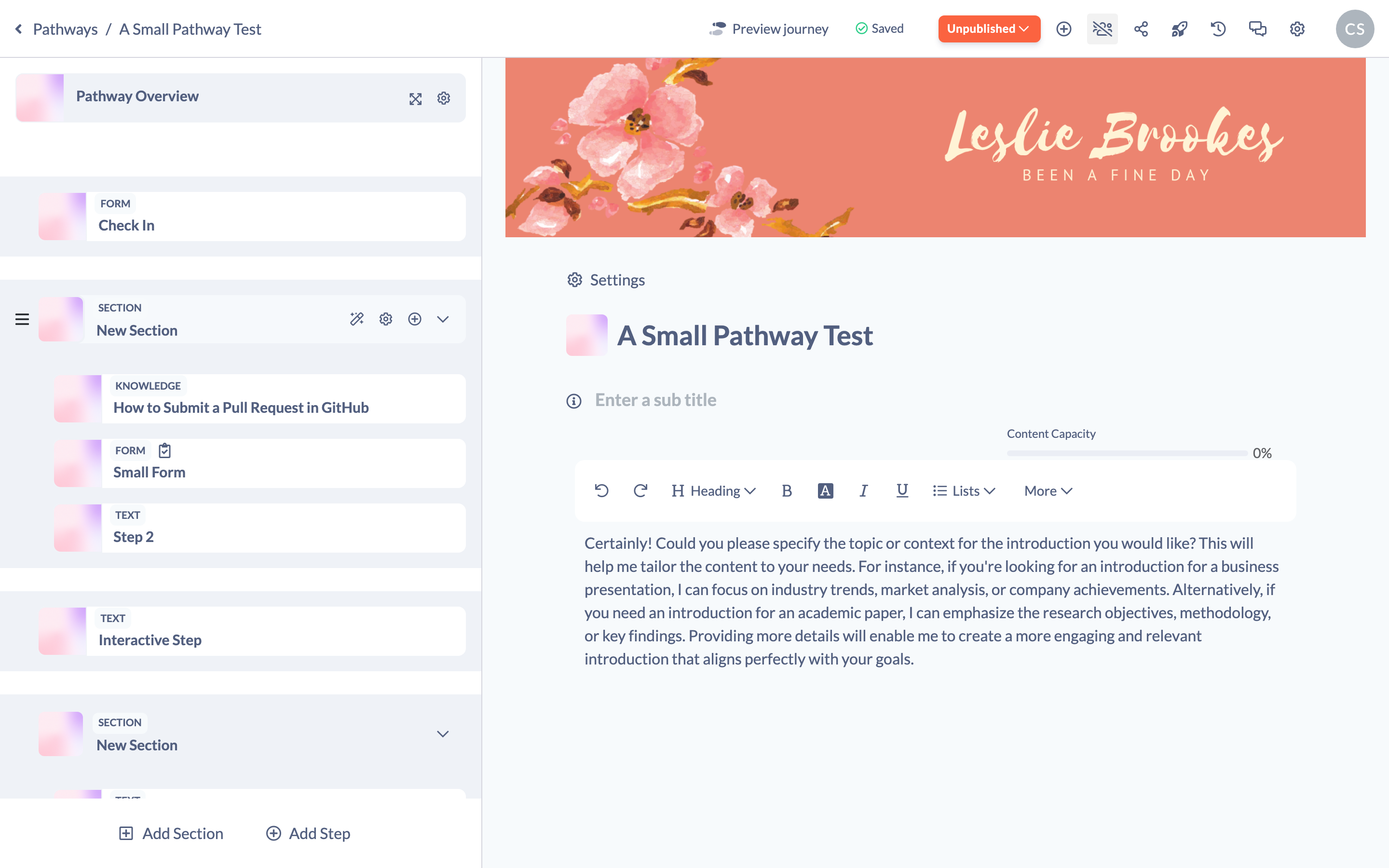
- In the editor, replace Untitled pathway with a title, and add a subtitle that summarises what the Pathway is about.
- Use Add Step to build out the Pathway — add content, an Event, a Form, or write your own text. See How to Add Your Own Content to a Pathway for the detail.
- Open the Pathway settings panel (the Settings cog in the pathway header) to set the category, level, instructor, certificate and more.
Publish your Pathway
A new Pathway starts as a draft with an Unpublished status, so learners can't see or be assigned to it yet. When it's ready, publish it — you can then assign it to people and, if you choose, make it available in the Library.
Things to keep in mind
- A brand-new Pathway is created empty and Unpublished — it won't appear to learners until you publish it.
- You can duplicate an existing Pathway instead of starting from scratch: use the copy action on the Pathways list or in the Pathway settings.
- Pathways must be created and edited on a desktop or tablet, not a phone.
FAQs
Where do new Pathways appear?
Every Pathway you create is listed on the Pathways page, where you can search, filter, open, assign, duplicate or delete it.
Can I start from a template instead?
Yes — browse the templates in the Library for inspiration, then duplicate one and adapt it. Creating from scratch gives you an empty Pathway to build up yourself.
Why can't I create a Pathway on my phone?
Pathway authoring is designed for a desktop or tablet. On a phone the page shows an information message asking you to switch devices.
Who can do this
Owners, Admins, Managers, Content Managers and Instructors can create Pathways. People Managers, Employees and Restricted users have read-only access to Pathways and cannot create them.
Updated on: 18/07/2026
Thank you!