
How to Delete a Category
How to Delete a Category
In this article:
- Overview
- How to delete a category
- Things to keep in mind
- FAQs
- Who can do this
Overview
If a category you created is no longer needed, you can delete it to keep your Library structure clean. Deleting removes the category, along with any sub categories and topics beneath it. Your content is not deleted — any items that were filed under the category simply have that category association removed, so nothing is lost from your Library.
Use it to tidy up categories you no longer use, without affecting the content itself.
How to delete a category
- Go to Settings → Library and scroll to the Manage Categories section.
- Find the category you want to remove and click the trash icon in its row.
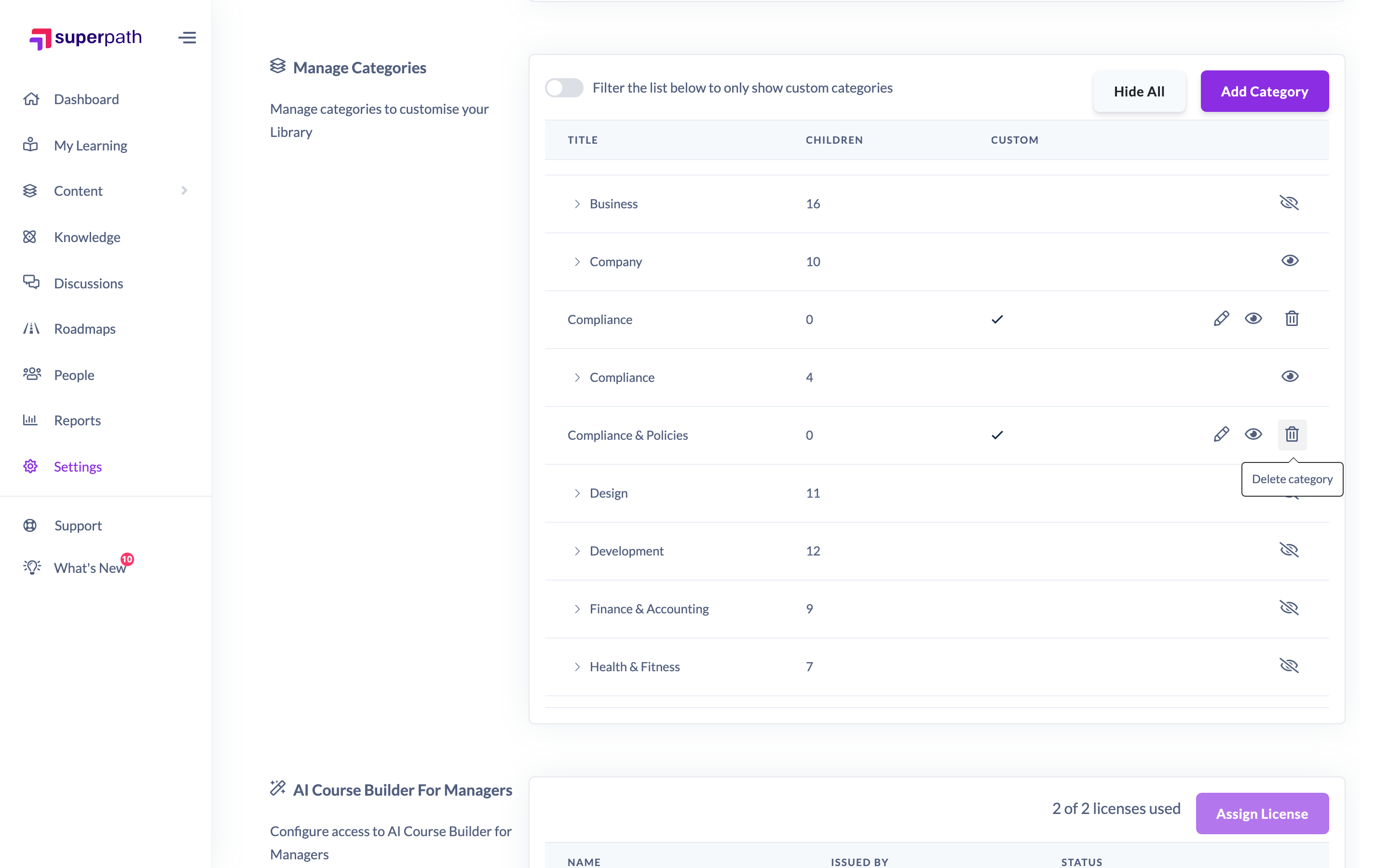
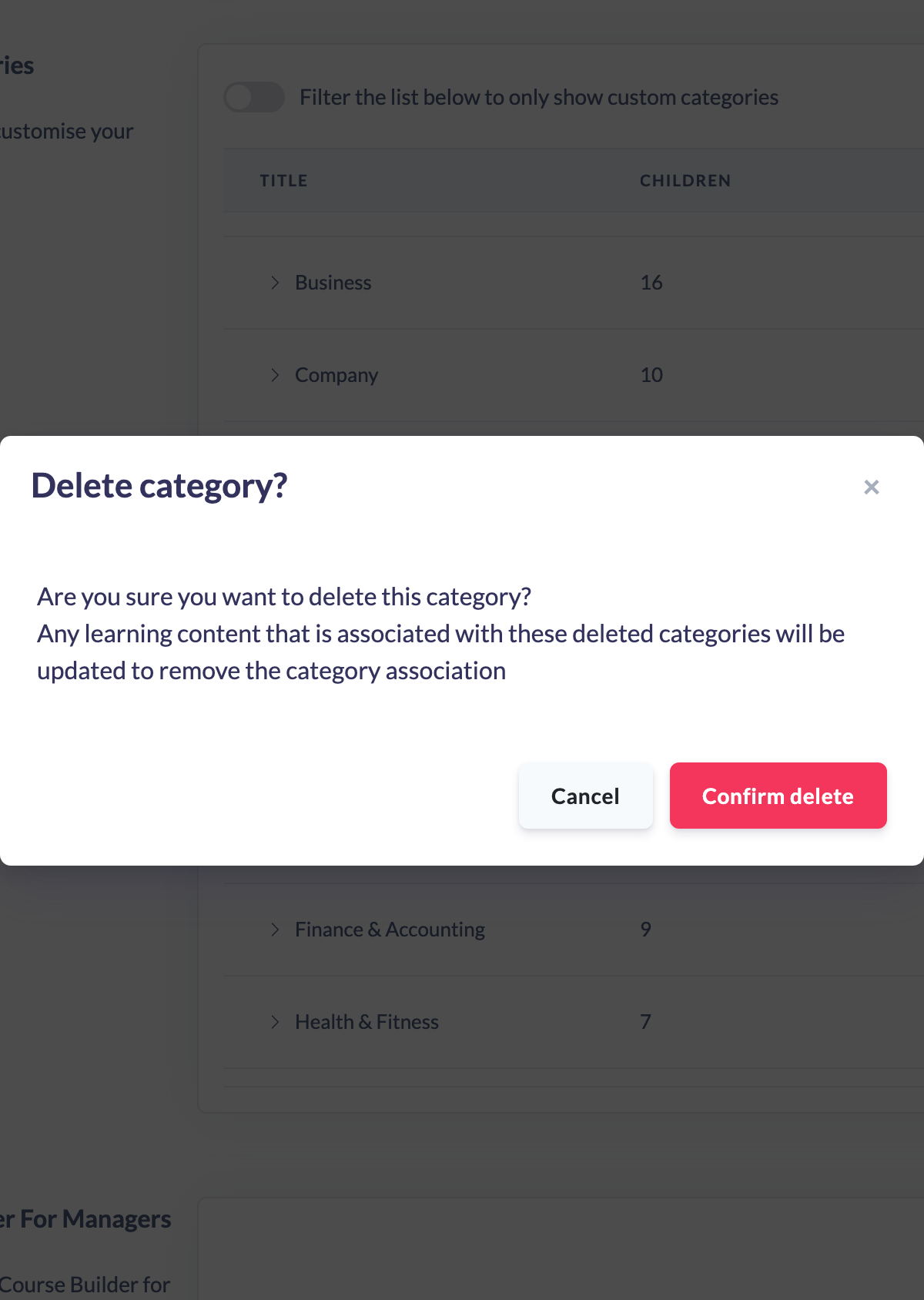
- A confirmation window titled Delete category? appears. If the category has sub categories or topics, it warns that This will also delete all the associated sub categories and topics, and that Any learning content that is associated with these deleted categories will be updated to remove the category association.
- Click Confirm delete to proceed, or Cancel to keep the category.
Things to keep in mind
- Deleting a category also deletes any sub categories and topics beneath it.
- Your content is not deleted. Any content that was in the deleted category has the category association removed and stays in your Library.
- You can only delete categories your own account owns. The built-in SuperPath categories do not show a trash icon — hide them instead if you do not want them in your Library.
- Deleting is permanent. If you only want to remove a category from view temporarily, hide it rather than delete it.
FAQs
What happens to the content in a category I delete?
The content is not deleted. It stays in your Library and simply loses its link to the deleted category.
Does deleting a category also delete its sub categories and topics?
Yes. Deleting a category removes everything beneath it — its sub categories and topics — as well.
Why can't I delete some categories?
The trash icon only appears on categories your account created. SuperPath's built-in categories cannot be deleted; you can hide them instead.
Who can do this
Owners and Admins can delete categories that belong to their own account. Managers, Content Managers, People Managers, Instructors, Employees and Restricted users cannot — deleting categories requires access to Settings and the permission to manage categories, which only Owners and Admins have. Built-in SuperPath categories cannot be deleted by anyone.
Updated on: 18/07/2026
Thank you!