
How to Duplicate a Pathway, Form or Roadmap
How to Duplicate a Pathway, Form or Roadmap
In this article:
- Overview
- Duplicating a Pathway
- Duplicating a Form
- Duplicating a Roadmap
- Duplicating a Knowledge article
- Can I duplicate a single piece of content or a course?
- Things to keep in mind
- FAQs
- Who can do this
Overview
Duplicating gives you a complete copy of an existing item so you can reuse its structure instead of rebuilding it from scratch — handy when you want to create a variation, spin up a new version, or use one item as a template for the next. You can duplicate a Pathway, a Form, a Roadmap and a Knowledge article. Each copy is a brand-new, independent item that you can rename and edit freely without affecting the original.
Duplicating a Pathway
- Go to Pathways.
- Find the Pathway you want to copy in the list.
- Click the Copy pathway (copy) icon in that row's actions.
- Confirm when prompted (Are you sure you want to copy this pathway?) by clicking Confirm copy.
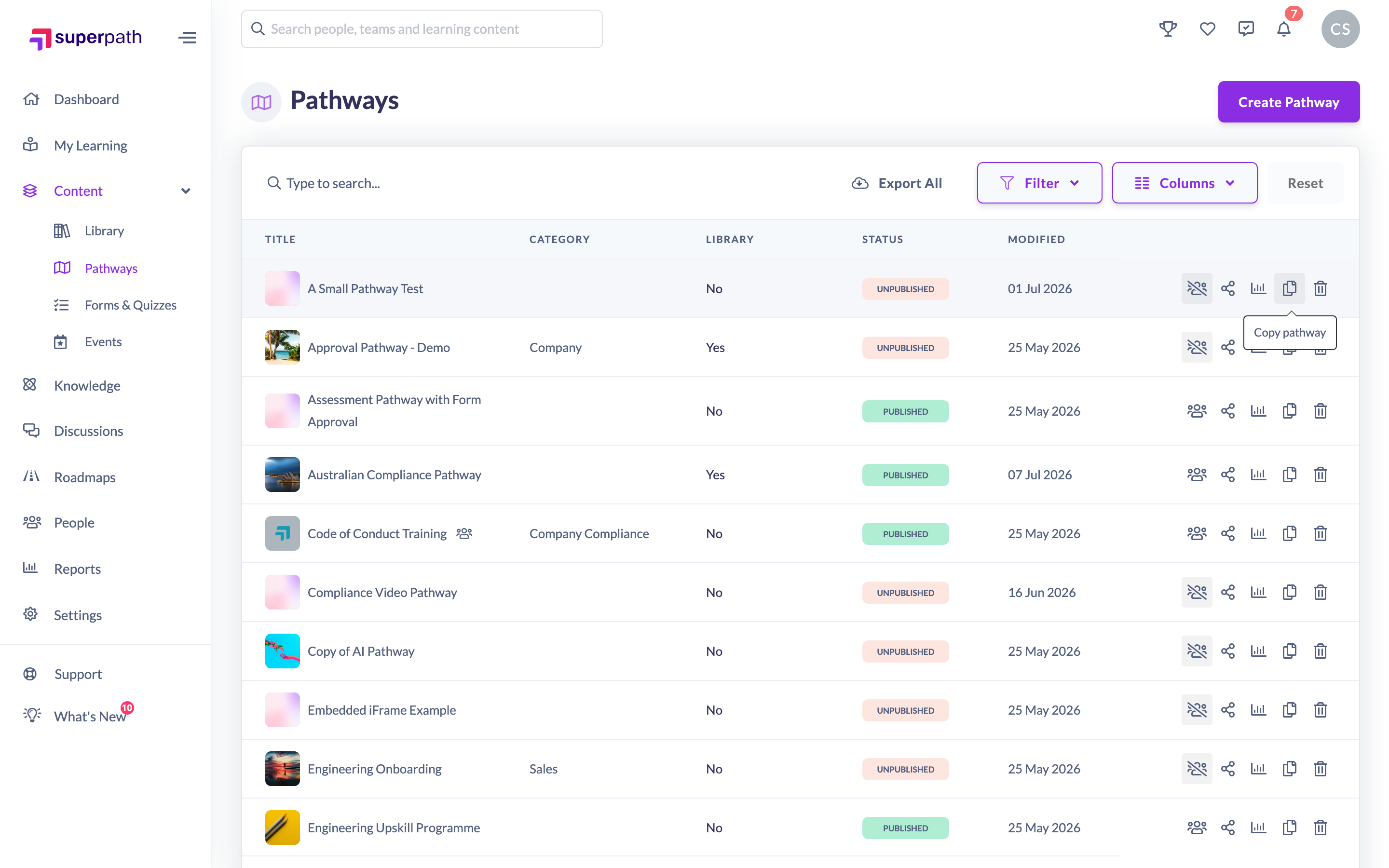
The new Pathway is created as a separate copy, ready for you to open and edit.
Good to know: If you are viewing a shared Pathway template, you can bring it into your own account with the Copy to My Pathways button.
Duplicating a Form
- Go to Forms.
- Find the Form (or quiz) you want to copy.
- Click the Copy Form (copy) icon in that row's actions.
- Confirm the copy when prompted, then click Confirm copy.
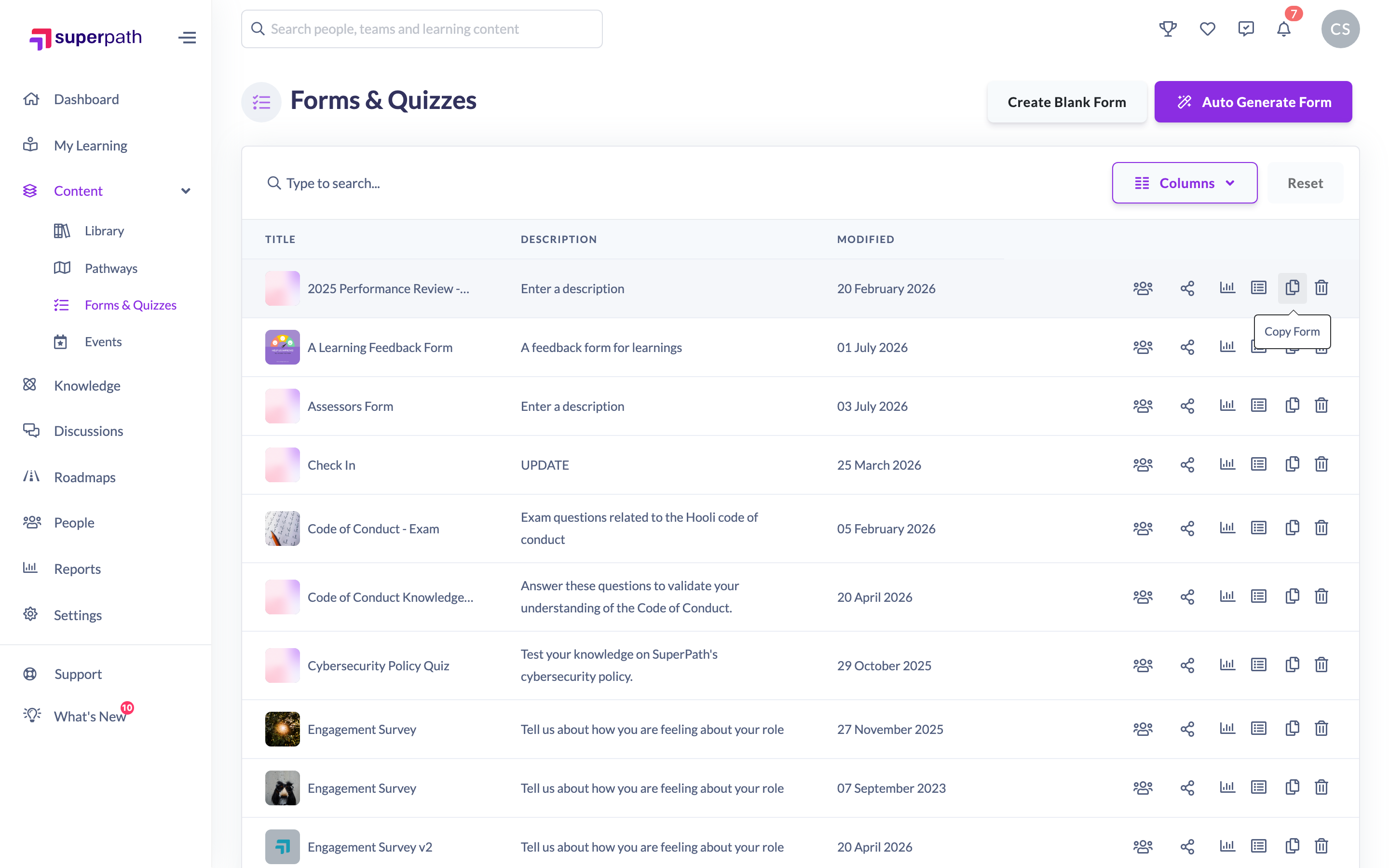
Note: Quizzes are a type of Form, so they duplicate in exactly the same way.
Duplicating a Roadmap
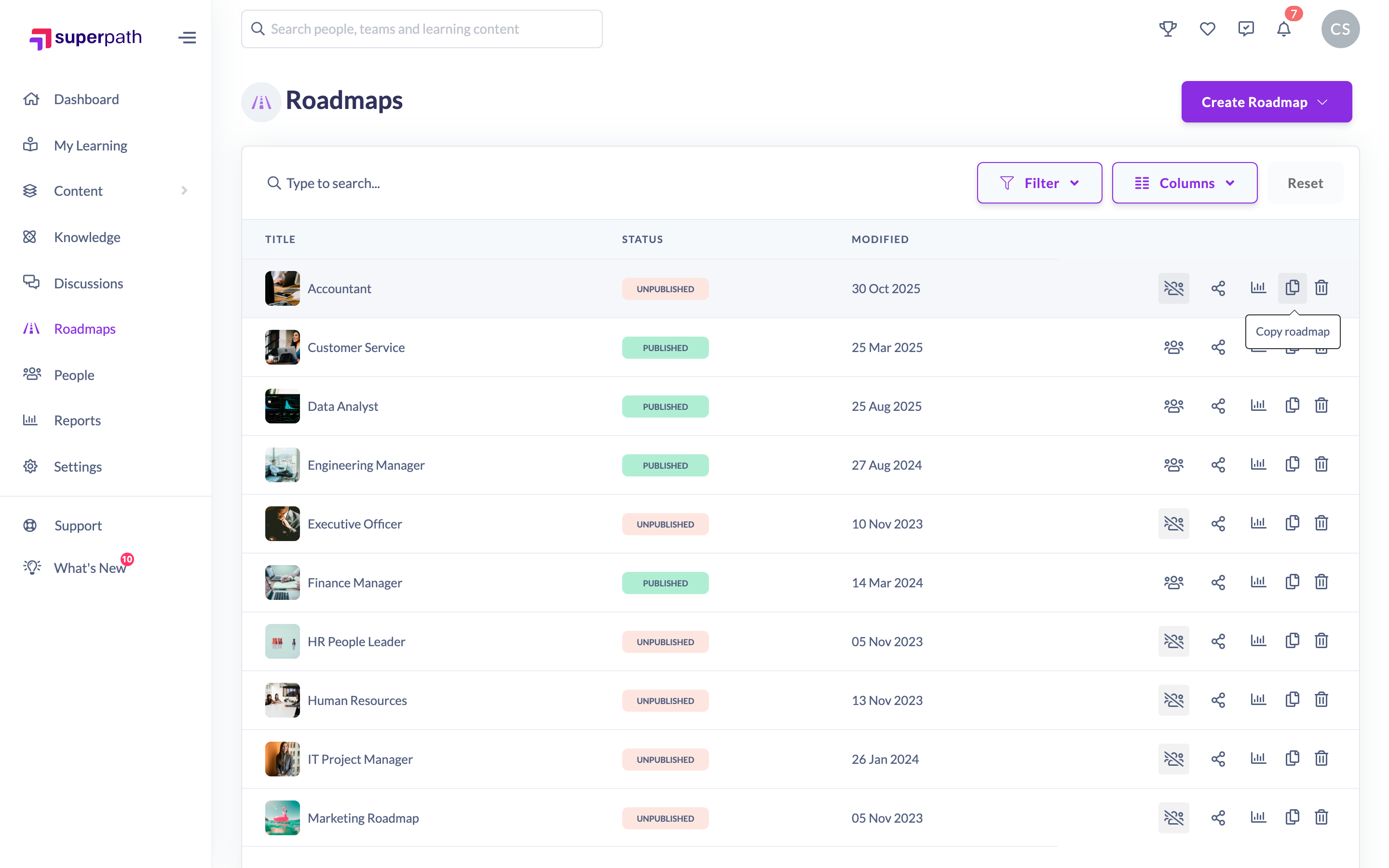
- Go to Roadmaps.
- Find the Roadmap you want to copy.
- Click the Copy roadmap (copy) icon in that row's actions.
- Confirm the copy, then click Confirm copy.
Duplicating a Knowledge article
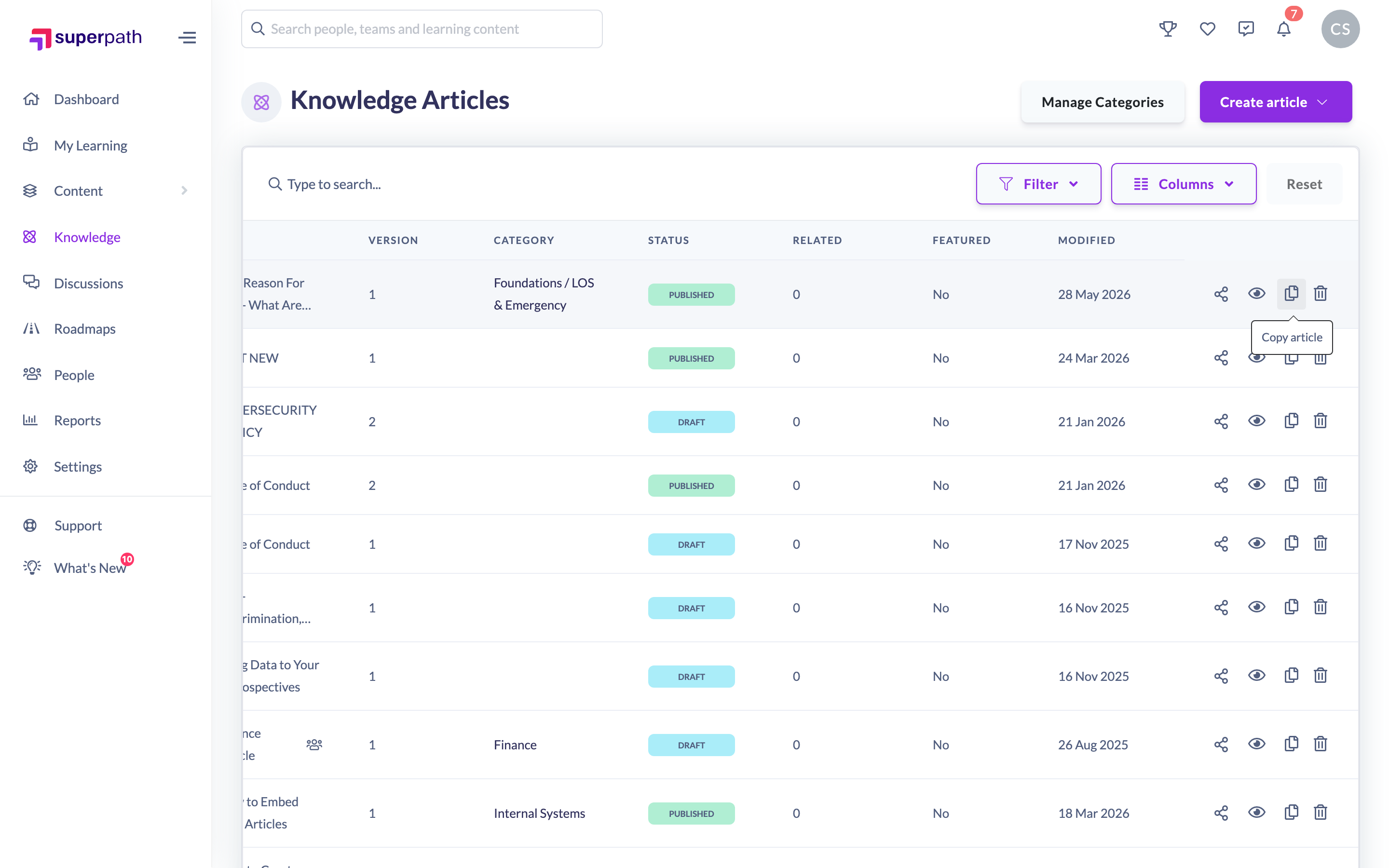
- Go to your Knowledge list.
- Find the article you want to copy.
- Click the Copy Article (copy) icon in that row's actions.
Can I duplicate a single piece of content or a course?
Not currently. Individual Library content items — such as an uploaded document, video, article or SCORM course — do not have a duplicate control. If you need a second version of a piece of content, add it to your Library again, or build a Pathway around it and duplicate the Pathway instead.
Things to keep in mind
- Each copy is fully independent — editing the copy never changes the original, and vice versa.
- A copy is created in your own account; it does not affect anyone else's items.
- Individual Library content items and courses cannot be duplicated (see above).
FAQs
Does duplicating change the original?
No. The copy is a separate item; changes you make to it do not affect the original.
Can I duplicate a quiz?
Yes — quizzes are Forms, so you copy them the same way as any other Form.
Can I duplicate an individual document, video or SCORM course in my Library?
No. Library content items don't have a duplicate option. Re-add the content, or wrap it in a Pathway and duplicate the Pathway.
Who can do this
Owners, Admins, Managers and Content Managers can duplicate Pathways, Forms, Roadmaps and Knowledge articles. Instructors can duplicate Pathways and Forms, but not Roadmaps or Knowledge articles. People Managers, Employees and Restricted users cannot duplicate any of these.
Updated on: 16/07/2026
Thank you!