
How to Edit a Category
How to Edit a Category
In this article:
- Overview
- How to edit a category
- Things to keep in mind
- FAQs
- Who can do this
Overview
As your Library grows, you may want to rename a category, swap its image, or move it under a different parent. Editing lets you update the categories you have created without having to delete and rebuild them, so your structure stays tidy and up to date.
Use it to keep your custom categories accurate as your content and organisation change.
How to edit a category
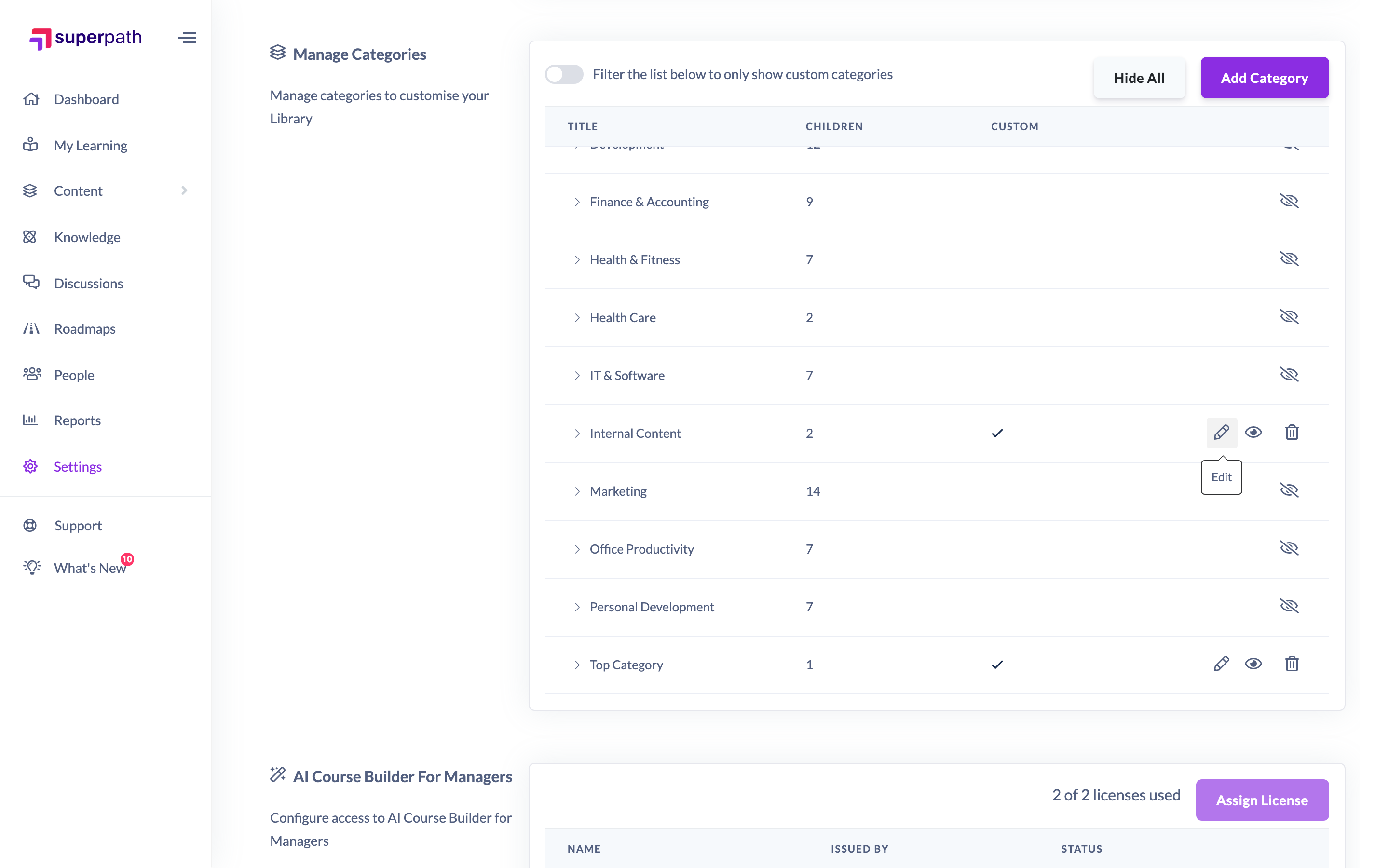
- Go to Settings → Library and scroll to the Manage Categories section.
- Find the category you want to change in the list and click the pencil icon in its row.
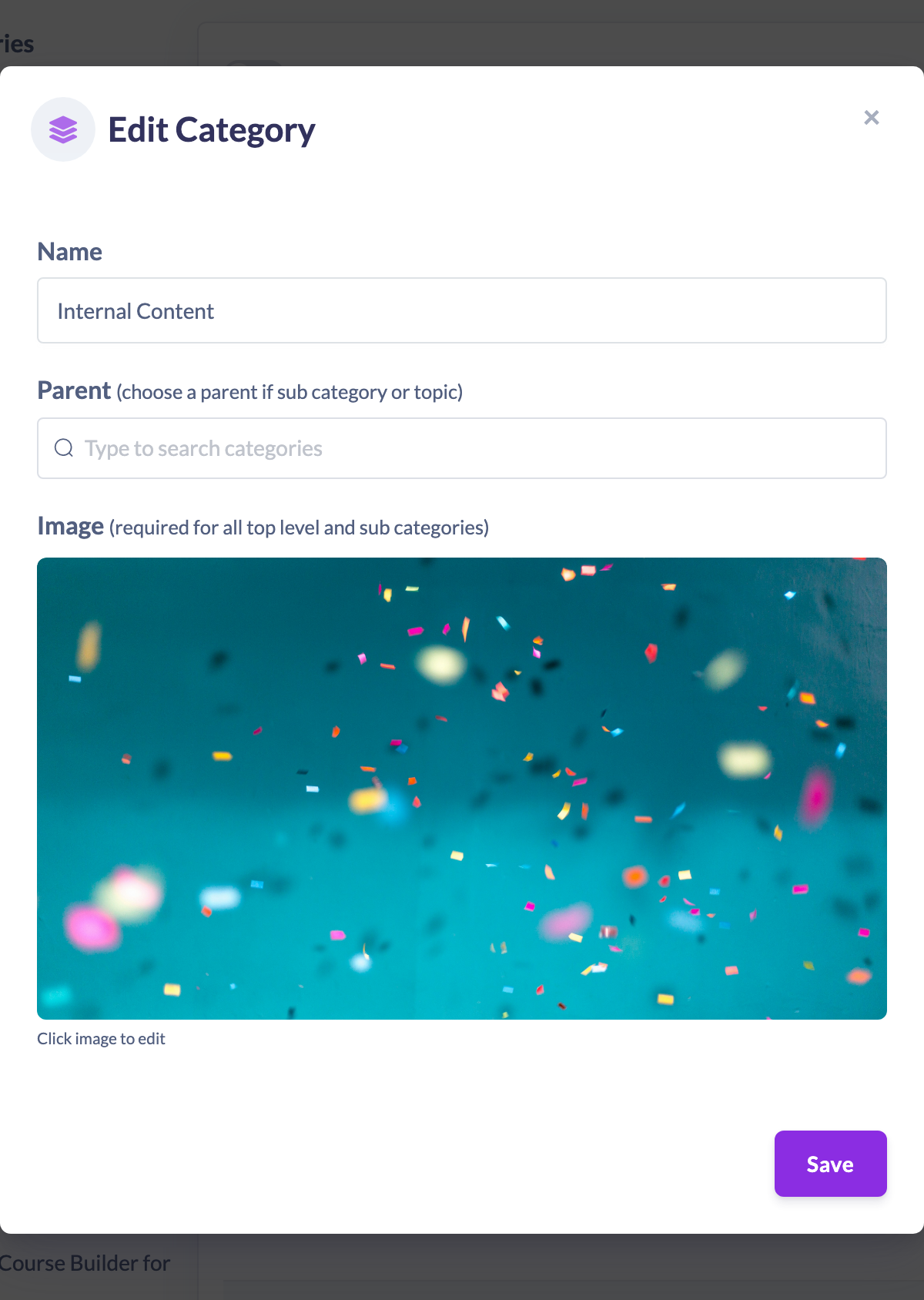
- In the Edit Category window, update the Name, Parent or Image as needed.
- Click Save to apply your changes.
Note: The pencil icon only appears on categories that belong to your own account. Built-in SuperPath categories cannot be edited — if you do not want them showing in your Library, hide them instead.
Things to keep in mind
- You can only edit categories your account owns. The built-in SuperPath categories do not show an edit pencil.
- Changing a category's parent moves it within the structure — for example, moving a sub category under a different top-level Category.
- An image is still required for top-level categories and sub categories after editing. The Save button stays disabled until the required details are present.
- If you want to remove a built-in category from view rather than edit it, hide it instead — see the article on hiding and showing categories.
FAQs
Why can't I edit some categories?
The edit pencil only appears on categories your own account created. SuperPath's built-in categories cannot be edited; you can hide them instead if you do not want them in your Library.
Can I move a category to a different parent?
Yes. Change the Parent in the Edit Category window to move it within the structure, then click Save.
Will editing a category affect the content in it?
Renaming, re-imaging or moving a category updates the category itself. The content assigned to it stays in place under the updated category.
Who can do this
Owners and Admins can edit categories that belong to their own account. Managers, Content Managers, People Managers, Instructors, Employees and Restricted users cannot — editing categories requires access to Settings and the permission to manage categories, which only Owners and Admins have. Built-in SuperPath categories cannot be edited by anyone.
Updated on: 18/07/2026
Thank you!