
How to Embed a Video to a Pathway Text Step
How to Embed a Video to a Pathway Text Step
In this article:
- Overview
- Embed a video
- Supported video sources
- Things to keep in mind
- FAQs
- Who can do this
Overview
A Text step's rich-text editor lets you add a video directly into the Step, so learners can watch it without leaving SuperPath. You can either paste a link to a video hosted elsewhere or upload a video file of your own.
Embed a video
- Add or open a Text step in your Pathway, then click into the editor.
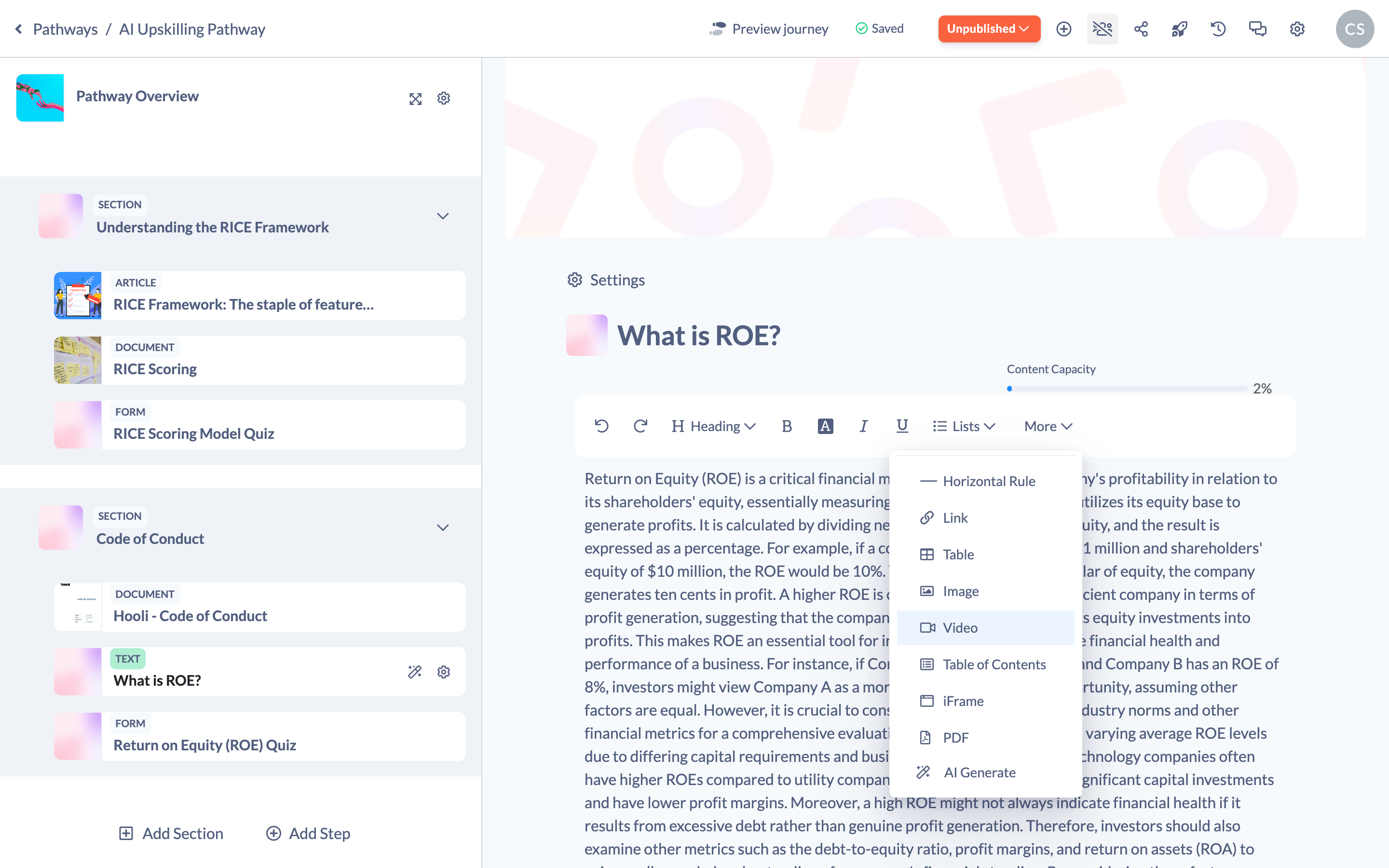
- In the editor toolbar, click Insert and choose Video. (On narrower screens the Video option lives under the More menu.)
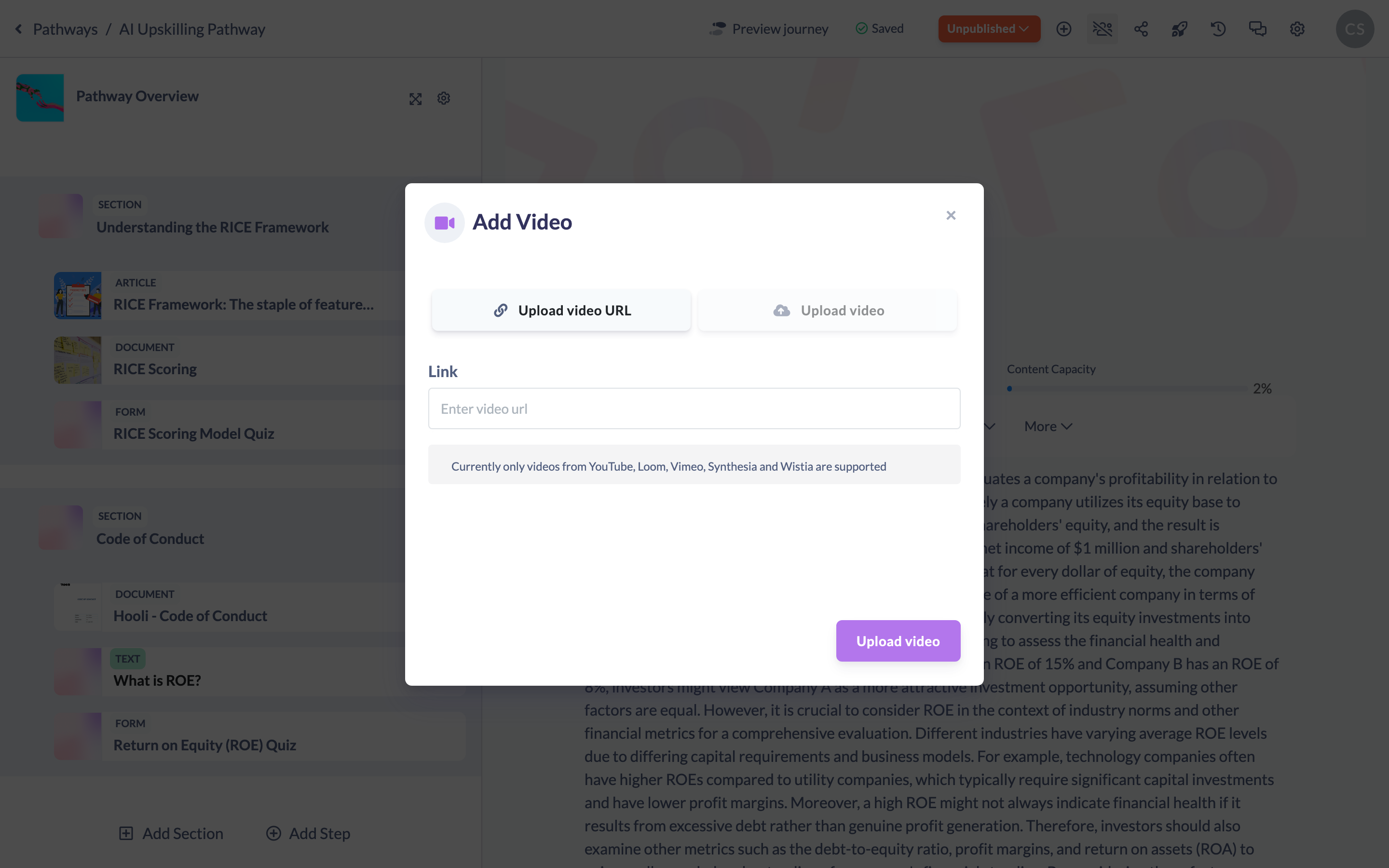
- In the Add Video dialog, choose Video URL to paste a link, or Upload video to upload a file from your device.
- Add your video, then click Upload video to insert it. Your video now appears in the Text step.
Supported video sources
When adding a video by link, SuperPath currently supports videos from YouTube, Loom, Vimeo, Synthesia and Wistia. If you upload a file instead, common video formats such as MP4, MOV, WebM, AVI and MKV are supported.
Note: To embed interactive (iFrame) content such as a quiz or booking widget rather than a video, use the iFrame option instead — see How to Add an Interactive Element to a Pathway Text Step.
Things to keep in mind
- Only videos from the supported sources above will embed from a link; links from other providers may not display correctly.
- Editing a Text step returns a published Pathway to a draft (unpublished) state, so publish it again once you're done.
FAQs
Which video sites can I link to?
YouTube, Loom, Vimeo, Synthesia and Wistia are currently supported.
Can I upload my own video file?
Yes. Choose Upload video in the Add Video dialog to upload a file rather than link to one.
What's the difference between adding a Video and an iFrame?
Use Video for a hosted or uploaded video; use iFrame to embed interactive content such as a Genially, Synthesia, JotForm or Calendly widget.
Who can do this
Owners, Admins, Managers, Content Managers and Instructors can edit a Text step and embed a video. People Managers, Employees, Members, Volunteers and Restricted users have read-only access to Pathways and cannot.
Updated on: 24/07/2026
Thank you!