
How to Enable Badges
How to Enable Badges
In this article:
- Overview
- Before you start
- How to enable Badges
- Things to keep in mind
- FAQs
- Who can do this
Overview
Badges are visual awards your learners earn for reaching milestones — completing learnings, accumulating points, or clocking up learning time. They give your people something to aim for and a way to show off what they've achieved. Badges are part of SuperPath's Gamification features, so they only become available once Gamification is switched on.
This article covers how to enable Badges. Once they're on, you can start building your own — see How to Create a Badge. To understand what triggers a badge to be given out, see When are Badges Awarded?
Before you start
Badges live inside Gamification, so the Badges section only appears once Gamification is enabled for your account. If you don't see it, turn Gamification on first — see How to Enable Gamification.
When you first enable Gamification, Badges are switched on for you automatically, and the Enable badges toggle appears so you can manage them independently from then on.
How to enable Badges
- Go to Settings → Gamification.
- Make sure Enable gamification on your account is turned on. The Badges section appears below the Gamification settings.
- In the Badges section, turn on the Enable badges toggle.
- Click Save in the editing bar at the top of the page to store the change.
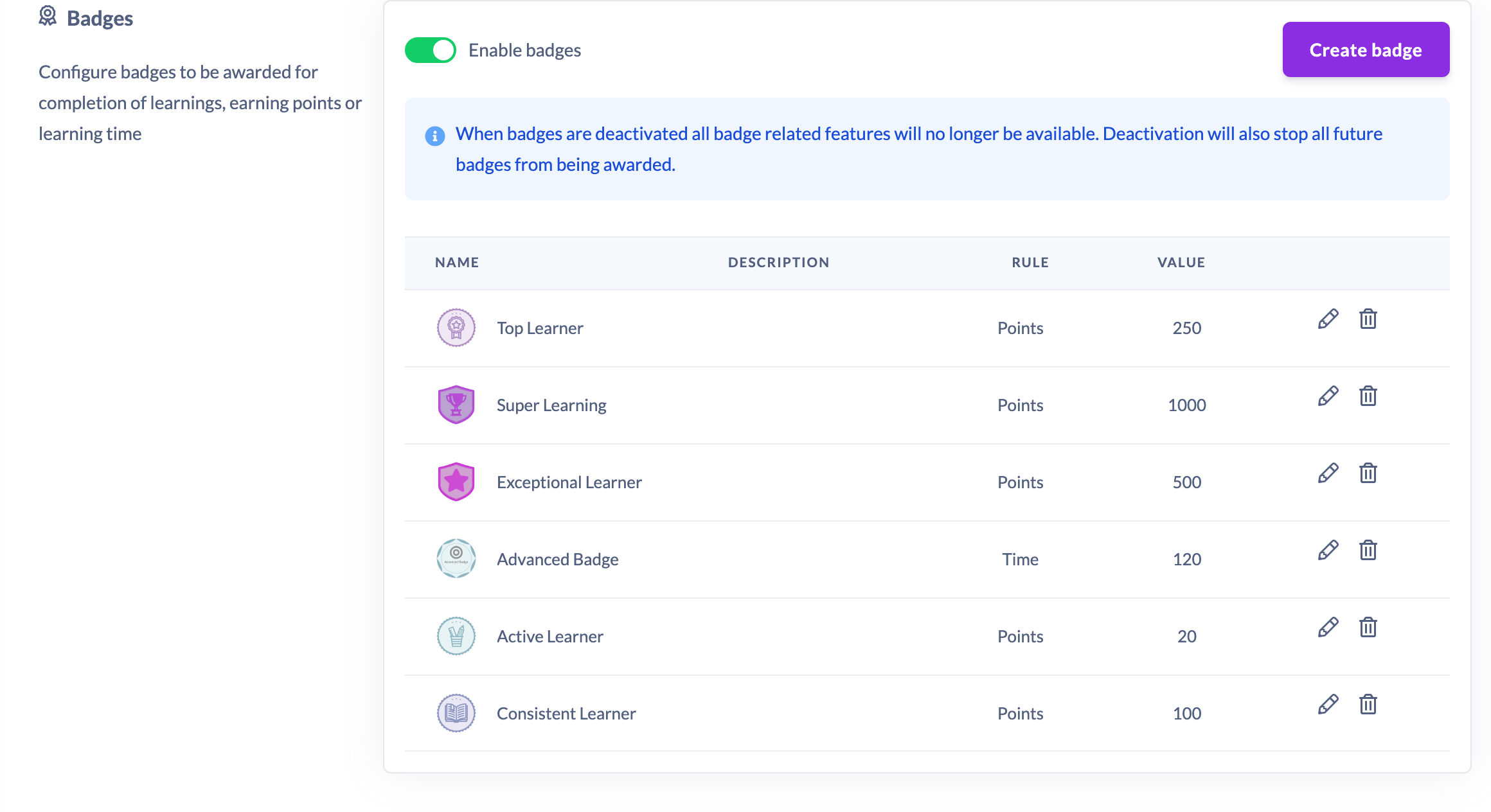
Once saved, the badge list and a Create badge button appear, ready for you to start creating badges.
Things to keep in mind
- Badges depend on Gamification. The Badges section only appears while Gamification is enabled; if Gamification is turned off, Badges go with it.
- Changes are staged until you click Save — the toggle won't take effect until then.
- Turning Badges off makes all badge-related features unavailable and stops any further badges from being awarded.
- Creating and editing individual badges is a separate task — see How to Create a Badge.
FAQs
Why don't I see the Badges section?
The Badges section only shows when Gamification is enabled. Turn on Enable gamification on your account first, then the Badges section (with the Enable badges toggle) appears below it.
Are Badges enabled automatically when I turn on Gamification?
Yes. Enabling Gamification switches Badges on at the same time, and a separate Enable badges toggle appears so you can turn them on or off independently afterwards.
How do I create a badge once Badges are enabled?
Turning on Enable badges reveals the badge list and a Create badge button. See How to Create a Badge for the full walkthrough.
Who can do this
Only Owners and Admins can enable Badges. The Gamification and Badges settings live under Settings, and access to all Settings pages is restricted to Owners and Admins — Managers, Content Managers, People Managers, Instructors, Employees and Restricted users can't reach them, regardless of any other permission.
Updated on: 19/07/2026
Thank you!