
How to Enable Gamification
How to Enable Gamification
In this article:
- Overview
- How to enable Gamification
- Things to keep in mind
- FAQs
- Who can do this
Overview
Gamification rewards your learners with points for the learning actions they take, adds a Leaderboard for a bit of friendly competition, and lets you configure how many points each action is worth. It's switched off by default, so someone with the right access needs to turn it on before any of these features appear.
This article covers how to enable Gamification for your account. For the concept behind it — what Gamification is and why you'd use it — see What is Gamification?
How to enable Gamification
- Go to Settings → Gamification.
- Turn on the Enable gamification on your account toggle. The section description explains that this activates points for learning actions, and that Leaderboards and custom points configuration are activated too.
- Click Save in the editing bar at the top of the page. Nothing is stored until you save — the toggle stages the change but doesn't apply it on its own.
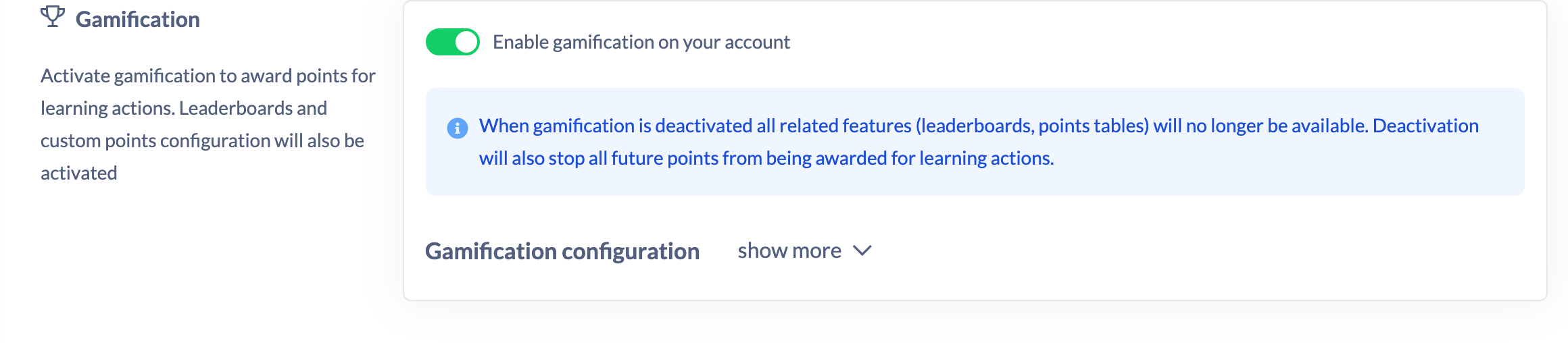
Once saved, the points configuration and the Badges section appear on the page, and a Leaderboard becomes available to your learners.
Things to keep in mind
- Changes are staged, not saved automatically. You must click Save in the editing bar for the toggle to take effect (or Discard to undo it).
- Enabling Gamification also enables Badges. When you save, the account's badge setting is switched on alongside Gamification, and a separate Enable badges toggle appears in the Badges section so you can manage badges independently from then on.
- If you later turn Gamification off, all related features — Leaderboards and points tables — stop being available, and no further points are awarded for learning actions.
FAQs
Where do I find the Gamification settings?
Go to Settings and open the Gamification tab (marked with a trophy icon).
Does enabling Gamification award any points straight away?
No. Turning it on activates the feature and makes the points configuration and Leaderboard available. Points are then earned as your learners complete actions from that point onwards.
Do I need to set up points before enabling it?
No. SuperPath ships with a default set of point values for each action, so Gamification works as soon as you enable it. You can adjust those values afterwards — see What Points Are Awarded and How to Configure Points and Daily Limits.
What happens to badges when I enable Gamification?
Badges are enabled at the same time, and a separate Enable badges toggle appears so you can turn them on or off independently afterwards.
Who can do this
Only Owners and Admins can enable Gamification. The Gamification settings live under Settings, and access to all Settings pages is restricted to Owners and Admins — Managers, Content Managers, People Managers, Instructors, Employees and Restricted users can't reach them, regardless of any other permission.
Updated on: 19/07/2026
Thank you!