
How to Export Your Library Content to CSV
How to Export Your Library Content to CSV
In this article:
- Overview
- How to export your Library content
- What's included in the export
- Things to keep in mind
- FAQs
- Who can do this
Overview
Exporting gives you a CSV snapshot of your private Library content — handy for auditing what you hold, reporting outside SuperPath, or working through a spreadsheet. The file is built in your browser and downloads instantly, so no email or background job is involved.
How to export your Library content
- Go to Settings → Library and click Manage Private Library.
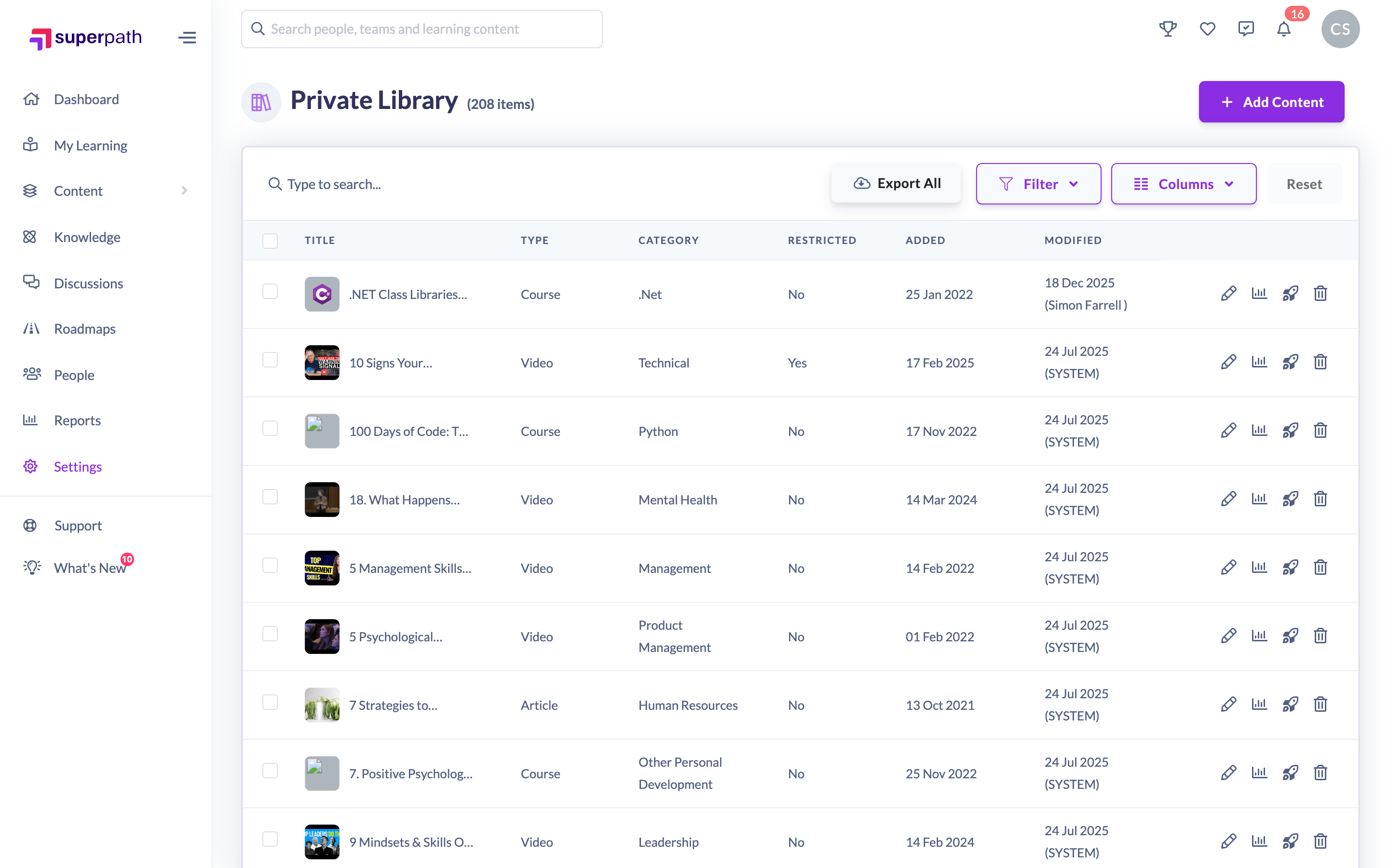
- Click Export All near the top of the table.
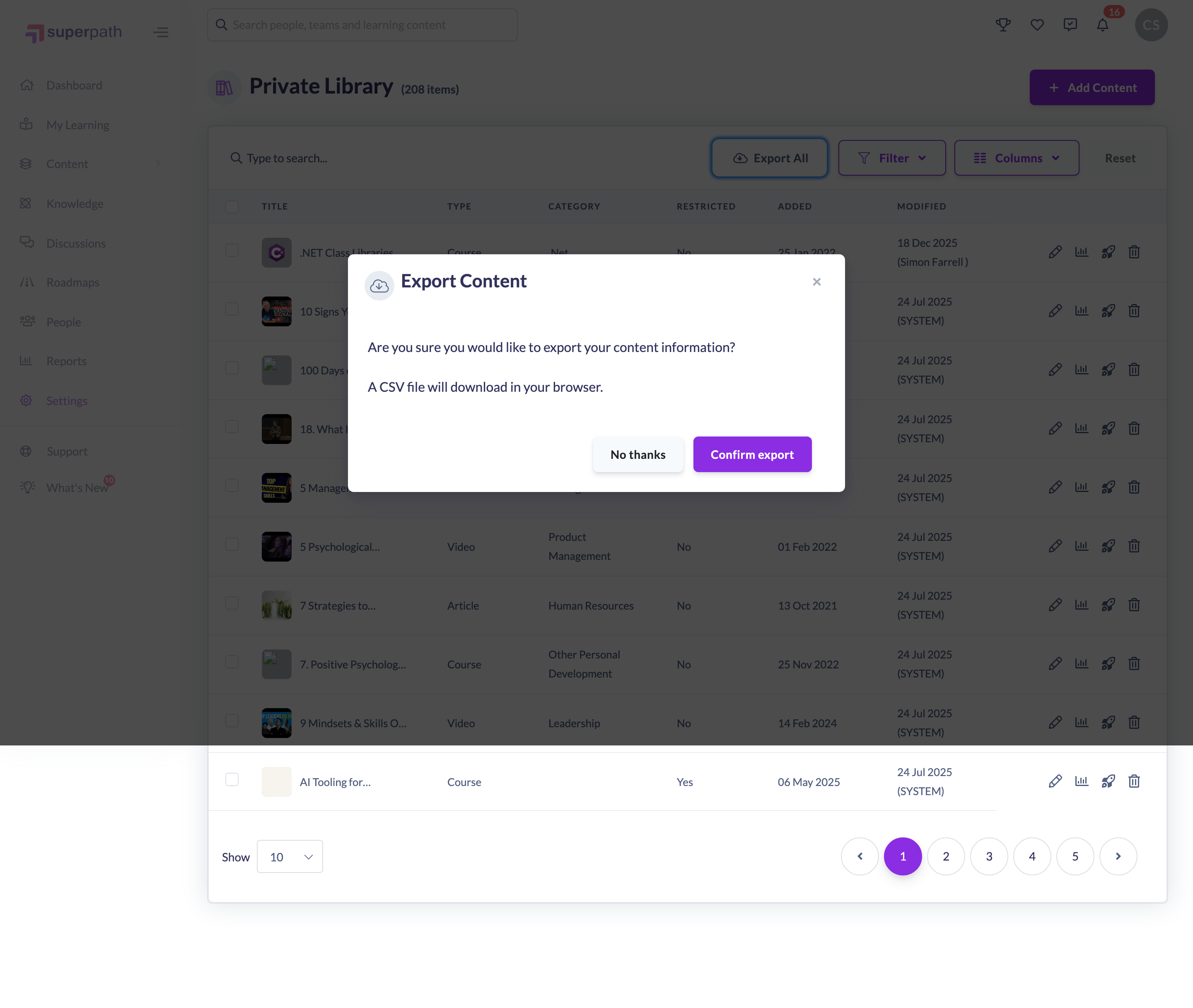
- A window appears asking Are you sure you would like to export your content information? and noting that a CSV file will download in your browser.
- Click Confirm export.
The CSV downloads straight to your browser's downloads.
What's included in the export
Each row is one content item, with these columns: ID, Title, Type, Status, Date Published, Level, Author, Length Value, Length Unit, Category, Sub Category, Topic, External ID, Sync with HRIS, Date Created, Date Last Modified and Last Modified By.
Things to keep in mind
- The export always covers all of your private Library content — it is not limited by any search or filter you have applied to the table.
- The Export All button is only shown on desktop and only when your Library has content. It does not appear on mobile.
- The file is generated in your browser, so it downloads immediately rather than arriving by email.
FAQs
Does the export respect my current search or filter?
No. It exports your entire private Library, regardless of any search term or filter shown in the table.
Why can't I see the Export All button?
It is hidden on mobile devices, and it only appears when there is content in your Library. Try again from a desktop browser.
Will the file be emailed to me?
No. The CSV is built in your browser and downloads directly to your device.
Who can do this
There is no separate role permission on the export itself — the Export All button appears for any user who can open the Manage Private Library page on a desktop browser, and the file is built entirely in the browser. In practice this is the Owners, Admins, Managers, Content Managers and Instructors who manage Library content.
Updated on: 18/07/2026
Thank you!