
How to Flag Content
How to Flag Content
In this article:
- Overview
- How to flag a content item
- Things to keep in mind
- FAQs
- Who can do this
Overview
Flagging lets you report a content item that you think is inappropriate or no longer suitable, so it can be reviewed. When you flag content, a report is sent to administrators with the reason you selected and any extra detail you add — a simple way to raise a concern without having to track down the right person yourself.
Use it if you come across content that is offensive, breaches copyright, or is out of date and should no longer be available.
How to flag a content item
- Go to your Library and open the content item you want to report.
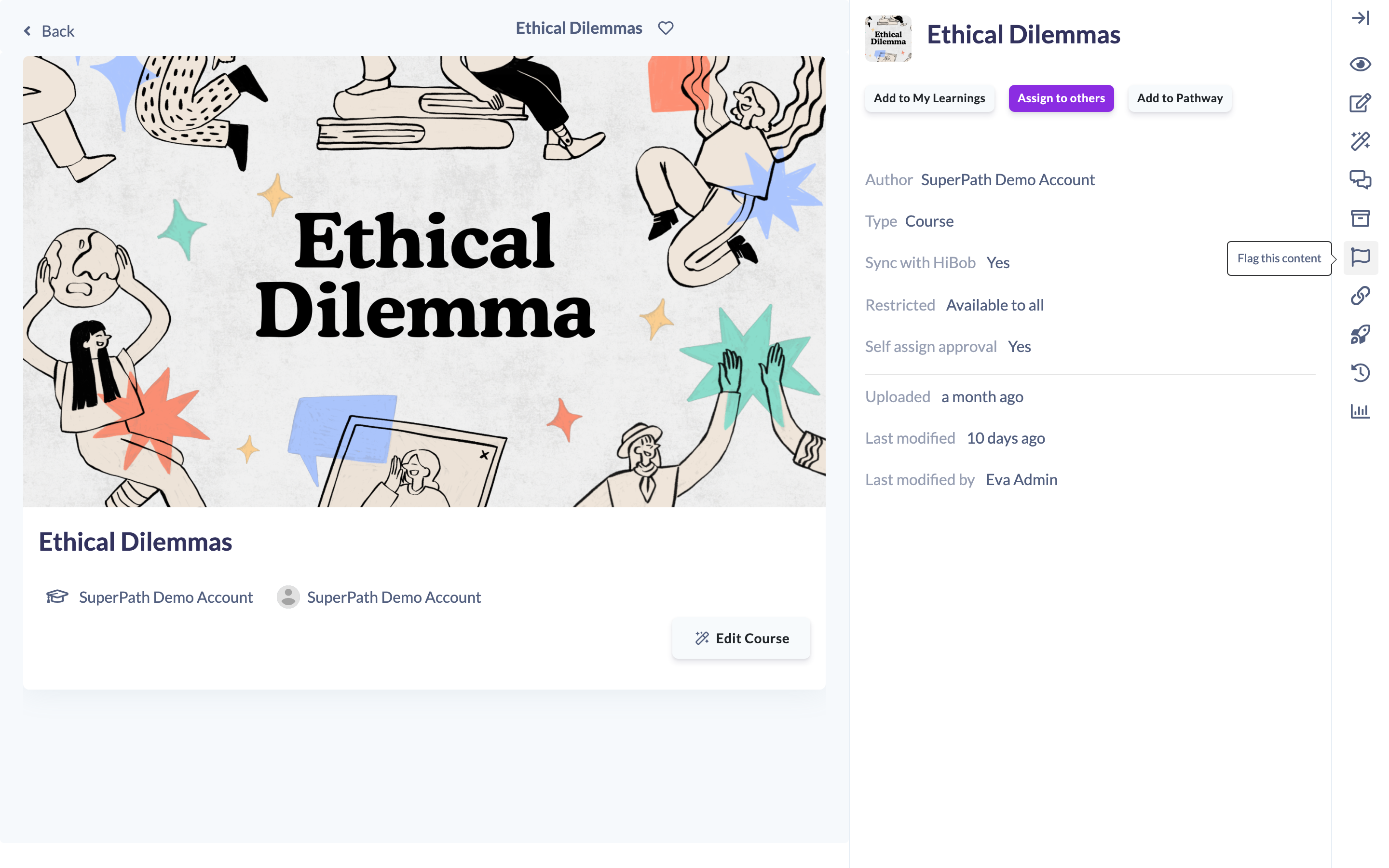
- On the right-hand toolbar of the content page, click the flag icon. Its tooltip reads Flag this content.
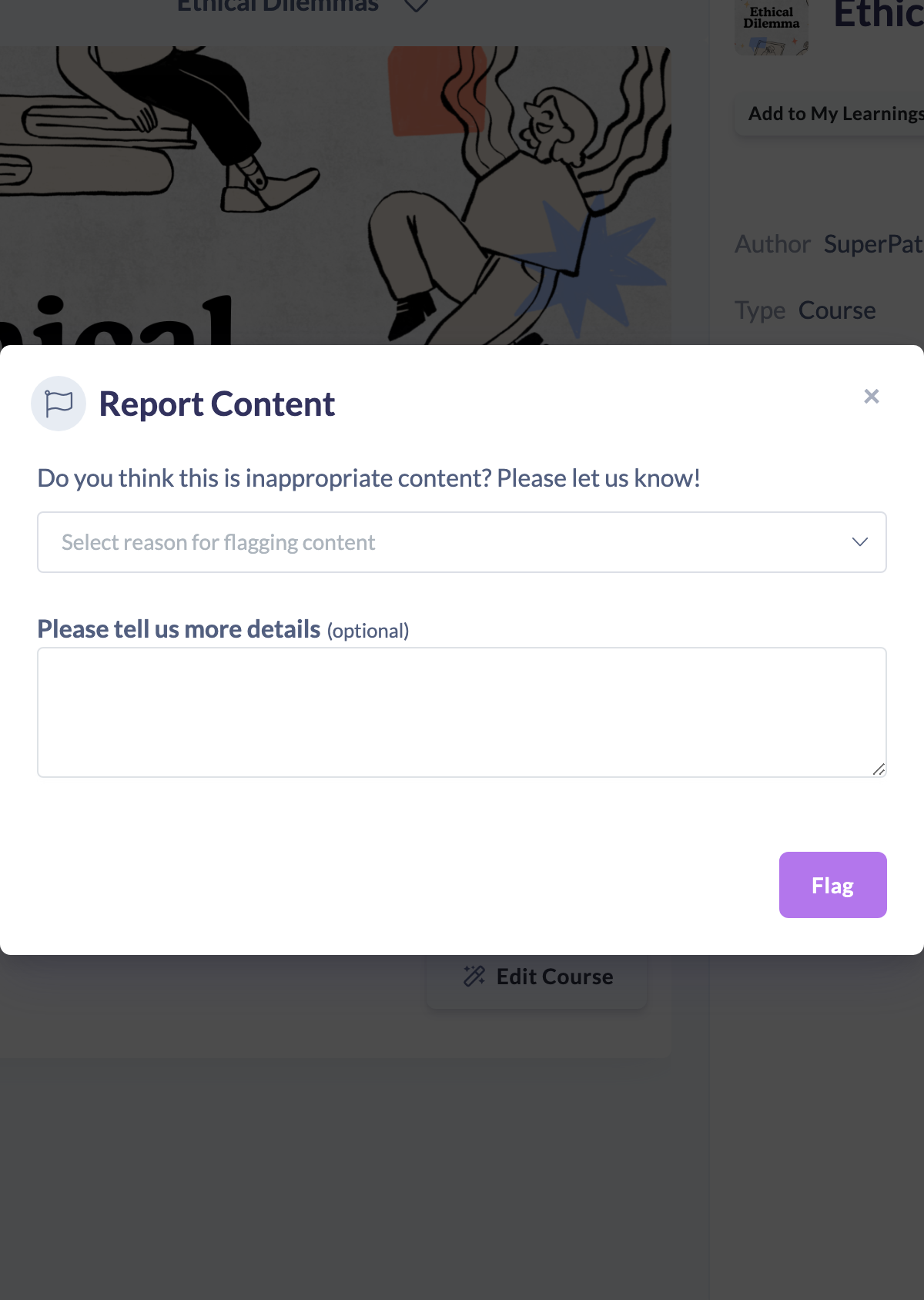
- In the Report Content window, choose a reason from the dropdown — the options are pornography, violence, racism or hate speech, copyright, no longer available, or other.
- Optionally, add more detail in the Please tell us more details box to explain the problem.
- Click Flag to send your report. (The button stays disabled until you have selected a reason.)
Once submitted, you will see a message confirming that the content has been reported to administrators.
Note: Flagging sends a report to your administrators for them to review. It does not automatically hide, archive or remove the content — an administrator decides what happens next.
Things to keep in mind
- Flagging notifies administrators; it does not change the content itself. The item stays in the Library unless an administrator acts on the report.
- You must choose a reason before you can submit — the Flag button is disabled until one is selected. The details box is optional.
- The Flag option is not shown on content added from another provider's library (purchased or shared content) — it appears only on content that belongs to your own account.
FAQs
What happens after I flag a content item?
A report is sent to your administrators with the reason and any details you provided. They review it and decide what to do — flagging on its own does not remove or hide the content.
Do I have to give a reason?
Yes. You need to select a reason from the dropdown before the Flag button becomes active. Adding extra detail is optional but helpful.
Why can't I see the flag option on some content?
The flag option only appears on content that belongs to your own account. It is not shown on purchased or shared content from another provider's library.
Who can do this
Anyone who can view a content item can flag it — Owners, Admins, Managers, Content Managers, People Managers, Instructors, Employees and Restricted users. The report is sent to administrators, who review it and decide what happens to the content.
Updated on: 18/07/2026
Thank you!