
How to Generate a Launch Link for Content
How to Generate a Launch Link for Content
In this article:
- Overview
- How to generate a launch link
- Things to keep in mind
- FAQs
- Who can do this
Overview
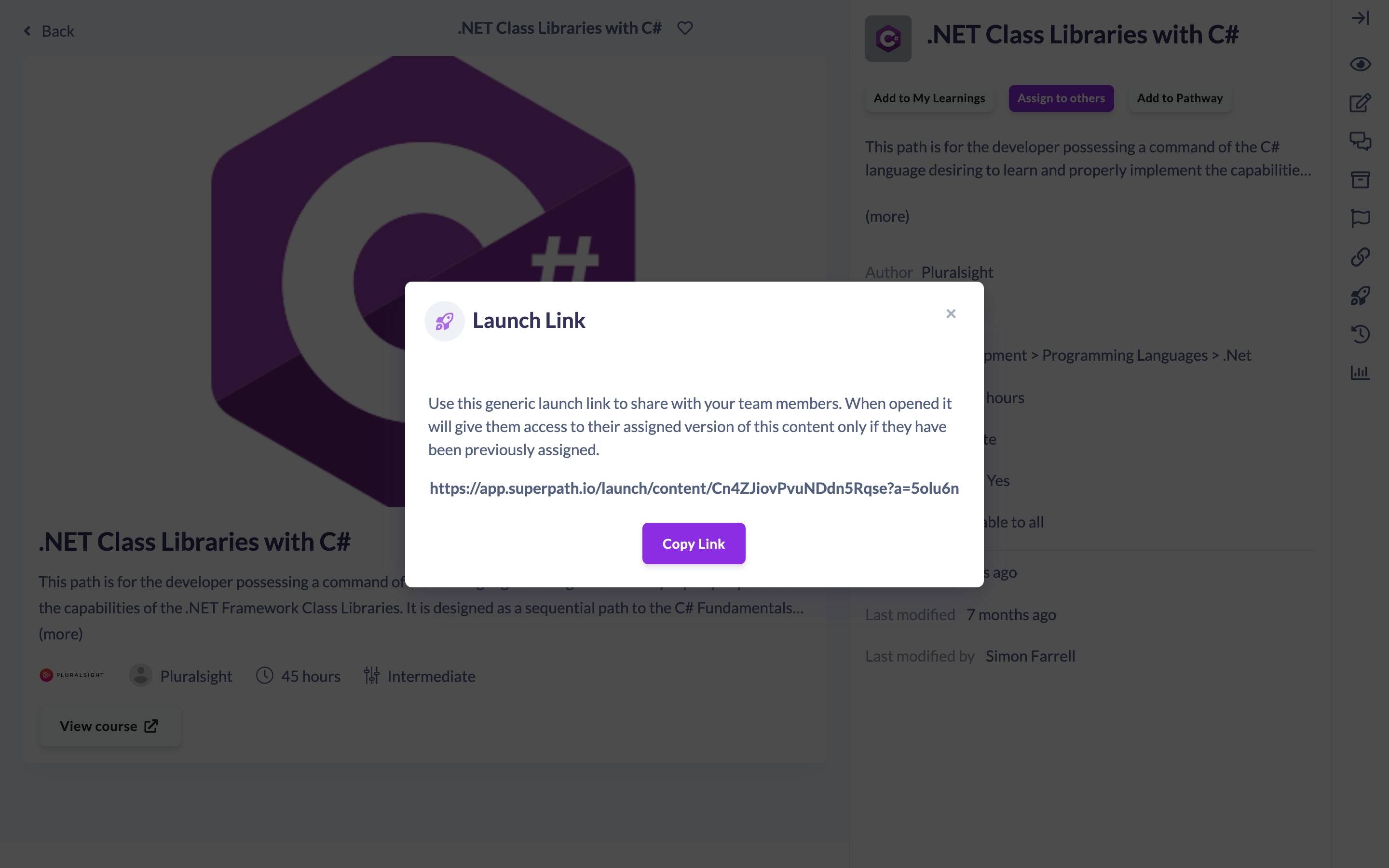
A launch link is a generic link you can share with your people that takes them straight to their assigned version of a piece of content. It is handy for putting a course behind a button in an email, intranet page or chat message. The link is generic — it does not grant access on its own — so it only works for people who have already been assigned the content.
How to generate a launch link
- Open the content item from your Library, or find it in Settings → Library → Manage Private Library.
- Click the Generate Launch Link (rocket) icon — it is on the right-hand toolbar of the content page, and also in the row actions in Manage Private Library.
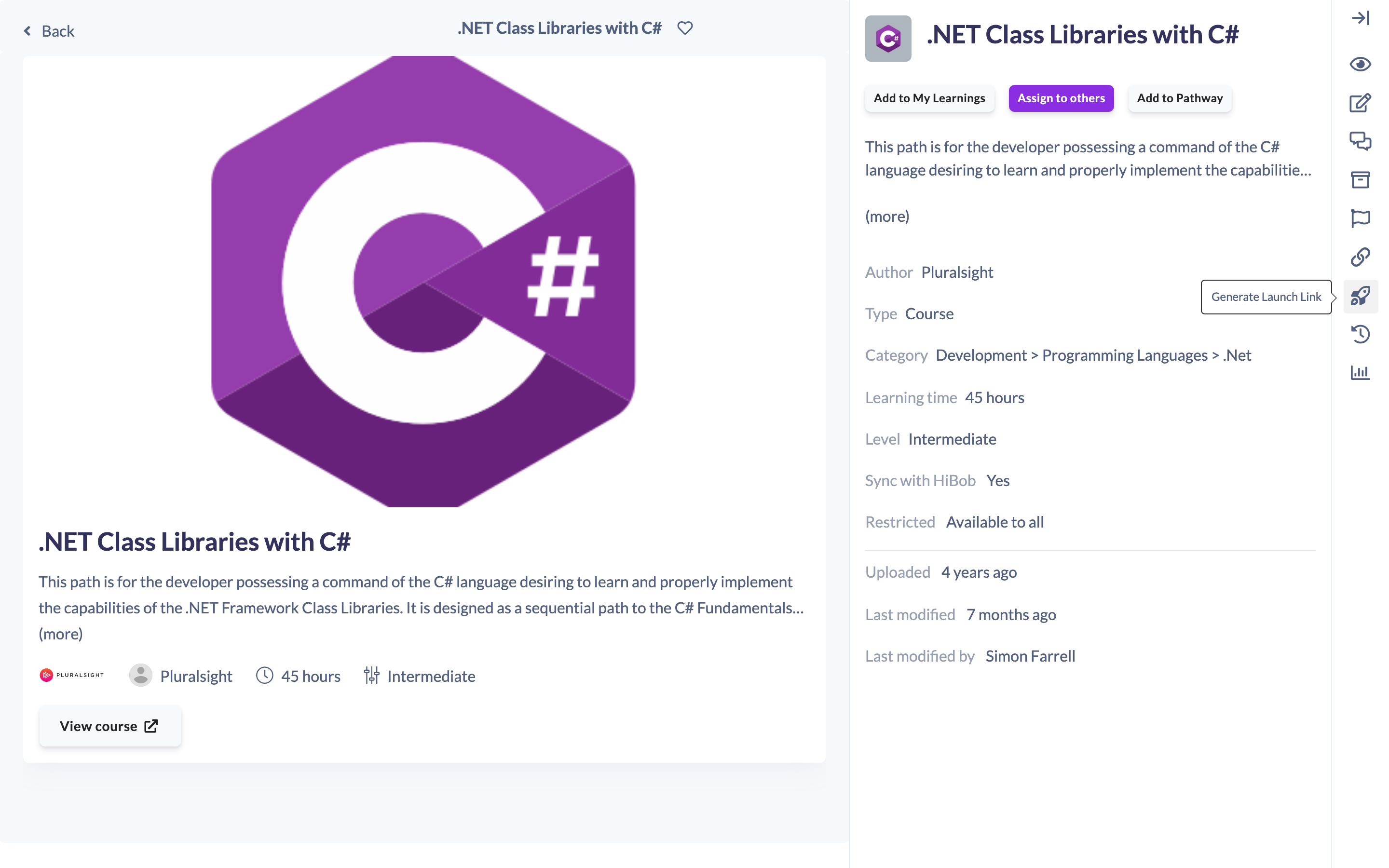
- The Launch Link window opens and shows the link.
- Click Copy Link to copy it to your clipboard, then paste it wherever you need it.
Things to keep in mind
- The launch link only works for people who have already been assigned the content. When someone opens it, it gives them access to their assigned version — it does not assign the content or grant access by itself.
- The link is the same for everyone you share it with; each person is routed to their own assigned version.
- This is different from the Copy link to this content action, which copies the web address of the content page itself.
FAQs
Will the launch link give anyone access to the content?
No. It only opens the assigned version for people who have already been assigned the content. Someone who has not been assigned it will not gain access through the link.
Is the link different for each person?
No. It is one generic link you can share widely — each person is taken to their own assigned version when they open it.
What's the difference between the launch link and Copy link to this content?
The launch link routes an assigned learner to their version of the content. Copy link to this content simply copies the address of the content page.
Who can do this
The Generate Launch Link action has no separate role restriction — the icon appears on the content page toolbar and in the Manage Private Library row actions for any user who can view the content. In practice this is the Owners, Admins, Managers, Content Managers and Instructors who manage Library content.
Updated on: 18/07/2026
Thank you!