
How to Hide All Platform Categories
How to Hide All Platform Categories
In this article:
- Overview
- How to hide all platform categories
- Things to keep in mind
- FAQs
- Who can do this
Overview
SuperPath ships with a set of built-in platform categories to help you get started. If you would rather your Library showed only the categories your own organisation has created, Hide All lets you hide every platform category in one step instead of hiding them one at a time. Your custom categories are left untouched and stay visible.
Use it when you want your Library organised entirely around your own category structure.
How to hide all platform categories
- Go to Settings → Library and scroll to the Manage Categories section.
- Click Hide All.

- A confirmation window titled Hide All Platform Categories appears, warning that this will also hide all of the associated sub-categories and topics.
- Click Hide to confirm.
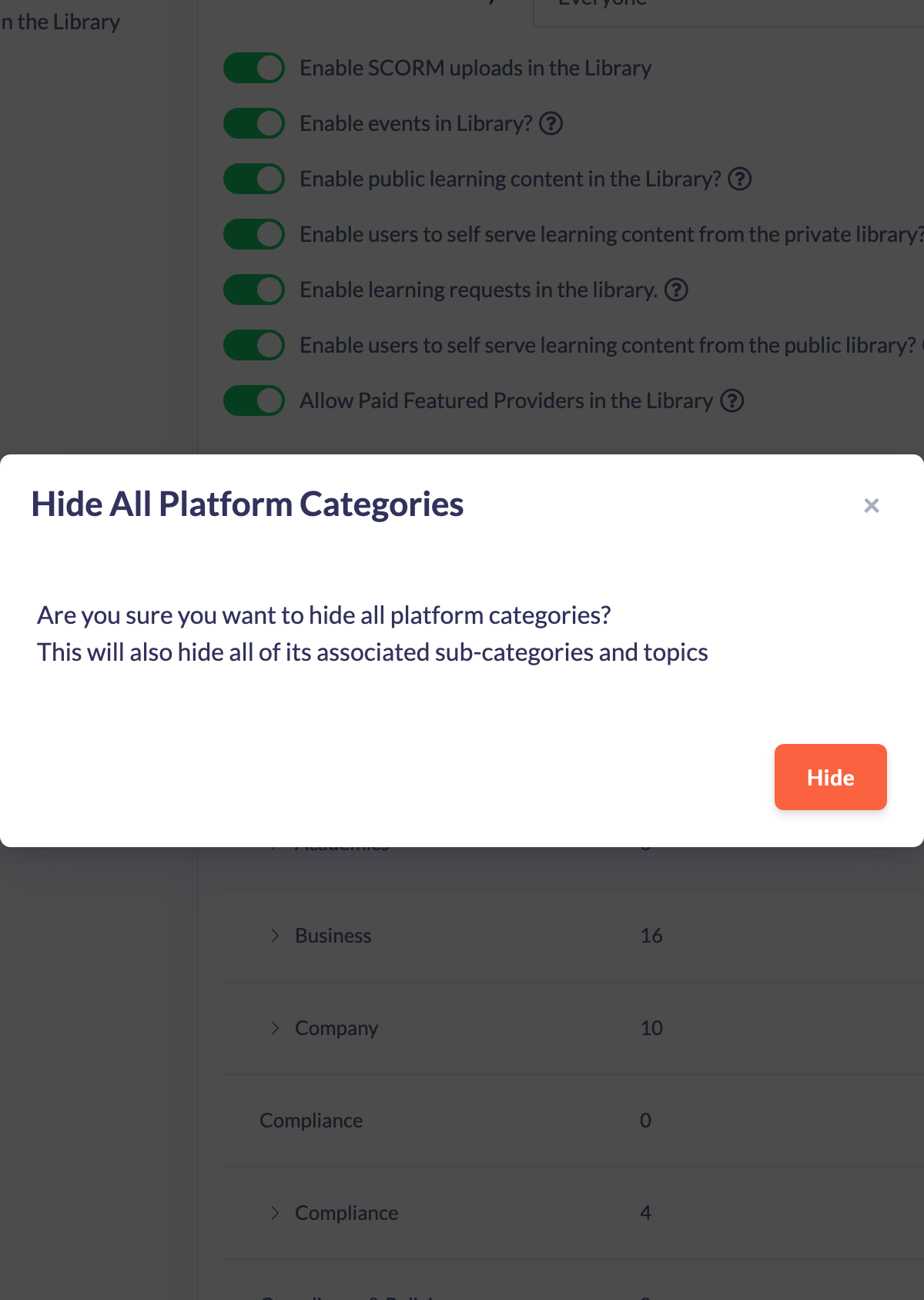
Once every platform category is hidden, the Hide All button no longer appears.
Note: Hide All only hides the built-in platform categories. Any categories your own account has created stay visible. To bring platform categories back, show them individually from the Manage Categories list.
Things to keep in mind
- Hide All affects only SuperPath's built-in platform categories. Your custom categories are not hidden.
- This is a bulk version of hiding a single category — it hides each platform category, along with its sub categories and topics.
- Nothing is deleted and no content is removed; the platform categories are simply hidden from the Library.
- The Hide All button disappears once all platform categories are already hidden. To reverse it, show the categories one at a time using the eye-slash icon in the list.
FAQs
Does Hide All hide my own custom categories too?
No. It only hides the built-in platform categories. Any categories your account created remain visible.
How is Hide All different from hiding a single category?
Hiding a single category uses the eye icon on one row. Hide All is a shortcut that hides every platform category at once — it does not touch your custom categories.
How do I bring the platform categories back?
Show them individually from the Manage Categories list by clicking the eye-slash icon on each hidden category. There is no single "show all" button.
Who can do this
Owners and Admins can hide all platform categories. Managers, Content Managers, People Managers, Instructors, Employees and Restricted users cannot — this requires access to Settings and the permission to update your account's settings, which only Owners and Admins have.
Updated on: 18/07/2026
Thank you!