
How to Make a Pathway Step Required
How to Make a Pathway Step Required
In this article:
- Overview
- Make a step required
- Things to keep in mind
- FAQs
- Who can do this
Overview
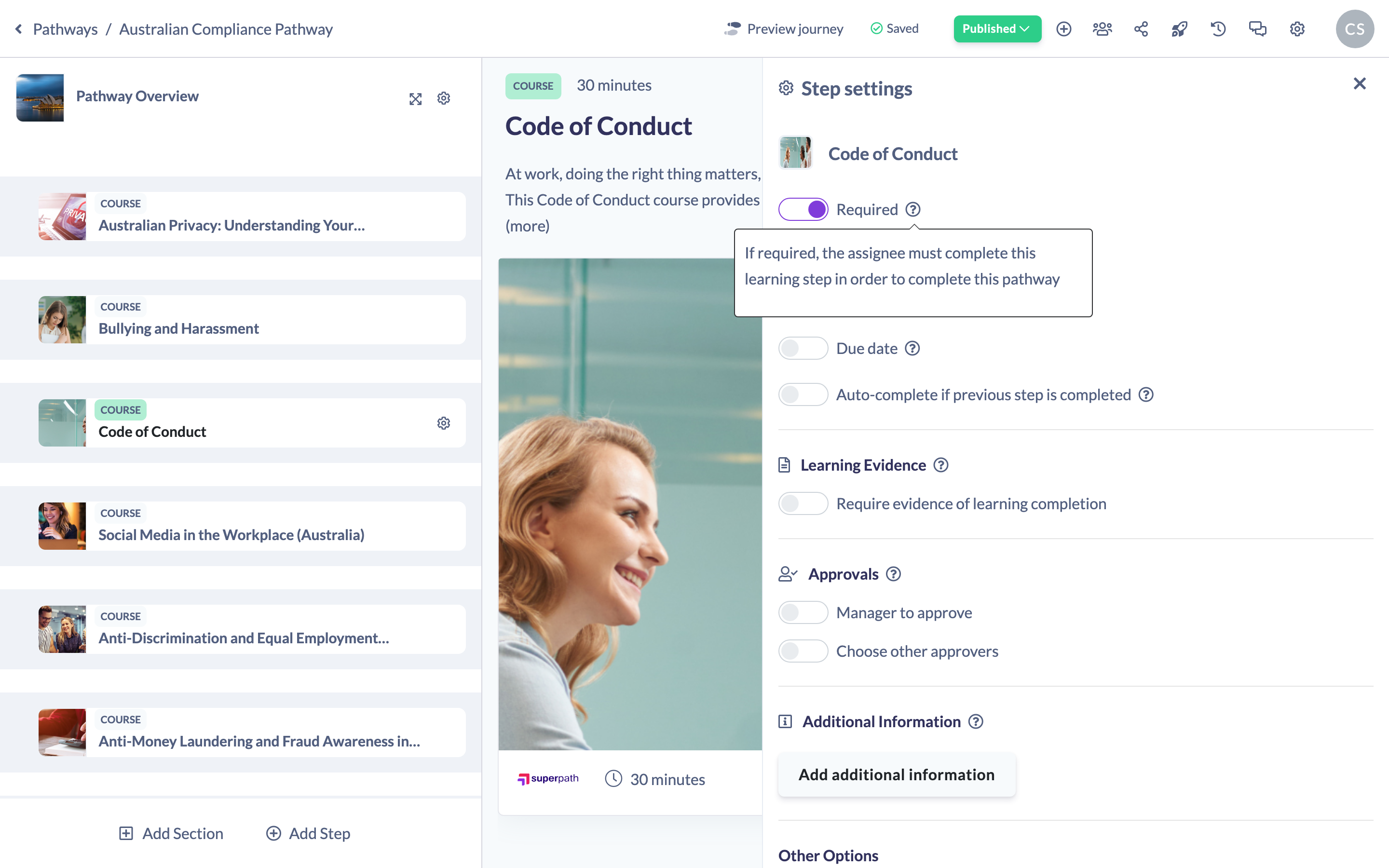
Marking a step as Required means a learner must complete it before the Pathway itself counts as complete. Steps are required by default; switching Required off makes a step optional, so learners can finish the Pathway without doing it.
Make a step required
- Open your Pathway in the builder and hover over the step in the left steps panel.
- Click the cog icon to open the step's settings panel.
- At the top of the panel, toggle Required on (or off to make the step optional).
Your change saves automatically. An optional step shows an Optional badge in the steps list.
Good to know: The Required toggle also appears in a section's settings, where it applies to that section.
Things to keep in mind
- Steps are required by default, so you only need to change this when you want a step to be optional.
- "If required, the assignee must complete this learning step in order to complete this pathway."
- Changing a step's settings returns a published Pathway to a draft (unpublished) state, so publish again once you're done.
FAQs
What happens if a step is optional?
Learners can complete the Pathway without finishing that step — it no longer blocks overall completion.
Can I make a whole section optional?
Yes. Open the section's settings and switch Required off.
Do optional steps still appear for learners?
Yes. Optional steps are shown to learners with an Optional badge; they're just not needed for Pathway completion.
Who can do this
Owners, Admins, Managers, Content Managers and Instructors can change a step's Required setting. People Managers, Employees, Members, Volunteers and Restricted users have read-only access to Pathways and cannot.
Updated on: 18/07/2026
Thank you!