
How to Manually Add CPD Points
How to Manually Add CPD Points
In this article:
- Overview
- Before you start
- How to add a CPD entry for yourself
- How to add a CPD entry for someone else
- How manual entries appear on the CPD tab
- Filtering your CPD points and downloading a transcript
- Deleting a CPD entry
- Things to keep in mind
- FAQs
- Who can do this
Overview
A lot of real CPD happens outside SuperPath — a conference, an external course, a webinar, an industry breakfast, reading you did on your own. Manual CPD entries let that learning be recorded alongside the points earned in the platform, so a person's CPD total is their whole picture rather than just their SuperPath activity.
An entry captures when the activity was completed, what it was, how many points it's worth, its category, who provided it, and optionally a certificate or other evidence file. Entries count towards totals straight away — there's no approval step.
Before you start
Two things need to be switched on by an Owner or Admin in Settings → Features: the CPD Points feature itself, and Allow users to upload their own CPD beneath it. There's also a Who can add CPD points setting that controls who gets the Add CPD button — Everyone, Managers & Admins, or Admin Only. See How to Enable CPD Points.
If you can see your CPD points but there's no Add CPD button, one of those settings is the reason.
How to add a CPD entry for yourself
- Click your avatar and go to your profile, then open the CPD tab.
- Click Add CPD.
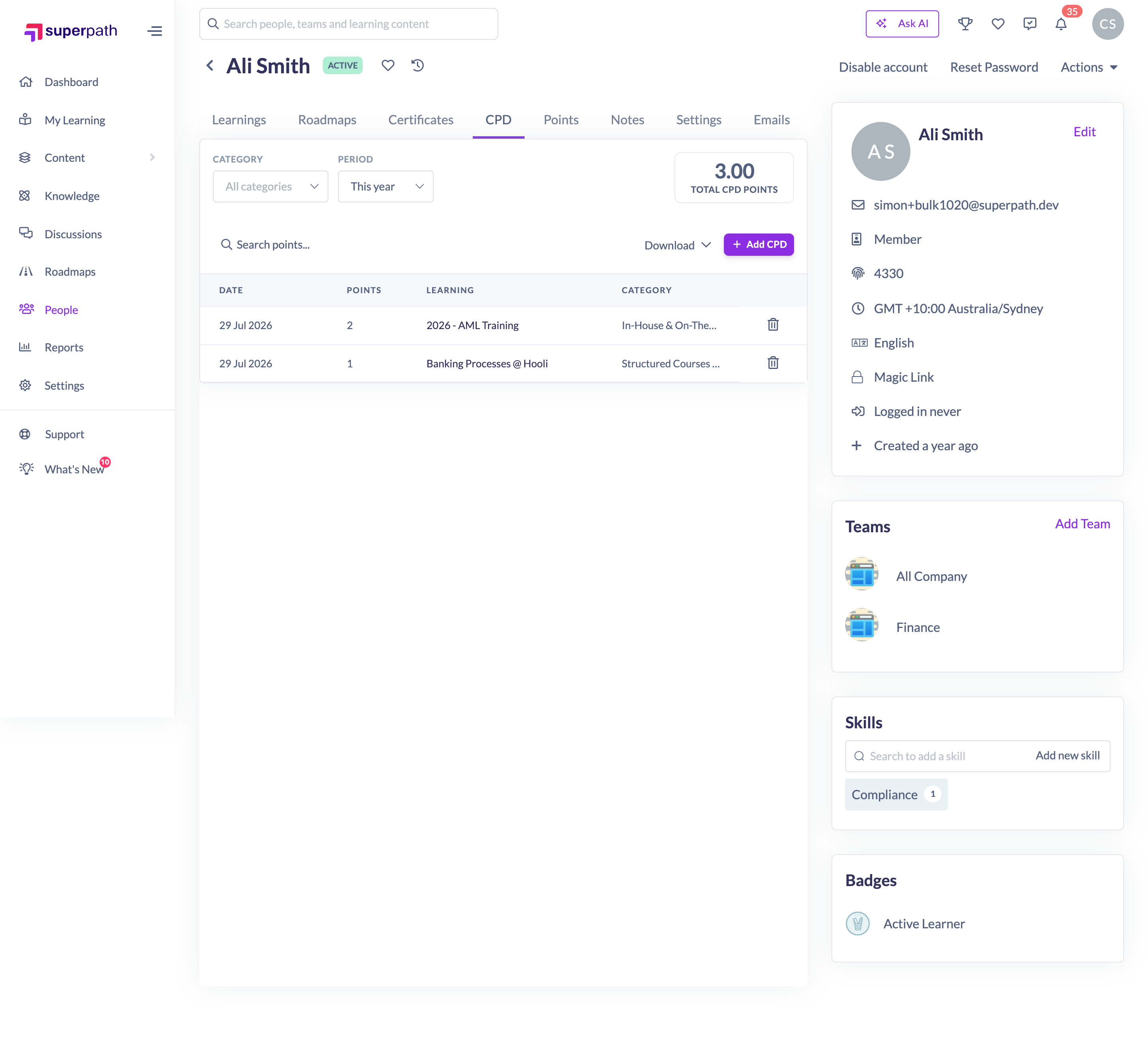
- Set Date Completed — the date the activity actually finished. This can be in the past, and the entry will be counted in the period it belongs to rather than the day you recorded it.
- Enter the Points the activity is worth. You can use decimals in steps of 0.1, up to a maximum of 2000.
- Optionally choose a Category. Pick one of your organisation's CPD categories, or leave it blank.
- Enter the Activity Title — for example Annual compliance conference. This is what shows in the Learning column and on your transcript.
- Optionally add a Provider / Organisation, such as the body that ran the session.
- Optionally attach Completion Evidence — a PDF, JPG or PNG such as a certificate of attendance.
- Click Save.
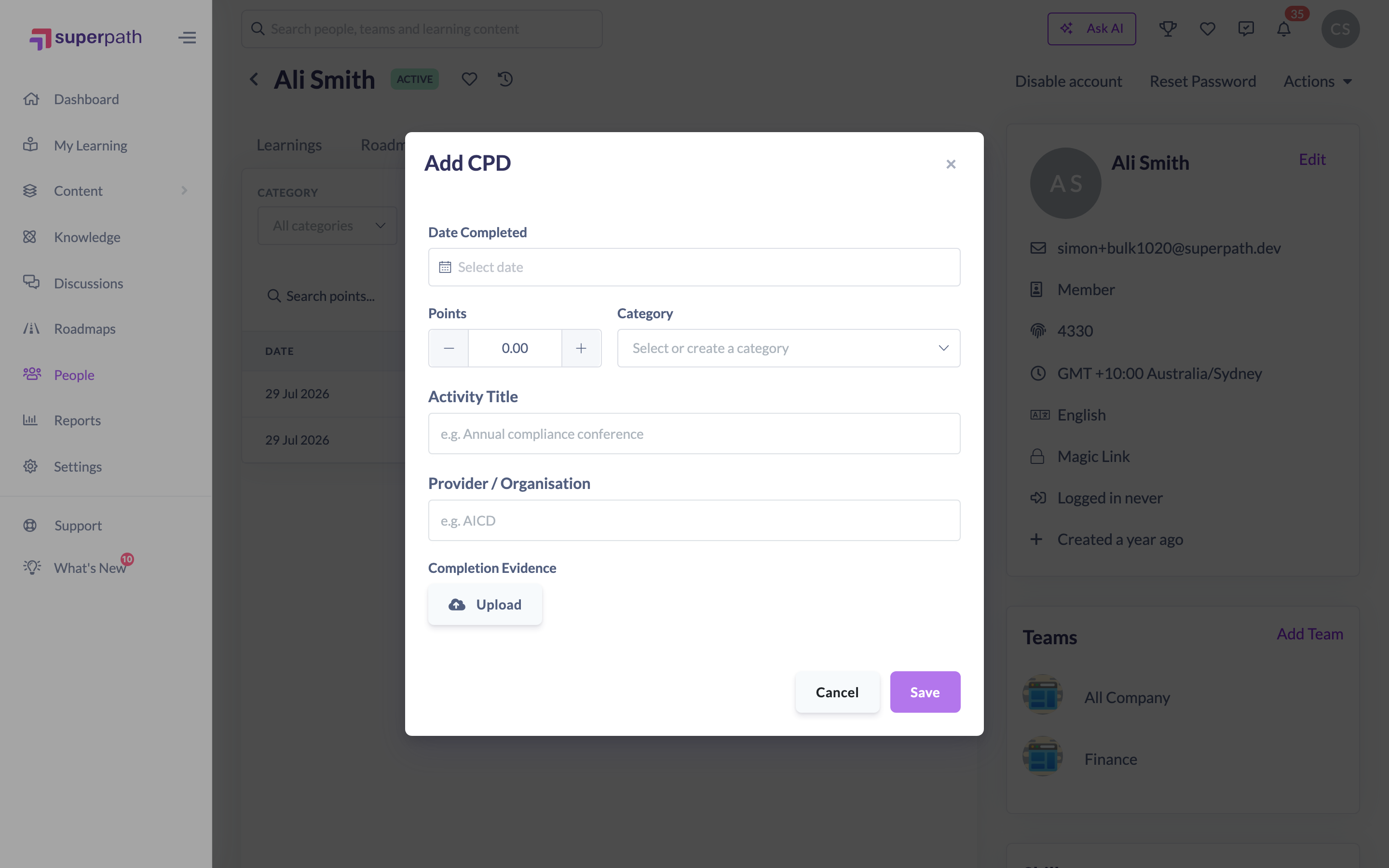
Date Completed and Activity Title are required; everything else is optional. The entry appears in the table immediately and is included in your Total CPD Points.
How to add a CPD entry for someone else
If you manage people, you can record CPD on their behalf — useful when your team hands you certificates from an event rather than logging them themselves.
- Go to People in the left-hand menu and open the person's profile.
- Open the CPD tab.
- Click Add CPD and fill in the same fields as above.
- Click Save.
The entry is recorded against that person, not against you.
How manual entries appear on the CPD tab
Manual and earned points sit in the same table, so a learner has one list to work from. Manual entries are marked so you can still tell them apart:
- A small portrait icon sits next to the date on every manual row.
- The Learning column shows the activity title you typed, followed by the provider where you entered one. Earned rows instead show the Learning or Pathway title as a link through to it.
- Where you attached a file, a View evidence link appears under the title and opens it in a new tab.
Filtering your CPD points and downloading a transcript
Above the table are the controls that shape what you're looking at:
- Category — filter to one or more categories. This only appears once there's more than one category among the person's points, and it includes a No category option for points recorded without one.
- Period — This month, Last month, This year, Last year, or Custom with a date range.
- Total CPD Points — the green card on the right, which always reflects the period and category you've selected.
The search box below filters the rows by title, provider, category, type or points.
To download a CPD transcript, click Download and choose A4 or Letter. The PDF covers the period currently selected and lists each entry with its Date, Points, Learning and Category. If you've filtered to exactly one category, the transcript is scoped to that category too, so it matches what's on screen. Points with no category show as Uncategorised on the transcript.

Deleting a CPD entry
- On the CPD tab, find the row you want to remove.
- Click the trash icon at the end of the row.
- Click Confirm delete.
Entries can't be edited. If you got something wrong, delete the entry and add it again.
Things to keep in mind
- Manual entries are trusted self-reporting. Nothing is queued for review and nothing needs approving — points count as soon as they're saved.
- Because entries are keyed on Date Completed, a back-dated entry lands in the period the learning actually happened in. That applies to the CPD tab, the transcript and the CPD Points Report.
- Points can be 0 if an activity is worth recording but carries no points.
- Evidence files are stored against the entry for the learner's own records. Nobody is asked to check them, and there's no verified/unverified status.
- Only Owners and Admins can create a new CPD category. If a learner types a name that doesn't exist into the Category picker, the entry is saved with no category rather than creating one.
- Turning Allow users to upload their own CPD off later hides the Add CPD button, but entries that were already recorded stay where they are and keep counting.
FAQs
Does someone have to approve my manual CPD?
No. Entries count immediately. SuperPath treats manual CPD as self-reported, so there's no review queue and no pending state.
Can I record CPD from last financial year?
Yes. Set Date Completed to the real date — reporting uses that date, so the entry appears in the period it belongs to.
What file types can I attach as evidence?
PDF, JPG/JPEG and PNG.
Can I edit an entry after saving it?
No. Delete it and add a new one.
Why can't I see the Add CPD button?
Either Allow users to upload their own CPD is off for your organisation, or the Who can add CPD points setting is narrower than your role. An Owner or Admin can check both in Settings → Features.
Do manual points show in the CPD Points Report?
Yes. Manual and earned points are totalled together, and manual points are included in the per-category breakdown.
Who can do this
Everyone can add CPD entries for themselves, provided CPD Points and Allow users to upload their own CPD are enabled and the Who can add CPD points setting allows their role — Everyone covers all roles, Managers & Admins covers Owners, Admins, Managers, Content Managers, People Managers and Instructors, and Admin Only covers Owners and Admins. This check is enforced by SuperPath's API, not just by hiding the button.
Adding an entry for someone else additionally needs access to that person's profile in People, which is limited to Owners, Admins, Managers and People Managers — Owners and Admins can open anyone's profile, while Managers and People Managers work from the people they manage. Content Managers, Instructors, Employees and Restricted users can only add entries for themselves.
For deleting, anyone can delete their own manual entries. Owners, Admins, Managers and People Managers can delete any CPD record in the organisation, including points earned from completed learning. Content Managers, Instructors, Employees and Restricted users cannot delete earned points or anyone else's entries.
Updated on: 30/07/2026
Thank you!